
Need to delete temp files in Windows 11 fast? Use 5 proven methods to remove temporary files safely, free up storage, and improve system performance in minutes.
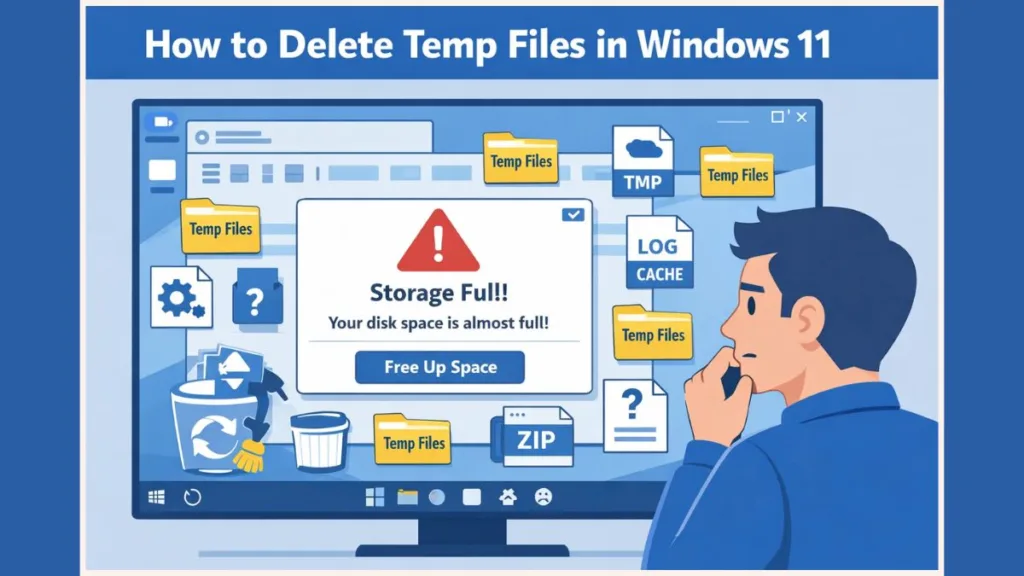
If your PC feels slower, storage keeps filling up, or Windows updates leave junk behind, temporary files are usually the reason. Windows 11 creates temp files constantly—for apps, updates, and background processes.
The good news: you can delete them safely if you know where to look and what to avoid.
This guide walks you through every reliable way to delete temp files in Windows 11, from beginner-friendly settings to advanced command methods.
What Are Temp Files in Windows 11 and Why Do They Exist?
Temp files are short-term files Windows and apps create to store data while tasks run. These include app cache files, Windows Update leftovers, installation files, and browser temp data.
Although many temp files delete themselves, a large portion gets left behind, especially after updates or app crashes. Microsoft’s support documents confirm that Windows accumulates temp files over time and that built-in tools are designed to remove them safely.
Is It Safe to Delete Temp Files in Windows 11 or Can It Cause Problems?
Yes—deleting temp files in Windows 11 is safe in most situations.
Windows protects files that are actively in use. If a file is required, Windows simply won’t let you delete it. That’s why you may see “file in use” warnings. Also, Microsoft community forums and expert answers confirm that deleting temp files via Windows tools such as Settings, Disk Cleanup, and Storage Sense is safe and recommended.
Files that are safe to delete include temp files shown in Settings under Storage, files inside the %temp% folder, and temporary files detected by Disk Cleanup. You should avoid deleting system folders you do not recognize or files that exist outside known temp or cleanup locations. If you stick to the methods below, you won’t break Windows.
Where Are Temporary Files Stored in Windows 11?
Temp files are spread across multiple locations in Windows 11. These include:
- The Temporary files section under Settings > System > Storage
- The %temp% folder that stores user-level temp files
- The Windows Temp folder located at C:\Windows\Temp
- Other locations such as update cache and delivery optimization folders.
Knowing these locations helps you clean properly instead of guessing.
What Are the 5 Best Methods to Delete Temp Files in Windows 11?
1. How Can You Delete Temp Files in Windows 11 Using Settings?
This is the safest and easiest way to delete temporary files in Windows 11, especially for most users.
First, open Settings, then go to System > Storage and click Temporary files. From there, select items such as Temporary files, Windows Update Cleanup, Thumbnails (optional), and Previous Windows installation(s) if you are sure you will not roll back. Once selected, click Remove files.
Windows only shows files that are safe to delete, making this method low risk.
2. How Do You Manually Delete Temp Files in Windows 11 Using the %TEMP% Folder?
This method gives you direct control and clears app-level junk quickly.
Press Win + R, type %temp%, and press Enter. After the folder opens, select all files using Ctrl + A and press Delete.
If Windows says some files are in use, skip them. That’s normal. This method works best after restarting your PC, when fewer apps are running.
3. How Does Disk Cleanup Delete Temporary Files in Windows 11?
Disk Cleanup still works in Windows 11 and is useful for system-related temp files.
Search for Disk Cleanup from the Start menu and select your system drive, usually C:. Click Clean up system files, then check Temporary files, Windows Update Cleanup, and Delivery Optimization Files when shown. Finally, click OK and then Delete Files.
Disk Cleanup finds and removes leftover files including temp files, Windows update cache, and other removable system data.
4. How Can You Automatically Delete Temp Files in Windows 11 Using Storage Sense?
If you don’t want to clean manually, Storage Sense handles temporary files cleanup automatically.
Storage Sense can automatically remove temp files when disk space is low. Microsoft notes that Storage Sense is off by default but may be enabled automatically if space is very low, and you can configure how often and what it deletes.
Go to Settings > System > Storage, toggle Storage Sense ON, and then click Configure Storage Sense. You can configure it to run daily, weekly, or monthly, delete temporary files that apps are not using, and optionally remove items from the Recycle Bin and Downloads folder.
This keeps your system clean without manual effort.
5. How Do Advanced Users Delete Temp Files in Windows 11 Using Command Prompt?
For advanced users only.
Open Command Prompt as Administrator, then run the following command:
del /q /f /s %TEMP%*
This force-deletes temp files under your user profile. Always close running apps first, as this method bypasses the standard UI and can remove files that automated tools miss.
Do Temporary Files Slow Down Windows 11 Performance?
Indirectly, yes.
Temp files consume disk space, reduce available storage for apps and updates, and can contribute to performance bottlenecks on SSDs with limited capacity.
While they don’t directly slow down CPU or RAM, excessive temp data contributes to low disk space notifications and can affect responsiveness.
How Often Should You Delete Temp Files in Windows 11?
Casual users can delete temp files once every one to two months, while heavy users or gamers should do it monthly. The best option for most users is enabling Storage Sense for automated cleanup.
Windows’ automatic cleanup tools take much of the effort out of this task.
What Mistakes Should You Avoid When Deleting Temp Files in Windows 11?
Common mistakes include deleting random folders without knowing their purpose, using aggressive third-party cleaners, deleting temp files while apps are running, and forcing deletion of locked system files.
Windows already provides everything you need—no external tools required for safe removal.
FAQ: Temporary Files Cleanup in Windows 11
Can You Delete System Temp Files in Windows 11 Safely?
Yes, if they appear in Settings → Temporary files or Disk Cleanup categories. Windows blocks unsafe deletions.
What Happens When You Delete Temp Files in Windows 11?
Temporary data is removed, freeing up space. Apps recreate files if and when needed.
Can Temporary Files Be Deleted Without Admin Rights in Windows 11?
User-level temp files can be deleted without admin rights, but system-wide cleanup such as Disk Cleanup system files may require admin access.
How Can You Delete Temporary Files in Windows 11 Without Using Tools?
You can use Settings, the %temp% folder, or Disk Cleanup, all of which are built into Windows.
What Is the Best Way to Remove Temp Files in Windows 11?
If you want one clear answer, use Settings > Temporary files for safety, enable Storage Sense for automation, and use %temp% for quick manual cleanup.
That combination keeps Windows 11 clean, fast, and stable—backed by Microsoft’s own guidance.
Visit Our Post Page: Blog Page