
Annoyed by Amazon’s Rufus AI popping up everywhere? Learn how to disable Rufus on Amazon in 2025 and take back control of your shopping experience.
You open Amazon to do one thing—check a product and move on.
Compare a price. Skim reviews. Decide fast.
Instead, a chatbot overlay slides into view.
Suggestions you didn’t ask for. Prompts you didn’t tap.
Screen space you never agreed to give up.
Key takeaway: When a shopping interface interrupts instead of supports, it creates friction—not convenience.
If Amazon Rufus feels more distracting than helpful, you’re not imagining it. A growing number of shoppers are actively looking for ways to stop Amazon Rufus pop-ups, hide the Rufus chat window, or completely get rid of Rufus on Amazon because it breaks the flow of intentional shopping.
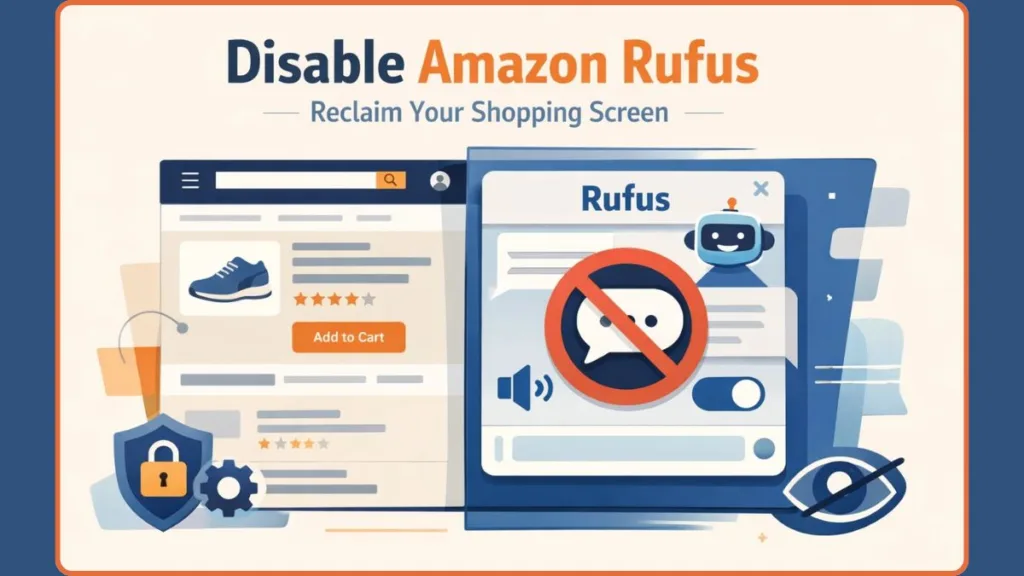
This is the real conflict happening inside the Amazon interface right now:
AI clutter vs. user intent.
Key takeaway: You came to shop with purpose. Rufus shows up with its own agenda.
You came to compare products.
Rufus came to start a conversation.
And when a generative AI shopping assistant begins covering product detail pages, interrupting scrolling, and reshaping the interface without consent, frustration is a rational response—not user error and not a lack of tech literacy.
Tip: Feeling annoyed by Rufus isn’t resistance to technology—it’s a reaction to lost control over your screen.
Amazon presents Rufus as a convenience feature, but for many users it behaves like an intrusive layer—one that inserts itself between you and the information you actually came for. For shoppers who value speed, focus, and a clean UI, that friction adds up fast.
This guide is about reclaiming that space.
What Is Rufus on Amazon: and Why Users Are Pushing Back
Rufus is Amazon’s built-in AI shopping assistant, powered by generative AI, and embedded directly into both the Amazon website and the Amazon mobile app. Its stated purpose is to answer shopping questions, surface recommendations, and guide purchasing decisions using Amazon’s massive product catalog, customer reviews, and community Q&A data.
Key takeaway: Rufus is not a plugin or optional tool—it’s baked directly into Amazon’s core shopping experience.
You’ll usually see Rufus appear in a few consistent places:
- Near the Amazon search bar icon
- On product detail pages
- As a floating chatbot overlay that invites interaction while you browse
On paper, this sounds useful. In practice, many users experience Rufus as persistent, intrusive, and hard to ignore—especially when it appears automatically rather than by choice.
Key takeaway: The issue isn’t what Rufus does—it’s that users don’t get to choose when it does it.
Here’s why users are pushing back:
- Rufus appears by default, with no opt-in, turning quick product checks into interrupted sessions.
- On mobile devices, the Rufus icon and chat window can take up valuable screen space, directly impacting the mobile shopping app experience.
- There is no visible Amazon Rufus AI assistant settings menu, no clear Amazon Rufus disable button, and no straightforward way to turn it off.
- Users across forums report that Rufus sometimes delivers confident but inaccurate responses, which undermines trust rather than building it.
- Amazon has rapidly expanded Rufus usage across its platform, meaning users encounter it frequently whether they want to or not.
Tip: When an AI feature can’t be disabled, users naturally look for workarounds—and that’s exactly what’s happening here.
This lack of control is exactly what’s driving searches like “why is Rufus on my Amazon”, “Amazon Rufus annoying”, and “how to fix Amazon Rufus” across Amazon forums and Reddit discussions.
For minimalist shoppers and power users, this isn’t about rejecting AI altogether. It’s about intentional design. When a tool supports your goal, it feels helpful. When it overrides the interface and demands attention, it stops feeling optional—and starts feeling forced.
Final takeaway: Control over your interface is not a luxury—it’s a basic expectation.
And that’s where resistance turns into action.
Can You Actually Turn Off Rufus on Amazon? (The Honest Answer)
Short answer: No.
Longer answer: Amazon doesn’t offer an official “off” switch—anywhere.
There is no Amazon Rufus disable button, no hidden toggle in Amazon Rufus AI assistant settings, and no account-level option that lets you turn off Rufus on Amazon permanently. That’s true whether you’re on the Amazon Shopping app on mobile or browsing Amazon.com on desktop. Amazon’s documentation and community reports all point to the same reality: Rufus is built into the shopping experience, not packaged as an optional add-on.
What you can do is limited and temporary:
- Close or swipe away the Rufus chat panel on some screens (a short-term hide).
- Ignore the Rufus icon (it appears near the Amazon search bar icon or as a chat bubble).
- Momentarily silence the overlay during a session.
You cannot truly remove or disable Amazon’s generative AI assistant so it stays gone.
Key takeaway: Amazon lets you dismiss Rufus briefly, not eliminate Rufus from your Amazon experience.
That gap—between what users expect and what Amazon provides—is why searches like “can I turn off Rufus on Amazon”, “is there a setting to disable Rufus”, and “why does Rufus keep appearing on every product” keep surfacing across forums and Reddit. When a platform forces a feature without an opt-out, people naturally look for other ways to reclaim control.
Tip: Dismissing an overlay is not the same as disabling it. Treat in-session hides as temporary relief, not a solution.
Why Amazon Makes Rufus Hard to Disable (The Expert Angle)
This is not an accident. It’s deliberate design.
Rufus functions as more than a helper. It’s an engagement engine—a generative AI feature embedded to increase time on page, interaction frequency, and capture richer shopping intent signals. Amazon positions Rufus to answer questions, surface recommendations, and keep users inside the platform rather than sending them off to external review sites.
Key takeaway: Rufus is implemented to boost engagement metrics, not to be an easily detachable widget.
How that shows up in practice:
Higher engagement & time on page: Conversational prompts encourage follow-up questions and longer sessions.
Personalized recommendations: Rufus uses catalog, reviews, and Q&A data to suggest options that traditional search might miss.
Conversational shopping flows: Dialogues replace passive scanning, increasing clicks and the chance of conversion.
Broad placement across the site and app: Rufus appears on home pages, search results, and product detail pages, making it hard to avoid.
Expert insight: Features designed to deepen engagement rarely ship with a simple opt-out—because making them removable would blunt the metrics they’re built to improve.
For minimalist shoppers and power users, this creates a clear clash: you want a tidy, fast interface; Amazon prioritizes retention and discovery. Understanding that tension reframes the problem. You’re not missing a hidden switch. You’re up against a design choice rooted in data and attention economics.
Tip: Knowing why Rufus is locked in helps you pick the right response—workarounds and browser-level controls, not waiting for Amazon to add a toggle.
How to Disable Rufus on Amazon Website (Desktop Workarounds That Actually Work)
If you shop on a laptop or desktop, this is where you finally get real control.
Amazon may not give you a way to turn off Rufus on Amazon, but your browser does. That’s where power shoppers step in—quietly, effectively, and without waiting for permission.
The most reliable approach right now is blocking Rufus at the browser level, not the Amazon account level.
Block Rufus on Amazon Using Browser Extensions
Using a trusted ad-blocking or content-filtering extension allows you to hide Rufus on Amazon website pages entirely—including the chatbot overlay and UI prompts. This aligns with what users across Amazon forums and Reddit consistently report: browser tools work where Amazon settings don’t.
Popular choices among users include:
- uBlock Origin (widely reported as the most effective on Amazon)
- Other advanced content blockers that support custom filters or CSS selectors
These tools work by targeting the Rufus chatbot overlay elements directly in the page structure before they ever render on your screen. Community-shared filters focus on hiding the Rufus container rather than interfering with shopping features.
What stays intact:
- Product pages load normally
- Search results remain untouched
- Rufus simply never appears
Key takeaway: This doesn’t disable Amazon’s AI server-side—it blocks Rufus from appearing in your browser, which is exactly what most power shoppers want.
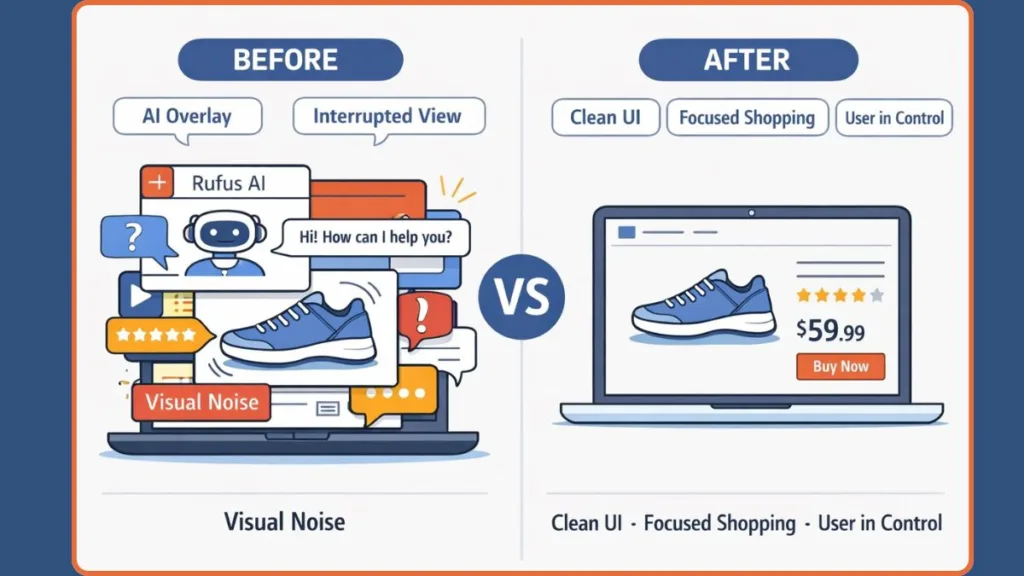
Advanced users take this further by applying custom CSS selectors tied to Rufus UI elements in Amazon’s DOM. Once blocked, the interface loads cleanly—no chat window, no prompts, no distractions.
Tip: Browser-based blocking is currently one of the most effective and low-effort workarounds for desktop users who want a clean, distraction-free shopping experience.
This approach fits perfectly with minimalist shopping: strip away the noise, keep the essentials, and move faster.
How to Hide Rufus on the Amazon Mobile App (What You Can and Can’t Do)
Mobile is a different story—and a more frustrating one.
If you’re using the Amazon app on Android or iPhone, there is currently no way to fully disable Rufus.
No setting. No toggle. Even, No hidden menu buried in preferences.
What you can do is limited to temporary suppression.
What Works (Briefly)
On mobile, Rufus appears as:
- A floating chat icon
- An expandable chat window
- A prompt layered over product detail pages
These elements are built directly into the Amazon Shopping app interface, not added as optional components. That’s why app-level control is so limited.
You can:
- Swipe down or tap the close (X) to hide the Rufus chat window
- Continue browsing—until it reappears on another page or after an app refresh
Key takeaway: On mobile, you can hide Rufus temporarily, but you cannot stop it from coming back.
What Doesn’t Work (Yet)
- There is no Amazon Rufus AI assistant settings section in the mobile app
- You cannot disable AI features on Amazon mobile apps
- Clearing cache, reinstalling the app, or changing regions does not remove Rufus
That’s why users keep searching “hide Rufus on Amazon app”, “Rufus icon Amazon mobile app”, and “stop Rufus from popping up”—and keep hitting the same wall.
Tip: If mobile shopping is your default and Rufus feels intrusive, some users choose to shop through a mobile browser with content-blocking enabled instead of the app, where blockers can suppress Rufus elements the app won’t let you control.
It’s not perfect. But until Amazon offers choice, users adapt—by reclaiming control wherever the platform still allows it.
Can Amazon Support Disable Rufus for Your Account? (What Users Report)
This is the next step many frustrated shoppers take: contacting Amazon support and asking if Rufus can be removed from their account.
The outcome is rarely clear—and never consistent.
Some users report that customer service acknowledged the request and offered to “submit feedback” or open a ticket. Others were told plainly that Rufus is a core feature and cannot be disabled at the account level. Across forums and Reddit, one thing stays consistent: no one reports a permanent, reliable fix.
Here’s the pattern users keep running into:
- There is no documented process for disabling Rufus through support
- Any action taken appears manual, unofficial, and inconsistent
- Even when support agrees to “look into it,” Rufus often returns
Seller and buyer discussions alike reinforce the same conclusion: there is no backend switch that support agents can flip to shut Rufus off entirely—not through account settings and not through customer service.
Key takeaway: Contacting Amazon support may log feedback, but it is not a dependable way to disable Rufus on Amazon.
That’s why searches like “Amazon customer service Rufus feedback” and “can Amazon disable Rufus for my account” keep appearing—without clear success stories to match.
Tip: If you do reach out to support, frame the issue as UI obstruction or accessibility friction, not simply disliking AI. Those complaints are more likely to be formally recorded.
In short, Amazon support can listen, but they can’t currently remove Rufus AI from Amazon on demand. That reality is what pushes users away from official channels—and toward solutions they can control themselves.
Amazon Assistant vs Rufus: Why This One Feels Worse
If Rufus feels more invasive than past Amazon features, that’s because it operates differently at a structural level.
Amazon has introduced helpers before, most notably the older Amazon Assistant. The key difference wasn’t intelligence—it was choice.
Amazon Assistant:
- Was optional
- Lived mostly outside the core shopping flow
- Could be ignored or removed without disrupting browsing
Rufus, by contrast:
- Is embedded directly into search, home pages, and product detail pages
- Appears by default, with no opt-in
- Functions as a floating chatbot overlay
- Pulls answers from a large language model trained on product data, reviews, and Q&A
Key takeaway: Amazon Assistant assisted. Rufus intervenes.
Amazon positions Rufus as a way to help shoppers save time and make better decisions, offering comparisons and answers without leaving the page. But that deeper integration also means Rufus reshapes the interface itself, not just the information within it.
This is why Rufus feels heavier. It doesn’t sit beside the experience—it changes how discovery works. Instead of search-first browsing, Amazon is nudging users toward conversation-first exploration.
With millions of shoppers already interacting with Rufus and questions flowing through it daily, Amazon is clearly betting on conversational AI as the future of shopping.
Expert insight: Tools that change how you interact with content feel more invasive than tools that simply support it.
For users who value speed, clarity, and minimalism, this shift can feel like a loss of control. That’s why searches like “Amazon Assistant vs Rufus”, “Amazon shopping AI removal”, and “Rufus intrusive” keep growing.
For power shoppers, the takeaway is simple: understand the difference—then reclaim control wherever the platform still allows it.
FAQs About Disabling Rufus on Amazon
These are the questions shoppers keep asking when Amazon Rufus starts getting in the way. Short answers. Clear facts. No fluff.
Can I turn off Rufus on Amazon completely?
No. There is no official way to disable Rufus on Amazon—no toggle, no preference, no account-level control on desktop or the Amazon Shopping app.
Is there a setting to disable Rufus in Amazon settings?
No. There is no Amazon Rufus AI assistant settings section with an off switch. Rufus is embedded into the interface.
How do I block Rufus on Chrome or desktop browsers?
Use a browser extension like uBlock Origin to block Rufus on Amazon browser pages by hiding the chatbot overlay before it loads.
How do I hide the Rufus icon in the Amazon app?
You can’t remove it permanently. You can only swipe down or tap X to hide it temporarily—and it will return.
Why does Rufus keep appearing on every product page?
Rufus shows up where Amazon predicts high shopping intent—search results and product detail pages.
Can I go back to the old Amazon search experience?
Not fully. Rufus is now part of Amazon’s core shopping journey. Workarounds can hide it, but settings can’t revert it.
Minimalist Shopping Takeaway: Clean UI, Faster Decisions
Shopping works best when the interface stays out of the way.
For minimalist shoppers, Rufus represents a shift—from search-first clarity to conversation-first clutter. Helpful in theory. Distracting in practice. Especially when it interrupts flow, covers content, and demands attention you didn’t ask to give.
This isn’t about rejecting AI. It’s about choice.
Key takeaway: A clean interface respects user intent. A cluttered one competes with it.
Amazon is clearly betting on conversational AI as the future of shopping. Until an opt-out exists, control lives with the user—through browser-level blocking, UI-aware dismissals, and intentional habits that prioritize speed and focus.
Strip away what slows you down.
Keep what helps you decide.
Silence what gets in the way.
Final takeaway: Minimalist shopping isn’t about buying less—it’s about removing friction so every decision feels deliberate again.
Visit Our Post Page: Blog Page