
Login window blocked? Learn how to enable pop-ups on Safari iPhone quickly. Follow our guide to allow pop-ups in Safari iPhone settings to fix the issue.
You’re probably here because you just tapped a button that should have opened something—and nothing happened. No login window. No bank verification. No payment confirmation.
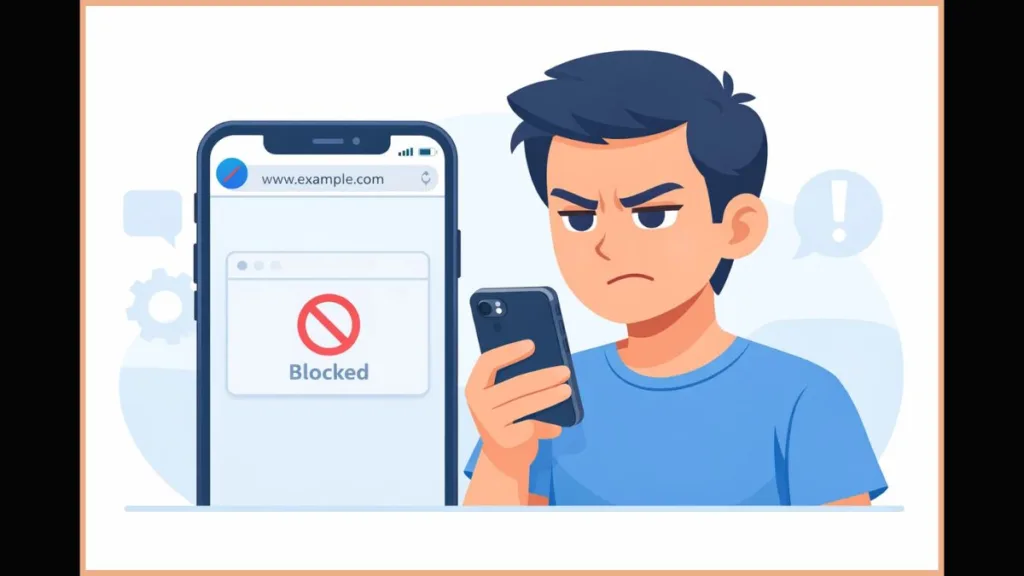
Safari didn’t show an error; it simply blocked the action and moved on. That’s frustrating, especially when you’re mid-task and need the site to work now. You’re not doing anything wrong. Safari’s pop-up blocker is doing exactly what it’s designed to do, and you just need to tell it—briefly—when to stand down.
Why Is Safari Blocking Pop-Ups on Your iPhone by Default?
If Safari feels like it’s silently ignoring your taps, that’s because pop-ups are blocked automatically on iPhone. Apple enables the Safari pop-up blocker by default to protect you from scams, fake alerts, and aggressive ads or phishing that try to hijack your screen. Most of the time, this is helpful and invisible.
The problem shows up when you’re on a legitimate site that relies on pop-ups to function. As you look at your screen, you may notice a button labeled “Continue,” “Authorize,” or “Sign in with bank,” but when you tap it, nothing opens. Safari isn’t frozen. The site isn’t broken. The browser has simply decided the new window isn’t allowed.
Understanding this matters, because once you know Safari is blocking the action—not the website—you can fix it safely and intentionally instead of guessing or reloading the page over and over.
How Do You Enable Pop-Ups on Safari iPhone?
If you’re blocked mid-login or stuck on a payment screen, this is the fastest fix. You’re going to temporarily disable the pop-up blocker, let the site do what it needs to do, and then turn protection back on.
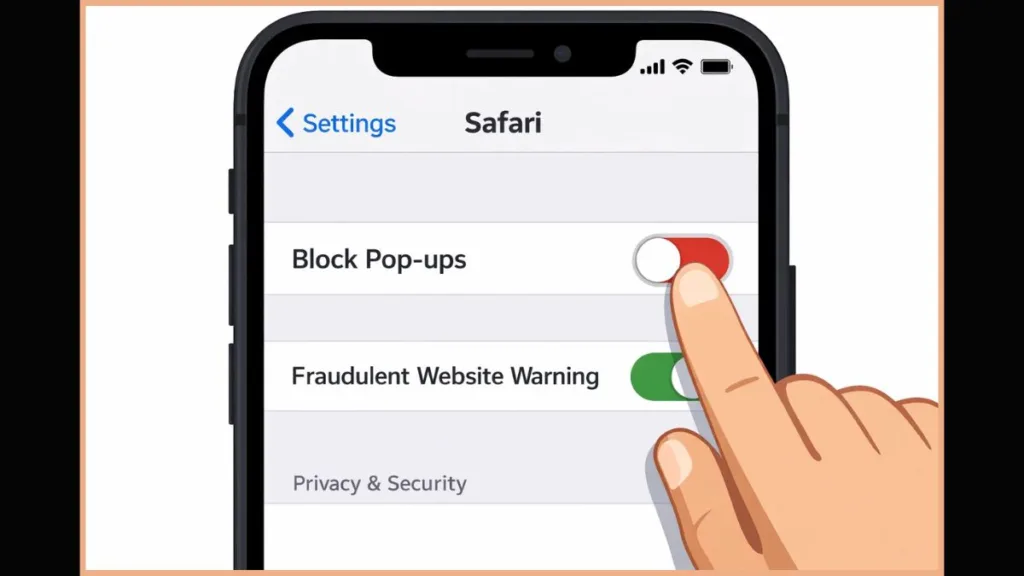
How Do You Enable Pop-Ups Using iPhone Settings?
As you follow these steps, keep Safari open in the background so you can return to it immediately after.
First, unlock your iPhone and open the Settings app. As you scroll, you’re looking for Safari, not the website itself. When you tap Safari, you’ll land on the main Safari settings screen. At this point, scroll until you see the General section. Right there, you’ll find Block Pop-ups.
If the toggle is green, Safari is actively blocking every pop-up request. Tap the toggle once. When it turns grey or white, pop-ups are now allowed globally. Nothing else changes on your phone, and no data is deleted. You’ve simply told Safari to stop intercepting new windows.
Right after you switch this off, go back to Safari and try the action again. In most cases, the login or payment window opens immediately, confirming that the blocker was the issue.
“This setting is global. Safari does not allow pop-ups site by site on iPhone.”
Keep that limitation in mind as you move forward.
Why Are Safari Pop-Ups Still Not Working on Your iPhone?
If you already turned off Block Pop-ups and the site is still unresponsive, it feels confusing—and honestly unfair. At this point, Safari should be letting windows through, but something else is interfering.
Is a Content Blocker Still Interfering?
As you look at your settings, remember that pop-up blocking isn’t limited to Safari alone. If you use ad blockers or privacy extensions, they can override Safari’s behavior. Even with pop-ups enabled, these tools may silently suppress new windows.
Go back into Settings > Safari, then check any content blockers or extensions you’ve installed. Temporarily disabling them is safe for testing. Once you do, return to the site and try again. If the pop-up finally appears, you’ve found the conflict.
Could Safari or iOS Be Stuck?
Sometimes Safari itself needs a reset. If you tapped a button repeatedly and nothing happened, close Safari completely and reopen it. If that doesn’t help, restart your iPhone. This clears stalled processes that can prevent windows from launching even when settings are correct.
Also check your iOS version. Older versions can mis-handle pop-up requests on modern websites. Updating iOS often resolves this without changing any browser settings.
Can You Allow Pop-Ups for Specific Websites on Safari iPhone?
This is where many users expect more control—and run into a hard limit. On iPhone and iPad, Safari does not support allowing pop-ups for one site only. There is no whitelist, no per-site toggle, and no hidden menu you’re missing.
What you can do, and what works reliably, is a controlled workaround. You disable the pop-up blocker, complete the task on the trusted site, and then re-enable protection immediately afterward. It’s not elegant, but it’s safe and effective.
“On iPhone, pop-up control is all or nothing. Temporary changes are the safest approach.”
Once you know this, you stop wasting time looking for a setting that doesn’t exist and focus on finishing the task.
Is It Safe to Enable Pop-Ups on Safari iPhone?
This is a reasonable concern, and you’re right to pause before changing security settings. Enabling pop-ups is safe when you do it intentionally and briefly. Banks, government portals, payment processors, and secure login systems often depend on pop-up windows to verify your identity.
The risk appears when pop-ups are left enabled permanently. That’s when deceptive sites can open misleading windows or redirects without you expecting them.
The safe pattern is simple. Enable pop-ups, complete the action you need, and then turn Block Pop-ups back on. You stay protected without breaking legitimate websites.
What If Safari Still Fails—Should You Try Edge?
If Safari absolutely refuses to open a required window and you’re under time pressure, using Microsoft Edge for iOS as a temporary backup is reasonable. Edge has its own pop-up control inside the app that you can adjust independently from Safari, so it can allow critical login or payment windows to open when Safari is stuck.
In Edge, you open the app’s Settings, go to Privacy & Security, find the Block Pop-ups option, and toggle it off to let pop-ups through or back on when you’re done; this gives you a separate way to handle pop-ups when Safari’s settings don’t resolve the issue.
Common Questions About Pop-Ups on Safari iPhone
If you’re wondering why Safari didn’t warn you or show an error, that’s normal. When Safari blocks a pop-up, it often does so silently. This is why it feels like buttons are broken.
If you’re asking whether pop-ups work on newer versions of iOS, the answer is yes—but the setting behaves most predictably on iOS 16 and later.
And if you’re still hoping for a way to allow pop-ups for one site only, remember that this feature exists on Mac (macOS) but not on iPhone. Knowing that distinction saves time and frustration.
When Should You Turn the Pop-Up Blocker Back On?
As soon as the login, payment, or download finishes, go back to Settings > Safari and turn Block Pop-ups back on. You don’t need to wait, and you don’t need to remember later. Doing it immediately keeps Safari quiet, focused, and secure.
You’re now back in control. Safari will block what should be blocked, and you’ll know exactly when—and why—to override it next time.
Visit Our Post Page: Blog Page