
Steam downloading instead of transferring files? Learn how to enable local transfer on Steam, fix LAN transfer issues, and download games locally without using internet bandwidth.
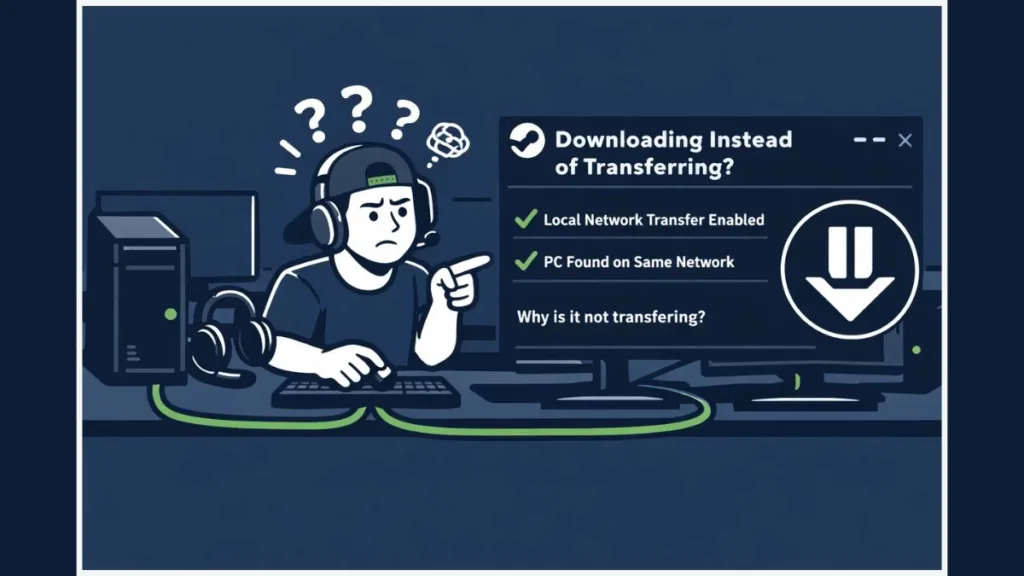
If Steam keeps downloading instead of transferring, you’re not imagining things—and you’re not doing anything wrong. Steam’s local network game transfer feature is powerful, but it’s also strictly conditional. The moment one requirement isn’t met, Steam quietly switches back to downloading from its servers.
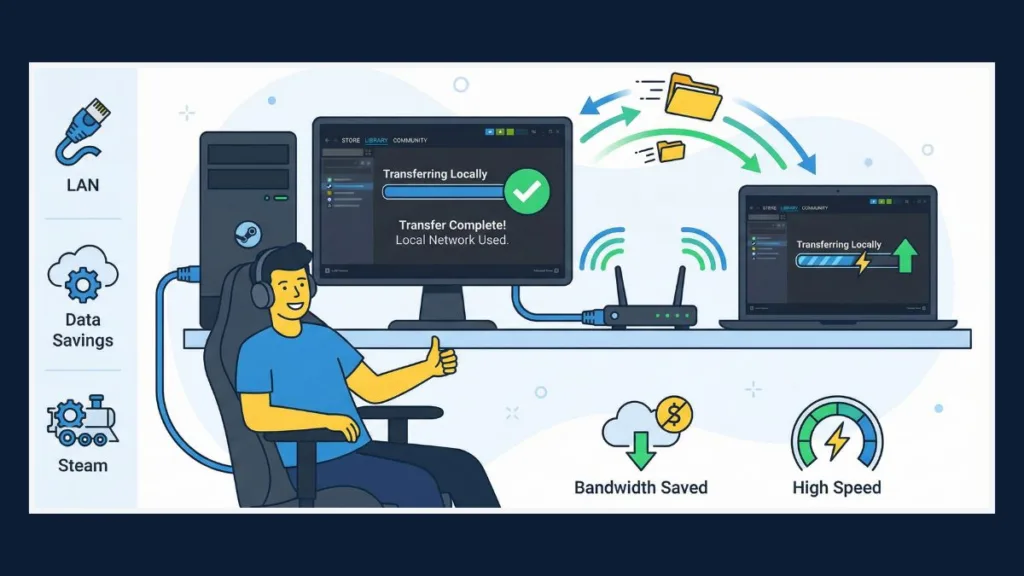
When everything is set up correctly, though, you can install games directly from another PC on your local network. That means less bandwidth usage, no data-cap stress, and no re-downloading massive 80–150 GB games you already have. This is especially useful if you’re setting up a new PC, adding a Steam Deck, or managing multiple systems on the same LAN.
Below, we walk through exactly how to enable local transfer on Steam, explain why Steam sometimes downloads instead of transferring, and show you how to fix it when that happens.
What Is a Local Network Game Transfer on Steam?
A local network game transfer allows Steam to install a game by copying existing game files from another computer on the same local network, instead of pulling those files from the internet.
From your perspective, nothing feels different.
You open your Library, click Install, and Steam handles everything automatically.
Behind the scenes, however, Steam runs several checks—in order:
- It scans your local network for another device running Steam.
- It confirms that the same game is already installed on that device.
- It verifies the game version is fully up to date.
- It checks whether local transfers are allowed based on your settings.
If all checks pass, Steam starts transferring files locally over your LAN instead of downloading them.
What This Feature Is NOT
This distinction matters, because many guides mix unrelated features and cause confusion.
- It is not the same as moving games between drives on one PC.
- It is not manual folder copying or drag-and-drop transfers.
- It is not Windows Delivery Optimization.
- It is not Steam Backup or Restore.
Steam local network transfer is automatic, LAN-based, and permission-controlled—which is why it behaves differently from those options.
Why Is Steam Downloading Instead of Transferring Locally?
Steam downloads instead of transferring when any single requirement fails, even briefly. Importantly, Steam does not display an error message when this happens. It simply falls back to its servers.
The most common causes usually fall into these categories:
- Local transfer is disabled in Downloads settings, so Steam never attempts a LAN scan.
- Transfer permission is set to “My devices only,” which often fails in real-world setups.
- The source PC is busy downloading updates or running a game.
- The game on the source PC is out of date.
- Both systems are not on the same LAN or subnet, even if they share a router.
- A firewall or antivirus tool is blocking local file streams.
Steam’s behavior here is intentional. If a transfer fails partway through, Steam immediately switches to internet download to prevent corrupted or incomplete installs.
Requirements to Enable Local Network Game Transfer on Steam
Before troubleshooting anything else, confirm every requirement below is met.
- Steam must be installed and logged in on both devices.
- Both PCs must be connected to the same local network, not just the same ISP.
- The game must already be installed and fully updated on at least one PC.
- The source PC must be powered on and idle, with no active downloads or games.
- Game File Transfer Over Local Network must be enabled in Steam settings.
- Only desktop-mode PCs can send files.
- A Steam Deck can receive games, but it cannot send them.
If one PC is running the Steam Beta client and the other isn’t, align both systems to the same client version to avoid transfer issues.
How Do I Enable Steam Transfers? (Step-by-Step)
Enable Local Network Transfer in Steam Downloads Settings
- Open Steam.
- Click Steam > Settings in the top-left corner.
- Select Downloads from the sidebar.
- Turn ON Game File Transfer Over Local Network.
This toggle controls whether Steam even attempts to detect other PCs on your LAN. If it’s disabled, Steam will always download from the internet—no exceptions.
Set the Right Permission (Critical)
In the same Downloads section, locate Allow transfers from this device to.
You’ll see three options:
- My devices
- Steam Friends
- Anyone
In practice, My devices frequently fails to trigger transfers—even when everything else is correct. If Steam keeps downloading instead of transferring, switch the setting to Steam Friends. If that still doesn’t work, temporarily choose Anyone.
Once the transfer completes, you can safely revert this setting.
How to Transfer Steam Games Over My Local Network
There is no special transfer button in Steam.
To start a local transfer, follow the normal install flow:
- Open your Steam Library.
- Select the game you want to install.
- Click Install.
Steam checks the network automatically. If a valid source exists, the Downloads page shows “Transferring locally.”
You never:
- Choose the source PC
- Browse for files
- Approve the transfer manually
If the source PC disconnects or becomes busy, Steam seamlessly switches back to internet download.
“This Game Can Be Transferred Locally” on Steam — What It Means
This message appears when Steam detects a compatible local source.
Specifically, it means:
- Another PC on the LAN has the game installed.
- The game version matches Steam’s expectations.
- Transfer permissions allow the operation.
However, you won’t always see this message—even when a local transfer is working. The Downloads page remains the most reliable indicator.
How to Download Locally on Steam Instead of Using the Internet
Steam doesn’t offer a manual “force LAN transfer” option. That said, you can dramatically improve reliability by ensuring the following:
- The source PC is completely idle.
- The game on the source PC is fully updated.
- Transfer permissions are set to Steam Friends or Anyone.
- Both devices are awake and on the same subnet.
- No VPN is active on either system.
Steam prioritizes reliability over speed. If LAN conditions look unstable, it defaults to downloading from its servers.
Steam Transferring Files on Local Network vs Moving Games Between Drives
These features solve different problems, and mixing them up leads to frustration.
Local Network Transfer
Local network transfer is designed for PC-to-PC installs or PC-to–Steam Deck installs. It transfers files over your LAN and requires both devices to stay powered on.
Move Install Folder (Same PC)
Moving an install folder is meant for storage upgrades on one PC. It shifts files between drives and doesn’t use the network at all.
If you’re only changing drives on one system, use Storage / Library Folders, not local transfer.
Can I Transfer a Game From a PC to a Steam Deck?
Yes. PC > Steam Deck transfers are supported.
However, there are important limitations:
- A Steam Deck cannot send games back to a PC.
- Save files are not transferred as part of the process.
- Steam Workshop items download separately.
- Save data syncs via Steam Cloud.
This is expected behavior—not a bug.
Local Transfer Steam Not Working? Fixes That Actually Help
Check Enable Local Network Game Transfer
- Open Steam and go to Settings.
- Navigate to Downloads.
- Confirm Game File Transfer Over Local Network is enabled.
- Restart Steam on both PCs.
Change Transfer Permission (Most Common Fix)
If transfers don’t start, change permissions from My devices to Steam Friends or Anyone, then retry.
Verify Integrity of Game Files (Source PC)
- Open the Library.
- Right-click the game and choose Properties.
- Open Installed Files.
- Click Verify integrity of game files.
Update Steam on All Devices
Keep both clients updated using Check for Steam Client Updates. Version mismatches frequently block LAN transfers.
Temporarily Disable Firewall or Antivirus
Some security tools interfere with LAN file streams. Disable them briefly during the transfer, then re-enable protection afterward.
Steam Downloading Instead of Transferring Files — How to Force Local Transfer
To reduce fallback behavior and improve consistency:
- Close all downloads on the source PC.
- Keep both PCs awake throughout the transfer.
- Use wired Ethernet instead of Wi-Fi where possible.
- Clear the Steam Download Cache via Settings > Downloads.
After clearing the cache, log back into Steam and retry the install.
How Fast Is Steam Transferring Files on a Local Network?
Transfer speed depends on multiple factors:
- SSDs transfer significantly faster than HDDs.
- Ethernet is faster and more stable than Wi-Fi.
- Network driver quality matters.
- High CPU or disk usage slows transfers.
Steam has referenced around 100 MB/s as a practical ceiling, but real-world speeds vary. Even slower LAN transfers are often worth it because they use zero internet bandwidth.
FAQ: Enable Local Network Transfer on Steam
What Is a Local Network Game Transfer?
It installs a Steam game by copying files from another PC on the same LAN.
How Do I Enable Steam Transfers?
Open Steam, go to Settings > Downloads, and enable Game File Transfer Over Local Network.
How Do I Transfer Steam Games Over My Local Network?
Install the game normally from your Library. Steam handles the transfer automatically.
Why Is Steam Downloading Instead of Transferring?
This usually comes down to permissions, source PC activity, version mismatches, or firewall restrictions.
Can I Transfer a Game From a PC to a Steam Deck?
Yes. PC-to–Steam Deck transfers work; the reverse does not.
When You Should Use Local Network Transfer on Steam (And When You Shouldn’t)
You should use local network transfer when you have multiple PCs, are dealing with bandwidth limits, are setting up a new system, or want to avoid re-downloading extremely large games.
You should skip it when your LAN is slower than your internet connection, the source game is out of date, or the source PC cannot remain idle.
Steam’s local transfer works because it’s simple and automatic when configured correctly. Built by Valve, it’s one of the few features that genuinely saves bandwidth instead of just shifting the problem elsewhere.
Visit Our Post Page: Blog Page