
Find out how to find memories on Facebook in 2026 and revisit old posts, photos, and “On This Day” memories. Learn how to view Facebook memories on mobile, desktop, and from previous years easily.
You’re scrolling Facebook, a wave of nostalgia hits, and you want to revisit a specific moment: a picture from a college trip, a birthday celebration, or a funny post. Now you’re frantically searching, “Where are my Facebook memories?” or “Why can’t I see my memories on Facebook today?”
Can You Find Memories on Facebook Today?
Let’s answer that question immediately: yes, finding Facebook memories is simple once you know where to look. While Facebook updates its interface frequently and features sometimes move around, your digital scrapbook is still there. The “find memories” method everyone is looking for is actually just navigating to the right dashboard or your Activity Log.
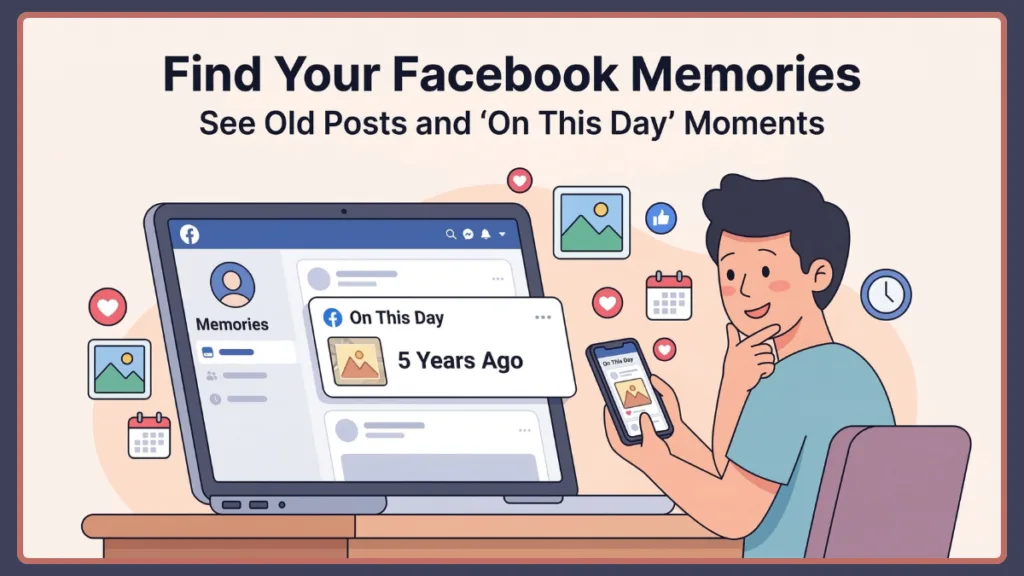
This guide will show you exactly how to do that, explain what happens when you look for memories from previous days, and provide strategies to manage your notifications gracefully. It covers both mobile and desktop, clearly separates viewing today’s memories from finding older ones, and includes tips for fixing issues if Facebook memories are not showing.
What Are Facebook Memories and How Do They Work?
Facebook Memories are posts, photos, and interactions from previous years that Facebook resurfaces automatically. Think of it as your digital scrapbook inside Facebook. The platform gathers content from your timeline and highlights it through the “On This Day” feature, which shows posts from the same date in past years.
Facebook originally launched this concept as “On This Day” in 2015, later expanding and rebranding it into the comprehensive Memories hub we use today. Beyond just daily posts, the modern feature also compiles automated seasonal recaps, like your Year in Review, monthly highlight videos, and special friendship anniversaries.
Facebook memories may include:
- Photos you uploaded (e.g., a photo posted on March 10, 2020 appearing on March 10, 2026).
- Status updates.
- Posts where you were tagged.
- Friendship anniversaries.
- Major life events.
- Shared interactions with friends.
Tip: Because these memories are tied to dates, Facebook normally shows memories from the same day in previous years, not every past post at once. This is why users frequently search for things like “Facebook memories from previous days” or “how to see Facebook memories from other days.” We’ll cover those methods below.
How to Find Memories on Facebook (Quick Method)
The fastest way to view your memories is through the dedicated Memories section inside Facebook.
Step-by-Step Quick Method
- Open Facebook and log in to your account.
- Tap or click the Menu section.
- Select Memories from the list of features.
- Scroll through the page to see your memories from previous years.
Tip: If you want a direct shortcut, you can also visit facebook.com/memories. This page opens the dedicated dashboard where all your nostalgic posts appear.
How to Find Memories on Facebook App (iPhone and Android)
Most people access Facebook through their phones. The good news is that the steps are very similar for both iPhone and Android devices.
Step-by-Step on Mobile (iPhone)
- Open the Facebook app on your device.
- Tap the Menu icon located at the bottom right corner.
- Scroll through the menu options until you find Memories.
- Tap Memories to open the page and view posts from the same date in previous years.
Tip: Acting proactively to receive reminders is easy—tap the settings gear icon inside the Memories page and enable memory notifications. (Note: Facebook doesn’t allow browsing by a different date through this page itself. Use the Activity Log instead, explained below).
Step-by-Step on Mobile (Android)
- Open the Facebook app.
- Tap the three-line menu icon at the top right corner.
- Scroll down and select Memories.
- Browse through your posts from previous years.
Pro Tip for Mobile Users: If you check your memories daily, you can pin the feature directly to your shortcut bar. Simply tap and hold any icon on your bottom (iPhone) or top (Android) navigation bar, select Customize your shortcut bar, and change the Memories pin setting to Pin for instant one-tap access.
Tip: Once inside the memories page, you can share an old memory again, comment on past posts, react to photos, or hide a memory you prefer not to see.
How to Find Memories on Facebook Desktop
Step-by-Step on Desktop
- Open Facebook in your browser and log into your account.
- Look at the left sidebar on your homepage.
- Find and click Memories. (If it isn’t visible immediately, click See More to expand the menu).
- View memories from previous years based on today’s date.
Tip: This desktop method allows you to easily share memories again, hide memories from certain people, and adjust memory notification settings all from a larger screen. For even faster access, you can bookmark the Facebook Memories URL directly in your web browser.
How to See Facebook Memories From Previous Days & Different Days
One of the most common questions people ask is: “How can I see Facebook memories from previous days?” Since Facebook normally shows memories only from the same calendar date in past years, you need alternative methods to find posts from specific dates or time periods.
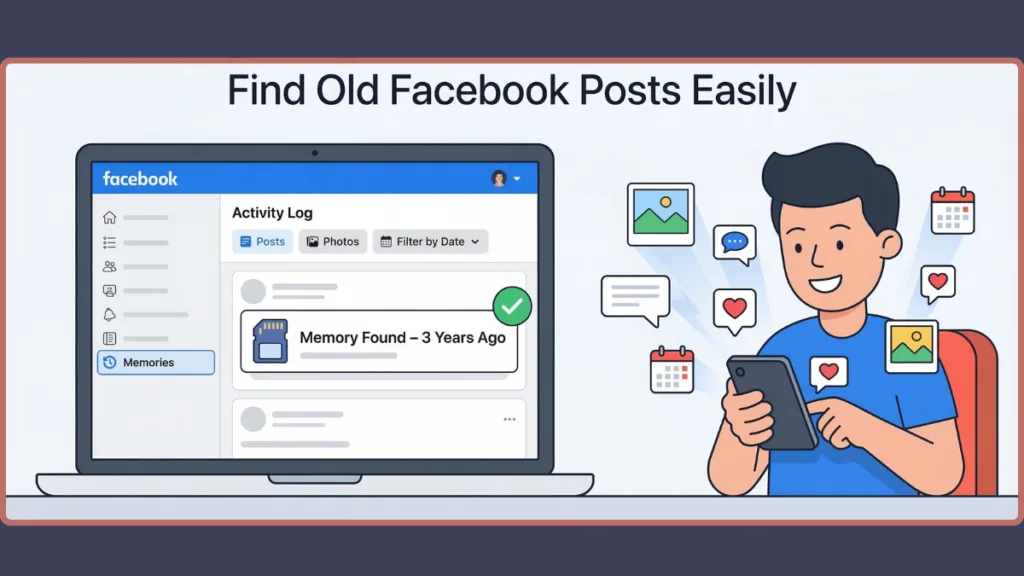
Use the Activity Log
- Go to your Facebook profile.
- Click Activity Log.
- Use the Filter by Date option.
- Choose the year or specific activity you want to see.
Use the Manage Posts Feature
If the Activity Log feels too cluttered, you can use the Manage Posts tool directly on your profile to find specific dates.
- Go to your profile page.
- Tap or click Manage Posts (usually located right below the status update text box).
- Click Filters and select the exact date, month, and year.
- This will display a clean, manageable grid of everything you posted on that specific day in history.
Scroll Through Your Timeline
- Open your profile page.
- Scroll through your older posts. You can often jump to earlier years using the timeline navigation bar.
Use Facebook Search
- Search your name + a keyword related to the post (e.g., “Arpit trip 2018” or “Birthday party 2019”).
- Search a location name or a friend’s name.
Tip: Using the Activity Log is the most reliable method for browsing older posts even if they don’t appear in the standard Memories section.
How to Share a Facebook Memory From a Different Day
If you find an old post you want to share again, Facebook makes it easy.
- Open the memory or post you want to share.
- Click the Share button under the post.
- Add a caption if you want.
- Post it again on your timeline.
Tip: Sharing old vacation photos, graduation memories, or throwback moments is a great way to turn a forgotten post into a lighthearted interaction with friends. When sharing an old memory, you can also adjust the privacy settings (Public, Friends, or Only Me) specifically for that new post before it goes live.
Why Can’t I See My Memories on Facebook? & How to Fix
Sometimes users notice that their Facebook memories are missing or not showing. There are several reasons this might happen: you didn’t post anything on that date in previous years, memory notifications are turned off, app bugs, outdated Facebook versions, privacy restrictions, or temporary server issues.
How to Fix Facebook Memories Not Showing:
- Update your Facebook app from the App Store or Google Play Store.
- Clear your app cache or browser cookies.
- Log out and log back in to your Facebook account.
- Check your memory notification settings.
- Ensure your internet connection is stable.
Advanced Fix Tip: For Android users, you can force-clear the cache directly by going to your phone’s Settings > Apps > Facebook > Storage > Clear Cache. For iPhone users, offloading the app in your iPhone’s general storage settings and reinstalling it can clear up stubborn background glitches without losing your login data. Additionally, remember that the Memories algorithm refreshes on a 24-hour cycle, usually resetting at midnight your local time.
Tip: If the problem continues, bypass the app glitches and try opening the memories page directly through the link: facebook.com/memories.
How to Manage or Hide Facebook Memories
Not every memory is something you want to revisit. Facebook allows you to control what appears in your feed, giving you control over your interactions.
- Hide memories involving a specific person.
- Hide memories from certain dates.
- Turn off memory notifications.
- Disable the memories feature entirely.
When you select the option to Hide People within your preferences, Facebook allows you to type in the name of any friend or former connection. Once added to this hidden list, photos, posts, or tags involving them will no longer surface in your daily memories. This is especially helpful following a breakup, friendship change, or the loss of a loved one, allowing you to curate a more positive mental space online.
Tip: To manage these settings, open the Memories page, tap the settings icon, and adjust your preferences. It’s a discreet way to manage unwanted memories while keeping your digital scrapbook organized.
FAQs About Facebook Memories
1. Where Are Memories on Facebook?
You can find Facebook memories in the Memories section inside the Facebook menu. You can also access them directly through facebook.com/memories.
2. Can You Go to a Specific Date on Facebook Memories?
No. Facebook memories normally show posts from the same calendar date in previous years. To view posts from a different date, you must use the Activity Log or timeline browsing.
3. Can I See Facebook Memories From Another Day?
Yes, but not directly through the Memories page. You can locate older posts by browsing your timeline, Activity Log, or search feature.
4. Why Are My Facebook Memories Not Showing Today?
This usually happens because you didn’t post anything on that date in previous years. It may also occur if memory notifications are disabled or your Facebook app needs updating.
5. How Do I Go Back to a Certain Date on Facebook?
You can find posts from a specific date using the Activity Log filters or by scrolling through your timeline.
6. What Time Do Facebook Memories Update?
Facebook memories refresh on a daily 24-hour cycle. Your new memories for the day will typically generate and become visible in your dashboard right at midnight your local time.
Conclusion: Efficiently Managing Facebook Memories
Facebook memories are a playful and nostalgic feature, but knowing how to find them effectively is key to a smooth social experience. The Activity Log is the most reliable method for finding past posts from different days, while the Memories dashboard works well for viewing “On This Day” highlights.
By following this guide, you can stay in control of your memory notifications, handle old interactions gracefully, hide unwanted memories, and share milestones with friends. Regularly reviewing your Activity Log and Memories page ensures your Facebook experience remains fun, organized, and stress-free.
Tip: Check your Activity Log and Memories page frequently to maintain a clean timeline, minimize missing out on special days, and manage your digital scrapbook like a pro.
Visit Our Post Page: Blog Page