
Forgot your Wi-Fi password and need to connect a new device? Learn how to find the Wi-Fi password on PC in Windows 11 with simple, reliable steps.
Buying a new phone, tablet, smart TV, or another laptop is exciting — until you reach the Wi-Fi screen and realize you don’t remember the password.
Since your PC connects automatically once a network is saved, you usually enter the password only once and then forget about it completely.
This creates a common and very real-life problem: your Windows 11 PC is already connected, but you need to find the Wi-Fi password on your PC to get a second device online, and the router or sticky note with the password isn’t nearby.
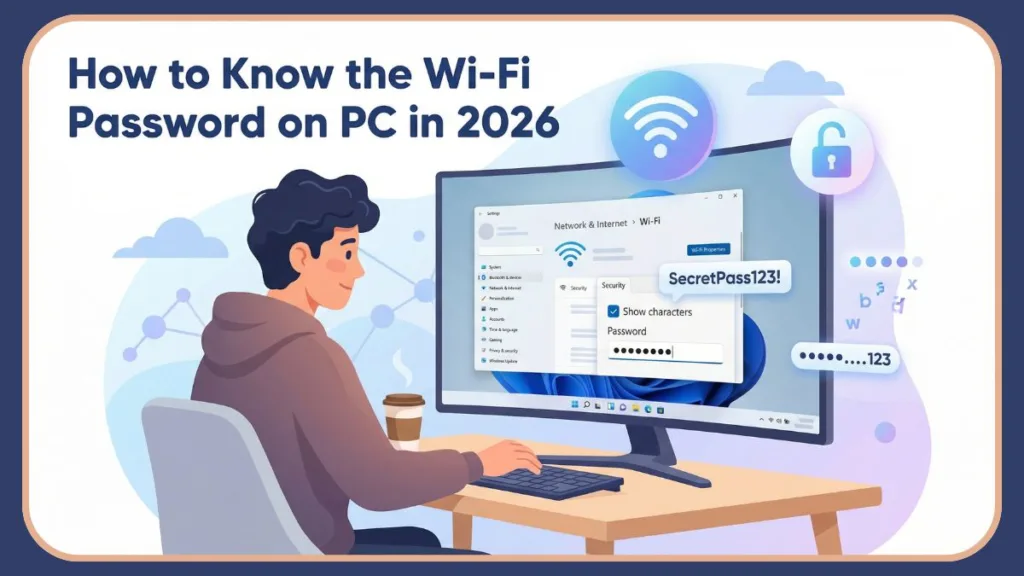
Maybe you’re working from home and a guest needs access, or you’re setting up a smart home device (like a Nest camera or Amazon Echo) that requires the network password — situations most of us encounter regularly.
Fortunately, Windows 11 securely stores your network security key, and you can retrieve it in just a few minutes if you know where to look. This matters especially when onboarding a new device — like a new iPhone or Android phone — without having to ask someone else or dig up old paperwork.
In this guide, you’ll learn quick and reliable ways on how to find the Wi-Fi password on Windows 11, so you can instantly share the connection with another device and get it online without delays.
Prerequisites to Retrieve Saved Wi-Fi Passwords on PC
Before you begin the recovery process, it’s important to understand a few basics so the retrieval goes smoothly. Windows operating systems prioritize security, meaning they don’t leave sensitive credentials out in the open.
- Administrator Access: You should be logged in with an administrator account on your Windows 11 PC, as Windows restricts access to saved Wi-Fi passwords for security reasons to prevent unauthorized users from harvesting credentials.
- Active vs. Saved: Some methods explained below work only for the Wi-Fi network you are currently connected to, while others dig into the system archives.
- Forgotten Networks: Windows 11 allows you to view saved Wi-Fi passwords unless you manually chose the “Forget” option in the past. If you “forget” a network, Windows deletes the profile and the associated key.
- UI Location: Windows 11 does not display Wi-Fi passwords directly inside the main Settings list, which is why the steps guide you through network properties or command-based methods.
Once you have confirmed you have the right permissions, you can proceed to the most straightforward method available.
Method 1: How to View Wi-Fi Password on Windows 11 via Settings
This is the fastest and easiest method when your PC is already connected to Wi-Fi and you simply need the password to connect another device, such as a phone, tablet, smart TV, or laptop. It utilizes the modern interface Microsoft designed for general users.
Steps:
- Open the Settings app on your Windows 11 PC.
- Click on Network & Internet from the left-hand menu.
- Scroll down and select Advanced network settings.
- Click on More network adapter options to open classic network connections.
- Right-click your active Wi-Fi connection and choose Status.
- In the Wi-Fi Status window, click on Wireless Properties.
- Open the Security tab.
- Check the Show characters option to reveal the password.
Your Wi-Fi password will now appear in the Network security key field.
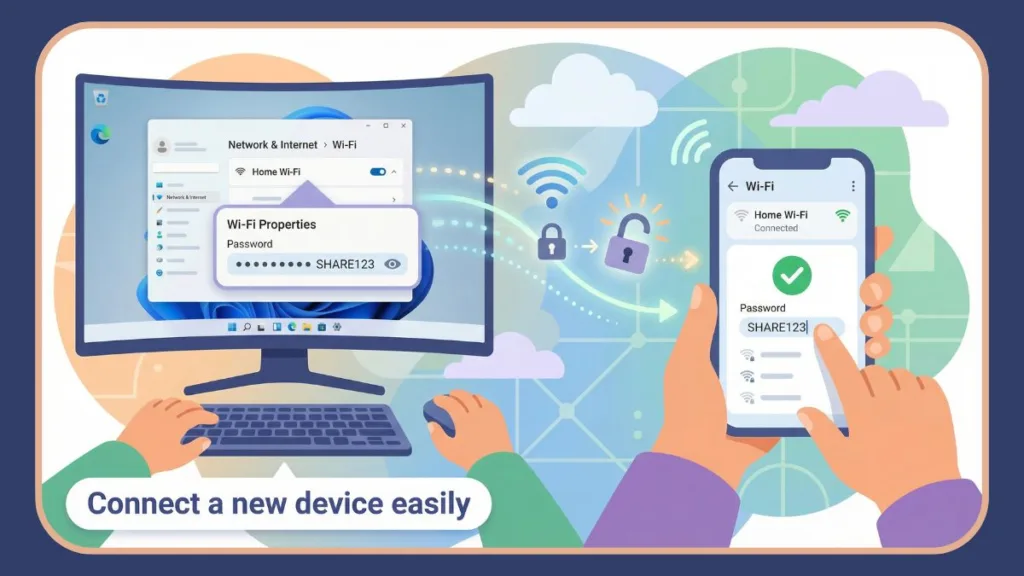
You can immediately enter this password on your new device and get it online, whether it’s an Android phone, an iPhone, or a smart appliance. This method works perfectly because Windows 11 displays the saved Wi-Fi password for the network currently in use.
A real-life example is when you buy a new Samsung Galaxy phone and want to connect it to your home Wi-Fi. Instead of searching for the router or calling a family member, you can view the password on your connected Windows 11 laptop and type it directly into the phone’s Wi-Fi setup screen.
If you find navigating the modern Settings app too cumbersome, or if you prefer the classic Windows interface, the next method offers a more direct route.
Method 2: Check Wi-Fi Password on Computer Using Control Panel
If you prefer a quicker path or want direct access without navigating through the Settings app, this method works just as well. It is especially useful if you’re comfortable using traditional Windows tools like the Control Panel and run commands via the Run dialog.
Steps:
- Press the Windows + R keys together on your keyboard to open the Run dialog.
- Type
ncpa.cplinto the box and press Enter. - Right-click your Wi-Fi network in the Network Connections window and select Status.
- Click on Wireless Properties in the Wi-Fi Status window.
- Open the Security tab.
- Enable the Show characters option to reveal the password.
The Wi-Fi password will now be visible on the screen.
This method works only for the Wi-Fi network your PC is currently connected to, which makes it ideal when you’re onboarding a new device to the same network. For example, if a friend or family member visits and needs to connect their laptop, this approach lets you quickly share the password without writing it down.
However, if you need to find a password for a network you are not currently connected to—like a hotel you visited last week or your office network while you are at home—these first two methods won’t help. For that, we need to dig deeper into the system using the command line.
Method 3: How to Get Wi-Fi Password on PC Using CMD (Command Prompt)
If you need the password for a Wi-Fi network you connected to in the past, such as a guest or office network, this is the most powerful method available. Even if you are not currently connected to that network, Windows 11 may still store its details in what is known as a WLAN profile.
Step 1: Show All Saved Wi-Fi Profiles
- Right-click the Start button on your PC.
- Open Command Prompt or PowerShell with administrator privileges.
- Type the following command and press Enter:
netsh wlan show profiles
This command displays a list of all Wi-Fi networks (profiles) saved on your PC.
Step 2: Reveal Wi-Fi Password for a Specific Network
Type the following command, replacing WiFiName with the exact name of the network from the list above.
netsh wlan show profile name="WiFiName" key=clear
Press Enter to run the command.
Scroll down to the Security settings section and look for the Key Content field. The value shown there is the Wi-Fi password.
This method works for saved networks even if you are not currently connected to them, but it will not work if the network was manually forgotten. Administrator access is required to view this information.
If you are having trouble with permissions, check out our guide on How to Find Wi-Fi Password Using CMD in Windows 11 Without Admin Rights.
A practical example involves working remotely: you once connected your Windows 11 laptop to your office Wi-Fi and later need that password to connect another device at home. You can retrieve the forgotten WiFi password using this method without accessing the office router.
If for some reason your PC doesn’t have the password stored—perhaps you reset your computer or deleted the profile—you will need to look outside of Windows for the answer.
Bonus: How to Find Wi-Fi Password on Router: Fallback Options
If you cannot retrieve the Wi-Fi password directly from your PC while setting up a new device, there are a few fallback options that rely on the hardware itself rather than the software.
- Check Wi-Fi Password from the Router Admin Page: You can open a web browser and enter your router’s IP address, which is commonly
192.168.1.1or192.168.0.1. After logging in with the router’s admin credentials, navigate to the Wireless or Wi-Fi settings section, where you can view or change the Wi-Fi password. This method works regardless of the operating system. - Check the Router Label: If you never changed the default Wi-Fi password, the manufacturer often prints it on a label on the back or bottom of the router. This allows you to find the WiFi password without using a PC at all.
- Reset the Router (Last Resort): As a final option, you can reset the router by pressing and holding its reset button for five to ten seconds. This restores the default Wi-Fi name and password. You should use this option only if all other methods fail, as it disconnects all devices from the network.
These fallback methods are especially useful when setting up multiple new devices, such as smart speakers, security cameras, or other IoT gadgets that need immediate connectivity.
Troubleshooting: Why Can’t I See My Wi-Fi Password on PC?
If you’re unable to retrieve the password needed to connect a new device, there is usually a clear reason. Understanding these roadblocks can save you time.
- Not Logged in as Administrator: Windows hides sensitive security keys from standard user accounts. Ensure you have admin rights.
- Network Was Forgotten: If you clicked “Forget this network,” Windows deletes the profile and the key. You cannot recover it via software.
- Managed Devices: If your PC is managed by a workplace or school (via Group Policy), IT administrators often block users from viewing network security keys.
- WPA3 Security: In some rare cases with newer WPA3 security protocols, Windows might obfuscate the key differently, requiring router-level access.
Resolving these limitations typically restores your ability to view the WiFi password.
FAQs: Common Questions on How to See Wi-Fi Password on PC
Can you see the Wi-Fi password without admin access?
No. Windows 11 restricts Wi-Fi password viewing to administrator accounts. Standard users cannot access the “Key Content” field in CMD or the “Show characters” box in Settings.
Can you view passwords for old Wi-Fi networks?
Yes. As long as the network was saved and not forgotten, you can retrieve it using command-based methods like netsh. This is perfect for retrieving vacation home or office passwords.
Is it safe to use Command Prompt to view Wi-Fi passwords?
Yes. The netsh command is a built-in Windows networking tool that safely displays saved profile information. You are simply viewing data your computer already stores.
Does Windows 11 automatically save Wi-Fi passwords?
Yes. Windows 11 stores the password for any network you connect to, which allows automatic reconnection later. This stored profile is what allows you to find the password later.
Conclusion: The Best Way to Recover Wi-Fi Password on Windows
When your goal is to get a new device online quickly, the Settings or Control Panel methods are the fastest and most user-friendly options.
If you need access to a previously saved network, Command Prompt or PowerShell provides the most flexibility.
We recommend you save your Wi-Fi password securely in a password manager (like LastPass or 1Password) after retrieving it so future device setup is faster and hassle-free. With the right method, sharing your Wi-Fi connection from a Windows 11 PC becomes quick, simple, and stress-free.
Useful Resources for Finding Wi-Fi Password on Windows 11
When you’re explaining how to find a Wi-Fi password on a Windows 11 PC, it helps to point readers to official Microsoft resources so they feel confident the steps are supported by the platform itself.
Microsoft Support – Connecting to Wi-Fi in Windows: Microsoft’s support docs clearly explain how Wi-Fi networks work in Windows — including the fact that a network security key (Wi-Fi password) is required to connect, and that Windows saves that key once you connect. This sets the foundation for showing the password later through the system UI.
Microsoft Community & Answers: The official Microsoft Community forums and Answers pages include guidance (often from Microsoft agents or MVPs) confirming that in Windows 11 you can view a saved Wi-Fi password by going into Wireless Properties > Security > Show characters. These community-verified answers are solid references that back the steps you list.
Windows Documentation on Network Settings: Microsoft’s documentation on Windows network settings covers how to access network properties and troubleshoot wireless connections. While it doesn’t always spell out “find your password,” it shows how to navigate the same screens you use in your guide.
Visit Our Post Page: Blog Page