
Facing the “Server failed to respond” message? Here is how to fix Grok 500 Internal Server Error quickly. Includes 6 steps for users and API fixes for developers.
If you are currently trying to use xAI’s Grok to generate a witty comeback, debug a complex Python script, or create a cinematic AI video, hitting a roadblock is the last thing you need. Yet, for many of us, it happens. You type in a prompt, hit enter, and instead of brilliance, you get a blank stare from the interface or the dreaded red error box.
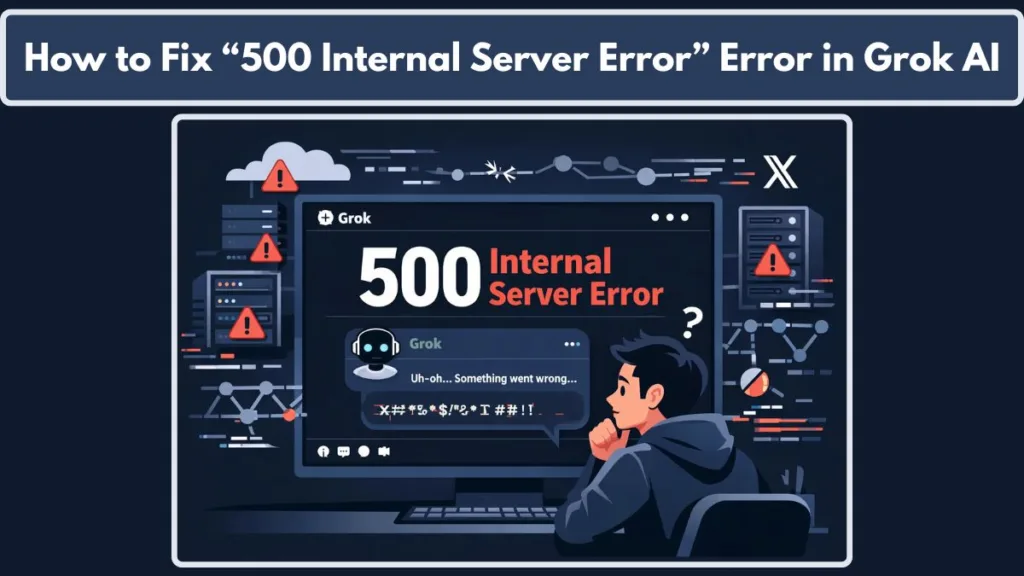
Many users—from casual chatters to heavy-duty developers—report seeing the specific, frustrating message below:
“Server failed to respond.”
Or the classic, colder technical version:
“500 Internal Server Error.”
This specific Grok error often strikes without warning. It can appear even when the X (formerly Twitter) interface looks normal, your timeline is refreshing perfectly, and other AI tools are working fine. It’s isolating because it feels like you broke something.
While it disrupts your workflow, the good news is that this issue is usually temporary. Furthermore, it rarely results from user error, so you haven’t broken your account, your API keys are likely fine, and your internet connection is probably stable.
In this comprehensive guide, we will walk you through exactly what this error means, why newer models like Grok 2 or the recently released Grok 3 might fail to respond, and the specific steps you must take to fix it quickly. We’ll cover everything from simple browser refreshes to complex API retry logic.
What Does “Grok 500 Internal Server Error” Actually Mean?
To better understand the problem—and stop panicking—we must first define what the error actually signals.
A 500 Internal Server Error is a general HTTP status code. In plain English, it means the request you sent was valid (you didn’t typo the URL or mess up your login), but the xAI servers couldn’t complete it due to an internal problem. It is the digital equivalent of a shopkeeper shrugging and saying, “I have what you want, but I can’t get to the back room right now.”
It does not automatically indicate:
- A suspended or banned X account.
- A permanent failure of the AI model.
- That your internet is down.
Instead, the error points to a failure in the “handshake” between your device and xAI’s data centers. Grok’s interface attempts to send your prompt to a massive supercomputer cluster; if that cluster is too busy, crashes, or times out, it sends back a “500” code.
In the user interface, Grok tries to be polite. You rarely see the raw code “500.” Instead, you see variations like:
- “Something went wrong. Please try again.”
- “Oops, error retry friend.” (A common, whimsical error message specific to Grok).
- “Generation failed.”
Whether you see the polite version or the raw code, the root cause is identical: The backend is struggling.
Why This Error Happens: The Deep Dive
Based on real usage patterns, recent updates (like the Grok 3 rollout), and API behavior, this error usually stems from one of five specific triggers. Understanding these will help you know if you should keep clicking “retry” or walk away for an hour.
1. Server Overload (The “Hug of Death”)
The most common reason is simple congestion. AI models require massive amounts of GPU compute. When xAI releases a new feature—like “Grok 3 mini” or a new image generation capability—millions of users rush to try it at once.
If the number of requests exceeds the available GPUs, the load balancers (the traffic cops of the internet) start dropping connections. They simply cannot find a server to handle your request, so they return a 500 error. This is frequent immediately after an Elon Musk tweet promoting a new feature or during major global news events where everyone turns to Grok for real-time summaries.
2. Video Generation Failures (The VRAM Bottleneck)
This is the most frequent complaint for X Premium+ subscribers. Users frequently report errors like “Server failed to respond” specifically during image and video generation.
Here is the technical reality: Generating video demands significantly more server power (VRAM) than writing text. A text prompt might take a fraction of a second of compute time; a 5-second video might take 30 seconds of dedicated GPU attention.
- The 400-Token Theory: Community testing suggests that for image-to-video tasks, extremely long prompts (over 400 tokens) often cause the server to hang and crash, resulting in a 500 error.
- Resource Deprioritization: Under heavy load, xAI’s systems may prioritize fast text chats over heavy video rendering. If the system is busy, your video request is the first thing to get dropped, triggering the “Server failed to respond” message.
3. Context Window Limits (The “Too Much Info” Error)
Grok has a large “context window” (the amount of text it can remember at once), but it isn’t infinite. If you are pasting extremely long documents, entire codebases, or massive transcripts, the backend processing might time out. While you should get a specific “Message too long” error, sometimes the server tries to process it, runs out of memory mid-stream, and crashes with a generic 500 error.
4. Network or VPN Restrictions
Network routing issues frequently trigger this error.
- VPNs: If you use a VPN, you are sharing an IP address with thousands of other people. xAI’s security systems might flag that IP as “spammy” and block connections, which sometimes looks like a 500 error on your end.
- Corporate Firewalls: Strict office networks often block “non-essential” traffic. If the firewall terminates the connection aggressively, the Grok app interprets it as a server failure.
5. API Edge Cases (For Developers)
If you are using the xAI API, you face unique challenges. Edge cases where a weirdly structured JSON payload crashes the process can trigger a 500 error, even if your API key is valid. For example, sending a “temperature” setting that is technically valid but functionally problematic for a specific model version can sometimes cause the inference engine to hang.
Quick Checks Before You Try Fix
Before you start clearing caches or resetting passwords, run through this 30-second diagnostic checklist. It will save you time.
- The “Hello” Test: Does the error happen even if you just type “Hello”? If yes, the server is likely down completely. If no, your previous prompt was probably too complex.
- The Incognito Test: Does the error appear in Incognito/Private mode? If it works there, your browser cache is the problem.
- The Device Swap: Does the X mobile app work while your desktop fails? If yes, it’s a local network or browser issue, not a global outage.
- The Timeline: Did this start suddenly for everyone? Check the #GrokDown hashtag on X. If the timeline is flooded with complaints, no amount of troubleshooting on your end will fix it.
How to Fix Grok 500 Internal Server Error (For Users)
If the outage isn’t global, you can likely get back online with these steps. Follow them in order—don’t jump to the complex stuff first!
Step 1: The “Smart” Refresh (Wait, Then Reload)
The instinct is to spam the refresh button. Don’t. If the server is overloaded, spamming refresh just adds to the queue and might get you temporarily rate-limited.
- The Fix: Wait exactly 2 minutes. Then, do a Hard Refresh.
- Windows:
Ctrl+F5 - Mac:
Cmd+Shift+R - This forces your browser to ignore its saved files and download a fresh version of the Grok interface.
- Windows:
Step 2: Log Out and Log Back In (The Session Reset)
Sometimes, your “session token” (the digital ID card that tells Grok who you are) expires or gets corrupted, but the browser doesn’t realize it. You think you’re logged in, but the server sees an invalid user, resulting in an error.
- Log out of X completely.
- Close your browser tab.
- Open a new tab, log in, and navigate back to Grok. This forces the server to issue you a brand-new session token.
Step 3: Clear Specific Cache and Cookies
If the error persists, your browser might be holding onto a corrupted file. You don’t need to clear everything (and lose your passwords for other sites).
- Chrome/Edge: Go to Settings > Privacy > Site Settings. Search for
x.comandtwitter.com. Delete data only for these sites. - Mobile App: Go to your phone’s settings > Apps > X > Storage > Clear Cache. (Avoid “Clear Data” unless you want to re-login to everything).
Step 4: Simplify Your Prompt (The “VRAM Saver”)
If you are generating video or analyzing data, the error might be a resource timeout.
- For Video: If your prompt is “A cinematic 4k drone shot of a futuristic cyberpunk city with rain and neon lights…”, try shortening it to “Cyberpunk city with rain.” If that works, the original prompt was too heavy for the current server load.
- For Text: If you pasted a 50-page PDF, try pasting it in 10-page chunks.
Step 5: Switch Networks (The Routing Fix)
If you are on Wi-Fi, toggle it off and use your phone’s 5G/LTE data. If the error disappears, the issue was your home internet provider or router blocking the connection to xAI’s specific servers. This is common with some ISPs that have aggressive “security” filters.
For Developers: Debugging xAI API 500 Error
If you are building an app using the grok-beta or grok-2 endpoints, a 500 error stops your production cold. Here is how to handle it professionally.
1. Distinguish 500 from 429
Ensure your logs clearly separate 500 (Server Error) from 429 (Rate Limit).
- 429: You are sending too many requests. Slow down.
- 500: The server is crashing. Retrying immediately is the wrong move.
2. The Golden Rule: Exponential Backoff
If you receive a 500 error, do not loop a retry immediately. You will likely hit the exact same failing node. Implement Exponential Backoff:
- Receive Error 500.
- Wait 1 second. Retry.
- Fail again? Wait 2 seconds. Retry.
- Fail again? Wait 4 seconds. Retry.
- Fail again? Throw an error to the user and stop. This gives the xAI infrastructure time to recover or route you to a healthy node.
3. Check for “Poisoned” Payloads
Review the JSON body of the request that failed. Did it contain:
- Unescaped characters in the string?
- A
max_tokensvalue that exceeds the model’s absolute limit? - A
temperatureof exactly 0 or 2 (sometimes extreme values cause instability in beta models)? Try sending a minimal “sanity check” payload (e.g.,{"messages": [{"role": "user", "content": "test"}]}). If that works, your specific payload is causing the crash.
Is Grok Down Right Now? How to Tell for Sure
Grok can experience “partial outages.” This means the Recall feature (searching X posts) might work, but Image Generation is down.
- Check
status.x.ai: This is the official xAI dashboard. However, note that official dashboards often lag behind real-time issues by 15-30 minutes. - Check DownDetector: Look at the chart for X (Twitter) on DownDetector. If you see a massive vertical spike, it’s a platform-wide issue.
- Check the Community: Search specifically for “Grok Imagine error” or “Grok API down” on X. The developer community is usually the first to spot API-specific outages.
Frequently Asked Questions
Does a 500 error mean my X Premium subscription is expired?
No. Subscription issues will almost always show explicit errors like “Access Denied,” “Payment Failed,” or “Upgrade to Premium.” A 500 error is strictly a technical glitch on the server side.
Why does video generation fail more often than chat?
Video is “computationally expensive.” During high-traffic times, xAI may dynamically lower the resources available for video rendering to ensure that standard text chat remains fast for everyone. This often results in video requests timing out with a 500 error while chat continues to work perfectly.
Does SuperGrok get priority during outages?
While SuperGrok users have higher rate limits, they are not immune to server failures. If a data center node crashes, everyone connected to it—regardless of tier—will see a 500 error. However, priority access generally means you will be the first to reconnect once the servers stabilize.
How long do these outages usually last?
Most 500 errors are “blips” that last less than 5 minutes. However, during major model deployments (like the shift from Grok-2 to Grok-3), instability periods can last for 1-2 hours.
Final Thoughts: Patience is a Virtue (and a Fix)
The Grok 500 Internal Server Error is annoying, but it is also a sign of a rapidly evolving platform. xAI is moving fast, breaking things, and fixing them.
- If you’re a user: Take a 10-minute break. The “Wait and Retry” method has the highest success rate of any fix on this list.
- If you’re a developer: distinct your error handling logic. Treat 500s as “come back later,” not “try harder.”
In the majority of cases, the error resolves without any drastic action required on your end. The servers will cool down, the load will balance, and you’ll be back to generating content seamlessly.
Visit Our Post Page: Blog Page