
Fix the AIXHost.exe — The application is exiting error fast. Reset the Windows AI components and update your system drivers the safe way.
If you are actively dealing with the AIXHost.exe error on your Windows 11 device, a straightforward, technical solution is required. Launching your application only to be met with a popup stating “The application is exiting and cannot service this request” disrupts your workflow immediately. This issue is particularly common on newer Copilot+ PCs and laptops like the Lenovo Yoga Slim 7x, HP OmniBook, or Surface Pro 11.
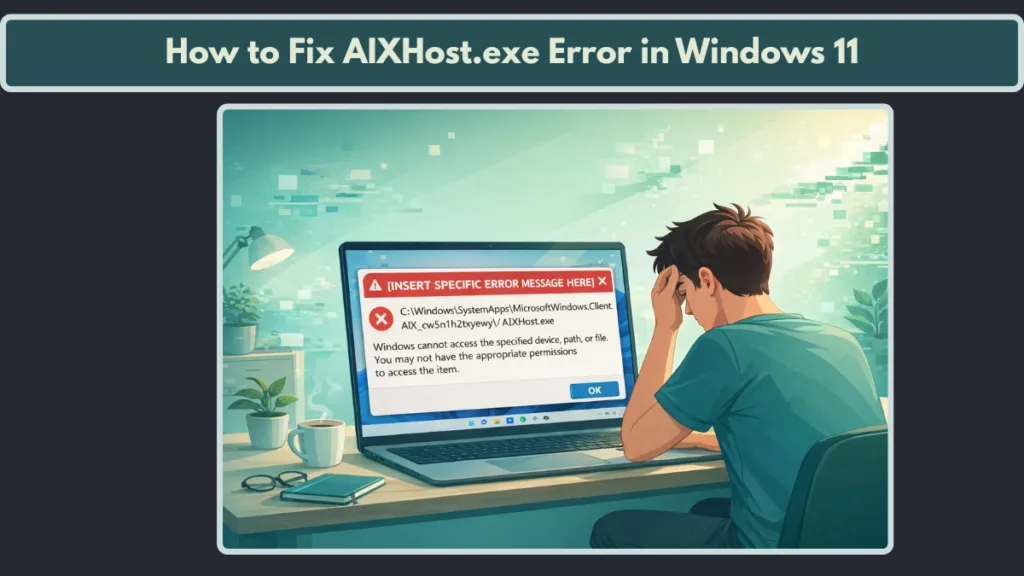
This error does not mean your computer has a virus or a hardware failure. Instead, it indicates that a specific Windows AI component—likely tied to Windows Recall or AI Explorer—has crashed or encountered a conflict. You can resolve this by resetting the AIX package, disabling the AI Host Fabric Service, or repairing your system files using official Windows tools.
What is AIXHost.exe and Why Does it Show the “Application is Exiting” Error?
Before executing any fixes, it is important to understand what this file actually does. The AIXHost.exe file is a core system process located in C:\Windows\SystemApps\MicrosoftWindows.Client.AIX_cw5n1h2txyewy. It operates as the AI Experience Host for the Windows Client AI framework.
Think of it as a digital interpreter that powers the new generation of artificial intelligence features in Windows. Its role is to use on-device machine learning to understand what is on your screen and provide contextually relevant actions for features like Recall, Cocreator, and content discovery. When you see the message “The application is exiting and cannot service this request,” it means the interpreter has hit a fatal error and can no longer process the data being sent to it. This “exiting” state occurs when the system attempts to protect itself from a hung process or a memory leak by terminating the host immediately.
Understanding Common Symptoms of Windows AIXHost Failure
Users typically experience a recurring popup window citing the specific path to the MicrosoftWindows.Client.AIX directory. Another major symptom is Windows Recall failing to capture snapshots or losing the ability to search past activity. You might also notice significant system lag or high CPU usage followed by an immediate application crash, especially when using apps that try to integrate with Windows Copilot.
Why Does AIXHost.exe Keep Crashing in Windows 11? Primary Causes Explained
There are several primary reasons why your system is struggling with this process, and most of them relate to how Windows manages its new AI-driven background tasks.
Windows Recall App Failures and Snapshot Database Corruption
The most frequent cause is a failure within the Recall app. Windows Recall takes snapshots of your screen every few seconds to build a searchable timeline. If the snapshot database becomes corrupted or if the application fails to save a capture due to a write error, it forces AIXHost.exe to exit. This is a failsafe to prevent the corruption from spreading to other system components.
Resource Conflicts with Windows Search Indexing
Windows Search may be trying to index your AI-generated snapshots in the background, causing a resource loop. When the search indexer and the AI host attempt to access the same metadata simultaneously, a conflict occurs that triggers the crash. This is why some users find that disabling Windows Search temporarily stops the popups.
Corrupted AI Components and Problematic Windows Updates
Corrupted AI components following a botched or interrupted Windows Update are also common. Since features like Recall and the AI Experience Host are frequently patched, an incomplete installation can leave the registry mappings in a broken state.
Outdated NPU Drivers and Hardware Incompatibilities
Finally, driver incompatibilities on specific hardware can be the culprit. Newer laptops use a Neural Processing Unit (NPU) to handle AI tasks. If your NPU drivers or chipset drivers are outdated, the AI host cannot communicate with your hardware, leading to a total failure of the service. This is particularly prevalent on Snapdragon X Elite and X Plus devices.
Security Warning: Why You Should Not Delete AIXHost.exe Manually
When a system process causes constant popups, the temptation is to find the file and delete it manually. Do not do this.
Security Alert:
AIXHost.exe is a protected system component. Manually deleting files within the SystemApps folder can break the Windows 11 shell, leading to more severe errors like the 0xc000007b error, a broken Start menu, or even a Blue Screen of Death (BSOD). Furthermore, seeking an AIXHost.exe download from third-party sites is extremely dangerous, as these files are often vectors for malware, ransomware, or spyware. Always use official Microsoft methods to repair or remove system apps.
How to Fix AIXHost.exe Error in Windows 11: Safe Repair Methods
Instead of forcing the file out of your system, use these official methods to repair the underlying AI framework and registry mappings.
Method 1: Reset the AIX Component Using PowerShell Commands
This is the most successful fix for the majority of users because it forces Windows to reset the specific app package causing the conflict. Start by typing cmd in your Windows search box, right-click Command Prompt, and choose Run as administrator. Alternatively, you can open Windows Terminal (Admin) and select the PowerShell tab.
Type the following command exactly and press Enter: Get-AppxPackage MicrosoftWindows.Client.AIX | Remove-AppxPackage. After the process ends, restart your computer. Windows is designed to natively re-register and re-initialize the component upon your next login, often fixing any configuration errors in the process.
Method 2: Repair System Files with SFC and DISM for Windows AI Stability
If the error is caused by corrupted system stubs or broken directory permissions, you can fix them using the System File Checker. Open Command Prompt as an administrator and type sfc /scannow. Allow the scan to reach 100%.
Once finished, type DISM /Online /Cleanup-image /Restorehealth and press Enter. This command is more powerful than SFC as it connects to Microsoft’s official servers to download and replace any broken Windows AI components with healthy versions.
Method 3: Disable the AI Host Fabric Service (WSAIFabricSvc)
For many users, the crash is tied to the AI Host Fabric Service, known technically as WSAIFabricSvc. This service provides the communication layer for the AI framework. You can try disabling it to see if the errors stop.
Press the Windows key + R, type services.msc, and hit Enter. Locate WSAIFabricSvc or AI Host Fabric Service in the list. Right-click it, select Properties, and change the Startup type to Disabled. Click the Stop button, then click Apply and OK. Restart your PC to verify if the popups have ceased.
Method 4: Adjust Windows Recall and Search Indexing Settings
Since AIXHost.exe relies heavily on Recall, managing your data can resolve database-related crashes. Navigate to Settings, then Privacy and Security, and select Recall & snapshots. Try to pause the feature or use the Delete all snapshots button to clear any corrupted data.
If you suspect Windows Search is the trigger, you can temporarily stop it as well. In the Services menu, find Windows Search, right-click it, and select Stop. If the popups stop immediately, you may need to rebuild your search index via Indexing Options in the Control Panel.
Method 5: Completely Disable Windows AI Features via Group Policy
If you are using Windows 11 Pro, Enterprise, or Education, you can use the Group Policy Editor to completely prevent the AI host from running. This is a permanent solution for those who do not use the AI features.
Press Windows + R, type gpedit.msc, and press Enter. Navigate to Computer Configuration, then Administrative Templates, then Windows Components, and finally Windows AI. Look for the policy titled Allow Recall to be enabled. Double-click it, set it to Disabled, click Apply, and restart your computer. This removes the bits for Recall and stops the AIXHost.exe process from even attempting to start.
Troubleshooting AIXHost Error on Specific Laptops: Lenovo and HP Maintenance
If you own a specific model like a Lenovo Yoga or an HP OmniBook, your manufacturer likely has specialized tools to handle these AI-related glitches.
Critical Updates for Lenovo Yoga Slim 7x Users
Lenovo users should open the Lenovo Vantage app and check for the latest BIOS and NPU driver updates. Because the AIXHost.exe error is often hardware-dependent on Snapdragon processors, these firmware updates are critical for maintaining the connection between the software and the physical AI processor.
Specialized Maintenance for HP OmniBook and EliteBook
HP users should utilize the HP Support Assistant. This tool can specifically identify if the Microsoft AI Experience Pack requires a repair. Within the app, search for updates related to the Qualcomm NPU or Neural Processing Unit. Keeping these drivers current is the best way to prevent future AIXHost.exe crashes during high-intensity AI tasks.
Proactive Tips for Preventing Future AIXHost.exe Crashes
To keep your system running smoothly after you have applied a fix, consider the following proactive steps.
Install Optional Feature Packs and Windows Updates: Microsoft often bundles fixes for the AI Experience Host in optional cumulative updates. Go to Settings, then Windows Update, select Advanced options, and click on Optional updates. Look for any “Feature Packs” or “Intelligence Updates” and install them.
Use Reliability Monitor to Identify Faulting Modules: If the error returns, use the Reliability Monitor to identify the exact faulting module. Press Windows + R, type perfmon /rel, and press Enter. Look for the red “X” icons associated with AIXHost.exe. Clicking on them will show you if a specific DLL file—like a graphics driver or an antivirus component—is causing the crash.
Clear the Microsoft Store Cache with WSReset.exe: Since the AIX component is managed similarly to a Store app, a corrupted cache can cause launch failures. Type wsreset.exe in the Start menu and press Enter. A blank command window will appear for a few seconds before opening the Microsoft Store. This resets the background app deployment service.
Frequently Asked Questions (FAQ) About AIXHost.exe Errors
What is the difference between AIXHost.exe and WSAIFabricSvc?
AIXHost.exe is the actual application file that runs the AI interface and logic. WSAIFabricSvc is the background service that manages the “fabric” or communication network that allows different parts of Windows to send data to the AI host. If either one fails, you will see an error message.
Is AIXHost.exe a virus, spyware, or a privacy risk?
No, it is a legitimate Microsoft file. It is part of the Windows Client AI package. However, because it captures screen snapshots for Recall, some users view it as a privacy concern. If you find the file in any folder other than C:\Windows\SystemApps, you should run a full scan with Windows Defender.
Can I fix the AIXHost error on Windows 11 Home Edition?
Yes. While Windows 11 Home does not have the Group Policy Editor, you can achieve the same result using PowerShell or the Registry Editor. Using the command Get-AppxPackage MicrosoftWindows.Client.AIX | Remove-AppxPackage works on all versions of Windows 11.
Why did this error start appearing after I bought a new Copilot+ PC?
Many new laptops are Copilot+ PCs, which come with AI features enabled by default. Since these features are relatively new, they are still being refined by Microsoft, and initial software bugs like the AIXHost.exe crash are common on these early builds.
Will disabling AIXHost.exe make my computer slower or faster?
No. In fact, if AIXHost.exe was crashing and causing high CPU usage, disabling it might actually make your computer feel faster and more responsive. You will only lose access to specific AI features like Recall and AI Explorer.
Final Thoughts and Next Steps
Dealing with an AIXHost.exe error can be frustrating, but it is rarely a sign of hardware failure or a security breach. By repairing the MicrosoftWindows.Client.AIX package, updating your hardware drivers, and ensuring your system files are healthy, you can restore your Windows 11 stability quickly.
Whether you choose to reset the component or disable it entirely via Group Policy, the steps above provide a safe and effective path to a fix.
Visit Our Post Page: Blog Page