
Getting Amazon Error 2063 on Prime Video? It is a payment failure, not a streaming glitch. Learn how to fix error 2063 on amazon with this guide to solve declined payments instantly.
Trying to rent or buy a movie on Amazon Prime Video, only to see playback fail instantly with Error 2063, can be frustrating. You click “Watch Now,” but nothing plays—and the transaction doesn’t go through.
Here’s the truth upfront: Amazon Error 2063 is not a streaming issue—it’s a payment failure.
It means Amazon couldn’t approve your payment, so the video never starts.
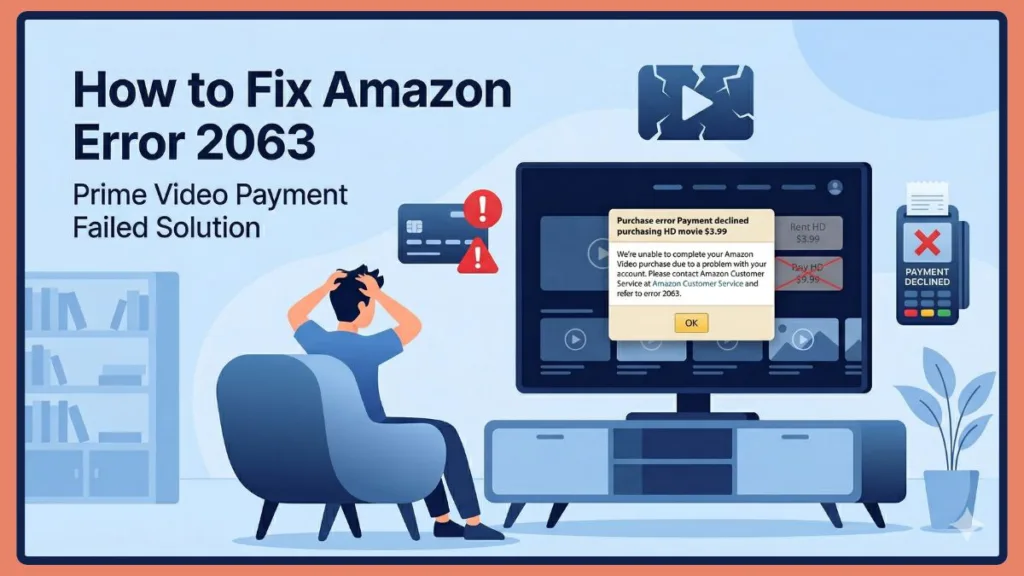
This distinction matters because many users assume there’s something wrong with playback or buffering, when in reality, the platform is blocking the content before it even begins due to a failed transaction attempt. This is why refreshing the page or restarting the video alone often doesn’t work unless the underlying payment issue is resolved.
The good news? In most cases, this error is easy to fix once you understand what’s causing it. Let’s walk through everything step by step and explore not just the fixes, but also the deeper reasons behind this error so you can prevent it from happening again.
Why is Amazon Error 2063 Happening? (Common Causes for Payment Errors)
Understanding the cause makes fixing it much faster. This error usually falls into one of four categories.
What is Amazon Error 2063?
Amazon Error 2063 appears when your payment cannot be authorized while renting or purchasing content on Prime Video. Instead of completing the transaction, Amazon blocks the playback entirely. This is why the video fails to start instantly.
You’ll usually see this error when:
- Renting a movie
- Buying a TV show or premium content
- Using 1-Click payment
Key insight: In simple terms: Error 2063 = payment declined or not approved.
To understand this better, it helps to know how Amazon processes payments. When you attempt to rent or buy content, Amazon sends a request to your payment provider (bank or card network). If the provider rejects or flags the request for any reason, Amazon immediately stops the transaction and displays Error 2063. This process happens in seconds, which is why the error appears almost instantly.
In some cases, the system may also attempt a quick revalidation of saved payment credentials, especially with 1-Click payment enabled. If those stored details are outdated or mismatched, the authorization fails without prompting you for correction, leading directly to this error. Amazon separates its payment processing for physical goods and digital orders. Because digital orders are fulfilled instantly, the validation process is significantly stricter, leaving zero margin for outdated tokens or mismatched ZIP codes.
Payment-Related Causes (Most Common)
This is the biggest reason behind Error 2063.
- Incorrect card details (number, CVV, expiry date)
- Expired debit or credit card
- Wrong billing address
- 1-Click payment setup issues
- Card declined by your bank
- Online transactions disabled on your card
Even a small mismatch—like a wrong ZIP/postal code—can cause the payment to fail. Beyond these common issues, there are additional payment-related scenarios that often go unnoticed. For example, some banks automatically block recurring or international transactions unless explicitly enabled by the user. Since Amazon transactions may sometimes be processed through international gateways, this can trigger a decline even if your balance is sufficient.
Another overlooked factor is card authentication protocols such as OTP (One-Time Password) or 3D Secure verification. If the authentication step fails or times out (which typically happens if the banking portal takes longer than 10 to 15 minutes to respond), the transaction may be rejected silently, resulting in Error 2063 without a clear explanation.
Technical Causes
Sometimes the issue isn’t your payment—it’s your device or browser.
- Corrupted cache or cookies
- Outdated app or browser version
- Temporary app glitches
These can interfere with how Amazon processes transactions. When your browser stores outdated cookies or session data, it may send incorrect or incomplete information during checkout. This mismatch can prevent the payment gateway from validating your request properly. Similarly, an outdated app version may not support the latest security protocols required for payment processing, leading to failed transactions.
In addition, background processes or conflicting extensions can disrupt secure payment scripts, especially in browsers. This is why disabling extensions or switching environments often resolves the issue.
Network & Location Issues
Your location and connection also matter.
- VPN or proxy enabled
- IP location mismatch
- Content not available in your region
Amazon may block the transaction if it detects unusual location activity. Streaming platforms enforce strict licensing agreements, which means certain content is restricted to specific regions. If your IP address suggests a different location than your account settings or billing region, Amazon may prevent the transaction as a precaution.
External Factors
In rare cases, the issue isn’t on your side.
- Amazon server downtime
- Payment gateway issues
- Temporary system disruptions
Large platforms like Amazon occasionally experience backend issues that affect transaction processing. During such times, even valid payments may fail. These disruptions are usually temporary but can still trigger Error 2063 for users attempting purchases.
Quick Fix for Amazon Error 2063 (Start Here First)
Before jumping into advanced troubleshooting, try these quick solutions. They often fix the issue instantly.
- Restart your device to clear temporary glitches and refresh system processes.
- Update the Prime Video app to ensure compatibility with current payment systems.
- Sign out and sign back into your account to reset session data.
- Check your internet connection to ensure it is stable and not dropping packets during the transaction process.
- Disable browser extensions because some add-ons interfere with secure payment scripts.
- Make sure the content is available in your region, as licensing restrictions can block transactions.
- Confirm your Prime membership is active and not expired, as inactive accounts may prevent purchases.
These quick fixes can resolve temporary glitches without deeper troubleshooting.
Advanced Fixes (If Amazon Error 2063 Still Fails)
If the error still appears, follow these detailed solutions in order.
Verify Your Payment Details
Start here—this solves most cases. Check: Card number, Expiry date, CVV code, Billing address. Make sure everything matches your bank records exactly. If the issue continues: Try a different card or Switch to another payment method.
Tip: Even saved cards can become outdated, so re-entering details helps.
How to fix it quickly: It’s also recommended to remove and re-add your payment method entirely. This forces Amazon to refresh stored credentials and can resolve hidden inconsistencies in your payment profile.
How to update your 1-Click and default payment settings:
- Log into your Amazon account on a web browser.
- Hover over Account & Lists and click on Account.
- Select Your Payments from the menu.
- Review the cards listed under Cards & accounts. Click Edit on your default card to verify the billing address and expiration date.
- Next, click the Settings tab on the same page and select Change 1-Click settings to ensure your preferred, updated card is assigned specifically to digital purchases.
Clear Browser Cache and Cookies for Amazon
Browsers store temporary data to speed things up—but sometimes this data becomes corrupted. This can interfere with payments.
How to fix it quickly: To fix it: Go to browser settings, Open Privacy & Security, Select “Clear browsing data”, Choose All Time, Clear cookies and cached files. After that, restart your browser and try again.
Clearing cache not only removes corrupted files but also resets stored session tokens, which are often involved in secure checkout processes.
How to clear cache on the Amazon Prime Video App (Android):
- Open your phone’s Settings menu and go to Apps or App Management.
- Find and select Prime Video from the list of installed applications.
- Tap on Storage & cache (or simply Storage, depending on your device).
- Select Clear Cache (do not select Clear Storage/Data unless you want to log out of the app entirely).
Try a Different Browser or Device for Amazon
If the issue is device-specific, switching can help. Try: Another browser (Chrome, Edge, Firefox), Your phone instead of PC, or A different device like a tablet or smart TV. This helps identify whether the problem is tied to your current setup. If the transaction succeeds on another device, it confirms that the issue is local rather than account-related.
Does Using a VPN Block Amazon Payments?
VPNs can also interfere with payment validation by masking your actual location, making the transaction appear suspicious. Even if the VPN is high-quality, mismatched geolocation data can still trigger a decline. Amazon may: Detect location mismatch, Flag the transaction as suspicious, or Block the payment.
Turn off: VPN apps, Proxy settings, Any background network tools. Then retry your purchase. For best results, ensure your IP location matches your billing region and account settings. Amazon uses deep-packet inspection and robust geolocation tracking protocols to detect IP masking. If your DNS servers leak a different location than your masked IP, the fraud prevention system will instantly trigger Error 2063.
Contact Your Bank
If everything looks correct but payments still fail, your bank might be blocking the transaction. Common reasons include: Online transactions disabled, Daily or international limits reached, Suspicious activity detection, Card temporarily blocked.
Call your bank and ask them to: Enable online transactions, Approve the transaction, Remove restrictions if needed. This step is crucial if your card keeps getting declined. Banks often have automated fraud detection systems that block unfamiliar transactions. Confirming the purchase with your bank can immediately resolve the issue.
Disable Firewall Temporarily
Your firewall may block certain connections required for payments. Turn off your firewall temporarily and retry the transaction. If the issue is resolved, adjust firewall settings instead of leaving it disabled permanently.
How to temporarily disable Windows Defender Firewall:
- Press the Windows Key, type Windows Security, and press Enter.
- Click on Firewall & network protection from the left-hand menu.
- Select your active network profile (this is usually labeled Private network or Public network with an active status).
- Toggle the Microsoft Defender Firewall switch to the Off position.
- Attempt your Prime Video purchase again. Once completed, turn the firewall back On.
Remove Proxy Settings
Even hidden proxy settings can cause issues. Navigate to your system’s network configuration and ensure that manual proxy settings are turned off. Save the changes and restart your device before trying again.
How to disable proxy settings on Windows:
- Press Win + I on your keyboard to open your system Settings.
- Navigate to Network & internet > Proxy.
- Under the Manual proxy setup section, ensure the toggle for Use a proxy server is set to Off.
Reinstall the App
For mobile or smart TV users, reinstalling the app can clear deep-rooted issues. Uninstall Prime Video, reinstall the latest version, and log in again. This ensures that all corrupted data and outdated files are removed.
How to reinstall the app on a Smart TV (Samsung/LG/Fire TV):
- Navigate to the Apps section or dashboard on your TV’s home screen.
- Highlight the Prime Video app, press and hold the select/action button on your remote, and choose Delete or Remove.
- Go to your TV’s respective App Store, search for Prime Video, and select Install or Download.
- Launch the freshly installed app and follow the on-screen prompts to register your device at amazon.com/mytv.
When Nothing Works: It’s Likely an Amazon Server or Bank Decline Issue
Sometimes, the issue isn’t yours. Check if: Amazon Prime Video services are down or Payment systems are under maintenance. You can: Visit Amazon’s status page or Check social media for outages. If servers are down, the only fix is to wait.
Common Payment Error Scenarios (Explained Clearly)
Even if you have money, your card may still fail. Here’s why:
- Card is expired: Ensure your details are up to date.
- Spending limit reached: Your daily allowance may be capped.
- Card blocked by bank: Security measures may have frozen your card.
- Online payments disabled: Ensure digital purchases are turned on.
- Suspicious activity flagged: The bank stopped it for your protection.
- Bank servers temporarily down: The gateway cannot process the request.
Payment failures are often security-related, not balance-related. Additionally, some banks impose restrictions on digital purchases or require manual approval for certain merchants. If your transaction is flagged, it may be declined automatically until verified.
FAQs About Amazon Error 2063
Why is Amazon Prime Video not accepting my payment?
This usually happens due to incorrect payment details or bank restrictions.
Can VPN cause Amazon Error 2063?
Yes. VPNs can create location mismatches and lead to payment failure.
Why is my card declined even though I have money?
Your bank may have limits, restrictions, or security blocks in place.
Is Amazon Error 2063 a server issue?
Sometimes—but in most cases, it’s a payment-related problem.
Final Thoughts
Amazon Error 2063 may look like a playback issue, but it’s almost always a payment authorization problem.
The fastest way to fix it is to follow this order: Check payment details > contact your bank > fix technical issues.
In most cases, simply updating your payment method or clearing browser data resolves the issue within minutes. If you’re still stuck, trying a different device or payment method can quickly get things working again.
To avoid seeing this error in the future, keep your payment information updated, ensure your bank settings allow online transactions, and avoid using VPNs during purchases. Taking these small precautions can save you time and prevent interruptions when you’re ready to watch your favorite content.
Next Step: Head over to your Amazon account to verify your payment settings or check the Amazon Server Status page if you suspect an outage. Try the solutions in this guide, identify the root cause, and you’ll save yourself time, frustration, and unnecessary guesswork.
Visit Our Post Page: Blog Page