
Encountering an Amazon Error 500? Learn what this internal server error means and discover practical fixes for shoppers, sellers, and AWS developers.
We have all been there. You are rushing to grab a last-minute gift, or perhaps you are managing a crucial application hosted on AWS, and suddenly everything grinds to a halt because of an Amazon server error. It is incredibly frustrating, especially when you are on a tight schedule.
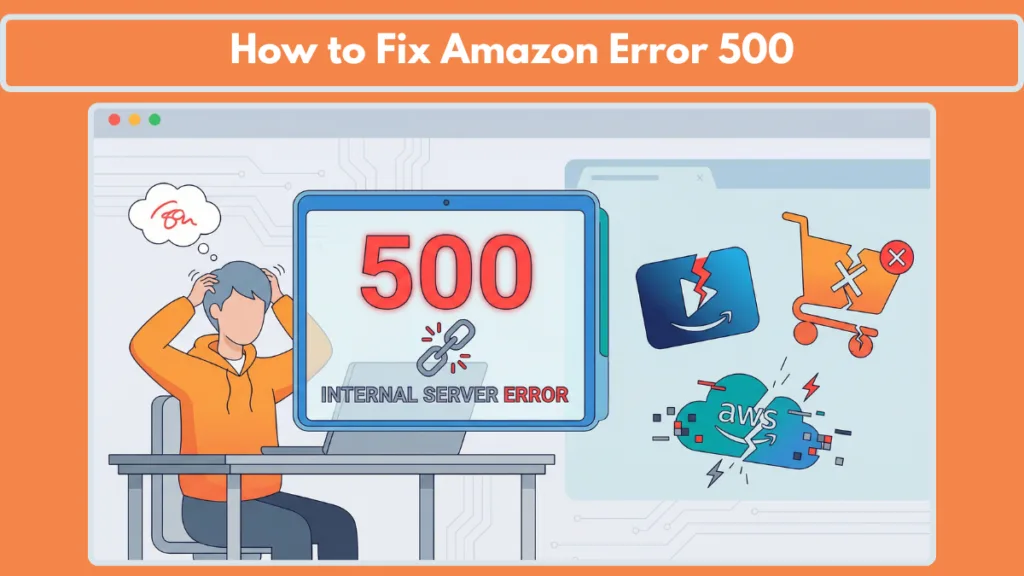
When an outage hits a platform as massive as Amazon, the blast radius is enormous. Amazon is not just a single retail website; it is an interconnected ecosystem encompassing the main e-commerce marketplace, Amazon Prime Video streaming services, Amazon Seller Central for millions of third-party merchants, and Amazon Web Services (AWS), which literally powers a significant portion of the modern internet. Because of this sprawling architecture, encountering a server crash can mean very different things depending on which service you are trying to use, whether you are on the Amazon Shopping app for iOS or Android, or using a desktop browser.
First things first: take a deep breath. If you are seeing this error, your account has not been hacked, your payment information is safe, and your data is not gone. This is simply a communication hiccup on the server’s end.
Whether you are an everyday shopper, a third-party seller worried about inventory, or a developer troubleshooting a complex backend, this guide will walk you through exactly what is happening and provide practical, solution-oriented steps to get things back on track.
What Does an “Amazon Error 500” Actually Mean?
In plain English, an HTTP 500 Internal Server Error is a generic message indicating that the server encountered an unexpected condition that prevented it from fulfilling your request.
To understand this better, we have to look at how web browsers and servers communicate using HTTP status codes. When everything works perfectly, the server returns a 200-level code (like 200 OK). When you type in a URL wrong or a page is deleted, you get a 400-level code (like the famous 404 Not Found), which means the error is on the client’s (your) end.
However, the 500-level codes (including 502 Bad Gateway, 503 Service Unavailable, and 504 Gateway Timeout) strictly dictate that your browser did everything right, but the server fundamentally failed to process the command.
The core takeaway here is that the problem is almost always on Amazon’s end (the backend), not with your phone, computer, or internet connection.
Something in their database, server infrastructure, load balancers, or backend application logic is temporarily failing to load the information you are asking for. It could be due to a sudden traffic spike during peak events like Prime Day or Black Friday, a botched software update deployed by Amazon engineers, or a localized data center outage.
Experiencing an Error 500 Amazon Shopping? Here is What to Do
If you are a consumer trying to make a purchase or check an order, a server outage can be highly disruptive. Here is a breakdown of what you might encounter and how to navigate it.
Common Symptoms You Might See
When the retail servers take a hit, you will likely notice a few distinct issues. This is usually why thousands of people suddenly search “why is the amazon app not working today?” (especially on the iOS App Store or Google Play versions).
- Checkout Failures: You might be completely blocked from buying items, receiving a frustrating “Amazon an error has occurred” pop-up right when you try to pay. In some cases, your shopping cart might appear completely empty, even if you just spent an hour adding items to it.
- Broken Order History: Your “Your Orders” page might completely break. It may falsely claim you have no purchases in the last three months, only display digital subscriptions like Audible, or redirect you entirely to the famous dog-themed Amazon error page.
- Prime Video and Device Glitches: The 500 error is not limited to just the retail site. You might encounter HTTP 500 codes while trying to load a movie on your Amazon Firestick or Smart TV app, or experience synchronization failures on your Kindle e-reader where the device cannot connect to your cloud library.
Practical Workarounds and Solutions
While you cannot fix Amazon’s servers yourself, you can use these community-tested workarounds to find the information you need.
- The Search Trick: If your order dashboard is broken but you desperately need to check the tracking status of a recent purchase, use the main search bar to look up the exact item you bought. Clicking on the product listing from the search results will often bypass the broken dashboard and load your hidden tracking details at the top of the page.
- Delivery Reassurance: If you already have packages on the way, do not panic. Physical deliveries in transit are handled by a completely different logistics system. Amazon’s fulfillment centers and delivery drivers operate on separate localized networks, meaning your packages will typically still arrive at your door right on schedule, even if the website is throwing errors.
- Switch Devices or Platforms: Sometimes an outage only affects a specific interface. If the mobile app is throwing a 500 error, try logging into the desktop website using popular browsers like Google Chrome, Mozilla Firefox, Apple Safari, or Microsoft Edge. If the desktop site is down, the mobile browser interface or the Amazon Shopping app might still be functioning.
- Wait for the Fix: Global retail outages are high-priority. Amazon’s engineering teams are instantly alerted to these massive traffic spikes or database errors and usually resolve them within 2 to 5 hours. Keep an eye on social media channels for real-time community updates.
Navigating Outages for Amazon Sellers and Merchants
For e-commerce business owners managing their storefronts via Amazon Seller Central or Vendor Central, a 500 error is not just an inconvenience—it is a disruption to daily revenue.
How Seller Central is Affected
Seller Central is a massive, data-heavy portal. When Amazon experiences backend database sync issues, sellers are often the first to feel the impact. You might encounter a 500 internal server error when trying to upload new inventory spreadsheets, print shipping labels for Merchant Fulfilled Network (MFN) orders, or simply log into the dashboard.
Furthermore, if you utilize third-party inventory management software, those tools connect to Amazon via the Selling Partner API (SP-API). During an outage, your third-party software might report API 500 errors, meaning your stock levels will not synchronize across your multi-channel platforms until Amazon’s backend stabilizes.
Seller-Specific Workarounds
Do Not Double-Submit Data: If you submit an inventory feed or a pricing update and receive a 500 error, do not immediately submit it again. The server might have received the data but failed to return the confirmation screen. Repeatedly hammering the server with updates can cause duplicate listings or pricing errors once the system comes back online.
- Check the Seller Forums: Amazon operates dedicated forums for sellers. If you are locked out of Seller Central, check these community boards to confirm if other merchants are facing the same API or login errors.
- Pause Advertising Campaigns (If Possible): If the consumer-facing site is throwing 500 errors at checkout, you do not want to be paying for Amazon PPC (Pay-Per-Click) clicks that cannot convert. If your ad dashboard is still accessible, consider pausing high-spend campaigns until the retail checkout system is fully functional.
Resolving AWS Internal Server Error for Developers and IT
For those hosting applications on Amazon Web Services (AWS), an HTTP 500 error carries a slightly different, more technical weight. Unlike a retail outage where you simply have to wait, an AWS 500 error often requires active debugging on your part to restore service to your own users.
Identifying the Root Cause
For developers, an aws internal server error generally means your application’s frontend has lost the ability to communicate with your backend server.
When your system logs show a method completed with status 500, it is rarely related to basic settings like domain registration renewals. Instead, it indicates a direct backend failure, a timeout, or a misconfiguration within your specific tech stack. It could be an issue with your code, a permissions error via AWS Identity and Access Management (IAM), or a resource exhaustion problem.
Next Steps for Troubleshooting Your AWS Stack
To effectively diagnose the issue, you must isolate which AWS service in your architecture is triggering the failure.
- Check the Logs: Skip the basic domain and routing settings. Head straight to Amazon CloudWatch to analyze your logs and find the exact point of failure in your request lifecycle. CloudWatch provides granular metrics that will show you precisely when the errors started spiking.
- Implement AWS X-Ray: If you are running a microservices architecture, tracking down the exact service causing the 500 error can be like finding a needle in a haystack. AWS X-Ray allows you to trace user requests as they travel through your entire application, helping you pinpoint whether the bottleneck is in your database query, your compute instance, or an external API call.
- Verify Backend Services: Check the operational status and specific error logs of your backend components.
- If you are troubleshooting an api gateway internal server error, you need to ensure your integration endpoints are responding correctly. A common culprit here is a malformed integration response; if your backend returns data in a format that API Gateway is not configured to handle (like missing the required JSON structure for a Lambda Proxy Integration), API Gateway will automatically return a 500 error to the client.
- If you are dealing with aws lambda errors, verify that your functions are not timing out or hitting concurrency limits. Lambda functions have strict timeout limits (up to 15 minutes). If your code takes longer than the configured timeout to execute, or if it exceeds its allocated memory footprint, the execution will crash, resulting in a 500 error.
- Inspect Amazon EC2 and Load Balancers: If you are running traditional servers using EC2 instances behind an Application Load Balancer (ALB), ensure your instances are passing their health checks. If an EC2 instance exhausts its CPU or RAM, the application server running on it (like Apache or Nginx) might crash, causing the load balancer to return a 5xx error.
4 Quick Steps to Verify if the Problem is on Your End
Before assuming it is a massive global outage or digging into complex developer tools, run through this quick checklist to ensure your browser or local network is not just caching a temporary, localized glitch.
- Refresh the Page: Sometimes the server connection times out for just a split second due to packet loss on your internet provider’s end. A simple refresh (pressing F5 or Ctrl+R) can often push the request through successfully.
- Clear Browser Cache and Cookies: Old site data, expired session tokens, and corrupted cookies can sometimes cause display conflicts with Amazon’s security protocols. Clearing your cache forces your browser to pull a fresh, working version of the page directly from the server. In Google Chrome or Microsoft Edge, you can do this quickly by pressing Ctrl+Shift+Delete, selecting “Cached images and files” and “Cookies,” and clicking clear. (For Apple Safari and Mozilla Firefox users, check the privacy settings).
- Try Incognito Mode: Opening an incognito or private browsing window (or using privacy-focused browsers like Brave) is the fastest way to test if a third-party browser extension is interfering. Ad-blockers, aggressive privacy extensions, or automatic coupon finders inject their own code into Amazon’s pages, which can sometimes break the site’s native Javascript and trigger a false server error.
- Flush Your DNS Cache: If you have recently changed networks, your computer might be trying to route traffic through an outdated IP address for Amazon’s servers. Flushing your DNS forces your machine to look up the correct, current server routing.
- Check Outage Monitors: Verify if others are experiencing the same issue. Shoppers should check third-party status sites like Downdetector to see user-reported outage graphs. Developers and IT admins should immediately consult the official AWS Service Health Dashboard, which provides granular status updates for every AWS service across every global availability zone.
How-To: Clear Your Cache on Popular Browsers and Apps
If you suspect a localized glitch is causing your 500 error, clearing the cache is the best first step. Here is a quick how-to guide for popular platforms:
Desktop Browsers
- Google Chrome: Click the three dots (top right) > Settings > Privacy and security > Clear browsing data. Make sure “Cached images and files” is selected.
- Apple Safari: Open Safari > click Safari in the top menu bar > Settings (or Preferences) > Privacy > Manage Website Data > Remove All.
- Mozilla Firefox: Click the three lines (top right) > Settings > Privacy & Security. Scroll down to “Cookies and Site Data” and click Clear Data.
- Microsoft Edge: Click the three dots (top right) > Settings > Privacy, search, and services. Under “Clear browsing data,” click Choose what to clear.
Mobile Apps
- Amazon Mobile Apps (Android): Go to your phone’s Settings > Apps > find the Amazon Shopping, Prime Video, or Amazon Seller app > Storage > tap Clear Cache.
- Amazon Mobile Apps (iOS): Apple’s iOS does not offer a direct “clear cache” button for most third-party apps. To clear the cache on an iPhone or iPad, you generally need to delete the app and reinstall it fresh from the App Store.
Frequently Asked Questions (FAQ)
Q: Did my Amazon account get hacked if I see a 500 error? A: No, an error 500 is strictly a server-side display and communication issue. Your account is not compromised, and your payment information and personal data remain securely encrypted in Amazon’s databases.
Q: Why is Amazon Seller Central giving me a 500 error? A: Similar to the consumer shopping side, Seller Central relies heavily on Amazon’s backend databases. If those servers are overloaded or undergoing emergency maintenance, you will not be able to log in, process orders, or update listings until Amazon resolves the traffic spike.
Q: Will I lose the items in my shopping cart during a 500 error? A: Generally, no. Amazon stores your active shopping cart data in highly resilient databases separate from the frontend display servers. Once the outage is resolved and you can log back in smoothly, your cart contents will usually be exactly as you left them.
Q: If I host my website on AWS, does a 500 error affect my SEO? A: If the 500 error is brief (resolved in a few minutes or hours), search engines like Google are usually forgiving and will simply try to crawl your site again later. However, if your AWS architecture is misconfigured and returns consistent 500 errors over several days, search engine bots will eventually lower your ranking, assuming your website provides a poor user experience. It is crucial to set up CloudWatch alarms to notify you the moment 500 errors begin occurring.
Patience is often the most effective fix for an internal server error when dealing with the retail side, and systematic debugging is the key on the AWS side. Give it a little time, try the workarounds, and the servers will usually bounce back before you know it.
Visit Our Post Page: Blog Page