
Struggling with Black Ops 6 Dev Error 0xD8E46539? Learn the easiest and most effective ways to fix this BO6 dev error on PS5, Xbox, and PC. Including solutions for asset mismatch, faulty content packs, and entitlement issues to get your game running smoothly again.
What Is Dev Error 0xD8E46539?
If you’re launching Call of Duty: Black Ops 6 and suddenly hit the Dev Error 0xD8E46539, you’re not alone. This issue has become one of the most reported problems across the community, especially on PS5, where players encounter unexpected crashes, freezes, or a full stop at the loading screen.
The error points to a content-level conflict, often triggered when Black Ops 6 attempts to load incorrect assets, outdated files, or mismatched content packs.
Unlike generic crash messages, Dev Error 0xD8E46539 is linked to how the game handles file integrity, add-on dependencies, and content entitlement data — the internal system that decides what packs your console should load. When BO6 pulls the wrong assets — such as leftover Black Ops 7 or MW3 files — the engine throws a critical validation failure, stopping gameplay entirely.
Players describe symptoms like:
- sudden crashing on startup,
- being stuck on a looping loading screen,
- the game trying to load invalid or mismatched assets,
- or BO6 closing instantly with no warning.
These patterns indicate a deeper issue than simple instability. The error usually stems from asset mismatch, broken add-ons, or incorrect content flags applied after a game update.
Importantly, the game’s own tracking of issues lists similar symptoms — file corruption, installation conflicts, and update problems among known causes of crashes and dev errors.
If you’re dealing with the black ops 6 dev error 0xd8e46539, understanding its source is the first step to fixing it. The upcoming sections will walk you through precise, platform-aware solutions — starting from quick diagnostic checks to advanced data fixes used by players and technicians alike.
Why Black Ops 6 Dev Error 0xD8E46539 Happens
The Dev Error 0xD8E46539 in Call of Duty: Black Ops 6 arises due to how the game validates and loads its internal asset pipeline. When those assets don’t match what the engine expects, BO6 forces a hard stop to prevent deeper corruption. Across player reports and technical patterns, several root causes consistently appear:
Incorrect or outdated assets: BO6 may attempt to load Black Ops 7 or unrelated older content (e.g., leftover Warzone/other COD content), creating an asset mismatch that instantly breaks the game’s file-integrity checks. This often occurs after new patches or when leftover DLC remains installed. Multiple players attribute 0xD8E46539 to the game trying to load the “wrong asset files.”
Broken or conflicting add-ons / content packs: There are reports of corrupt or conflicting content packs, especially when add-ons for previous COD titles remain — these mis-labeled or incompatible packs trigger failures in BO6’s asset validation (for example, when .iff files or entitlement files don’t match expected checksum or version).
Faulty entitlement data or legacy files: On consoles like PS5 or Xbox, leftover entitlement data (from prior COD versions) or mis-registered DLC may cause BO6 to load incorrect assets. In some cases clearing reserved or stored data/packs resolved the error, indicating that old entitlement flags or residual content play a key role.
Corrupt game files / file integrity issues: Official PC support documentation emphasizes having up-to-date OS and GPU drivers, and clean game files — outdated drivers or corrupted files can lead to crashes or dev errors.
Cache, indexing, and shader preloading failures (PC): On PC, improper shader preloading or interrupted first-boot processes can result in misloaded assets or missing file references — causing crashes or dev errors.
In real-world terms: when BO6’s asset loader tries to bring in files that don’t match expected versions — be it due to leftover content packs, leftover DLC from other COD titles, corrupt installation, or mismatched entitlement data — the engine triggers Dev Error 0xD8E46539 to prevent further damage.
Quick Checklist Before You Fix Black Ops 6 Dev Error
Before you dig into deep fixes for BO6 Dev Error 0xD8E46539, run through this quick checklist. Many times, the issue stems from system-level or installation-level problems — clearing them can save a lot of troubleshooting time:
Confirm System and Game Are Fully Updated
- On PC, ensure Windows 10 / 11 is current.
- Update GPU drivers(Intel/Nvidia/AMD) to recommended versions — outdated drivers are common culprits in file-loading or compatibility errors.
Restart the System to Clear Temporary Cache
- A simple reboot can clear corrupted temporary files or cached data that may lead to loading-screen loops or startup crashes.
- On consoles (PS5/Xbox), reboot before launching BO6 after updates or installations.
Check Online & Entitlement Services / Network Connectivity
- For consoles, verify that PlayStation Network or Xbox Live services are working — corrupted entitlement or update checks during login may cause asset validation to fail.
- On PC, ensure no firewall/ antivirus or background software blocks BO6’s file-access operations; exclude the BO6 folder from scans if necessary.
Ensure No Unwanted Add-ons or DLC Packs Are Auto-Installing
- On PS5 or Xbox, check storage/content list — sometimes leftover COD packs (from previous games) auto-install and trigger file-conflict issues.
- Removing or disabling those add-ons can prevent BO6 from loading incorrect assets.
Check Storage Health & Available Free Space
- On PC, confirm the game folder isn’t on a failing or corrupted drive. On consoles, ensure external drives (if used) are properly connected and healthy. Incomplete or faulty storage can corrupt essential game files.
- Make sure there’s enough free space — inadequate storage during updates or asset downloads can cause corrupt or partial content pack installation, leading to dev errors.
How to Fix Black Ops 6 Dev Error 0xD8E46539 (Easiest to Most Advanced Methods)
If you’re facing Dev Error 0xD8E46539 in Call of Duty: Black Ops 6 — don’t panic. Below are the proven fixes, moving from simple system-level resets to deeper content-cleanup and re-installation steps.
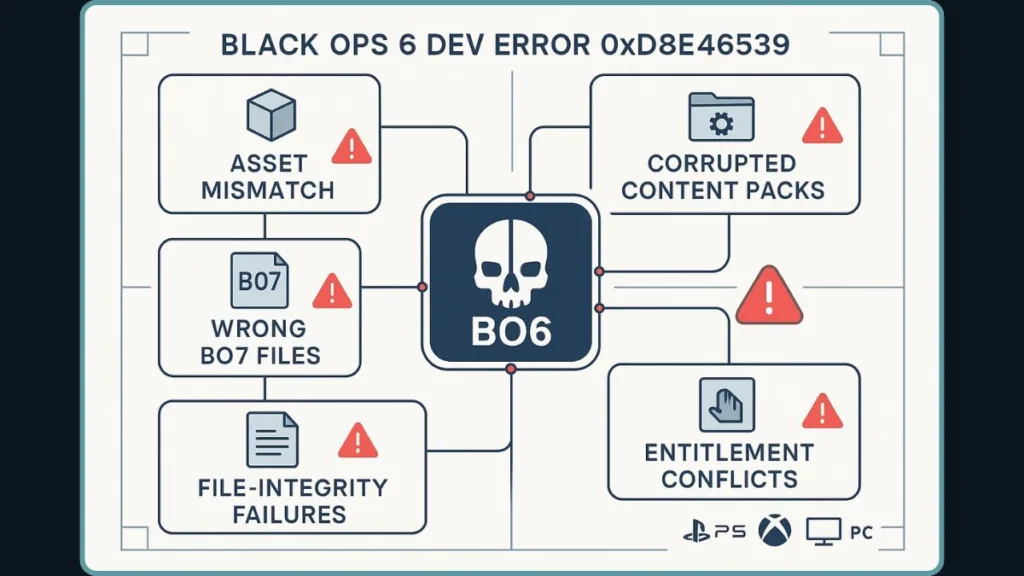
Each one targets a root cause of the error: mismatched assets, corrupted files, or console metadata conflicts. Wherever you are — PS5, Xbox, or PC — follow carefully.
Fix 1: Restore Licenses on PS5
Many players report this resolves the error instantly after a license/asset mismatch.
Why it works: On PS5, the “Restore Licenses” function forces the system to re-validate which game entitlements and add-ons belong to your account. This can revoke leftover permissions from unrelated COD titles (e.g. legacy or test-build content) that slip in and break BO6’s asset loader.
Steps:
- Go to Settings > Users and Accounts > Other > Restore Licenses.
- Select to restore for Call of Duty.
- Restart your PS5, then relaunch BO6.
Effect: Clears stale entitlement flags, removes erroneous content packs or DLC attribution — preventing BO6 from trying to load invalid assets. Several user reports confirm the error disappears immediately after this.
Fix 2: Delete Faulty or Unnecessary Add-ons / Content Packs
Old or mismatched add-ons (from previous COD titles or updates) can cause file conflicts or asset mismatches. Removing them often clears the error.
Why this helps: In many cases, BO6 attempts to load assets tied to older or unrelated COD content — think remnants of other releases. By deleting these, you ensure only valid BO6 assets are present, eliminating content-pack conflicts that trigger the error.
How to do it (PS5 route):
- Go to Settings > Storage > Games & Apps
- Select Call of Duty: Black Ops 6 > open Add-ons / Content Packs
- Delete any files not essential to BO6 — especially those labeled as leftover COD7 / Warzone / unrelated multipacks. Many users said deleting COD 7 multiplayer/warzone packs solved their dev error instantly.
How to do it (Xbox/PC route):
- On Xbox: Manage game storage and remove unnecessary packs or reserved data.
- On PC: Manually delete extraneous DLC/add-ons from the game directory; then verify the game files with the launcher. This helps eliminate outdated or foreign assets that BO6 might try to load.
Effect: Ensures the asset loader only sees the intended BO6 content — avoiding asset mismatch, .iff file conflicts, or loading of extraneous assets.
Fix 3: Clear System Cache + Rebuild Database (PS5) / Verify Files (PC)
When cached data or corrupted indexes interfere, this fix rebuilds your game environment cleanly — often resolving persistent loading or startup issues.
Why this works: Over time or after updates/patches, cached files can conflict with new assets. Rebuilding the database or verifying game files forces a clean re-indexing — repairing corrupt metadata and eliminating invalid file references that cause dev errors.
Steps (PS5):
- Turn off PS5 fully.
- Hold the power button until you hear the second beep — enters Safe Mode.
- Select Clear System Software Cache.
- Then choose Rebuild Database.
- Restart the console and launch BO6.
Steps (PC):
- In your game launcher (Steam, Battle.net), choose Verify Integrity / Scan and Repair to re-download any missing or corrupted files.
- If you use modded content or external add-ons, remove them prior to verification.
Effect: Repairs corrupted asset indexes, removes mismatched references, and helps restore stability — useful especially after large updates or content changes.
Fix 4: Clear Temporary Cache / Power-cycle Console / Storage Check
Sometimes the error isn’t about the game files — it’s about temp data, corrupted cache, or storage issues.
Why this helps: Temporary or cache files can get corrupted through interrupted updates or system glitches. Clearing them ensures the game loads fresh data, preventing crashes or load-loop failures.
How to do it (PS5):
- Fully shut down the console (not Rest Mode), unplug for ~1 minute, then power it back on.
- Optionally, enter Safe Mode and clear cache + rebuild database for deeper cleanup.
Other checks:
- Make sure storage (internal or external) is healthy and properly connected.
- Ensure there’s sufficient free space to allow BO6 to update or load assets.
- On consoles, avoid running from external drives prone to data latency or corruption. These steps protect against file corruption or failed asset loads.
Fix 5: Remove Conflicting COD HQ / Warzone / Legacy Packs Completely
If BO6 still misbehaves, a thorough clean-up of any non-BO6 COD assets is often required.
Why this matters: Leftover files from other COD releases — be it COD HQ, Warzone, or old DLC — can interfere with BO6’s asset loader, triggering content-pack conflicts and causing dev errors.
What to remove:
- Any COD HQ installation files.
- Warzone-related data.
- Legacy multiplayer or test-build assets from previous COD titles.
- DLC or packs not explicitly tied to the current BO6 release.
After removal:
- Reboot the console or PC.
- Run a Rebuild Database (PS5) or Verify Game Files (PC) to ensure BO6 is cleanly reconfigured.
Effect: Prevents BO6 from accidentally referencing or loading foreign content, eliminating mismatched asset triggers.
Fix 6: Reinstall BO6 with Only the Required Content Packs
This is the most thorough fix — a “clean slate” reinstall ensures the game’s asset structure is pristine.
When to use:
- If previous fixes didn’t work.
- If you’ve had repeated crashes, stuck loads, or dev errors after updates.
- If your installation includes many add-ons, DLCs, or legacy COD files.
How to do it:
- Delete BO6 entirely (game + all add-ons and extra content).
- Reinstall only the base BO6 package — avoid optional or legacy add-ons initially.
- Launch once to let BO6 set up clean asset references.
- Optionally add only essential packs — avoid unnecessary legacy or cross-title content.
Effect: Resets all asset dependencies, entitlement mappings, and content pack versions. Ensures BO6 runs on a validated, minimal set of files — significantly lowering the chance of 0xD8E46539 recurring.
When Nothing Fixes BO6 Dev Error 0xD8E46539:Final Escalation Steps
If you’ve exhausted all the standard fixes for Dev Error 0xD8E46539 in Call of Duty: Black Ops 6, it’s time to escalate — which means wiping everything clean and rebuilding from the ground up.
This helps rule out stubborn underlying issues like corrupted assets, entitlement conflicts, or persistent file-system problems that evade simpler fixes.
Step 1: Full Clean Reinstallation of BO6 (Fresh Start)
This is the most thorough way to eliminate corrupted content packs, mismatched assets, or hidden legacy files interfering with the game.
Procedure:
- Fully uninstall BO6 — game + all add-ons, DLCs, extra content.
- Reboot your console (PS5/Xbox) or PC to clear any cached metadata.
- On reinstall, include only the required base game files. Skip optional or legacy add-ons initially.
- Launch the game once to allow proper initialization of core assets and entitlement mapping.
Why this works: This action restores clean file integrity and ensures asset-pack alignment strictly to BO6. Any lingering corrupted files, mismatched .iff assets, or previous-title leftovers get completely purged.
Step 2: Remove All Legacy COD Assets — BO7, Warzone, COD HQ, MW3, etc.
Often, the root cause is not in BO6 itself but in residual files from older COD titles.
What to clear out:
- BO7 test-build content or multiplayer packs
- Warzone data, shaders, or operational files
- COD HQ assets or standalone content from other COD releases
- Any MW3 or older-title leftovers
Why this matters: If BO6’s loader detects foreign content packed under legacy entitlements, it triggers asset-mismatch and content-pack conflict errors — the very issues at the heart of 0xD8E46539. Cleaning them ensures BO6 works with a clean asset tree.
After cleanup: Re-run a database rebuild (PS5) or file verification (PC) to ensure BO6 sees only valid assets.
Step 3: Reset Console Storage / Entitlement Metadata / System Settings
Sometimes the issue isn’t the game files — it’s how your console tracks them.
On PS5:
Make sure your account is set as Primary under Users & Accounts.
Run a Safe Mode > Rebuild Database / Clear Cache to purge stale or corrupted metadata.
If using an external drive, ensure the drive is healthy and properly recognized.
On Xbox: Clear Reserved Space and Persistent Storage (especially Blu-ray cache) to reset asset tracking.
On PC: After reinstall, ensure the game folder is clean and that no overlays, antivirus, or background tools are interfering with asset loading. As recommended in official PC-troubleshooting docs.
This reset helps if your system’s entitlement flags, asset indices, or content-access records are corrupted or mismatched.
Step 4: Check Hardware & Storage Integrity (Internal/External Drives, Disk Health, Thermal/Latency Issues)
Though rare, hardware problems might cause read/write failures that disrupt BO6 asset loading.
Things to verify:
- If installed on external drive: test or migrate to internal SSD/HDD to eliminate latency or read-error issues.
- Run disk checks (on PC) to detect bad sectors or filesystem corruption.
- Ensure adequate free storage space — insufficient space may block updates or corrupt file extractions.
- On PC: avoid using outdated drivers or modified config files; ensure graphic drivers match recommended versions.
This ensures that game file access isn’t being disrupted by hardware problems.
Step 5: Submit a Support Ticket with Full Diagnostic Info
If none of the above works, the issue could be tied to account-level entitlement corruption, backend file mapping errors, or rare server-side glitches that only the developers can fix.
Include with your ticket:
- Exact error: Dev Error 0xD8E46539
- Platform (PS5 / Xbox / PC), region, and time of the crash
- Details of all attempted fixes — reinstalls, pack cleans, cache rebuilds, etc.
- Screenshot of installed content-packs before the error occurred
- Whether extra COD content (BO7 / Warzone / COD HQ / MW3) was previously present or recently removed
Support teams may be able to reset entitlement flags, clear corrupted content locks, or refresh asset routing for your account.
step 6: Avoid Ranked / Competitive Modes Until Stability Is Confirmed
Until your installation is fully clean and stable, avoid high-risk game modes:
- Crashes mid-match can lead to SR loss, penalties, or bans — even if it’s not your fault.
- Stick to private lobbies, unranked matches, or single-player until you confirm consistency across multiple sessions.
Step 7: Track Updates & Patch Notes — Watch for Official Fixes Related to Asset Packs or Licensing Bugs
Often, dev errors stem from patch-related asset or entitlement conflicts. Game patches sometimes fix these issues at source.
- Subscribe to official patch announcements and community forums
- After a major patch, re-run asset-related cleanup or license-reset steps
- If the error becomes widespread post-update, avoid launching BO6 until players confirm stability
Staying updated helps catch systemic fixes before deeper manual intervention becomes necessary.
FAQ
How do I fix Dev Error 0xD8E46539 on PS5?
Use Restore Licenses to realign entitlement data; delete leftover add-ons or old COD content; rebuild the PS5 database; or reinstall Black Ops 6 with only required packs. These steps eliminate asset conflicts and prevent invalid file loads.
Why does Black Ops 6 say Dev Error 0xD8E46539?
The error signals a detected asset mismatch, corrupted content packs, or incorrect entitlement flags. BO6 halts loading when it finds inconsistent or invalid game data to protect integrity.
How do I restore licenses for Call of Duty on PS5?
Go to Settings > Users & Accounts > Other > Restore Licenses, then restart the console and relaunch BO6. This rebuilds entitlement mapping and clears residual license issues.
Do I need to delete Black Ops 7 files to play BO6?
Yes — any leftover BO7 files, test-build packs or extra COD content can cause file conflicts or asset mis-loads. Removing them ensures BO6 loads only the correct game assets.
Is Dev Error 0xD8E46539 a server issue?
Mostly no — the error is almost always caused by local file or entitlement problems. Unless many players report it simultaneously, it isn’t a server-side problem.
Final Thoughts: What Players Should Expect Next
The recurring Dev Error 0xD8E46539 in Call of Duty: Black Ops 6 (BO6) signals deeper fragility in how the game handles content packs, asset validation, and entitlements — but it also shows that with proper fixes and vigilance, stable gameplay is achievable. As the developers continue updating the game, here’s what players should expect and how to stay prepared.
What to Expect in Upcoming Updates
- Official issue tracking & patch rollouts: The team behind BO6 maintains a known-issues tracker, indicating that some of these problems are “under investigation.” Activision Support
- Better content-pack management: Future patches may include stricter rules to prevent legacy COD files or unrelated DLC from being mis-associated with BO6 — reducing asset mismatch and file conflict risks.
- Improved stability and file-integrity checks: As more players report Dev Error issues, expect updates to target not just gameplay bugs, but underlying file loading logic, content entitlement validation, and safer rollback mechanisms in case of corrupted assets.
- More transparent bug-report feedback loops: With users actively flagging the issue across threads, official support may increasingly respond to widespread complaints by releasing fixes or hot-patches.
What Players Should Do to Stay Safe (Even After Updates)
Keep your installation clean: Avoid leftover packs from older COD titles — DO NOT mix BO6 with content from other games. This minimizes chances of unexpected asset loading.
Monitor automatic downloads and DLC installs: Always check what add-ons or packs are being installed, especially after updates or patches.
Verify game integrity after major updates: For PC players — run file-verification or scan/repair; for consoles — consider rebuilding database or re-validating licenses if things seem off.
Avoid unstable play during transitional periods: After new seasons or big updates, wait a few hours or read community feedback before jumping into ranked matches — until stability is confirmed.
Report issues with full context: If you get the dev error despite clean installation, send a bug report — include your platform, steps you’ve done, and any conflicting content info.
Bottom Line
Yes, Dev Error 0xD8E46539 is annoying, disruptive, and unfair to many players. But it doesn’t mean BO6 is broken beyond repair. With clean file setups, careful installation practices, and a watchful eye on official patches / community feedback, you can minimize or even avoid the error altogether.
Until the developers fully patch the root causes, the stability of your play will largely depend on how clean and well-managed your game installation remains.
Useful Resources for Fixing Black Ops 6 Dev Error 0xD8E46539
When you’re dealing with Dev Error 0xD8E46539, having the right references can make troubleshooting much easier.
Official Support Resources
Black Ops 6 – PC Troubleshooting Guide (Activision Support): If you’re playing on PC, this guide walks you through driver requirements, repair tools, OS checks, and crash-related diagnostics. It’s one of the most accurate references for installation or file-integrity issues.
Known Issues in Black Ops 6 – (Activision Support): A constantly updated list of bugs, dev errors, compatibility problems, and in-progress fixes. Great for verifying whether your issue is already acknowledged by the developers.
Visit Our Post Page: Blog Page