
Can’t change audience on Facebook posts? Learn why the Edit Privacy option isn’t working and follow 7 proven fixes to restore your Facebook privacy and visibility settings.
What Causes the “Can’t Change Audience on Facebook Post” Problem?
If you’ve tried switching a post from Friends to Public, or tapped the privacy icon only to find the audience selector grayed out, you’re not alone. This issue shows up for many users, and it usually comes down to how Facebook handles privacy rules, post types, and the tools behind its audience settings.
In most cases, the problem isn’t something you did wrong. It’s the way Facebook locks certain posts — or applies default audience rules behind the scenes. Sometimes the “Edit Privacy” option disappears altogether. Other times, your post appears stuck on a single audience — even though you’re sure you didn’t set it that way.
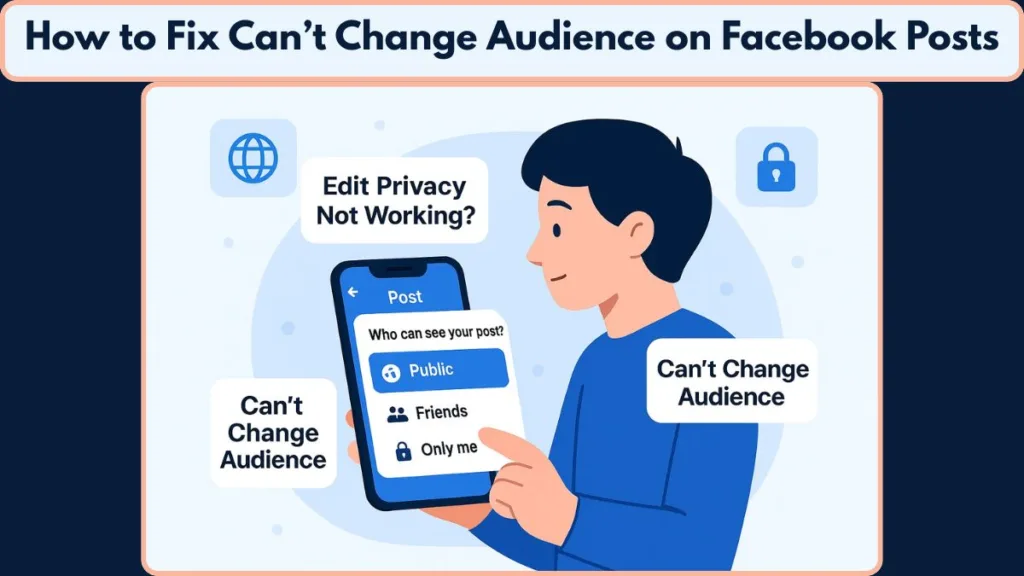
You may also notice related symptoms such as the Public icon disappearing, the Friends-only option not updating, or older posts refusing to change audience no matter how many times you try. These are simply hints that Facebook is following built-in restrictions — or that the system is experiencing a small privacy-setting glitch.
Here are some real reasons (from Facebook’s own policies and common user reports) why this happens:
- Album-level privacy controls. If your post is a photo inside an album (for example, “Cover Photos” or “Profile Pictures”), Facebook treats the album’s privacy setting as fixed. Instead of being able to change privacy for that single post/photo, you must change the album’s audience settings.
- Certain content is always public. For example, Facebook’s policy notes that some profile and cover photos — or data tied to them — may default to Public, limiting user control over audience.
- Built-in limitations on shared or group content. If a post comes from a group or is a re-share, privacy restrictions can override what you try to set — meaning the audience selector may be disabled or limited.
- Glitches or sync issues with default audience settings. Several users across support forums and community threads report that even after setting a preferred audience (or default audience), Facebook saves posts as “Only Me” or refuses to let them update — even after reinstalling the app or clearing cache.
Because of these rules and technical quirks — not user error — the result is that many people suddenly find themselves unable to change a post’s audience.
Knowing the root causes makes the fixes much easier. From album-level locks to group-based rules (and even background glitches), each one affects what you can — and can’t — adjust on a post. In the next sections, we’ll walk through each scenario step-by-step so you can finally regain control of your post privacy.
Common Symptoms When You Can’t Change Facebook Post Privacy
When the audience settings stop working on Facebook, the signs usually appear in small but noticeable ways. You might try switching a post to Public, adjusting it to Friends, or hiding it with Only Me, yet the platform refuses to respond.
These early hints are important because they reveal whether the issue is tied to privacy controls, post type rules, or an underlying audience-setting glitch.
Audience Selector Grayed Out When Trying to Change Facebook Post Privacy
One of the clearest indicators is the audience selector grayed out. Instead of offering a list of options, the menu stays locked on a single choice—often Friends or Public—with no way to tap or change it. This behavior is commonly reported when Facebook applies automatic restrictions to a post or when the system fails to load the correct privacy tools.
Facebook Privacy Icons Working Visually but Not Responding When Tapped
In some cases, the icons themselves appear normally—the globe, two-person icon, or lock symbol—but selecting them does nothing. This usually points to an interface issue or a temporary sync problem between your account and Facebook’s servers.
Users often mention that refreshing the app, switching devices, or trying a browser temporarily restores visibility, which suggests the problem is not always tied to account restrictions.
“Edit Privacy” Option Missing From Facebook’s Three-Dot Menu
Another frequent symptom is the “Edit Privacy” option missing from the three-dot menu. This can happen when Facebook limits privacy changes for certain content types—like posts tied to albums, memories, or shares—or when the system recognizes the post as containing sensitive or restricted elements.
Missing buttons are often connected to UI errors or policy-based limits, especially on mobile apps.
Facebook Post Stuck on Friends-Only Despite Changing Default Audience
You might also notice that your post is stuck on Friends-only, even if your default audience is set to Public. This mismatch between your preferences and what Facebook applies can be confusing, but it typically means the post was created in a context where Facebook enforces a different visibility rule, such as sharing from a group, using a restricted album, or posting while certain privacy features are active.
Older Facebook Posts Showing No Available Audience Options
Some users report that older posts show no audience options at all. This often affects content published under older privacy systems or posts that were created during temporary restrictions on the account.
Attempts to update these posts might show the correct symbols, but the changes don’t save—another sign of deeper privacy-setting conflicts.
Facebook Privacy Changes Not Saving After Updating Audience Settings
A less common but notable symptom involves posts that look editable but silently revert to the original audience. You update the visibility, tap save, and everything appears fine—until you refresh the page and find the post unchanged.
This behavior is usually linked to background syncing issues or situations where Facebook’s privacy rules override user adjustments.
Why Facebook Won’t Let You Change Audience: Album, Group & Privacy Restrictions Explained
When the audience settings on Facebook stop behaving the way you expect, it usually comes down to how the platform applies its own privacy rules. Facebook doesn’t treat every post the same.
Some content is tied to an album, others come from a group, and a few are governed by account-level protections that automatically limit who can see your posts.
Understanding these built-in restrictions makes it much easier to figure out why you can’t change audience on a Facebook post even when the option appears available.
Album Privacy Rules That Prevent Changing Your Facebook Post Audience
Photos uploaded into certain albums—like Mobile Uploads, Cover Photos, or Profile Pictures—follow the album’s privacy setting, not the photo’s individual setting. That means even if you try switching the post to Public, Friends, or Only Me, Facebook may block the update because the album audience is fixed.
Some albums are intentionally designed with limited controls. For example, Cover Photos and Profile Pictures often default to Public for visibility across the platform. If your photo is inside an album with locked privacy, the audience selector might show options but won’t actually allow changes.
This is one of the most common reasons users feel like their post privacy won’t update, even when everything looks editable at first glance.
Group Privacy Rules That Override Facebook Post Visibility Options
If the post you’re trying to edit originally came from a group, the group’s own privacy settings take priority over your personal preferences. This means:
- Posts from private groups cannot be made Public
- Shared posts inherit the original audience
- The audience selector may show limited or no options
Even if you normally post publicly, the moment you share something into a private or closed group, Facebook locks the visibility. That’s why many people notice the “Edit Privacy” button missing or the post appearing stuck on Friends-only after sharing.
Group rules are strict by design to protect member privacy, so Facebook does not allow overriding them on shared content.
account and Profile Restrictions That Limit Audience Options
Features like Profile Lock, Restricted Mode, or certain security reviews can remove the option to post publicly—even if you see the globe icon elsewhere on Facebook. When these protections are active, Facebook may disable:
- The Public audience option
- Certain custom lists
- The ability to change audience on older posts
This can make it seem like your default audience isn’t saving, when in reality, your account is temporarily restricted from using certain visibility settings.
Profile Lock, common in some regions, is a major reason why users report the public option missing or find that their posts default to Friends-only with no way to change it.
Content-Based Limitations That Control Facebook Post Visibility
Certain types of posts come with built-in rules. Examples include:
- Memories, which often inherit their original audience
- Posts created by third-party apps, where visibility is controlled outside Facebook
- Shared stories or reels, which may not allow traditional privacy edits
- Cross-posted content from platforms like Instagram
In these cases, the audience settings may look different or be partially disabled because the post format itself prevents privacy changes.
When Facebook won’t let you update your audience, it’s usually because one of these systems is quietly controlling the visibility in the background. Knowing whether it’s an album lock, a group rule, or a profile restriction helps you choose the right fix—so you can continue shaping your posts exactly the way you want.
How to Fix “Can’t Change Audience After Posting on Facebook” — 7 Reliable Solutions (with More Details)
When your audience selector refuses to change after posting, it can feel like Facebook is working against you. The good news? Most of these issues respond well to simple, practical steps. Below you’ll find seven detailed fixes that help restore your post privacy controls, whether you want to switch a post from Friends → Public, adjust visibility to Only Me, or update old content that seems locked.
Each fix targets a different cause — try them patiently and you’ll often regain full control over your post visibility.
Fix 1: Update the Facebook App to Refresh Audience Controls
A lot of privacy-setting glitches stem from outdated versions of the app. Whenever Facebook rolls out changes to how the audience selector works, older versions may fail to load all visibility options correctly.
What to do:
- Update the Facebook app via the Play Store / App Store (or via your device’s update tool).
- After updating, force-close and restart the app so settings reload properly.
- Log out and log back in — this often fixes sync issues between your account and Facebook’s servers.
Many users who’ve faced missing privacy options found that simply updating and restarting restored the Public / Friends / Only Me options in the audience dropdown.
Fix 2: Reset Your Default Audience in Facebook Settings
Sometimes the issue isn’t with one post — but with your default audience settings, which get applied automatically when you post. If those settings glitch, your posts can lock to the wrong visibility by default.
Steps to reset default audience:
- Go to Settings & Privacy > Settings.
- Navigate to Audience & Visibility > Posts.
- Change the default audience to something else (e.g., Only Me), save, then switch back to what you want (e.g., Public).
Doing this forces Facebook to reload your privacy configuration — and often clears odd bugs where posts remain stuck on a certain audience even after editing.
Fix 3: Edit Privacy Directly From the Post (Use the Audience Selector Again)
If you want to change the audience on a post you already shared:
- Click the audience icon next to the post’s timestamp (globe = Public, two-person = Friends, lock = Only Me, etc.).
- Choose your new audience.
This is the simplest method — but if the audience selector doesn’t appear or doesn’t respond, it often means Facebook applied a restriction (due to album, group, or account settings).
Fix 4: Update Album Privacy — Especially for Photos & Cover/Profile Photos
If your post contains a photo or video inside an album (like Cover Photos, Profile Pictures, or Mobile Uploads), Facebook may lock the visibility based on the album’s audience, not the post’s individual setting.
To fix this:
- Go to your profile > Photos > Albums.
- Open the album containing the media.
- Tap the three-dot menu > Edit Album > change the privacy setting to your desired audience (e.g., Public / Friends / Only Me).
Once the album privacy is updated, the posts inside usually become editable — allowing you to adjust their audience individually.
Fix 5: Check If the Post Originated from a Private Group or Shared Content
Sometimes the reason you can’t change audience is not a bug — but a restriction built by design. If you shared content from a private group, or the post originally belongs to someone else and you used the Share option, Facebook enforces the group’s or author’s privacy settings.
In such cases:
- You typically cannot convert a group-post to Public.
- The audience selector may either be limited or entirely disabled for that post.
To regain full control, many users recreate the content manually on their own timeline instead of sharing directly from the group.
Fix 6: Disable Profile-Level Restrictions (Profile Lock, Restricted Mode, etc.)
If you have activated certain account protections — for example, Profile Lock, Restricted Mode, or other privacy/security settings — Facebook may automatically limit your ability to post publicly or change visibility.
Check in Settings > Privacy / Profile settings to see whether such restrictions are active. Disabling them (if you’re comfortable) often restores the missing audience options (especially the Public option) for new and existing posts.
Fix 7: Rebuild or Refresh Custom Audience Lists When They’re Broken
If you use custom lists (e.g., Close Friends, Restricted, Custom Groups), and find that the audience selector doesn’t show those lists — or shows fewer options than normal — it may be that Facebook’s list data is corrupted or unsynced.
What to do:
- Open your Friends / Lists section in Facebook.
- Recreate or update your custom lists.
- Ensure the privacy setting of the post is reloaded after these changes.
This often brings back the missing custom-audience options in the selector, helping you regain control over selective sharing.
These seven fixes, when followed carefully, resolve most of the common problems behind the “can’t change audience after posting on Facebook” issue. Whether the source is a glitch, a privacy setting, or a content-type restriction, one of these methods usually brings your audience control back.
When Nothing Works: It’s Likely a Facebook Bug
If you’ve tried every fix — updating the app, adjusting default audience, editing the post directly, checking album rules, reviewing profile restrictions — and still the audience selector refuses to change, there’s a strong chance the issue isn’t on your end, but with Facebook’s system itself. In those cases, you’re probably facing a platform-side bug.
How Facebook Bugs Typically Show Up
You might see signs like:
- The “Edit Privacy” option disappears from many or all of your posts — even though your settings look normal.
- The moment you try to change audience (Public, Friends, Only Me), the post either doesn’t save changes — or reverts to its old setting after a page refresh.
- Privacy icons and menus may show up briefly, but selecting them doesn’t trigger a prompt or any action.
- The issue appears across multiple posts, different devices, or persists even after reinstalling or updating the app.
These patterns usually point to a server-side problem, or a temporary privacy-sync glitch in how Facebook handles audience controls.
What You Can Do: Reporting the Issue to Facebook
When it’s clearly not your settings or device, the best step is to report the problem directly so Facebook can investigate and potentially patch the bug.
How to report:
- Go to Help & Support > Report a Problem → “Something Isn’t Working.”
- Describe exactly what’s happening — note that the audience selector is unresponsive or privacy changes won’t apply, even after troubleshooting.
- Attach a screenshot or screen recording showing the issue.
- On mobile, some devices allow you to open the report tool by shaking the phone.
Once the report is submitted, Facebook logs the issue for review. If many users report the same failure, engineers often release a backend fix within days or after an update.
Try Workarounds While Waiting for a Fix
While waiting for Facebook to correct the issue, there are a few reliable temporary workarounds:
- Use the desktop version on a browser, which loads audience controls differently and often bypasses mobile bugs.
- Try switching to another device, which can load the audience tools normally if the glitch is device-specific.
- If the content is important or time-sensitive, consider reposting it and setting the correct audience immediately, avoiding the malfunctioning editor.
Why Sometimes It’s Not You — It’s Facebook
If you’ve attempted all reasonable fixes and the issue still persists across devices and different types of posts, it’s a strong indicator of a Facebook-side malfunction. When this happens, nothing you change on your end will fully resolve the problem until Facebook updates its systems.
Recognizing this helps you avoid unnecessary troubleshooting — and reporting the issue ensures Facebook’s team sees the failure and can work on restoring your audience controls, post visibility, and privacy settings for you and countless other users facing the same challenge.
FAQ
Why is the audience selector grayed out on Facebook?
It becomes grayed out when the post is controlled by Facebook rules — most commonly album-based restrictions, private group posts, or shared content that inherits the original audience. It can also appear during temporary loading or sync glitches.
How do I make a Facebook post Public when the Public option is missing?
The Public option disappears when features like Profile Lock, restricted privacy settings, or account security checks are active. Refreshing your default audience settings or turning off restrictions usually restores it.
Why can’t I change the privacy of a shared post on Facebook?
Shared posts must follow the original author’s visibility. If the original post isn’t Public, Facebook blocks you from expanding the audience. The only workaround is to create your own post instead of resharing.
Why is my Facebook post stuck on Friends-only?
A post may stay Friends-only because it came from a group, is tied to an album rule, or your default audience is overriding the change. Certain profile protections can also limit audience options.
Why doesn’t Facebook let me change privacy on older posts?
Older posts often use legacy privacy settings or originate from restricted sources. When these controls conflict with newer tools, the post may not offer updated visibility options.
Why is the Edit Privacy option missing on my Facebook post?
The Edit Privacy button disappears when the post is from a group, part of a restricted album, or affected by a UI loading issue. Switching to the desktop browser often makes the option reappear.
Does changing my Facebook cover photo always make it Public?
Yes. Cover photos are always public. You can adjust privacy on older images in the Cover Photos album, but the current cover photo remains visible to everyone.
Why won’t Facebook save my updated audience settings?
This usually indicates a server sync problem. The setting may appear saved but revert after refresh. Editing from the desktop site often confirms whether the issue is device-related.
How do I fix Facebook audience options not showing up?
Missing options like Public, Friends, or Only Me usually mean your custom lists, default audience, or profile restrictions need updating. Refreshing these settings restores the full audience selector.
Wrap-Up: Staying in Control of Your Facebook Privacy
Keeping your Facebook privacy in check doesn’t have to feel complicated. Once you understand how the platform handles audience settings, post visibility, and the occasional privacy glitch, it becomes much easier to manage who sees your content — and avoid surprises when you update or share something.
A helpful habit is to review your default audience every now and then. On Facebook, you can set a default audience under Settings & Privacy > Audience & Visibility > Posts > “Who can see your future posts?”. This ensures new posts don’t accidentally switch to an audience you didn’t intend. It also helps catch moments when Facebook quietly updates its interface and introduces new ways to manage post privacy.
It’s also a good idea to keep an eye on your albums, especially ones like Profile Pictures, Cover Photos, and Mobile Uploads. For instance, your current profile picture and cover photo are always public, by Facebook’s own rules — meaning anyone on or off Facebook can see them. Knowing this, you can take conscious control over what you upload, and what old photos stay visible.
If you frequently share content from groups or external apps, double-check how those posts behave after sharing. Some posts carry over visibility rules from their original source, which can affect your ability to change the audience later.
And finally, keep your app updated. Many users regain full control of their audience selector just by running the latest version of Facebook. Updates often include privacy improvements and bug-fixes that restore missing options like Public, Friends, or Only Me.
By staying aware of these small but important factors — default audience settings, album privacy, shared content rules, and app updates — you’ll always be in a strong position to manage your Facebook post privacy with confidence — whether you’re sharing memories, photos, updates, or anything in between.Helpful Resources to Fix “Can’t Change Audience” on Facebook Posts
If you’re still exploring solutions or want extra clarity, these trusted resources can guide you through Facebook’s privacy tools step by step. Each one offers practical help—whether you’re dealing with grayed-out audience options, a missing Edit Privacy button, or posts that just won’t switch from Friends to Public.
Helpful Resources to Fix “Can’t Change Audience” on Facebook Posts
If you’re still exploring solutions or want extra clarity, these trusted resources can guide you through Facebook’s privacy tools step by step.
How to Change the Audience of a Post on Facebook: This is Facebook’s official documentation on using the audience selector for new and existing posts. It’s a great starting point if you’re not sure where the privacy controls should appear.
Choose Who Can See Your Posts on Facebook: A helpful guide explaining how Facebook manages post visibility—perfect for understanding why certain posts show limited options.
Set a Default Audience for Your Future Posts: If your posts keep defaulting to the wrong setting (like Friends-only), this page shows you how to reset your default audience so new posts use the correct visibility.
Edit Privacy for Photo Albums on Facebook: Many users don’t realize albums can lock visibility. This guide explains how album-level settings work, especially for Cover Photos, Profile Pictures, and Mobile Uploads.
Adjust Your Overall Privacy Settings: This resource walks you through Facebook’s broader Audience & Visibility settings, which can influence whether the Public option appears on your posts.
Visit Our Post Page: Blog Page