
Struggling with a client error on X? Fix it fast with our 7 proven solutions for rate limit exceeded, HTTP 4xx codes, and username change bugs.
If you If you suddenly see a client error on X while trying to follow someone, refresh your feed, or change your username, you’re not alone. Many users across the X app and the web version have reported encountering this frustrating issue. Sometimes it appears as a simple “Client error”, while other times it shows messages like “Rate limit exceeded”, “Something went wrong”, or prevents actions such as updating your profile.
The problem often confuses users because the message is vague. However, most cases are connected to HTTP client errors (4xx responses), rate limiting, authentication problems, or temporary bugs in the X app. Understanding what triggers the error can make it much easier to resolve.
In this detailed guide, you’ll learn what a client error on X means, why it happens, and how to fix it step-by-step, along with practical troubleshooting methods that work for both mobile and desktop users.
Technical Meaning of Client Error on X and HTTP 4xx Status Responses
A client error on X generally refers to a problem that occurs when a request sent from your device cannot be processed correctly by the platform’s server. In technical terms, this falls under HTTP status codes in the 4xx range, commonly known as HTTP client errors.
These errors indicate that the request sent by the app or browser is incorrect, incomplete, unauthorized, or exceeds platform limits. Unlike 5xx Server Errors, which indicate a failure on X’s infrastructure (like a database crash or power outage at a data center), 4xx Client Errors signify that the server received the message but cannot fulfill it because the request itself is “bad” or forbidden.
The Technical Anatomy of a Request on X
When you perform an action on X—such as clicking the “Like” button or updating your bio—your device sends an HTTP request to X’s backend API. This request contains several layers:
- The Method: (e.g., POST for a new tweet, GET for fetching a timeline).
- The Endpoint: The specific URL on X’s servers (e.g.,
api.x.com/1.1/users/update_profile.json). - The Headers: Metadata containing your authentication token, device type, and app version.
- The Payload: The actual data you are sending (your new username or the text of a tweet).
If any of these components are malformed, expired, or exceed the permissions of your account type (Basic vs. Premium), X returns a 4xx code.
Common HTTP 4xx Client Errors and Their Impact on X Users
Common HTTP 4xx client errors include:
- 400 Bad Request: This occurs when the request sent to the server contains invalid or malformed data. For example, if the app sends incorrect information while trying to update your username, the platform may reject it. This often happens due to JSON parsing errors on the backend if the app version is incompatible.
- 401 Unauthorized: This error happens when authentication fails. If your session expires or login credentials are not verified properly, the server may block the request. This is frequently seen when your Bearer Token or OAuth 2.0 token becomes stale.
- 403 Forbidden: The request is understood but not allowed due to permission restrictions. On X, this often triggers if you try to perform a “Verified-only” action (like long-form posting) on a standard unverified account.
- 404 Not Found: Though less common for actions, this occurs when you try to access a profile or a tweet that has been deleted or shadow-banned from direct access.
- 429 Too Many Requests: This is the most common reason behind the “client error rate limit exceeded” message on X. It occurs when the platform detects too many requests within a short time. X uses an algorithm called Token Bucket to manage this—if you use up your “tokens” too fast, you are throttled.
- 431 Request Header Fields Too Large: A rare error that occurs when the “cookies” or session data stored in your browser become so massive that X’s server refuses to read the header.
Because X often shows only a generic “client error” message, users may not immediately know which specific HTTP error code caused the problem.
Why Client Error Happens on X: Root Causes and Error Triggers
Several different issues can trigger a client error on the X app or website. These problems typically originate from request limits, session problems, or application glitches. Understanding the most common causes will help you diagnose the issue more effectively.
X Rate Limit Exceeded: Performance and Security Throttling
One of the most frequent triggers of a client error on X is rate limiting. X places restrictions on how many actions a user can perform within a certain period. This prevents spam, bot activity, and excessive API usage. In 2026, X’s rate limits have become more dynamic, adjusting based on real-time server load and your account’s Trust Score.
Standard Daily Limits in 2026:
- Posts (including Reposts/Quotes): 2,400 daily.
- Direct Messages (DMs): 500 daily.
- Follow Requests: 400 per day (once you hit 5,000 total follows, additional ratio-based limits apply).
- Email Changes: 4 per hour.
Real-Time API Limits (per 15 minutes):
- Home Timeline Reads: 500 to 1,000 requests (varies by tier).
- User Search: 50-100 requests.
When the limit is exceeded, the platform may return an HTTP 429 error, which appears as a client error rate limit exceeded message. In most cases, rate limits reset automatically within about 15 minutes, although some restrictions (like mass following) may last up to 24 hours.
Client Error When Changing Username: Database Synchronization Issues
A widely reported issue involves client errors appearing when users attempt to change their X username (handle). Even in 2026, this remains a bug-prone area. Users often see messages like “Client error”, “Rate limit exceeded”, or “Something went wrong”.
Even when the desired username appears available, the system may still reject the request due to validation delays. This is because X has a distributed database; one server might see the name as available while another still has it reserved in a “cooldown” phase (usually 30 days after someone else changed it).
Community discussions and user reports suggest that this problem often occurs when:
- The username change request is sent repeatedly in a few seconds.
- The app session is unstable or on a high-latency network (like 3G or congested public Wi-Fi).
- The server temporarily fails to validate username availability against its global exclusion list.
Invalid Request or Syntax Error: Technical Mismatches
Another possible cause is a bad request error, technically known as HTTP 400 Bad Request. This happens when the request sent to the server is malformed or contains incorrect data. For example:
- A corrupted request payload: Interrupted data during an upload (e.g., trying to post a 4K video on a weak signal).
- Incorrect parameters: Using a third-party tool like Buffer or Hootsuite that is using an outdated version of the X API.
- Outdated application versions: If X has deprecated a specific API endpoint, older apps will send requests to a “ghost” URL, resulting in a 400 or 404 error.
Authentication and Session Issues: Token Expiration and Security
Sometimes the problem is related to account authentication or session expiration. If your login session expires or authentication tokens become invalid, the server may reject requests, causing errors such as:
- 401 unauthorized
- login client error
- session expired error
These issues are more common when the app runs in the background for long periods, you switch networks frequently (e.g., moving from Home Wi-Fi to Mobile Data), or security verification is triggered due to a login from a new geographic location.
Device Integrity and Attestation Denied Errors: 2026 Security Standards
A specific type of client error gaining prominence in 2026 is the “Attestation Denied” or “Device Integrity” error. This happens when X’s security systems (powered by Google’s Play Integrity or Apple’s App Attestation) suspect your device is rooted, jailbroken, or running an unauthorized emulator. If the “handshake” fails to prove the device is secure, X returns a client error to prevent potential botting.
X App Bugs or Compatibility Issues: OS and Version Conflicts
Occasionally the issue is not related to your actions but rather to software bugs in the X app itself. Problems like outdated app versions, compatibility issues with operating systems (especially on beta versions of Android 17 or iOS 19), corrupted cache data, or network request failures can all cause client error messages to appear. Many users experiencing this problem report that the web version of X works normally while the mobile app shows errors, which suggests a temporary application glitch.
How to Fix Client Error on X: Step-by-Step Troubleshooting
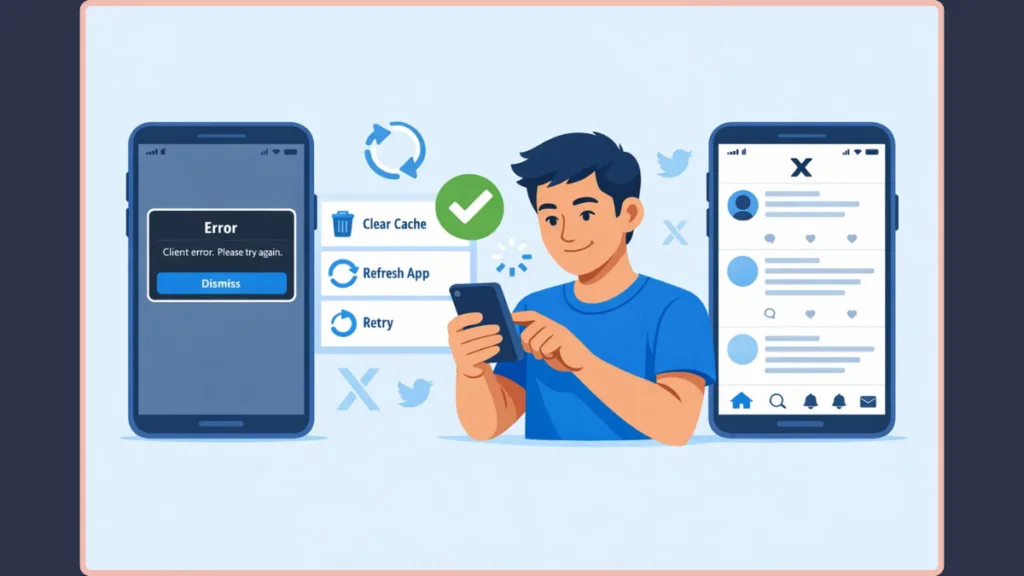
If you encounter a client error on X, there are several troubleshooting methods that can help resolve the issue. These solutions address the most common causes including rate limits, corrupted sessions, and app bugs.
Try Changing Your Username on the Web Version: Bypassing App Limitations
One widely shared workaround involves switching from the mobile app to the X web interface. The web version (x.com) uses a more robust API layer than the mobile apps.
- Log in to X using a desktop browser (Chrome or Firefox preferred).
- Navigate to account settings (Settings and Support > Settings and Privacy > Your Account > Account Information).
- Enter the new username.
- Click the Save button repeatedly—some users report that clicking 5-10 times in rapid succession can “force” the request through a congested API gateway.
Wait for Rate Limits to Reset: Managing Temporary Restrictions
If the error is caused by rate limiting, the most effective solution is simply to wait before trying again.
- 15-Minute Rule: Most minor blocks (timeline refresh, search) reset in 15 minutes.
- The 24-Hour Wait: If you were mass-following or DMing, the block may be hard-coded for 24 hours.
- Avoid Retrying: Each failed attempt during the waiting period can reset the cooldown timer.
Clear Browser Cache and Cookies: Removing Corrupted Session Data
Sometimes corrupted cache data interferes with requests sent to the server.
- Go to your browser settings.
- Clear browser cache and delete cookies related to X. (On Chrome:
chrome://settings/content/all?search=x.com). - Use a Clean Session: Try opening an Incognito or Private window. If it works there, your main browser profile has corrupted data.
Update or Reinstall the X App: Resolving Version Compatibility
Outdated applications may send incorrect or incompatible requests.
- Open the App Store or Google Play Store.
- Check for and install the latest update.
- Hard Reinstall: Uninstall the app, restart your device, and then reinstall. Restarting is crucial as it clears the “Attestation” cache on your hardware.
Log Out and Sign Back In: Refreshing Authentication Tokens
Refreshing your account session can resolve many authentication-related issues.
- Log out of your X account.
- Close the app or browser completely.
- Log in again to generate new authentication tokens. This is often the only fix for “401 Unauthorized” errors.
Disable Browser Extensions: Identifying Interfering Software
Some browser extensions interfere with website scripts.
- Check for Ad-Blockers: Tools like uBlock Origin or AdGuard can sometimes block the scripts X uses to validate “Save” actions.
- Script Blockers: Disable NoScript or similar tools.
- VPN Interference: If your VPN is using a “blacklisted” IP address known for botting, X will serve a client error. Try switching your VPN server or turning it off.
Fix “Attestation Denied” on Mobile: Device Integrity Solutions
If you receive client errors on a high-end device, it might be a device integrity issue.
- Android: Ensure your device is not in “Developer Mode” and that Google Play Protect is enabled.
- iOS: Ensure you are not using a “jailbroken” device or a modified version of the X IPA file.
Client Error vs Server Error: Understanding HTTP Status Differences
It’s important to distinguish between client errors and server errors to know who is responsible for the fix.
- Client errors (HTTP 4xx): These indicate the request sent by the user or application is problematic. These are “User Fault” errors. They require you to change your behavior, clear your data, or update your app.
- Server errors (HTTP 5xx): These indicate problems on the platform’s side. These are “X’s Fault” errors. If you see a 500 Internal Server Error or 503 Service Unavailable, no amount of clearing cache will help. You must wait for X’s engineers to fix the backend.
Summary Table: HTTP 4xx Client vs 5xx Server Status Codes
| Error Code | Type | Meaning | Action Required |
| 400 | Client | Bad Request | Check data/syntax or update app. |
| 401 | Client | Unauthorized | Log out and log back in. |
| 429 | Client | Rate Limit | Wait 15-60 minutes. |
| 500 | Server | Internal Failure | Wait for X to fix it. |
| 503 | Server | Capacity Issue | X is overloaded; try again later. |
How Developers Troubleshoot HTTP 4xx Errors on X
If you are a power user or a developer running a script, generic troubleshooting isn’t enough. You need to “see” the raw data being exchanged.
Using Browser Developer Tools for Network Analysis
- Press F12 (or Right-click > Inspect) and go to the Network tab.
- Perform the action on X that triggers the error.
- Look for a red line (the failed request). Click it.
- Check the Response tab. X often sends a detailed JSON message here, such as
{"errors":[{"code":88,"message":"Rate limit exceeded"}]}. This tells you exactly what went wrong.
Advanced Debugging Tools: API and Traffic Inspection
Developers commonly use:
- Postman: To manually construct requests and test if an API endpoint is working without the “noise” of the browser.
- Charles Proxy / Fiddler: These “man-in-the-middle” tools capture all traffic from your phone. They are excellent for identifying if a mobile app bug is sending malformed data.
- Wireshark: A packet sniffer used for deep network analysis if you suspect your ISP is dropping packets to X’s servers.
Developers also refer to technical documentation like the MDN HTTP response codes, which explains the meaning of different status codes and how to resolve them.
Real User Reports of Client Error on X: Common Scenarios
User discussions across online forums (Reddit, X Community Notes) reveal several recurring scenarios.
- The “Login Loop”: Users report being asked to log in, getting a client error, and being sent back to the login screen. This is almost always a cookie conflict.
- The “Follow Ghosting”: You click follow, it looks like it worked, but when you refresh, the button is back to “Follow”. This is a “silent” 429 rate limit error.
- The “Username Unavailable” Bug: Users report that even when a name is free, they get a client error. This is often solved by the “Save Button Hammer” (clicking save repeatedly) mentioned in the fixes section.
In many cases, users find that switching from the mobile app to the web version resolves the problem instantly. This reinforces the idea that most client errors are related to temporary rate limits or application glitches rather than permanent account bans.
How to Prevent Client Errors on X: Best Practices for Account Health
While client errors cannot always be avoided, certain practices can reduce the chances:
- Space Out Your Actions: Don’t follow 50 people in 1 minute. Follow 5, wait 10 minutes, follow 5 more.
- Keep the X App Updated: X frequently changes its security protocols (like PerimeterX or Cloudflare challenges). Older apps fail these challenges, triggering client errors.
- Maintain a Stable Connection: Use a stable Wi-Fi connection when performing account changes (password, username, email).
- Audit Third-Party Apps: Go to Settings > Security and Account Access > Apps and Sessions and remove any old apps that might be making background requests on your behalf.
- Subscribe to X Premium: While controversial, X Premium (Basic, Plus, or Ultra) tiers have significantly higher rate limits. If you are a power user, the subscription acts as a “bypass” for many 429 errors.
Is X Down or Is It Just a Client Error? Diagnostic Checklist
Sometimes users assume the platform itself is down. To determine whether the issue is widespread, you can check:
- Downdetector: Look for a massive spike in reports (usually >5,000 in 10 minutes).
- X Server Status Pages: While X doesn’t have a public “real-time” dashboard, the @XSupport handle usually posts during major outages.
- Is It Down Right Now?: A third-party service that pings X’s servers from different global regions.
If many users report similar problems simultaneously (like during the February 16, 2026 outage), the issue is a platform-wide server failure, and your “client error” is just a symptom of the server being unable to respond.
Frequently Asked Questions: X Client Error Quick Answers
What does client error on X mean?
A client error indicates that a request from your device could not be processed correctly. It is usually associated with HTTP 4xx errors, such as bad requests, authentication problems, or rate limits.
How do I fix client error when changing my X username?
Try switching to the web version of X, enter the username again, and attempt to save the change. If it fails, click “Save” multiple times or wait for 30 minutes to clear the local rate limit.
Why does client error appear when following someone?
This usually happens when the platform detects too many follow requests in a short period (triggering a 429 error) or if the account you are trying to follow has restricted you.
Is client error on X caused by my device?
It is usually caused by the “request” sent from your device. While the hardware is fine, the software (cache/app version) or your activity (spammy behavior) is what triggers the server to reject you.
How can I prevent rate limit exceeded errors on X?
Avoid sending repeated requests quickly, limit automation tools, and avoid “live-tweeting” with too many tags, which can flag your account for “Aggressive Engagement.”
What is the X “Attestation Denied” error?
It’s a 2026 security error that means X’s server doesn’t trust the integrity of your phone’s OS. Ensure you aren’t using a rooted device.
Final Thoughts on Resolving X Client Errors
The client error on X is typically linked to HTTP 4xx responses, rate limits, or temporary application glitches. Although the error message may seem confusing, most cases are temporary and can be resolved with simple troubleshooting. Switching platforms, clearing cache, updating the app, or waiting for rate limits to reset often fixes the issue quickly.
By understanding how HTTP client errors work and how X processes requests, you can identify the cause more easily and prevent the problem from occurring again. If all else fails, patience is your best tool, as X’s automated systems usually clear most client-side blocks within a 24-hour cycle.
Visit Our Post Page: Blog Page