
Struggling with Windows Error Code 0x80004005? Discover the common causes of this unspecified error and follow our step-by-step guide to fix it quickly.
We’ve all been there: you’re right in the middle of something important, and out of nowhere, Windows throws a cryptic pop-up at you: “Error Code 0x80004005: Unspecified error.” It’s incredibly frustrating, mostly because “unspecified” doesn’t give you much to go on. Basically, your operating system is trying to tell you that it can’t access a specific file, folder, or network component.
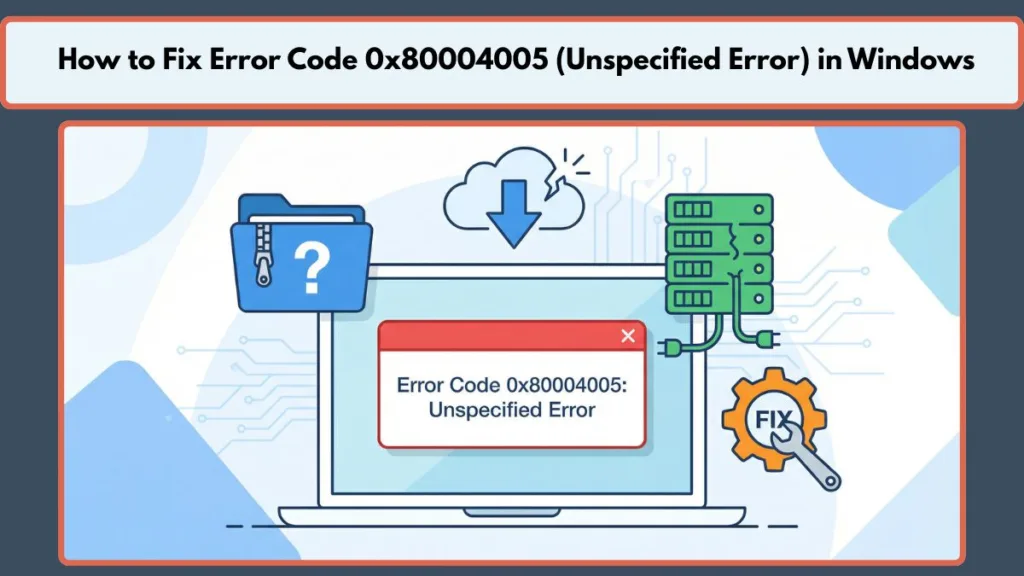
Because this error is so broad, it can pop up when you’re doing almost anything—from extracting a simple zip file to configuring a virtual machine or running a routine system update. Don’t worry, though. I’ve broken down the most practical, step-by-step solutions for the most common scenarios so you can fix error code 0x80004005 and get your system running smoothly again.
What Causes Error Code 0x80004005?
Even though Microsoft labels this an “unspecified error,” there are actually a few very specific culprits that usually trigger it. More often than not, it comes down to one of these issues:
- Missing Permissions: Your Windows user account simply lacks the ownership rights or correct network credentials to access a file or folder.
- Unsupported Archives: You might be trying to extract an encrypted archive file, and your software just doesn’t support it.
- Antivirus Interference: Sometimes, your overly protective security software mistakenly blocks access to perfectly safe files.
- Network Configuration Issues: Settings like IPv6, SMB configurations, or disabled network discovery are getting in the way of connecting to another PC or NAS.
- Corrupted System Files: If a download gets interrupted, it can leave your Windows Update files broken.
Let’s jump right into the targeted solutions depending on where exactly you are running into this error.
How to Fix Error 0x80004005 Extracting a ZIP File
If you are getting the error 0x80004005 while extracting a zip file, it’s usually just Windows File Explorer struggling to process an encrypted or advanced archive format. Here is how we can fix that.
Solution 1: Use an Alternative Extraction Tool
The default Windows extraction tool is pretty basic. If a ZIP file is encrypted (password-protected) or uses a more advanced format like RAR or 7z, File Explorer will throw a fit. The quickest fix is to download a dedicated, free program like 7-Zip or PeaZip to handle the extraction for you.
Solution 2: Temporarily Disable Real-Time Protection
Sometimes, your antivirus software gets a little confused and mistakenly flags decompressed files as threats.
- Type Windows Security into your start menu and open the app.
- Click on Virus & threat protection.
- Under the settings section, click Manage settings.
- Toggle Real-time protection and Cloud-delivered protection to the Off position.
- Try extracting your file again. (Just remember to turn these settings back on right after!)
Solution 3: Re-register DLL Files
If another extraction tool didn’t do the trick, re-registering your dynamic link libraries (DLLs) might be the answer.
- Search for cmd in your taskbar, right-click Command Prompt, and select Run as administrator.
- Type
regsvr32 jscript.dlland press Enter. - Type
regsvr32 vbscript.dlland press Enter. - Give your computer a quick restart and try again.
Fixing Error 0x80004005 on a Shared Network Drive
Running into a 0x80004005 network sharing error when connecting PCs on a LAN or trying to access a Network-Attached Storage (NAS) device is super common.
Solution 1: Modify Advanced Sharing Settings
Network discovery settings are frequently the root cause of that annoying “windows cannot access network share” message.
- Press the Windows key + R, type
control.exe /name Microsoft.NetworkAndSharingCenter, and hit Enter. - Click Change advanced sharing settings on the left side.
- Under the Private network section, make sure to turn on Network discovery and File and printer sharing.
- Expand the All Networks section.
- Check the option to Turn off password protected sharing.
- Save your changes and see if you can connect now.
Solution 2: Tweak the Windows Registry
Adding a specific key to your registry can allow local account tokens to filter properly.
- Press Windows + R, type
regedit, and hit Enter. - Navigate your way to:
HKLM\SOFTWARE\Microsoft\Windows\CurrentVersion\Policies\System - If you have a 64-bit system, right-click an empty space, choose New > QWORD (64-bit) Value. (Choose DWORD if you are on a 32-bit system).
- Name this new value
LocalAccountTokenFilterPolicy. - Double-click it, set the value data to
1, and click OK. - Restart your PC to apply the fix.
Solution 3: Adjust NetBIOS over TCP/IP
- Press Windows + R, type
ncpa.cpl, and hit Enter to open up your Network Connections. - Right-click your active network adapter (whether that’s Wi-Fi or Ethernet) and select Properties.
- Double-click Internet Protocol Version 4 (TCP/IPv4).
- Click Advanced, then head over to the WINS tab.
- Select Enable NetBIOS over TCP/IP and click OK on all the windows to save your settings.
Resolving VirtualBox Error Code 0x80004005
If VirtualBox failed to open a session for your virtual machine, a network driver or compatibility hiccup is likely blocking it.
Solution 1: Enable the NDIS6 Bridged Networking Driver
- Open your Network Connections by typing
ncpa.cplinto the Run dialog box (Windows + R). - Right-click your network connection and hit Properties.
- Look through the list and make sure the box next to VirtualBox NDIS6 Bridged Networking Driver is checked.
- Click OK. It is highly recommended to repeat this exact step for every network adapter listed in your window just to be safe.
Solution 2: Delete the VirtualBox Registry Key
- Open the Registry Editor by typing
regeditinto the run menu. - Navigate to:
HKEY_LOCAL_MACHINE\SOFTWARE\Microsoft\Windows NT\CurrentVersion\AppCompatFlags\Layers - Look for a key named
C:\Program Files\Oracle\VirtualBox\VirtualBox.exe. - Right-click on it, select Delete, and confirm your choice.
- Give your computer a restart and try launching that VM session again.
Fixing Windows Update Error 0x80004005
A windows update error 0x80004005 usually pops up when your internet drops or your PC loses power right in the middle of an update, leaving you with corrupted download files.
Solution 1: Run the Troubleshooter
Your best first step is to simply head into your system settings and run the built-in Windows Update troubleshooter. It is surprisingly good at automatically detecting and fixing a stalled update service.
Solution 2: Clear the SoftwareDistribution Folder
If the troubleshooter doesn’t help, manually clearing out the broken files will force Windows to download a fresh, clean copy.
- Open File Explorer and navigate to
C:\Windows\SoftwareDistribution\Download(If you are on Windows 11, you can just go toC:\Windows\SoftwareDistribution). - Select every single file and folder inside this directory and delete them all.
- Empty your recycle bin and try running Windows Update again.
Solution 3: Delete Temporary Files
Sometimes, corrupt temporary files are the silent trigger behind this error. Type %temp% into your Windows search bar, open the folder that appears, and completely delete all of its contents.
Fixing Microsoft Outlook and Local File Error
For Outlook:
If you are seeing an outlook error code 0x80004005, it frequently happens when the app tries to notify you about a new message and your antivirus flags it in a panic. Try turning off new mail desktop alerts within Outlook’s settings. If that clears things up, running Outlook in Safe Mode or temporarily disabling your third-party antivirus might be necessary to permanently resolve the conflict.
For Local Files:
If you can’t even open a standard folder on your own hard drive, you’re almost certainly dealing with a permission issue.
- Right-click the stubborn folder and select Properties.
- Jump over to the Security tab.
- Select the Users group and check out the permissions box.
- If Full Control is not ticked, click Edit, check the Full Control box, click Apply, and then hit OK.
Frequently Asked Questions
What does unspecified error 0x80004005 mean?
Error code 0x80004005 is simply a generic message Microsoft uses when your operating system is denied access to a file, folder, or network path, but a more specific error code hasn’t been assigned to tell you exactly why it was blocked.
How do I fix error 0x80004005 when accessing a shared network folder?
The most reliable fixes are making sure Network Discovery is turned on, disabling Password Protected Sharing in your Advanced Sharing settings, and ensuring that NetBIOS over TCP/IP is enabled in your IPv4 adapter properties.
Why can’t I extract a ZIP file due to error 0x80004005?
This almost always happens because the ZIP file is encrypted (password-protected) or compressed using advanced methods that standard Windows File Explorer just doesn’t understand. Using a free, dedicated program like 7-Zip will usually solve this for you in seconds.
Visit Our Post Page: Blog Page