
Getting the “Zoom Error Code 1132”? Don’t panic. Here’s a complete step-by-step guide to understand the issue, apply quick workarounds, and get back to work fast.
If you are trying to join an important meeting or sign in to your account on Zoom and suddenly encounter Zoom error code 1132, it can feel confusing and frustrating. You are certainly not alone. This specific Zoom error often strikes without warning, even when your internet connection is lightning-fast and other websites are loading perfectly.
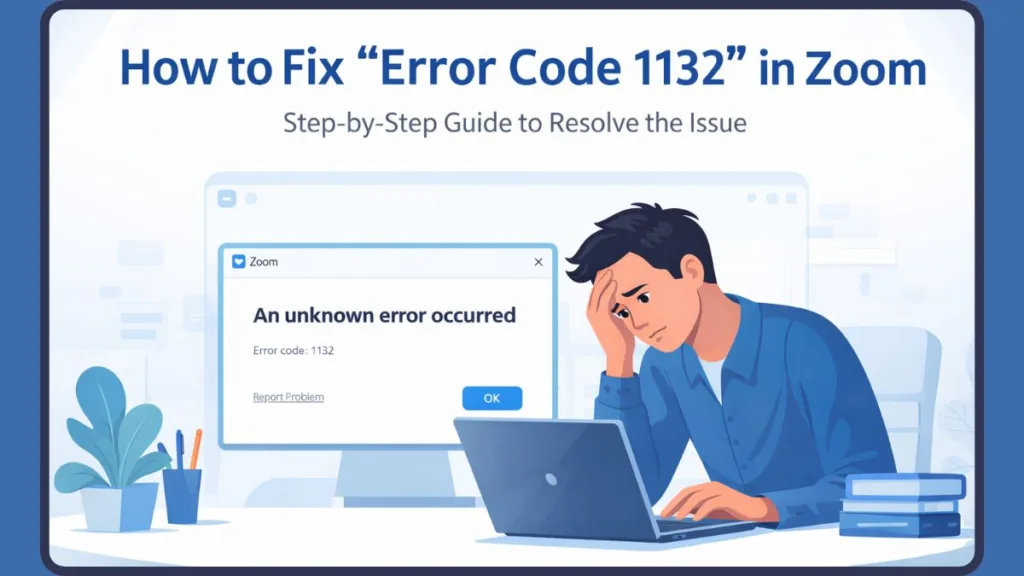
Many users report seeing this frustrating message:
Plaintext
An unknown error occurred (1132)
While it disrupts workflows, classes, or business calls, the good news is that there are defined paths to troubleshoot it. This issue has become increasingly common across both personal and corporate environments, especially as Zoom continues to enhance its security systems.
In this comprehensive guide, we will walk you through exactly what this error means, why it’s happening on your Windows or Mac device, and the specific steps you can take to resolve the issue effectively and prevent it from happening again.
What Does “Error 1132” Actually Mean?
To solve the problem, we first need to define what the error signals. Zoom error code 1132 generally occurs when Zoom is unable to establish a secure connection between your device and its servers. The Zoom “An unknown error occurred” 1132 message indicates that Zoom is actively blocking or failing to authenticate your connection.
When you see this error while logging in, it is often referred to as a Zoom sign-in error 1132. If it happens while joining a session, it is commonly described as an unable to join meeting error 1132.
In many situations, the issue is temporary and can be resolved with simple troubleshooting steps. However, from a technical perspective, this error is a combination of factors such as network filtering, software conflicts, and Zoom’s internal security mechanisms. This is why some users fix it instantly, while others struggle even after reinstalling the application.
Why Is This Error Happening?
Based on real-world troubleshooting, this error usually stems from one of the following triggers:
- Network or Firewall Blocking: In many workplaces or institutions, strict firewall rules are implemented to control internet access. These rules can unintentionally block Zoom’s communication with its servers, resulting in connection failures. This is commonly referred to as a Zoom firewall blocked 1132 situation. You can find more details on Zoom’s network configuration to see if your office settings are the culprit.
- VPN or Proxy Interference: While VPNs are useful for privacy, they can interfere with Zoom’s security systems. If Zoom detects suspicious IP behavior or inconsistent location data, it may block the connection entirely, leading to a Zoom error 1132 VPN conflict.
- Corrupted Installation: A corrupted or incomplete installation of Zoom is a frequent trigger. This happens after a failed update or when leftover files from previous installations interfere with the current version, categorized as a corrupted Zoom installation 1132.
- Hardware Bans & Account Restrictions: Zoom may flag certain devices or accounts due to unusual activity or Terms of Service violations. To be completely candid, Error 1132 is notoriously known as a hardware/MAC address ban. This scenario is described as a Zoom account locked 1132 situation.
Error 1132 vs. Error 5003: The Critical Difference
It is easy to confuse Zoom’s connection errors, but knowing the difference helps you decide how to troubleshoot.
| Feature | Error 1132 (Unknown Error) | Error 5003 (Connection Failed) |
| Source | Device/Account Flag or Strict Firewall | Standard Network/Server Timeout |
| The Meaning | “Your connection is blocked or restricted.” | “We cannot reach the internet right now.” |
| Context | Security systems are halting the connection. | Your local Wi-Fi or Zoom’s servers dropped. |
| The Fix | Change network rules, reinstall, or appeal. | Restart router or check Zoom status. |
Key Takeaway: If you see 1132, stop resetting your router. The issue is tied to system security, firewall rules, or a device-level restriction.
How to Check If Zoom Is Down
Before you start messing with your system settings, verify the platform status. Sometimes, backend authentication servers experience outages.
- Visit the Official Page: Head to www.zoomstatus.com for real-time updates.
- Check Specific Services: Look for “Zoom Meetings” and “Web Client.” Sometimes the web interface works while the desktop app is struggling.
- Read the Indicators: If all systems are Operational (Green), the 1132 error is localized to your machine or network.
How to Fix Zoom Error 1132: A Step-by-Step Workaround Guide
Fixing Zoom error 1132 requires a structured approach. Follow these steps in order to minimize your downtime.
1. Let a System Restart and Update Do Its Job
This simple action can resolve temporary glitches and compatibility issues that may be causing the error.
- Action: Restart your computer completely. Open Zoom, check for updates, and attempt to log in again. Give it at least 2-3 attempts. You can always find the latest version on the official Zoom download page.
2. Disable VPNs and Proxies
Since VPNs can trigger Zoom’s security filters, turning them off often restores normal functionality.
- Action: Disconnect your VPN client or proxy server entirely. Try connecting to Zoom on your standard, unmasked home or corporate network to clear the VPN conflict.
3. Check Firewall Settings
Firewalls can block Zoom’s access to the internet, especially in corporate or restricted networks.
- Action: Open Windows Defender or your Mac’s Firewall settings. Ensure that Zoom is allowed through the firewall and that necessary TCP/UDP ports are open. For advanced users, check the Zoom help center’s firewall rules.
4. Perform a Clean Reinstall (Windows 10 & 11)
Reinstalling Zoom on Windows should include removing leftover files and registry entries to ensure a clean installation. This fixes the Zoom 1132 unable to join meeting error on Windows 11.
- Action: Uninstall Zoom. Press
Win + R, type%appdata%, and hit Enter. Locate the Zoom folder and delete it entirely to remove residual data. Reinstall the latest version.
5. Remove Hidden Files (Advanced Mac Fix)
Mac users facing Zoom desktop client error 1132 must go beyond standard methods. Zoom stores device identifiers in hidden directories.
- Action: Open Finder and press
Command + Shift + .to reveal hidden files. Navigate to~/Library/Application Support/zoom.us. Delete the files in this directory—crucially, look for a hidden file namedZoom.tbdand delete it. Empty trash and reinstall.
6. Use the Browser Workaround
If none of these steps work, using Zoom in a web browser provides an immediate workaround without relying on the desktop application.
- Action: Go to the Zoom website and click “Join from Your Browser.” This is the fastest Zoom error 1132 browser workaround for urgent situations. You can follow the official guide on joining from a browser if you don’t see the link.
Real User Fixes from Reddit (What Actually Works)
Real-world user experiences provide valuable insights into fixing this issue when traditional solutions fail:
- New OS User Profiles: Users have found that creating a brand new Windows or Mac user account allows them to join meetings without errors, bypassing device-level restrictions.
- Alternative Launch Methods: Some Mac users report success by launching Zoom directly through Finder instead of Launchpad, bypassing system-level caching.
When Reinstalling Zoom Does NOT Fix Error 1132
While reinstalling Zoom is often recommended, it does not always resolve the issue. Zoom may retain information about your device through hidden files or server-side data (like your hardware’s UUID). Even after reinstalling, the app may still recognize your flagged device and apply the same restrictions.
In such cases, the reality is that the error is likely related to account or device-level flags rather than software issues.
Contact Zoom Support (Last Resort)
If all troubleshooting methods fail and you suspect a hardware ban, contacting Zoom support is the final step. Zoom’s Trust and Safety team can review your account. This is vital for users experiencing persistent Zoom error 1132 sign-in issues. Provide detailed information about the error and the steps you have already taken. You can reach out via the Zoom Safety Center for reporting and appeals.
Frequently Asked Questions (FAQ)
What does Zoom error code 1132 mean?
It means that Zoom is unable to verify or allow your connection due to network restrictions, device issues, or security policies.
How do I fix Zoom error 1132 on Windows 10 or 11?
You can fix it by disabling VPNs, checking firewall settings, reinstalling Zoom properly (deleting the %appdata% folder), and resetting network configurations.
Can I join a Zoom meeting if I get error 1132?
Yes, you can use the browser version of Zoom to join meetings instantly without relying on the desktop app through join.zoom.us.
Is Zoom error 1132 caused by my firewall or network?
In many cases, yes. Firewalls and restricted networks are common causes of this error.
Will reinstalling Zoom fix error 1132?
It can help, but it may not work if the issue is related to device or account restrictions (such as a hardware UUID ban).
Does Zoom error 1132 relate to account lockouts?
Yes, in some situations Zoom may restrict accounts or ban specific hardware devices, leading to persistent errors that require contacting Support.
Final Thoughts
Zoom error code 1132 is a complex issue that can stem from multiple causes, ranging from simple network problems to deeper security restrictions. While many users can resolve it with basic troubleshooting steps, others may need to apply advanced solutions, accept the reality of a hardware flag, or contact support.
When the 1132s become persistent and unfixable locally, my alternative solution is to switch to a different platform, such as Google Meet or Microsoft Teams, for immediate meetings. Using the browser workaround or having a fallback plan is the best way to stay productive and ensure a smooth, uninterrupted workflow.
Visit Our Post Page: Blog Page