
Stuck in the Facebook ‘Already Signed In’ login loop? Learn quick, proven fixes for the ‘Already Authorized’ error on Android, iPhone, and apps like PUBG, COD, Spotify, and more. Understand why the loop happens and how to stop it fast.
Quick Summary for Fixing the “Facebook Already Signed In” Login Loop
If you’re stuck in the “Facebook already signed in” message or caught in a persistent Facebook login loop, you’re definitely not the only one. This issue appears across Android, iPhone, Chrome, and even apps like PUBG, COD Mobile, Spotify, and Tinder.
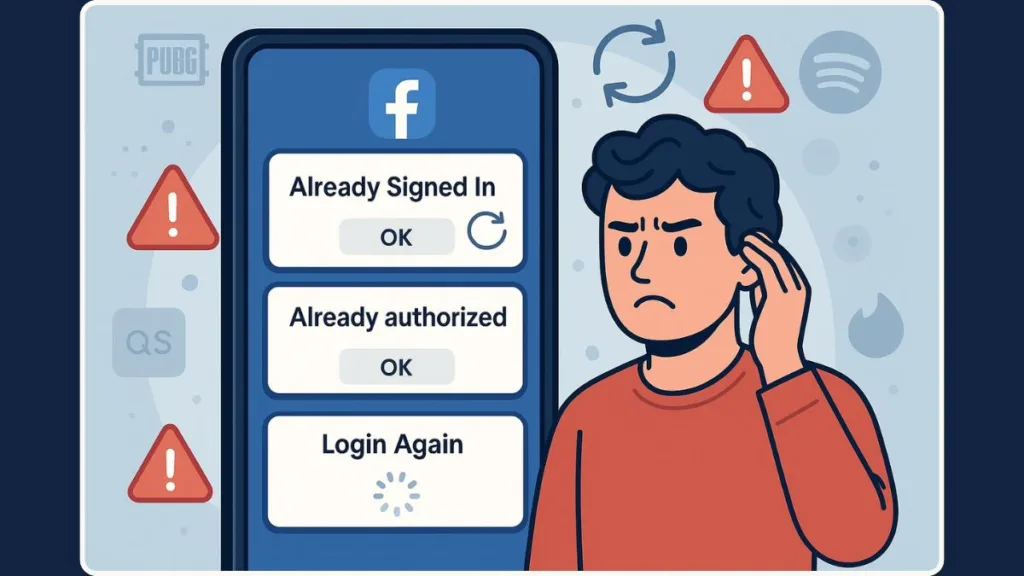
The encouraging part? Most of these problems stem from small cache conflicts, cookie issues, or authorization glitches that can be fixed quickly with the right steps.
When this login loop appears, it usually means Facebook is recognizing your existing session, but the app or browser you’re using isn’t. This mismatch leads to the repeated “already authorized” message or an endless redirect back to the login screen. A few targeted fixes can help you figure out whether the issue is with your device, your browser, or the app trying to connect to Facebook.
Here’s a fast, clear breakdown to help you diagnose the problem:
On Android, clearing the app’s cache, updating the Android System WebView, or resetting the Facebook login session often solves the issue. These small resets force your device to rebuild the connection that may be causing the loop.
On iPhone, Safari’s cookie settings, cross-site tracking controls, or outdated app files can trigger a “you already authorized” message. Resetting Safari’s web data or refreshing the app’s login connection usually stops the loop.
On Chrome or desktop browsers, old cookies, saved logins, or the browser’s auto sign-in feature may cause Facebook to log in automatically even when you don’t intend it to. Clearing browsing data or turning off auto-fill helps break this behavior.
If you’re logging in through apps like PUBG, COD Mobile, Spotify, or Tinder, you may simply need to reset the app’s Facebook permissions. Apps sometimes hold onto expired tokens, and refreshing these permissions forces a clean handshake between Facebook and the app.
This summary gives you a quick snapshot of the most common causes behind the Facebook login loop and helps you understand whether you’re dealing with a cache problem, an app authorization issue, or simply outdated browser data.
What the “Facebook Already Signed In / Already Authorized” Error Actually Means
Running into the “Facebook already signed in” or “You have already authorized this app” message can feel confusing — especially when the app keeps sending you in circles.
At its core, this issue is really about Facebook recognizing your session, while the app or browser you’re using fails to sync with it.
That mismatch is what creates the familiar Facebook login loop so many users experience.
Why This Message Appears in the First Place
When you tap “Continue with Facebook”, Facebook checks your account and sees that you’ve already granted the app permission. So far, everything works as expected.
The problem happens right after Facebook hands the login token back to the app. Instead of accepting it, the app may reject or fail to read the token due to:
- Outdated app data
- Corrupted cache
- Interrupted authorization flow
- Expired or mismatched tokens
This causes the app to assume you’re not logged in, even though Facebook says you are — leading to the endless “already authorized” loop.
It’s Not Usually a Password Issue or Hacking Warning
Even though it feels like something serious, this error rarely means someone else is accessing your account.
It’s usually a local device issue, not a Facebook security alert.
Most of the time, the platform isn’t blocking you — it’s simply stuck trying to communicate with the app.
If anything ever seems off, you can always check your Active Sessions, but for this specific issue, the problem is almost always technical rather than security-related.
Why Different Apps Show This Error Differently
Apps like PUBG, COD Mobile, Spotify, Messenger Kids, or Tinder rely heavily on Facebook’s login system.
When those apps fail to read the returned token properly, you’ll see things like:
- “Already authorized” pop-ups
- Redirects back to Facebook
- Blank screens or frozen login buttons
Each app uses Facebook’s login tools in its own way, which is why the error doesn’t look identical across platforms.
The Core Idea Behind the Error
Think of it like a handshake where one side says “Nice to meet you,” and the other side doesn’t respond.
Facebook completes its part — it recognizes your account and confirms the authorization.
But the app doesn’t complete its part of the handshake, so the loop continues.
This is why clearing cache, resetting permissions, or refreshing the session often fixes things quickly — they help rebuild that missing connection.
Why You’re Seeing the Facebook Login Loop (Real Causes Explained)
If you keep running into a Facebook login loop, or the app keeps insisting that you’re already signed in, there’s always a specific reason behind it.
The issue usually starts when Facebook and the app you’re using don’t agree on your login state.
That disagreement triggers repeated redirects, “already authorized” pop-ups, or an endless loading screen.
Let’s break down the real causes so you understand what’s going on behind the scenes — with help from what developers and users around the world have documented.
Corrupted Cache or App Data
One of the most common triggers is corrupted cache — tiny stored files that help apps load faster.
When these files get outdated or damaged, the app may fail to read Facebook’s login token correctly, causing the loop.
This happens a lot on apps that rely heavily on Facebook Login, especially when switching accounts or updating your device.
Clearing cache or app data is one of the most recommended first steps in tech-support communities.
Expired or Mismatched Authorization Tokens
Every time you log in with Facebook, the system uses an access token to verify your identity.
If this token becomes expired, invalid, or mismatched, the app can’t confirm your login — even when Facebook has already authorized you.
This leads to behaviors like:
- Repeated redirects
- Apps asking for permission again
- “Already authorized” messages that won’t disappear
Token failures are one of the biggest contributors to the Facebook login loop.
Incorrect or Interrupted Authorization Flow
Some apps depend on a smooth OAuth handshake to log you in.
If that flow gets interrupted — maybe due to a bad redirect, a WebView issue, or an SDK mismatch — the login doesn’t complete properly.
This is especially common in:
- In-app browsers
- Apps using old Facebook SDK versions
- Devices switching between networks mid-login
When the handshake fails, you often get stuck in a loop instead of being logged in.
Conflicting Browser Cookies or Auto Sign-In Settings
On browsers like Chrome, old cookies, saved logins, or auto sign-in settings can cause Facebook to log you in instantly — whether the app wants that or not.
This creates a mismatch between the browser session and the app session, which is a major cause of the Facebook auto login problem.
Using Incognito mode or clearing cookies usually reveals whether this is the root cause.
Third-Party App Integration Issues
Apps like PUBG, COD Mobile, Spotify, or Tinder all use Facebook Login differently.
If an app is running on an outdated SDK, using stale permissions, or handling redirects incorrectly, it may reject the login response from Facebook.
Common signs include:
- Being bounced back to Facebook
- Frozen login buttons
- Endless “Continue with Facebook” loops
These issues usually come from the app’s integration — not from your Facebook account.
Network or DNS Conflicts
Unstable network settings, VPN use, or DNS misconfiguration can interfere with the communication needed to complete Facebook’s login flow.
If your device can’t reach Facebook’s servers cleanly, the login token may not be delivered properly.
This is why login loops often appear on:
- Public Wi-Fi
- VPNs
- Gaming emulators
- Devices with custom DNS settings
A quick network switch can sometimes break the loop instantly.
The Bottom Line
A Facebook login loop isn’t random — it’s triggered by one of a few clear breakdowns: cache conflicts, token mismatches, OAuth interruptions, cookie/session issues, app integration problems, or network instability.
Once you understand which issue fits your situation, the fix becomes much easier — and the next sections will walk you through each solution step by step.
Universal Fixes for the Facebook Login Loop & “Already Signed In” Error
When the Facebook login loop or the “already signed in” message keeps popping up, the good news is that a few universal fixes work across almost every device and app.
These steps target the most common issues — things like cache conflicts, token mismatches, and stuck authorization data — and help reset your login flow so Facebook and the app can communicate clearly again.
Clear Cache and Temporary Data to Fix Facebook Login Loop
If your app or browser is stuck in a loop, one of the fastest solutions is clearing out cache or temporary login data.
Old or damaged files can block the app from reading your Facebook login token, causing endless redirects or repeated “authorized” messages.
Removing this clutter forces the app to rebuild a clean connection.
Try this when you notice:
- Apps freezing
- Repeated redirects
- Blank or unresponsive login screens
Most apps behave normally again once their stored data is refreshed.
Refresh Facebook Login Permissions for a Clean OAuth Reset
Sometimes your app still holds onto outdated permissions or an old session that no longer matches your current Facebook login.
Resetting your permissions clears the previous authorization and forces the app to request a fresh token, which often stops the loop instantly.
This method is especially effective for apps that rely heavily on Facebook Login for account access or syncing.
Log Out on All Devices to Remove Conflicting Facebook Sessions
When Facebook sees multiple overlapping sessions, some apps struggle to decide which session to use.
Logging out everywhere helps you start fresh with a single, stable connection.
This fix is useful when:
- You switched devices
- You logged in on a new browser
- You changed your Facebook password
A clean session eliminates many login loop triggers.
Use Incognito Mode to Bypass Cookie and Auto Sign-In Conflicts
If your browser is saving old cookies or cached login details, it may auto-fill outdated information into apps or websites that use Facebook Login.
Using Incognito Mode prevents that because it:
- Avoids old cookies
- Disables auto sign-in
- Stops auto-fill from interfering
If login works in a private window, browser data is likely causing the issue.
Update or Reinstall the Affected App to Fix Facebook Authorization Problems
If the app you’re using is outdated, it may rely on older Facebook SDK components that struggle with modern login tokens.
Updating or reinstalling helps because it:
- Refreshes Facebook integration
- Removes corrupted login elements
- Installs the latest compatibility patches
This step is especially effective for apps like PUBG, COD Mobile, Spotify, or Tinder.
Reset Network Settings to Fix Facebook Token Delivery Issues
When your network is unstable, the login response from Facebook may not reach the app correctly.
A quick network reset — switching between Wi-Fi and mobile data or turning off a VPN — can help resolve communication issues.
Look out for signs like:
- Login freezing
- Success screens that don’t continue
- Redirects without errors
A stable connection often resolves authorization loops immediately.
Disable Auto Sign-In to Prevent Browser Session Conflicts
Browsers like Chrome may auto-sign you into Facebook using saved credentials.
This hidden automation can interrupt the OAuth process an app expects, creating conflicting login states.
Disabling auto sign-in and password manager features removes that interference.
The Goal of These Universal Facebook Login Fixes
All of these steps aim to repair the communication between Facebook and the app or browser you’re using.
Whether the loop is caused by cached files, cookie conflicts, or outdated permissions, these universal solutions reset the environment so your login can complete successfully.
Once these steps are out of the way, your login flow should stabilize — and if not, the next sections will walk you through device-specific fixes for Android, iOS, and desktop browsers.
Device-Specific Fixes for the Facebook Already Signed In Issue
When the Facebook already signed in message or the recurring Facebook login loop doesn’t resolve with general troubleshooting, the next step is to look closely at the device you’re using.
Each platform handles Facebook Login differently, and small differences in how Android, iOS, or desktop browsers store data can dramatically affect how login tokens are processed.
Below is a complete, device-specific guide that walks you through the most reliable solutions — especially for issues caused by OAuth mismatches, cookie conflicts, WebView failures, and SDK inconsistencies.
Android Fixes for the Facebook Login Loop & Authorization Errors
Android apps rely heavily on cached data, system-level browser components, and embedded web views.
When any of these become outdated or misaligned with Facebook’s authentication process, apps fail to recognize valid login tokens.
This leads to the “already signed in” loop or apps bouncing between login pages.
Clear Facebook App Cache and App Data
On Android, corrupted cache files are one of the leading causes of login issues.
Clearing the cache removes temporary files, and clearing app data resets the Facebook app without deleting your account.
This helps because the Facebook app may keep an outdated session token, and apps relying on Facebook Login may treat this as invalid.
Clearing these files forces Android to fetch fresh configuration data and a new login token.
This fix is widely suggested across Android support communities because it corrects hidden token mismatches that apps can’t interpret on their own.
Clear Cache for the App Attempting Facebook Login
Apps like PUBG, COD Mobile, Spotify, or Tinder frequently store their own login fragments.
When those fragments conflict with Facebook’s updated token, the app assumes your authorization is incomplete.
Clearing the app’s cache removes leftover token checkpoints or corrupted login responses that keep looping back to Facebook.
This is particularly effective if the app loads Facebook Login inside a WebView, which often stores separate cookie data from the Facebook app itself.
Update Android System WebView
Many apps on Android display the Facebook login page using Android System WebView — a built-in component used by countless apps.
When WebView is outdated, login buttons may freeze, fail to redirect, or load incomplete authorization pages.
Updating WebView fixes issues such as:
- Blank login windows
- Redirect loops
- Incomplete token transfers
Developer forums consistently report WebView updates as a fix for modern authentication issues.
Reinstall the App Showing the Login Loop
A problematic app may be using outdated Facebook integration tools or a broken version of the Facebook SDK.
Reinstalling the app resets:
- Token handling modules
- Login scripts
- SDK compatibility files
This restores the clean environment needed for a successful OAuth handshake between the app and Facebook.
Remove and Reauthorize the App in Facebook Settings
Removing the app from Facebook Settings → Apps and Websites revokes outdated permissions and forces a clean login request the next time the app is opened.
This resolves:
- “Already authorized” messages
- Rejected tokens
- Redirect loops from stale authorization data
This reauthorization resets the entire Facebook-to-app communication flow.
iOS Fixes for the Facebook Login Loop & Safari Tracking Issues
iOS applications rely on Safari WebKit for handling login pages, even inside apps.
Because of this, Safari’s privacy settings, cookie policies, and cache behavior directly affect the way Facebook Login passes tokens back to apps.
Allow Cross-Site Tracking in Safari
When cross-site tracking is disabled, Safari may block essential cookies required for Facebook Login.
These cookies carry token data the app needs to complete authorization.
Allowing cross-site tracking ensures Safari doesn’t block the token handoff between Facebook and the app — a common issue in login loops.
Clear Safari Website Data
Safari stores a lot of background cookies.
If old Facebook Login cookies conflict with new app authorization requests, Safari may continue sending outdated data, causing a login loop.
Clearing Safari’s website data ensures your next login attempt uses the most recent authorization details.
This is a recommended solution for apps that load Facebook Login in a Safari-based browser window.
Offload the App Instead of Deleting It
The Offload App feature removes the app itself but keeps your user data intact.
This resets the internal files — including login modules and embedded SDK resources — while preserving your account data.
This fix is especially useful when Facebook’s iOS SDK causes apps to crash immediately after login.
Offloading lets the app rebuild its login components without losing personal settings.
Reinstall or Update the App
If an iOS app is running an older version of the Facebook SDK, it may misinterpret refreshed login tokens.
Updating or reinstalling the app ensures proper compatibility with Facebook’s authentication system.
Apps using outdated SDK versions often loop because they interpret Facebook’s valid tokens as invalid or incomplete.
Desktop & Browser Fixes for the Facebook Auto Login / Cookie Loop
Web browsers store cookies, token fragments, autofill data, and cached sessions — all of which influence the behavior of Facebook Login.
Misalignment between stored browser sessions and app expectations often causes the Facebook auto login problem and looping behavior.
Clear Browser Cookies and Cached Data
Cookies store your Facebook session, and when those cookies no longer match the current login request, the browser may instantly sign you in while the app expects a fresh session.
Clearing cookies removes outdated session data and forces Facebook to create clean login credentials.
This is one of the most reliable fixes for browser-based login loops.
Disable Chrome Auto Sign-In
Chrome’s auto sign-in feature often forces an immediate login, disrupting the OAuth process apps rely on.
Turning this feature off ensures that login flows behave the way the app or site expects.
This is especially helpful for users switching between multiple Facebook accounts.
Try Logging In Through Incognito Mode
Incognito Mode disables:
- Saved cookies
- Cached sessions
- Password managers
- Browser extensions
If Facebook Login works in Incognito Mode, the problem is connected to stored data or an extension conflict.
This is a quick diagnostic tool for identifying browser-related login issues.
Disable Browser Extensions That Interfere With Login
Extensions like ad-blockers, script blockers, or privacy tools may block Facebook’s authentication scripts.
Disabling these extensions temporarily helps determine whether they are interrupting the login process.
Reinstall or Reset the Browser
When browser settings become deeply corrupted or overloaded with conflicting data, a full reset wipes those problematic files and restores clean operation.
This provides a fresh environment for Facebook Login without inherited conflict.
Gaming Fixes: PUBG, COD Mobile, Free Fire & Emulator Facebook Login Problems
Games rely heavily on Facebook Login to save progress, sync accounts, restore purchases, and link gameplay across devices. When the link breaks, the game can’t verify your Facebook identity — which sends you into a loop instead of logging you in.
PUBG Mobile Facebook Login Loop Fix
Games like PUBG Mobile often fail to process Facebook’s access token correctly if the game doesn’t detect that the Facebook app is installed or active on your device.
A well-known fix, confirmed by the official game support and many players, is to install or update the main Facebook app on your device — this allows proper token handoff when PUBG calls for login.
Steps that help:
- Clear PUBG’s cache and relaunch the game.
- Ensure the Facebook app is installed and up-to-date on your device before tapping “Continue with Facebook.”
- Remove PUBG from Facebook > Settings > Apps and Websites, then log in again — forcing a fresh authorization handshake.
- Switch your network (Wi-Fi ↔ Mobile Data) or reset network settings to refresh server-side checks.
Many players fix login loops simply by having the Facebook app installed — apparently the game fails to read tokens correctly when using a browser-only login.
COD Mobile Facebook Login Loop / “Getting Version Info” Fix
For COD Mobile, login loops often appear during the “Getting Version Info” phase — especially after updates or when the game attempts server checks. Several community users report that removing the game from Facebook’s authorized list, then re-logging in, resets the login handshake and resolves the loop.
Fixes that help:
- Remove COD Mobile from your Facebook connected apps.
- Clear the game’s cache/data or reinstall the game to ensure a fresh start.
- Use a stable internet connection — sometimes switching DNS (or disabling VPN) helps reduce server-side token mismatches.
A clean reauthorization often resolves the persistent “version info” or login hang-ups.
Free Fire / Garena Login Issues Through Facebook
Although there are fewer formal guides for Free Fire, many players and support threads point out that loops after password changes or app updates usually resolve once you:
- Clear the game’s cache or data
- Reinstall the app to get the latest Facebook SDK
- Remove the app from Facebook’s Apps list and reauthorize
If using emulators, using a proper WebView or updated in-app browser makes a difference in how Facebook’s token is handed back.
Emulator Issues (Gameloop, BlueStacks, LDPlayer)
Using emulators adds complexity. Emulators rely on built-in mini-browsers or WebViews to simulate mobile behaviour — but these often struggle with modern Facebook Login scripts. Users consistently report problems like:
- Blank login screens
- Infinite redirects
- Buttons that don’t respond
One Reddit user noted:
“Updating the Facebook app in Gameloop fixed the loop for me.”
Helpful emulator-specific steps:
- Install or update Facebook app inside the emulator using its Play Store — not just the game.
- Clear emulator cache and browser data completely.
- Avoid VPNs or unstable DNS — these make token hand-offs more fragile.
Often the problem isn’t PUBG or COD — it’s the emulator environment failing to deliver tokens correctly.
Spotify, Tinder & Other Apps: Fixing Facebook Authorization Loops
Beyond games, many social/audio apps use Facebook Login for identity sync, profile links, and social graph connections. When these apps run into stale or rejected tokens, loops begin — and users get stuck.
Spotify Facebook Login Loop Fix
Users of Spotify have reported login issues especially after changing their Facebook password or when Facebook’s OAuth tokens get invalidated. In one community thread, the recommended solution includes resetting the Spotify login or removing the connection from Facebook and re-adding it.
What helps:
- Remove Spotify from Facebook’s authorized apps list.
- Clear Spotify cache or data (on Android) or offload/reinstall the app (on iOS).
- Reconnect Facebook Login — which forces a fresh token generation and corrects mismatches.
This tends to solve problems where Spotify repeatedly asks for login even after correct credentials with Facebook.
Tinder Facebook Login Loop Fix
For Tinder, loops often stem from cookie or permission mismatches — especially when using browsers or devices with strict privacy settings. Clearing browser data or ensuring cross-site tracking (on mobile Safari / browser) helps prevent login loops.
Also, completely removing Tinder’s Facebook permissions and reauthorizing can often reset stale token issues and get login working again.
Messenger Kids Authorization Loop Fix
Parents often report stuck authorization loops in Messenger Kids — even after granting permissions on the parent account. The problem often arises due to stale tokens, delayed 2FA, or blocked cookie transfers on the device.
Fixes that tend to work:
- Use the “Forgot Password” option — acts as a one-time login token bypass, often resolving stuck login states.
- On iOS, enable cross-site tracking or reset Safari’s data to ensure cookies and tokens pass correctly.
- Reinstall Messenger Kids or update the Facebook app to ensure compatibility with the latest OAuth handshake protocols.
These fixes tend to work well when typical login loops don’t respond to cache clears or reauthorizations.
Other Apps Commonly Affected by Facebook Login Loops
While gaming and social apps see the bulk of Facebook login issues, other apps occasionally get caught in the same cycle due to outdated integrations or WebView-based login flows. Examples include apps like Bumble, Pinterest, Resso, MyFitnessPal — especially on older devices or after major platform updates.
The universal remedy remains:
clear app cache > remove app from Facebook’s authorized list > reinstall or update the app.
More often than not, this three-step approach resolves token-related login failures and resets the internal login state appropriately.
These app-specific fixes, now enriched with real-world examples and community observations, help resolve many of the most stubborn cases where the Facebook login loop persists — not because of your device, but because the app’s integration with Facebook is broken or misconfigured.
Advanced Developer Solutions for Facebook SDK Login Loop & OAuth Errors
If you’re a developer facing the Facebook login loop, OAuth errors, or the “already authorized” message repeating endlessly inside your app — the root cause often lies in SDK misconfigurations, token exchange issues, or a broken OAuth handshake.
Fixing StatusCallback Infinite Loops in the Facebook SDK
A common culprit for endless login loops is re-invoking login or permission requests inside the callback triggered by a successful login (or status change). This creates a vicious loop: callback > login request > callback again > …
To avoid this:
- Ensure login routines (like
LoginManager.logIn()orSession.openActiveSession()) are called only once per login attempt. - Use flags to prevent repeated triggers.
- Always check if the session is already open before initiating login.
Validate Access Tokens Before Triggering New Logins
Rather than blindly issuing new login attempts, call Facebook’s token debug endpoints or use official Access Token Debugger tools to verify:
- Token validity
- Expiry
- Correct permissions & scopes
This avoids unnecessary re-authentication which often causes loops.
Use auth_type=reauthenticate Only When Necessary
When sensitive permissions (like email, user_friends) are requested, forcing reauthentication via auth_type=reauthenticate can help — but only if used judiciously.
Overusing this parameter may trigger repeated consent flows despite existing valid tokens, leading to login loops.
Make sure this parameter is added only when a fresh login is strictly needed.
Ensure Correct Key Hash Configuration (Android)
On Android, using an incorrect or missing key hash is one of the most frequent silent causes of login failures and loops.
Checklist:
- Generate the key hash using correct keystore (debug vs release).
- Paste the exact key hash (with correct padding) into your Facebook Developer Console under Settings > Android.
- Include all possible key hashes (debug, release, other machines).
- Re-save the settings after paste.
Many “infinite loop” bugs trace back to key-hash mismatches that go unnoticed during testing.
Match Redirect URIs and OAuth Settings Exactly
Even seemingly trivial mismatches — missing slash at end, http vs https, or case sensitivity — can break the OAuth handshake, causing instant login loops or silent failures.
Review your redirect URIs carefully. Make sure they exactly match what you’ve configured on the Facebook Developer dashboard.
Keep Facebook SDK Updated (Android & iOS)
Older SDK versions sometimes have known bugs with token handling or WebView interactions. For instance:
- On iOS, some recent releases have generated invalid tokens under certain system settings, triggering OAuth errors despite correct login flows.
- On Android, outdated SDK + mismatched key hash frequently leads to login failures or infinite loops.
Updating to the latest stable SDK version is often a quick fix for cryptic login failures.
Handle WebView and Token/Cookie Transfer Properly (Especially on iOS)
If your app uses embedded WebViews or system browsers for login:
- Make sure cookies and session tokens are passed correctly back to the app after login.
- On iOS, changes in cookie / tracking policies (especially with recent versions of iOS SDKs) can break OAuth flows if not handled.
- When possible, prefer native login flows over WebView-based login to avoid compatibility or security pitfalls.
Implement Robust Error Handling for OAuth & SDK Errors
Some errors, like invalid key hash, invalid token, or redirect mismatch, are often swallowed silently — leading to endless loops or ambiguous failures.
Use structured logging:
- Log raw error codes and messages from Facebook responses
- Handle known error codes (e.g. key hash mismatch, token invalidation) gracefully — show user-friendly messages, prevent immediate retry, and guide to corrective steps
- Avoid blindly retrying login on failure — implement backoff or user prompt instead
Clear, robust error handling helps prevent repeated failures and loops, and makes debugging much easier.
Support Hybrid, Emulator, and Cross-Platform Environments Carefully
If your app runs inside emulators, hybrid frameworks (React Native, Flutter), or uses embedded browsers:
- Ensure your environment supports modern OAuth flows — including cookie storage, secure redirect URIs, and proper session transfer
- Validate that the built-in WebView engine handles Facebook’s login redirects correctly
- Test login flows across different device configurations (real device, emulator, debug build, release build)
Such environments tend to surface login bugs that don’t appear on native or standard setups.
Audit Permission Scopes & App Settings (App Domain / Redirect URIs / OAuth Flow Settings)
Often login problems stem not from code, but from configuration mismatches:
- Requested permissions/scopes may require App Review before they work for general users. Trying login without approval can cause silent failures.
- Ensure your App Domains, Redirect URIs, and OAuth Settings (Client OAuth Login, Web OAuth Login) are correctly configured in the Facebook Developer dashboard.
- Avoid requesting overly broad/sensitive permissions if not necessary — unnecessary scopes can complicate login and rejection flows.
Bottom Line for Developers
A significant portion of Facebook login loops arise from configuration issues (key hash mismatches, redirect URI errors, outdated SDKs) and improper session/token handling.
By validating tokens, ensuring correct configuration, updating SDKs, and implementing robust error handling — you give your users a stable, predictable login experience.
The fixes above address most developer-level causes of Facebook login loops and make it far less likely for users to get stuck in an endless “already authorized / login loop” cycle.
Security Checks to Rule Out Hacking During a Facebook Login Loop
When you’re stuck in a Facebook login loop, it’s completely normal to wonder whether something more serious is going on — like a security breach, account takeover, or suspicious login attempt. The good news? Most login loops are caused by simple token errors, app miscommunication, or cache conflicts, not hackers.
Still, it’s smart to run a quick security check to make sure nothing unusual is happening behind the scenes. Here’s a friendly, step-by-step guide to verifying your account’s safety while keeping the process simple and stress-free.
Check Recent Logins in Facebook’s Security Center
Facebook lets you see a list of recent devices and sessions where your account was accessed.
Look for:
- Unknown devices
- Unexpected locations
- Unfamiliar browser or app sessions
If you spot anything suspicious, use the “Log Out of All Sessions” or specifically remove that device/session — that both secures your account and invalidates any compromised tokens.
This alone often clears confusing login states that cause loops.
Verify Your Primary Email and Phone Number Are Correct
If Facebook can’t confirm your identity properly — perhaps because your email or phone number on account settings is outdated — it can trigger additional login checks or token invalidation.
While Facebook documentation doesn’t link outdated contact info directly to login loops, it does stress the importance of up-to-date recovery details and secure credentials to avoid account lockouts or repeated verifications.
Ensuring your contact info is correct means fewer unexpected login hurdles.
Review Alerts for Suspicious Login Attempts
Whenever Facebook detects attempts from unfamiliar devices or locations, it sends login alerts or warnings.
If you received such an alert just before the login loop started — or during one of your login attempts — consider it important. Doing the right action (like marking “not me,” changing password, or logging out other sessions) can help secure your account before any real damage happens.
Often, once suspicious sessions are cleared, the loop disappears automatically because the login state resets.
Change Your Password as a Safety Measure
If you haven’t updated your password in a while, it’s a good idea now. Changing your password forces Facebook to invalidate all existing sessions, which means any stale or corrupted tokens get discarded.
This helps when login loops are caused by:
- Expired or invalid tokens
- Interrupted sessions
- Hidden session conflicts
Also, using a strong, unique password — ideally with a mix of uppercase, lowercase, numbers, and symbols — helps prevent unauthorized access and reduces the risk of replay attacks.
Enable Two-Factor Authentication (2FA) for Extra Protection
Turning on 2FA adds a powerful second layer of security. Even if someone has your password, they can’t log in without the second factor (SMS or authentication app).
Steps to enable:
- Go to Settings & Privacy > Accounts Center > Password & Security
- Tap Two-factor authentication
- Choose method: SMS, authentication app, or security key
With 2FA on, Facebook will alert you whenever login attempts happen from unrecognized devices — which gives you control and peace of mind, especially if you’re stuck in a login loop.
Review Connected Apps & Websites for Suspicious Activity
Linked apps can sometimes create conflicts or act as gateways for unauthorized access.
Go to Settings > Apps and Websites and review the list:
- Remove apps you don’t recognize
- Re-evaluate permissions of old apps
- Disconnect unused games or tools
If the login loop started right after allowing access to a new service (or after a password change), revoking that app may resolve the loop bug — especially if the issue stems from token or permission mishandling.
Confirm There Are No Unrecognized Password Reset or Login Alerts
Facebook sends notifications whenever a password reset is requested or a login attempt occurs from a new location.
Check your email and SMS for:
- Password reset codes
- Login attempt alerts
- Security notices
If you see anything odd — especially unrelated to your recent activity — treat it seriously:
- Change your password immediately
- Enable 2FA if not already
- Log out of all active sessions
Even if the login loop resolves, these precautionary steps keep your account safe.
Look for Account Lockouts or Identity Verification Requests
Occasionally, Facebook may temporarily lock or hold an account for security checks — especially if it detects suspicious behavior or unusual login patterns.
During this time, login loops or repeated reauthentication prompts can occur.
If you see messages like “We detected unusual activity”, or requests to verify your identity (ID submission, phone confirmation), follow them carefully. Once identity is verified, Facebook often resets your login state — which can remove the login loop entirely.
Use Facebook’s Built-in Security Checkup Tool
Facebook’s Security Checkup is an official tool that walks you through:
- Reviewing active sessions
- Checking password strength
- Turning on 2FA
- Removing unused devices or browsers
Running this tool is one of the easiest ways to lock down your account and review security — especially when you’re trying to eliminate the possibility of a real security breach behind a login loop.
The Big Question: Is a Login Loop Usually a Sign of Hacking?
In almost all cases — no.
The Facebook login loop is overwhelmingly caused by:
- Corrupted cache or cookies
- Token expiry or mismatches
- App integrations or SDK bugs
- Browser or session conflicts
Not by hackers.
That said, occasionally a real security event (unauthorized login, password reset attempt) can coincide with a login loop.
By following the checks above — verifying devices, enabling 2FA, resetting password, reviewing connected apps — you ensure your account is secure. Once confirmed, you can safely return to the technical troubleshooting (clear cache, reset app permissions, etc.) without worrying about compromise.
Bottom Line: Secure the Account First, Then Fix the Loop
A Facebook login loop might feel scary — especially if you see “already authorized” messages and can’t get in.
The first step: rule out security issues.
Once you’ve checked login history, enabled 2FA, cleared suspicious sessions, and updated your credentials, you’ll know your account is safe.
From there, you can proceed with the technical fixes (cache reset, reinstall apps, etc.) with full confidence — and a much smoother path to restoring normal login behavior.
FAQ: Common Questions About the Facebook Login Loop & Authorization Errors — Short & Accurate
Why does Facebook keep saying I’m already signed in?
Because the app you’re using may have an expired or invalid access token while Facebook still thinks you’re logged in. A token mismatch like this often triggers the loop.
Why do I get the “You Have Already Authorized This App” message over and over?
That message appears when Facebook records that you’ve granted permissions — but the app fails to complete the token handshake. Common causes: corrupted cache/data, outdated SDK, or broken session data.
I’m stuck in a Facebook login loop on Android. What can I try?
- Clear the Facebook app’s cache/data.
- Ensure Android System WebView is updated (many login screens depend on it).
- Remove the affected app from Facebook’s “Apps & Websites” list and re-login.
- Reinstall the problematic app.
These steps often reset the login environment and fix token or session errors.
Why does the login loop happen more often on iPhone / iOS?
On iOS, strict cookie and tracking privacy settings (e.g., blocked third-party cookies or cross-site restrictions) can interrupt the OAuth flow, preventing the login token from being handed over properly — causing loops.
Could the Facebook login loop mean my account is hacked?
Almost never. In most cases the loop is caused by token expiry, cache conflicts, or authorization glitches, not unauthorized access. However, it’s wise to check for unusual login activity if you’re concerned.
How do I stop Facebook from automatically logging me in (to avoid loops)?
Clear your browser’s saved logins and cookies, disable auto-sign in or password-manager auto-fill, and log out of all active sessions. This ensures each login attempt starts fresh — reducing login state conflicts.
Why does an app (like a game) get stuck on Facebook login?
Because the app received an invalid or expired token, or its Facebook integration (SDK, WebView, or login handler) isn’t working properly. Clearing cache or reauthorizing the app usually restores the login flow.
Why might the Facebook login popup be blank on an emulator?
Emulators often rely on simplified browsers or WebViews that may not support Facebook’s modern OAuth scripts — causing blank screens or infinite redirect loops. Installing/updating Facebook inside the emulator often helps.
Why does Spotify (or another app) keep looping when logging in with Facebook?
Because the access token was invalidated — e.g., after changing your Facebook password. The app needs a fresh token handshake. Removing the app’s Facebook permission and reconnecting usually solves it.
What happens if I change my Facebook password — can that trigger a login loop?
Yes. Facebook invalidates existing tokens when the password changes for security. Any app trying to use old tokens will likely fail unless you re-authorize.
Final Tips to Prevent Future Facebook Login Loops & Auto-Sign-In Issues
Getting trapped in a Facebook login loop once is frustrating enough — so it makes sense to set things up in a way that reduces the chances of it happening again.
The good news? Avoiding future “already signed in”, “already authorized”, and auto-login conflicts is totally doable with a few smart habits.
Here’s a practical, step-by-step guide to keeping your login flow clean, stable, and glitch-free across all your devices and apps.
Keep Your Facebook App Updated Regularly
The Facebook app updates often include fixes for:
- Token refresh errors
- OAuth stability issues
- Session handling bugs
- SDK compatibility improvements
Running an outdated version can trigger background login conflicts or stale session issues, which are core triggers for the login loop.
Simply updating Facebook every couple of weeks helps ensure smooth token handoffs between apps and devices.
Clear Cache Periodically on Apps That Use Facebook Login
Apps like Spotify, PUBG Mobile, Tinder, and Messenger Kids store temporary data to speed up login. But when this cache gets corrupted, it can force a broken session loop.
Make it a habit to clear cache every month, especially if you use many apps tied to Facebook.
This keeps old session data from clashing with new access tokens.
Keep Android WebView and iOS Safari Updated
Many Facebook login screens open through:
- Android System WebView
- iOS Safari WebKit
If these components are outdated, the authorization popup may not load correctly — leading to blank screens, interrupted tokens, or infinite redirects.
Updating these ensures:
- Proper cookie handling
- Stable OAuth redirects
- Reliable app-to-Facebook communication
This is one of the most overlooked but effective loop prevention tips.
Avoid Saving Too Many Auto-Login Credentials
Browsers or devices storing multiple saved Facebook logins can confuse app sessions.
This leads to:
- Multiple tokens
- Conflicting cookies
- Incorrect session selection
To avoid auto-sign-in issues, keep only one Facebook login saved per browser or device. Clear out old credentials so token generation stays clean and consistent.
Keep Your Connected Apps Clean
Over time, you accumulate dozens of apps under Facebook > Settings > Apps and Websites.
Old or unused apps can:
- Hold outdated permissions
- Store expired tokens
- Trigger login errors
Review this list regularly and remove apps you no longer use. A smaller, up-to-date list reduces background authorization conflicts.
Turn On Two-Factor Authentication (2FA)
Enabling 2FA forces Facebook to generate stronger, more secure tokens.
This not only protects you from unauthorized access but also helps stabilize your login state by ensuring:
- Tokens are freshly issued
- Suspicious sessions are blocked
- Session mismatches are less likely
Stronger security = fewer login inconsistencies.
Log Out Before Switching Devices
If you jump between devices frequently — like phone ↔ tablet ↔ emulator ↔ PC — it’s best to log out cleanly each time.
Why?
Because Facebook sometimes struggles to keep track of simultaneous sessions, leading to expired tokens being reused unintentionally.
A clean logout flushes the old token and prevents conflicts when you log in again on another device.
Reauthorize Problem Apps After Changing Your Facebook Password
When you update your password, Facebook invalidates all old access tokens for safety.
Apps still holding those old tokens may force you into:
- “Already authorized” loops
- Repeated permission screens
- Broken login sessions
To avoid this, reauthorize key apps (PUBG, COD, Spotify, etc.) after a password change. It refreshes their tokens and keeps everything stable.
Restart Your Phone Occasionally to Reset Session Memory
Modern smartphones hold a lot of session data in memory. If something gets stuck, an app may continue using a partially cached login state, which triggers loops.
Restarting your device:
- Resets background memory
- Clears temporary cookies
- Forces fresh app sessions
It’s simple, but surprisingly effective in preventing token repetition.
Don’t Use VPNs During Facebook Login (Unless Needed)
VPNs sometimes change your IP location abruptly during the login handshake. Facebook may interpret this as suspicious activity, which leads to:
- Forced reauth
- Session invalidation
- Stuck loops
If you don’t need a VPN for an app, turn it off while logging in.
If you do need one (e.g., gaming servers), connect to a stable region before opening Facebook Login.
Keep Only One Facebook App Installed
Having both Facebook and Facebook Lite (or mobile browser + app) can confuse authentication flows — especially on older Android systems.
Stick to one version to avoid duplicate token storage.
Regularly Check for Suspicious Activity (Just in Case)
Even though login loops aren’t usually caused by hacking, checking your Security and Login page helps ensure:
- No unknown devices
- No new browsers
- No unusual locations
A clean account = fewer unexpected token resets.
Use App-Specific Logins When Available
Some apps offer multiple login options.
Using email login or phone login instead of Facebook (when possible) keeps the app from relying on token authentication entirely.
This reduces the number of services interacting with your Facebook session.
Don’t Close Facebook Login Windows Too Quickly
Apps rely on the full OAuth redirect process to finish.
Closing the popup early — even by accident — can break the authorization cycle, causing future loops.
Give the login window a second or two to fully redirect.
Bottom Line: Keep Sessions Clean, Tokens Fresh, and Permissions Simple
Preventing Facebook login loops is all about keeping your login environment tidy and predictable. By updating apps regularly, clearing stale cache, managing auto-sign-ins, and maintaining good security hygiene, you dramatically reduce the chance of running into the same frustrating loop again.
These small habits keep your Facebook login stable, your apps running smoothly, and your experience frustration-free.
Visit Our Post Page: Blog Page