
Stuck on the “Streaming Authentication Failed” message on HBO Max? Learn how to fix HBO Max Error 1400500 with simple steps to resolve authentication issues and restore streaming access quickly.
If you try to stream a movie or binge-watch your favorite series on Max (formerly HBO Max) and suddenly see “HBO Max error code 1400500“, you are not alone. There’s nothing more frustrating than settling in for a movie night, only to be stopped in your tracks by this confusing message. When this error appears, the app usually refuses to load or play content, leaving you stuck on the home screen or playback page.
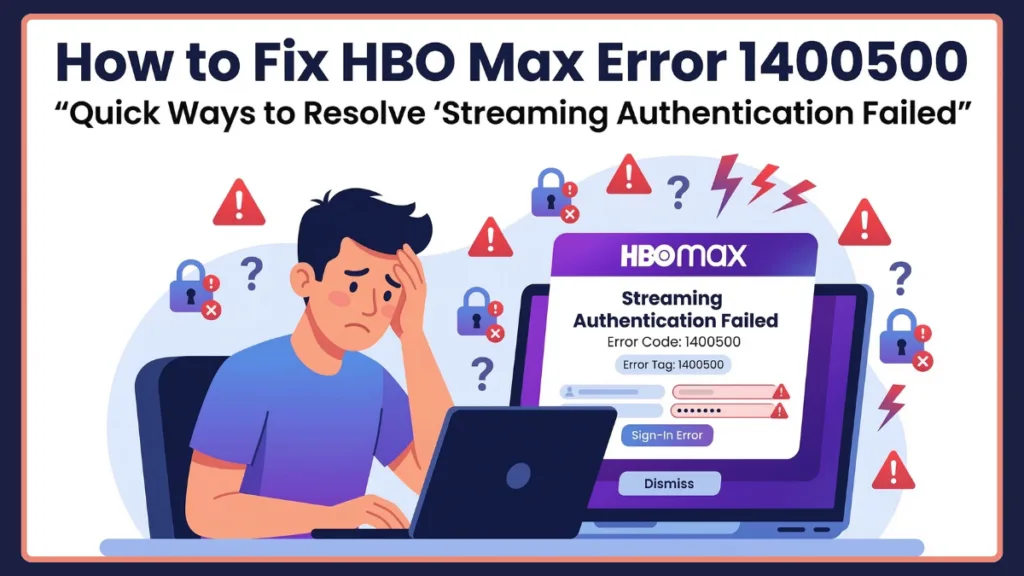
The problem usually appears during the authentication process when Max attempts to verify your account or network. This authentication bug is commonly connected to network interruptions, corrupted app data, login authentication failures, or outdated software on your device.
The good news is that this sign-in and playback issue is usually fixable with a few troubleshooting steps. This guide explains what the HBO Max error code 1400500 means, why it happens, and how to fix it step-by-step so you can restore normal access to your streaming account on Roku, Fire TV, Android, Apple TV, Samsung TV, and other smart devices.
What Is HBO Max Error Code 1400500? Understanding Authentication Failures
The HBO Max error code 1400500 is an authentication-related issue that occurs when the Max app cannot verify your streaming session with its servers. Instead of successfully loading the video, the application displays an error message.
When you open the app or try to play a movie, the platform performs a streaming authentication handshake. This process confirms several important things:
- Your device is authorized to stream
- Your account session is valid
- Your network connection is stable
- The app can communicate with HBO Max servers
If this verification fails, the app cannot start playback and shows Max error code 1400500 instead. In simple terms, the error means the streaming service cannot confirm your login session or device connection, which prevents the video from loading.
Furthermore, this specific authentication error is sometimes tied to Digital Rights Management (DRM) systems, like Google Widevine, which Max uses to protect its content. If your web browser or smart device fails to securely handshake with these DRM servers to verify the broadcast rights, it can immediately trigger the 1400500 code.
Diagnosing the Common Error Message: HBO Max Error 1400500
When this issue occurs, users typically see an error dialog indicating that playback or authentication has failed. This problem can appear in several platforms because they share the same authentication infrastructure. For example, users might encounter the error when trying to stream on:
- Roku streaming devices
- Amazon Fire TV or Firestick
- Android phones and tablets
- Apple TV
- Samsung and LG Smart TVs
- Web browsers on PC or Mac
Although the message appears simple and may seem serious, it usually indicates that the authentication process between your device and Max’s identity platform failed. Most cases can be solved with basic HBO Max troubleshooting steps.
What Causes the 1400500 HBO Max Error? Root Causes and Triggers
Understanding the causes of the 1400500 error issue can help you troubleshoot it more effectively. In most cases, the problem is related to authentication conflicts between your device and the Max servers. Below are the most common reasons this error appears.
Network Connection Problems and Router Interruptions
A stable internet connection is essential for streaming services. During the authentication process, the Max app must communicate continuously with HBO Max servers. If your internet connection is unstable, slow, or interrupted by router issues, the authentication handshake may fail, causing the error.
Streaming platforms generally recommend the following speeds:
| Content Type | Recommended Speed |
| HD streaming | 5 Mbps |
| 4K content | 25–50 Mbps |
If your connection drops during the login verification process, the app may show HBO Max buffering errors or connection problems along with error code 1400500. To optimize your local network for Max, consider accessing your router’s administration panel (commonly from brands like TP-Link, Netgear, or Asus) and prioritizing your streaming device using the Quality of Service (QoS) feature. Additionally, if you are using Wi-Fi, ensure your device is connected to the 5GHz band rather than the crowded 2.4GHz band, as it provides the faster speeds and stability necessary for uninterrupted 4K streaming.
Corrupted App Cache or Broken Authentication Tokens
Apps store temporary files called cache to load content faster. Over time, these files may become corrupted. When corrupted cache interferes with the authentication process, the Max app might fail to verify your session with its servers. This is why clearing cache on HBO Max is one of the most effective fixes.
Problems caused by corrupted cache may include login errors, playback failures, streaming authentication errors, and app crashes. Clearing the app data forces the application to start fresh.
If you are watching Max on a computer via Google Chrome, Mozilla Firefox, or Microsoft Edge, you do not need to clear your entire browsing history. Instead, navigate to your browser’s site settings and clear the cookies and site data specifically for “max.com.” This pinpoints the corrupted login session without signing you out of your other favorite websites.
Outdated Max App or Device Firmware
Running an outdated version of the Max app can cause compatibility problems with streaming servers. Developers frequently release updates to fix bugs, improve security, and ensure compatibility with streaming servers.
If your app has not been updated recently, it may fail to complete the network validation process, triggering error code 1400500. Similarly, outdated device firmware on smart TVs or streaming devices may also lead to HBO Max not working issues.
VPN or Proxy Conflicts
Some users watch streaming content using a VPN for privacy or location changes. However, streaming services actively monitor VPN traffic. If the system detects a VPN connection, the authentication process may fail due to regional restrictions or network validation conflicts.
This results in authentication errors, login handshake failures, and streaming blocks. Disabling the VPN often resolves the issue.
While free VPNs and proxy servers are almost always flagged and blocked by Max, some premium services like NordVPN, ExpressVPN, and Surfshark constantly update their server infrastructures to avoid detection. However, even with premium services, utilizing a dedicated streaming IP address rather than a shared server is often required to consistently bypass these strict authentication blocks.
Temporary HBO Max Server Outages
Sometimes the problem is not on your side at all. Streaming platforms occasionally experience server outages or service disruptions. During these periods, many users may report login problems, playback failures, connection errors, and authentication failures. If thousands of users report issues at the same time, it likely means HBO Max servers are temporarily down.
Quick Fix: HBO Max Error 1400500 Troubleshooting Checklist
Before diving into detailed solutions, you can quickly identify the cause by checking when the error appears.
- If the problem happens only on one device, it is usually a device or app issue.
- If the error appears on all devices connected to your account, it may be related to your network or login session.
- If the error appeared after an app update, it could be caused by corrupted cache or installation files.
- If you are using a VPN, the service may be blocking the connection.
These quick checks can help you move directly to the right solution.
How to Fix HBO Max Error Code 1400500: Step-by-Step Troubleshooting Guide
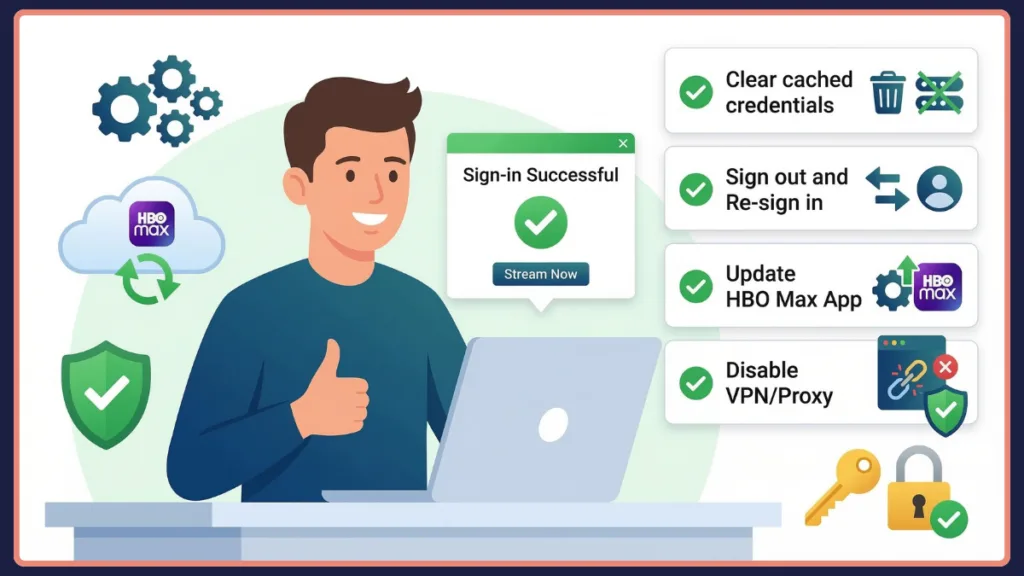
Now that we understand the causes, let’s walk through the most effective methods to fix HBO Max error 1400500.
Fix 1: Restart the Max App
Temporary glitches inside the application may interrupt authentication. Close the Max app completely and reopen it. On many devices, simply returning to the home screen does not fully close the app, so make sure it is completely shut down before launching it again. This simple step often resolves temporary streaming handshake errors.
Fix 2: Restart Your Streaming Device
Restarting your device clears background processes and temporary memory. Power cycling your device can fix app glitches, login token problems, and authentication conflicts. Turn the device off completely, wait about 30 seconds, and power it back on.
Fix 3: Check Your Internet Connection
Poor network stability can prevent the Max app from connecting to servers. Try these quick network fixes:
- Restart your router and modem
- Move closer to the Wi-Fi router
- Disconnect unused devices from the network
- Run an internet speed test
If possible, switching to a wired Ethernet connection can also improve stability.
Fix 4: Update the Max App
Running an outdated version of the app may cause authentication failures. To update the app:
- Open your device’s app store
- Search for Max or HBO Max
- Check if an update is available
- Install the latest version
Updating the app ensures it is compatible with current HBO Max servers.
Fix 5: Clear HBO Max Cache and App Data
Clearing cache removes corrupted temporary files that may block authentication. The process varies depending on the device, but generally includes:
- Opening device settings
- Locating installed applications
- Selecting the Max app
- Clearing cache or data
After clearing cache, sign back into your account. This step resolves many cases of HBO Max error 1400500 cache issues.
Fix 6: Sign Out and Sign Back Into HBO Max to Reset Active Sessions
Sometimes the issue is caused by an expired login token. Signing out refreshes the authentication process and creates a new login session.
- Open account settings in the app
- Sign out of your account
- Close the app
- Sign in again
This refresh often resolves HBO Max login token errors.
Fix 7: Disable VPN or Proxy
If you are using a VPN, turn it off completely and reopen the app. Streaming services may block VPN connections during authentication to enforce regional content rules. Disabling the VPN allows the app to complete the sign-in handshake process normally.
Fix 8: Reinstall the Max App
If none of the previous steps work, reinstalling the application is often the most effective solution. Uninstall the Max app from your device and download it again from the official app store.
This removes corrupted installation files, damaged cache data, and outdated configurations. After reinstalling the app, sign in again and test playback.
Troubleshooting Device-Specific 1400500 Issues: Hardware and Platform Mismatches
Sometimes the 1400500 error appears only on a specific computer or device while the same account works correctly on others. This indicates a device-level authentication issue. Here are troubleshooting steps for common platforms.
HBO Max Error 1400500 on Roku
If you see HBO Max error 1400500 on Roku, try these steps: Remove the Max channel from your device, restart your Roku system, and reinstall the channel from the Roku Channel Store. This process refreshes the application and clears stored data that may cause authentication problems.
HBO Max Error 1400500 on Fire TV or Firestick
For Fire TV devices, clearing the app cache is often the best solution.
Navigate to: Settings → Applications → Manage Installed Applications → Max
Select the app and choose Clear Cache. If the problem persists, clear app data or reinstall the application.
HBO Max Error 1400500 on Samsung or LG Smart TVs
On Samsung or LG Smart TVs, the issue is often related to outdated firmware or app glitches. Try these fixes:
- Restart the TV
- Update TV firmware
- Reinstall the Max app
- Reset the Smart Hub
These steps can restore proper communication with streaming servers.
HBO Max Error 1400500 on Apple TV
If the error appears on Apple TV, force close the app and reopen it. You can also reinstall the Max app through the App Store. Restarting the Apple TV device may also help clear temporary authentication errors.
HBO Max Error 1400500 on Android Devices
On Android phones or tablets, clearing app data usually resolves the issue.
Navigate to: Settings → Apps → Max → Storage → Clear Cache
If the problem continues, clear data or reinstall the app.
When the 1400500 Error Is a Server Issue: Checking for Outages
If the error persists on all devices, the service itself may be experiencing problems. You can check outage reports using online services like Downdetector. If many users are reporting issues at the same time, it likely means the platform is experiencing a temporary outage. In that situation, the only solution is to wait until the servers are restored.
Advanced Troubleshooting for Error 1400500: Network and Account Adjustments
If the error still appears after trying all basic fixes, you can attempt more advanced solutions.
Fix 9: Change DNS Settings
DNS servers help your device locate streaming services online. Sometimes the default DNS provided by your internet provider may be slow or unstable. Switching to public DNS servers can improve connection reliability.
You can usually find this by navigating to your device’s Network or Wi-Fi settings, finding your active connection, and selecting Manual DNS setup. Popular, highly reliable public DNS options include:
- Google DNS:
8.8.8.8 - Cloudflare DNS:
1.1.1.1
If you are troubleshooting on a computer, you can also flush your system’s DNS cache to ensure your network isn’t holding onto an outdated or broken server route. On Windows, open the Command Prompt and type ipconfig /flushdns. On a Mac, open the Terminal application and enter sudo dscacheutil -flushcache.
Fix 10: Disable Browser Extensions
For desktop users watching via web browsers, certain extensions are known to interfere with the Max streaming authentication handshake. Ad-blockers like uBlock Origin or Adblock Plus, as well as aggressive privacy extensions like Privacy Badger, can accidentally block the background tracking scripts that Max uses to verify your session. Try disabling these extensions temporarily or whitelisting the Max website to see if it immediately resolves the error.
Fix 11: Refresh Login Tokens
Logging out of all devices connected to your account can refresh authentication tokens. After signing out everywhere, sign back in on your primary device. This step helps resolve Max authentication failed errors.
Fix 12: Try Streaming on Another Device
Testing another device can help identify whether the issue is caused by your device, network, or account. If streaming works on another device, the problem is likely device-specific.
When to Contact HBO Max Support
If you have tried all troubleshooting steps and the error still appears, contacting HBO customer support may be necessary. Provide the support team with:
- The error code: 1400500
- Your device model
- Your app version
- The troubleshooting steps you already tried
This information helps them diagnose the issue faster.
Does Error 1400500 Affect Other Services? Related HBO Max Error Codes
Although most users encounter the issue as a specific loading screen error, the 1400500 error shares a similar authentication infrastructure with other platform bugs. HBO Max users sometimes encounter other error codes as well. Examples include:
| Error Code | Issue Description |
| Error 100 | Network connectivity issue |
| Error 321 | Account or subscription problem |
| Error 905 | Device streaming limit reached |
| Error 200 | Playback error |
These codes usually require similar troubleshooting methods, such as clearing cache, updating the app, or checking network connections.
Frequently Asked Questions About the 1400500 HBO Max Error
What does HBO Max error code 1400500 mean?
It means the Max app failed to authenticate your streaming session with its servers, usually due to network issues, corrupted cache, or login session problems.
How do I fix HBO Max error 1400500 on Roku?
Remove the Max channel from Roku, restart the device, and reinstall the app from the Roku Channel Store.
Why does HBO Max keep showing error 1400500?
The error may appear repeatedly if your internet connection is unstable or if corrupted cache files remain on your device.
Does reinstalling HBO Max fix error 1400500?
Yes. Reinstalling the app removes corrupted data and often resolves persistent authentication issues.
Does using a VPN cause HBO Max errors?
Yes. VPN services can interfere with the authentication process and may trigger streaming errors.
Final Thoughts on Resolving the 1400500 Streaming Error
The 1400500 HBO Max error can be frustrating because it blocks access to your favorite movies and shows. However, the issue is usually related to authentication conflicts, network instability, corrupted app cache, or outdated apps rather than a serious system failure.
In most cases, restarting the app, clearing cache, updating the Max app, or disabling your VPN will restore normal access. If the problem persists across all your devices, the issue may involve a temporary server outage on Max’s end.
By following the troubleshooting steps above, most users can successfully resolve the HBO Max error code 1400500 and regain access to their streaming content.
Visit Our Post Page: Blog Page