
Facing a home screen connection error on your Vizio TV? Learn 6 proven solutions to fix SmartCast not loading issues, restore internet access, and get your home screen working again.
If you’re dealing with a Vizio TV home screen connection error, where the SmartCast interface refuses to load, apps don’t appear, or the screen stays blank indefinitely, you’re definitely not alone.
You might find this issue popping up across multiple Vizio Smart TV models, often hitting you suddenly and without warning.
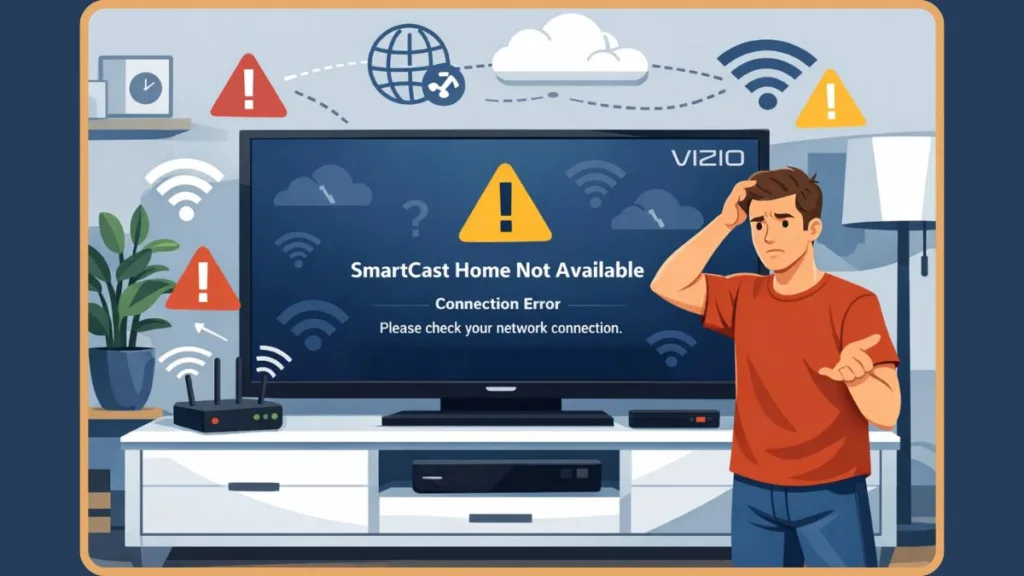
What makes this frustrating for you is that, in many cases, your TV shows it’s connected to Wi-Fi, yet the Vizio TV home screen is not loading, keeps spinning, or displays a vague network-related message.
This mismatch leads you to assume your TV is defective — but honestly, this is rarely a hardware issue.
In most situations, you are facing a problem tied to SmartCast connectivity, network configuration, DNS blocking, firmware behavior, or temporary software glitches. This guide walks you through everything you need to know — calmly, clearly, and step by step.
What Is the Vizio TV Home Screen Connection Error and Why Does It Happen to You?
You encounter the Vizio TV home screen connection error when your television fails to load the SmartCast home interface — the central dashboard that displays streaming apps, recommendations, and smart features — even though the TV itself powers on normally.
Instead of the expected SmartCast home screen, you typically see what is often colloquially called the “Vizio TV black screen of death.”
You will likely see a blank or gray screen that never finishes loading or a SmartCast loading icon that spins endlessly. You might also see specific error messages such as “SmartCast home not available,” or find that your apps are unreachable and fail to open entirely.
Because Vizio SmartCast is cloud-dependent, your home screen requires uninterrupted communication with external services. If anything interferes with that connection — even briefly — your home screen may fail to load despite an active Wi-Fi connection.
Common Symptoms You Might See When Vizio TV Home Screen Is Not Working
When you experience a Vizio TV SmartCast home screen issue, you often report a specific group of recurring symptoms.
The most obvious sign you’ll notice is the Vizio TV home screen not loading after turning the TV on, or the SmartCast interface remaining stuck on the message “SmartCast is starting up. Please wait…” for several minutes or indefinitely.
In some cases, you might open specific apps via remote shortcuts, but the home screen itself remains inaccessible.
A crucial diagnostic sign for you is when the home screen works perfectly on a mobile hotspot but fails on your home Wi-Fi.
Furthermore, you might find that a factory reset didn’t fix the issue, or that firmware updates are failing specifically because the home screen never loads to initiate the process.
When you see these symptoms together, they strongly indicate a network-related or SmartCast service issue, rather than physical damage to your TV.
Why does Your VIZIO say home screen connection error?
To fix the problem effectively, you have to understand what’s causing it.
SmartCast Service Outages or External Server Issues
SmartCast relies on external services to deliver content to your TV.
If those services are temporarily unavailable, slow, or unstable, your Vizio SmartCast home screen may fail to load, even if your local internet connection is working properly.
This is why you notice the issue appearing suddenly — and sometimes resolving itself later without changes. You can check for widespread outages on sites like DownDetector for Vizio.
Network Configuration, DNS Blocking, and ISP Restrictions
One of the most telling signs is when your Vizio TV home screen works on a hotspot but not on home Wi-Fi.
This usually points you to specific configuration issues such as DNS blocking, router-level filtering, or incorrect DHCP settings.
Additionally, network tools like ad-blocking software (such as Pi-Hole) or strict firewall rules and ISP restrictions can inadvertently block the communication between your TV and the SmartCast servers.
When SmartCast traffic is blocked at your network level, the TV behaves as though it has no internet access — even when Wi-Fi shows “connected.”
Corrupted System Cache or Outdated Firmware Bugs
Over time, your cached system data can become corrupted.
When this happens, SmartCast may freeze, crash, or refuse to load entirely for you.
Older firmware versions can also introduce bugs that directly affect Vizio TV SmartCast home screen connectivity.
Weak Wi-Fi Signal Strength and Wireless Interference
A “connected” status doesn’t always mean a stable connection for you.
Interference, distance from the router, or signal drops can interrupt SmartCast’s ability to retrieve cloud-based content, causing your home screen to stall.
Quick Checks: Test Connection, Hotspots, and Cables Before Troubleshooting
Before making deeper changes, you need to run a few quick checks.
You should use the TV’s network connection test to confirm actual internet access (or check speeds via Fast.com) and connect the TV to a mobile hotspot to see if the behavior changes.
If possible, you should connect an Ethernet cable directly to the TV to rule out Wi-Fi interference.
It is also helpful for you to switch to another input, such as HDMI, and then return to the home screen.
Finally, restart both your router and modem to ensure the network equipment is fresh.
If the Vizio TV home screen loads on a hotspot or via Ethernet, your TV is functioning correctly — the issue lies within your home network configuration.
How You Can Fix Vizio TV Home Screen Connection Error: 6 Step-by-Step Solutions
Follow the solutions below in order, starting with the simplest and least disruptive.
1. Perform a Soft Power Cycle on Your TV and Network Equipment to Clear Glitches
You can use a soft power cycle to clear temporary system glitches that can prevent SmartCast from loading without deleting your data.
- Turn off the TV using the remote or power button.
- Unplug the TV from the power outlet for 30–60 seconds.
- Unplug your router and modem if possible.
- Plug everything back in and restart your devices.
This forces SmartCast to reconnect and reload its services from scratch for you.
2. Run the Built-In Network Test to Verify Your Internet Access
Even if Wi-Fi appears connected, this test confirms whether your TV can actually reach the internet.
- Navigate to Settings, select Network, and then choose Test Connection.
- Observe the results; if the test fails, you must focus on resolving network issues first.
A failed test means SmartCast cannot communicate properly, which directly causes the home screen error you are seeing.
3. Fix DNS, DHCP, and Router Blocking Issues to Unblock SmartCast
SmartCast depends heavily on DNS resolution, so adjusting these settings often resolves the block for you.
- Switch your router DNS settings to a public server like
8.8.8.8(Google Public DNS) or1.1.1.1(Cloudflare DNS). - Ensure your router’s DHCP settings are enabled so the TV is assigned a valid IP address automatically.
- Temporarily disable any Pi-Hole devices, ad blockers, or strict firewall filters on your network.
- Restart the router immediately after making these changes to ensure they take effect.
If the home screen loads afterward, DNS blocking was the root cause.
4. Refresh SmartCast and Clear Cache by Changing Menu Language
Some Vizio TVs don’t offer a direct “clear cache” option. Changing the menu language forces SmartCast to refresh its UI for you.
- Navigate to Settings, select System, and choose Menu Language. (Note: On newer models, you find this under Settings > Admin & Privacy > Menu Language).
- Switch the language to a different option, such as Spanish or French.
- Wait for a brief moment, then switch back to English.
This often resolves stuck SmartCast loading behavior and is a known “secret” fix for Vizio screens.
5. Check for Firmware Updates to Patch SmartCast Bugs
Outdated firmware is a common reason for Vizio TV SmartCast home screen not working.
- Go to Settings, select System, and choose Check for Updates (or Admin & Privacy > Check for Updates).
- Install any available updates that appear.
- Restart the TV completely after the update finishes.
Firmware updates frequently include SmartCast stability improvements for you.
6. Perform a Factory Reset as a Last Option for Corrupted Data
A factory reset can help you if corrupted system data is preventing SmartCast from loading.
- Menu reset: Navigate to Settings, select System, choose Reset & Admin, and select Factory Reset (or Admin & Privacy > Reset to Factory Settings).
- Button reset: Alternatively, hold the Volume Down and Input buttons on the TV side panel simultaneously until the reset process begins.
Important: A factory reset does not fix SmartCast server outages or DNS blocking for you.
Why Factory Reset Often Doesn’t Solve the Problem: The Limits of Local Resets
Many of you reset your TV only to encounter the same error again.
That’s because a reset does not change router DNS settings, nor does it bypass ISP restrictions.
Furthermore, a local reset on your TV does not resolve SmartCast service downtime if the servers are currently experiencing an outage.
This is why network troubleshooting (Fix #3) is far more effective for you than repeated resets.
Temporary Workarounds: External Devices and Casting If SmartCast Still Won’t Load
While you continue troubleshooting, there are ways to keep using your TV.
You can use an external streaming device (like Roku or Fire Stick) via HDMI to bypass the built-in software entirely.
Alternatively, you can cast content directly from your phone to the TV, which often works even when the visual home screen fails to load.
These workarounds bypass SmartCast entirely and keep your TV usable for you.
When Should You Contact Vizio Support for Hardware or Account Issues?
You should contact Vizio Support if the issue occurs across multiple networks, such as both Home Wi-Fi and a Hotspot.
It is also time to contact them if the initial setup cannot be completed or if firmware updates repeatedly fail.
Before calling, prepare your TV model number, specific symptoms, and network test results for faster assistance.
FAQs: Common Questions You Might Have About Vizio TV Home Screen Connection Errors
Why is my Vizio TV home screen not loading even though Wi-Fi is connected?
Because SmartCast requires full internet and DNS access, not just a Wi-Fi signal. If DNS is blocked or the server is down, your screen will stay black.
Why does SmartCast work on hotspot but not home Wi-Fi?
Your home network often blocks SmartCast traffic through DNS, DHCP conflicts, or firewall rules. A hotspot bypasses these restrictions for you.
Will updating firmware fix SmartCast not loading?
It can, especially if your issue is caused by known software bugs in older versions.
What if nothing works?
Using an external streaming device is a reliable workaround while you continue troubleshooting.
Conclusion: Final Thoughts on Restoring Your Vizio SmartCast Connection
A Vizio TV home screen connection error can feel overwhelming to you, but in most cases, it’s caused by network configuration issues, SmartCast connectivity limitations, or temporary software glitches, not a broken TV.
By methodically checking your network, performing a soft power cycle, refreshing SmartCast, and applying the right fixes in order, most of you are able to restore the home screen successfully.
Take it one step at a time — and remember that patience often pays off as SmartCast services stabilize.
Visit Our Post Page: Blog Page