
Struggling with ITVX Error 101-001 on Firestick, Roku, PS5 or Samsung TV? Discover the quick fix to resolve playback errors for 2026
If you are trying to stream your favorite shows on ITVX and suddenly encounter ITVX error code 101-001, you are certainly not alone in this frustration.
This specific error typically manifests when you attempt to watch live ITV channels or access on-demand content, interrupting your streaming experience without providing a clear explanation of what went wrong.
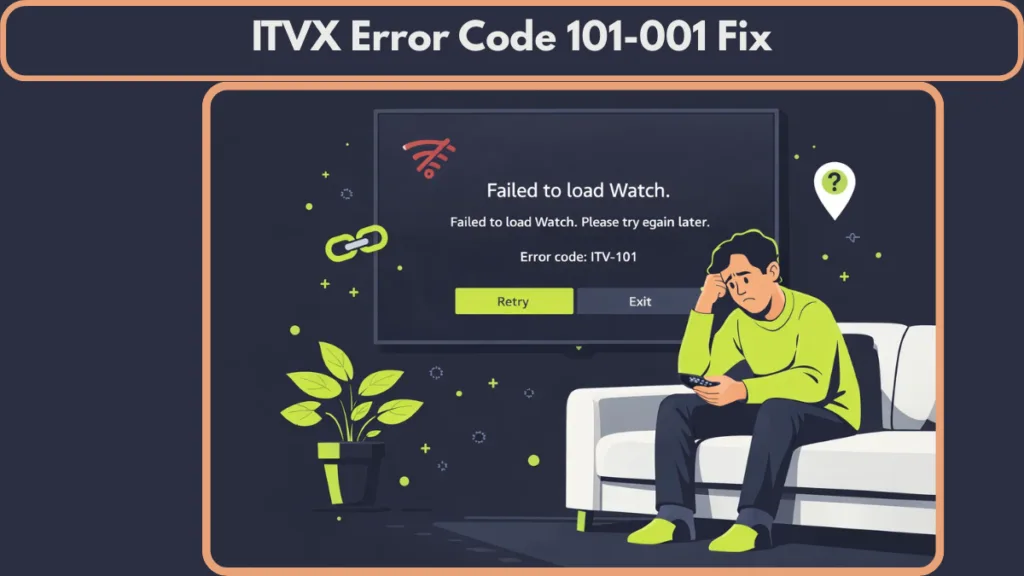
It is worth noting that depending on your specific device manufacturer, this exact connectivity issue may present itself under slightly different aliases. On Samsung Smart TVs, Roku, and Freevee interfaces, users frequently report variations such as ITV-101, 10-01, ITV-1S-101, or even ITV-1X-101.
Rest assured, these are identical “handshake” errors, and the underlying causes and solutions below apply to every single one of them.
The good news is that in the vast majority of cases, ITVX error 101-001 is a temporary glitch that can be resolved within minutes. Whether you are watching on a Smart TV, an Amazon Firestick, a Roku device, or a PlayStation 5 console, this detailed 2026 guide will walk you through exactly what the error means.
We will cover device-specific nuances—particularly the common “Prime Video/Freevee” conflict on Firestick—and advise on when it is time to escalate the issue to ITVX support. Let’s get your content back on screen.
What Does ITVX Error Code 101-001 Mean for Streaming
Technically speaking, ITVX error code 101-001 indicates a failure in the “Digital Rights Management” – DRM handshake or a communication breakdown between your streaming device and the ITVX servers.
It usually points to a streaming restriction or a connection interruption that prevents the video player from initializing the secure stream.
In most scenarios, this error is triggered because the ITVX platform detects that you are attempting to access the service from outside the UK, or it flags your connection as using a VPN or proxy service.
It can also occur if there is a fundamental network connectivity problem within your local Wi-Fi, such as packet loss, high latency, or a strict firewall blocking the video ports.
Furthermore, the error may arise if the app cannot successfully authenticate with the servers due to a handshake failure, or if the local app files (specifically the cache and cookies) have become corrupted or outdated over time.
Since ITVX operates under strict UK broadcast licensing agreements, it is legally required to geo-lock its content.
Consequently, if the system’s automated filters detect an IP address that does not originate from a residential UK connection—or one that is masked by a virtual private network—it will immediately block playback and display error 101-001.
Causes of ITVX Error Code 101-001: Why You Are Getting This Error
Understanding the root cause is the first step toward applying the correct fix.
1. You Are Outside the UK – Geo-Blocking Restrictions
The primary reason for this error is geo-blocking. ITVX content is strictly restricted to viewers located within the United Kingdom due to copyright and licensing agreements. If you are traveling abroad on holiday or for business, ITVX is programmed to block access to its live and on-demand streams entirely.
Note: This often catches out users who are physically in the UK but are using “Data Saver” modes on mobile browsers that route traffic through international servers.
2. VPN or Proxy Detection Blocking ITVX
ITVX utilizes sophisticated software to actively detect and block Virtual Private Networks (VPNs) and proxy servers. Even if you are physically located in the UK, having a VPN active on your device can mask your true residential IP address, causing the ITVX security systems to flag the connection as suspicious.
Free VPNs are especially problematic in this regard because they often recycle a small pool of IP addresses that have long been blacklisted by major streaming services.
3. Internet Connection Issues Causing Playback Failure
A stable internet connection is vital for high-definition streaming. If your connection is unstable, suffering from high latency, or too slow (typically under 2Mbps), the ITVX app may fail to buffer the video stream initially. This instability can cause server authentication to time out, or simply interrupt playback mid-stream.
We often see this happen in households with “Double NAT” setups (e.g., using a Google Nest router plugged into a Virgin Media hub without modem mode enabled).
4. System Date & Time Desync – Common on Firestick
One of the most overlooked causes, particularly on Fire TV devices, is a discrepancy in the system time. If your device’s internal clock does not match the time on the ITVX server—which often happens if the device has been unplugged or lost power—the secure HTTPS connection will fail. The server rejects the request as a security risk, triggering error 101-001.
5. ITVX App Update or Corrupt Cache Files
Over time, as your device stores temporary data to speed up loading times, these cached files can become corrupted. This is common after a major Fire OS or Tizen OS system update. If the cached data conflicts with the new version of the app, or if the app version itself is no longer compatible with the backend servers, temporary bugs will trigger playback errors.
6. ITVX Server Down Status
While less common, it is possible that the ITVX servers themselves are experiencing an outage or undergoing scheduled maintenance. If widespread server issues are occurring, the error is not on your end, and no amount of troubleshooting on your device will resolve it until the engineers at ITV fix the backend.
Quick Fix for ITVX Error 101-001 – Try These First
Before you dismantle your entire network setup, you should attempt these rapid troubleshooting steps.
First and foremost, turn off your VPN if you have one enabled, as this is the most likely culprit.
Next, confirm that you are physically located within the UK. You should then restart your Wi-Fi router to clear any local network congestion. Simultaneously, restart your streaming device to refresh its operating system.
A critical step often missed is to check your device time; ensure your TV or Stick is set to “Automatic Date & Time” so it syncs with the internet.
Check the app store to ensure you have the latest update for the ITVX app. Finally, perform a quick search online to check the ITVX server status to ensure the service isn’t down for everyone. If the issue persists after these quick checks, follow the detailed solutions below.
How to Fix ITVX Error Code 101-001: Step-by-Step Guide
Fix 1 – Turn Off VPN to Bypass Restrictions
If you are using a VPN, the first step is to open your VPN application and disconnect or disable the service entirely. Once the VPN is off, restart the ITVX app and try to play your content again. It may also be helpful to restart your device to ensure the network settings have reverted to your standard ISP connection.
If you rely on a VPN for general internet security, consider disabling it only for the duration of your ITVX streaming session or using “Split Tunneling” (if your VPN supports it) to let the ITVX app bypass the VPN tunnel.
Fix 2 – Check UK Location Settings
You must ensure you are accessing the service from a UK IP address. If you are currently abroad, ITVX will not stream live content, although premium users can download content to their mobile devices before traveling to watch offline.
If you are physically in the UK but still seeing the error, your Internet Service Provider may have assigned you an IP address that is incorrectly classified. In this case, restarting your router can often force the assignment of a new, correctly classified IP address.
Fix 3 – Restart Internet Router to Clear Cache
A full power cycle of your network equipment can resolve many underlying connectivity issues. Turn off both your router and your modem at the wall or using the power button.
Wait for at least 60 seconds to allow the internal capacitors to drain and the memory to clear. Turn them back on and wait for the lights to stabilize, indicating a full reconnection to the internet. Relaunch ITVX to see if the error has cleared.
Pro Tip: If you have a dual-band router, try connecting your TV to the 5GHz band for better speed, or the 2.4GHz band for better stability through walls.
Fix 4 – Sync System Date & Time – The Magic Fix
This solution is particularly effective for Firestick and Android TV users who unplug their devices often.
Navigate to Settings, then select Preferences, and find the Time Zone section. From there, select Sync Date and Time, or alternatively, toggle the Automatic Time Zone setting OFF and then back ON.
This forces the device to re-sync its internal clock with the global internet time, restoring the secure handshake required by the ITVX app. Restart the app immediately after doing this.
Fix 5 – Update ITVX App to Latest Version
Running an outdated version of the app can cause compatibility conflicts with the server. On most devices, you can navigate to the App Store or Channel Store, search for ITVX, and look for an Update button. If one is available, select it to download the latest patch.
To prevent this from happening in the future, it is advisable to keep auto-updates enabled in your device settings.
Note: If you are using a web browser, ensure that “Protected Content” or DRM is enabled in your browser settings (chrome://settings/content).
Fix 6 – Clear ITVX Cache and Data
As you use the app, it builds up a cache of temporary files that can eventually become corrupted and block streaming.
For Firestick users, navigate to Settings, then Applications, followed by Manage Installed Apps. Find ITVX in the list and select Clear Cache.
For Android TV users, go to Settings, then Apps, select ITVX, open the Storage menu, and choose Clear Cache. This wipes the temporary data without deleting your login details.
Fix 7 – Reinstall ITVX App Completely
If clearing the cache does not work, the installation itself may be corrupt. Uninstall the ITVX app completely from your device.
Once removed, restart your device to clear any residual files. Then, return to the official app store, reinstall ITVX, and log in with your credentials again. This process ensures you have a fresh, uncorrupted version of the software.
Device-Specific Solution for ITVX Error 101-001
Smart TVs – Samsung, LG & Android TV
Smart TVs often have specific firmware requirements. You should check your TV’s main settings to ensure the firmware is up to date. Verify that your TV’s region settings are correctly set to the United Kingdom.
If you are on Wi-Fi, try switching to a wired Ethernet connection to rule out wireless interference. Android TV users should clear the app cache as described above.
For Samsung TV owners, if problems persist, you can try resetting the Smart Hub by going to Settings, Support, Self Diagnosis, and selecting Reset Smart Hub.
Be aware that this will sign you out of all apps on the TV, not just ITVX.
Firestick & Fire TV – Specific Troubleshooting
Fire TV devices are prone to caching and time-sync issues. Start by force-stopping the ITVX application. Then, clear the cache and data. It is crucial to perform the Date & Time Sync described in Fix 4, as this is a leading cause of error 101-001 on Amazon devices.
The “Freevee” Conflict: Many Firestick users report seeing this error (often as ITV-101) when trying to access ITV content through the “Freevee” or “Prime Video” interface.
The fix here is to exit those apps and open the standalone ITVX app (the one with the X logo) directly from your app list.
Restart the Firestick by holding the Select and Play/Pause buttons or unplugging it from the power source. Finally, check for any available Fire OS system updates and reinstall the app if necessary.
Roku Devices – Restart and Reinstall
Roku devices handle caching differently, often requiring a system restart to clear temporary data effectively.
Go to Settings, then System, and select System Restart. Once the device reboots, if the error continues, remove the ITVX channel from your home screen.
After removing it, restart the Roku again to clear the memory, and then re-add ITVX from the Channel Store. Also, check manually for any Roku software updates in the settings menu.
PlayStation 5 – PS5 Console Settings
Console users often face strict network configurations. Start by checking your connection status in the Settings under Network.
If you have a standard connection but still get errors, it may be a DNS issue. Try changing your DNS settings manually to Google’s public DNS; set the Primary DNS to 8.8.8.8 and the Secondary DNS to 8.8.4.4.
Restart your console after applying these settings. If that fails, delete the ITVX app, update your PS5 system software to the latest version, and reinstall the app.
Is ITVX Down Today? – Server Status Check
If you have tried every fix on this list and the error persists, the problem may lie with ITV. You can verify this by checking social media platforms like X (formerly Twitter) for outage reports from other users.
You should also visit the official ITVX help page or search “ITVX down today” on Google. For a real-time overview of reports from other users, you can check the ITVX server status on Downdetector. While server outages are rare, they do happen, and in such cases, patience is the only remedy.
How to Prevent Error 101-001 in the Future
To minimize the chance of seeing this error again, avoid using a VPN while streaming ITVX content. Regularly check that your ITVX app is running the latest version.
Maintain a stable internet connection with a minimum speed of 5–10 Mbps for standard definition and higher for HD.
Enable automatic firmware updates on your TV or streaming device to ensure compatibility with the latest streaming protocols. Additionally, restarting your router periodically can help maintain a healthy network connection.
Contact ITVX Support for Error 101-001
If the issue persists despite your best efforts, it is time to contact ITVX Customer Service directly.
To help them resolve your issue faster, provide them with the specific error code (101-001, 10-01, or ITV-101), the type of device you are using (e.g., Firestick 4K Max, Samsung Tizen 2023), the specific program you were trying to watch, confirmation that you are physically located in the UK, and a statement that you have disabled any VPNs.
FAQ: About ITVX Error Code 101-001
What does ITVX error code 101-001 mean?
This error code generally signifies a location restriction, a positive detection of a VPN or proxy, or a failure in the network communication between your device and the ITVX servers.
Is ITVX error 101-001 a VPN issue?
Yes, in a significant number of cases, this error is directly triggered by VPN usage. Disabling your VPN service usually resolves the playback issue instantly.
Can I watch ITVX outside the UK?
Live streaming on ITVX is geographically restricted to the UK. However, ITVX Premium subscribers have the option to download shows to their mobile devices while in the UK, allowing them to watch that downloaded content offline while traveling abroad.
Why is ITVX not working on Firestick?
Firesticks are susceptible to this error due to corrupted cache files, internal clocks becoming desynchronized from the internet time, or outdated versions of the ITVX app.
Final Fix: Get ITVX Working Again
To summarize, ITVX error code 101-001 is most frequently caused by active VPN connections or strict geo-restrictions. Your most effective first step is to disable any VPNs and confirm your physical location is within the UK.
If that does not solve the problem, systematically clearing the app cache, updating the application, or verifying your system’s date and time settings will usually restore your streaming capabilities.
Streaming interruptions can be incredibly frustrating, but by following these targeted steps, you will be back to enjoying your favorite ITV content in no time.
Visit Our Post Page: Blog Page