
Is your Nintendo Switch not reading a game card? Seeing “Game Card Could Not Be Read”? Learn causes and fixes for Nintendo Switch game card error on Switch, Lite, and OLED.
Why Your Nintendo Switch Isn’t Reading Game Cards
If your Nintendo Switch isn’t reading game cards, you’re definitely not alone.
This issue shows up across Nintendo Switch, Switch Lite, and Switch OLED, and it can feel confusing—especially when your console suddenly throws messages like:
“The game card could not be read”
“There is nothing inserted in the game card slot.”
In most cases, a Nintendo Switch game card error doesn’t mean anything is permanently broken.
It usually points to a connection problem between the game card and the console.
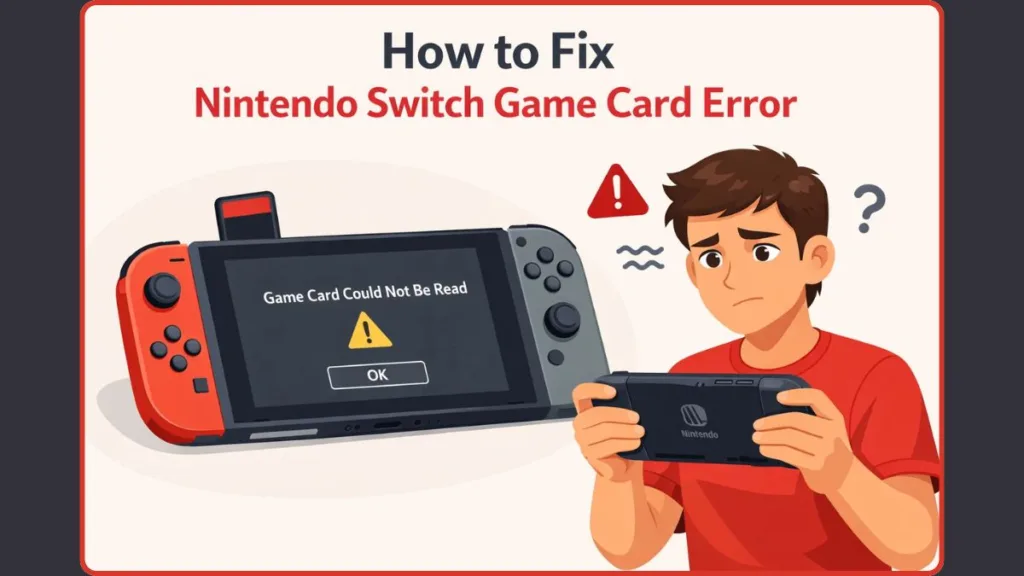
Sometimes the issue appears randomly—your Switch reads the card one moment and refuses the next.
Other times, the console won’t detect any game card at all.
The good news? These errors are often caused by simple, fixable reasons such as dirty contacts, dust inside the card slot, or minor software glitches.
Only a small number of cases involve serious hardware problems that need professional repair.
This guide walks you through why your Switch may not be reading game cards and helps you understand what’s happening before jumping into fixes—so you can troubleshoot confidently, avoid risky mistakes, and get back to gaming faster.
What the Nintendo Switch Game Card Error Means
When a Nintendo Switch game card error appears, it simply means the console is unable to properly read or recognize the game card. This happens when the connection between the game card’s contact pins and the Switch’s card reader isn’t established correctly.
In many situations, the problem isn’t permanent. A weak connection, dust inside the game card slot, or dirty contact points can interrupt communication between the card and the system. Software-related issues—like outdated firmware or temporary system glitches—can also prevent the Switch from launching a game, even when the card is inserted correctly.
What makes this error confusing is that it doesn’t always behave the same way. For some players, the Switch reads game cards inconsistently. For others, the console fails to detect any physical game card, making it seem like the slot isn’t working at all. Understanding this difference helps narrow down whether the issue is related to the game card, the system software, or the hardware reader.
Common Error Messages You May See
When your Switch runs into a game card reading problem, it usually communicates the issue through one of these messages:
“Unable to start software. Return to the menu and try again.”
“The game card could not be read. Please remove and reinsert it.”
“There is nothing inserted in the game card slot.”
“System does not detect a game card is inserted.”
Each of these messages points to the same core issue: the console is not detecting a reliable connection with the game card. While the wording may differ, the underlying cause is often related to card contact, slot cleanliness, or software compatibility—all of which can usually be addressed with the right troubleshooting steps.
Before You Start: Important Checks Most People Miss
Confirm the game card is compatible with your Nintendo Switch
Before assuming there’s a hardware or software problem, make sure the game card itself is designed for Nintendo Switch. Nintendo Switch consoles only support official Nintendo Switch game cards, and using an incompatible card can immediately trigger a Nintendo Switch game card error. Game cards made exclusively for Nintendo Switch 2 are not compatible with Nintendo Switch consoles. Some Nintendo Switch 2 Edition game cards can be inserted into a Nintendo Switch and played. However, only the standard Nintendo Switch version of the game will run, without any of the enhanced features meant for Switch 2 hardware. This distinction often confuses users and leads them to think the card is faulty when it’s actually a compatibility limitation.
Check the game card orientation and insertion
A surprisingly common cause of Nintendo Switch not reading game card issues is incorrect insertion. For the console to properly detect a game card, it must be inserted into the game card slot with the label facing the same direction as the console screen. Even if the card looks like it’s inside the slot, a partial or misaligned insertion can prevent the contacts from lining up correctly. This may result in messages like “There is nothing inserted in the game card slot”, even when the card is physically present. Correct orientation and firm insertion are essential for proper detection. Take a moment to remove the card, realign it carefully, and insert it fully before moving on to more advanced fixes.
Avoid outdated and risky “quick fixes”
When dealing with a Nintendo Switch game card error, it’s important to avoid old-school troubleshooting habits that can cause long-term damage. Do not blow into the game card or the game card slot. While this trick dates back to older cartridge-based consoles, it’s unsafe for modern hardware. Moisture from your breath can lead to corrosion on the card’s gold contacts and the internal reader pins, which may turn a minor detection issue into a permanent hardware failure. Skipping this step protects both your game cards and the Switch game card reader, ensuring you don’t accidentally make the problem worse.
Taking care of these checks first helps eliminate simple causes of a Nintendo Switch game card error. Once they’re ruled out, you can move forward with confidence, knowing the issue isn’t related to compatibility, orientation, or avoidable handling mistakes.
What Causes Nintendo Switch Game Card Read Issues
A Nintendo Switch game card read issue usually comes down to one simple problem: the console and the game card aren’t communicating properly. That communication relies on clean contact points, stable software, and a fully functioning card reader. When any one of these breaks down, the Switch may fail to detect the card or refuse to launch the game.
To make troubleshooting easier, the causes can be grouped into three clear categories. Understanding which category your issue falls into helps you fix the problem faster—and avoid unnecessary repairs.
Game Card–Related Causes
In many cases, the issue starts with the game card itself, not the console.
The most common trigger is dirty or contaminated gold contact pins. Over time, dust, oils from handling, or residue can build up on the card’s contacts. Even a thin layer of grime can weaken the connection enough for the Switch to throw errors like:
“The game card could not be read.”
Physical wear also plays a role. Damaged, bent, or worn contacts can prevent the card from making consistent contact with the reader. This often explains why one specific game card fails, while others work perfectly fine.
Another overlooked cause is defective or fake cartridges. Non-genuine game cards or faulty prints may fit into the slot but fail during data transfer, leading to repeated read errors.
Console Software & System-Related Causes
Sometimes, the game card is fine—but the Nintendo Switch software isn’t.
An outdated system firmware can cause compatibility issues between the console and the game card reader. Firmware updates often include bug fixes that improve how the Switch detects and communicates with physical game cards. Without these updates, the system may misinterpret a properly inserted card as unreadable.
Corrupted system cache data is another common culprit. Temporary files stored by the system can become outdated or damaged, which may interfere with how the console launches games. This can lead to errors such as:
“Unable to start software. Return to the menu and try again.”
In rarer cases, game-specific software issues or user profile data corruption can block a game from loading, even when the card itself is in good condition.
Game Card Reader & Hardware Causes
When multiple game cards fail to work, the issue is often tied to the game card reader inside the console.
Dust or debris inside the game card slot can block the internal pins from making proper contact. This may cause the Switch to display messages like:
“There is nothing inserted in the game card slot.”
More serious hardware problems include bent or damaged reader pins, a faulty reader board, or a loose ribbon cable connecting the reader to the motherboard. These issues typically result in consistent failure across all game cards and do not resolve with cleaning or software fixes.
Hardware-related causes are less common, but when they occur, they often require professional repair or part replacement.
Why Identifying the Cause Matters
Not all Nintendo Switch not reading game card problems are equal.
- If one game card fails – the issue is usually card-related.
- If multiple cards fail – the cause is often software or hardware-related.
Recognizing this difference early prevents wasted effort and helps you choose the right fix instead of guessing. With the cause clearly identified, troubleshooting becomes far more effective—and far less stressful.
Step-by-Step Fix for Nintendo Switch Game Card Error
If you’re dealing with a Nintendo Switch game card error, the key is to follow fixes in the right order—starting with the safest, simplest steps and moving toward deeper troubleshooting only if needed.
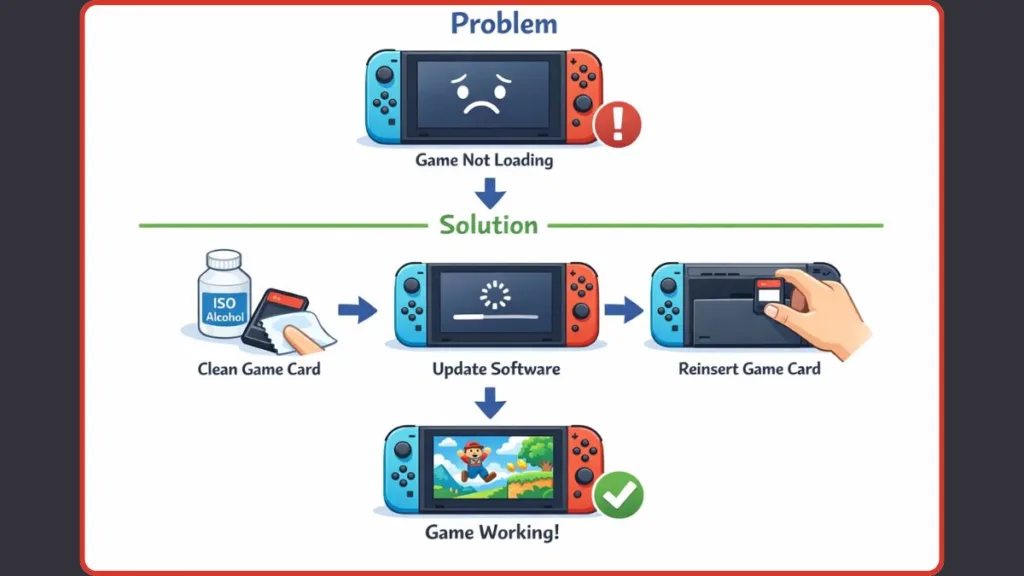
These solutions work across Nintendo Switch, Switch Lite, and Switch OLED, and they’re designed to fix both random detection issues and consistent read failures.
Fix 1: Update Your Nintendo Switch System Firmware
One of the most overlooked causes of Nintendo Switch not reading game cards is outdated system software. Firmware updates often include bug fixes and compatibility improvements that directly affect how the console communicates with the game card reader.
When the system software is behind, the Switch may fail to recognize a properly inserted card or display startup errors.
Keeping your Switch updated ensures smoother communication between the console and the game card.
After installing the latest update, reinsert the game card and check whether the error is resolved before moving to the next step.
Fix 2: Reset the Nintendo Switch Cache (Safe for Save Data)
Temporary system data can sometimes interfere with how the Switch loads software from game cards. Resetting the cache clears corrupt or outdated temporary files without deleting saved games, screenshots, or account information.
This fix is especially helpful if:
- The error appeared suddenly
- Games fail to start even though the card is detected
- The system shows inconsistent behavior
Cache reset refreshes how the system handles data and often resolves hidden software conflicts.
Once the cache is cleared, restart the console and test the game card again.
Fix 3: Clean and Reinsert the Game Card Properly
A weak physical connection is one of the most common reasons for a Nintendo Switch game card read error.
Start by removing the game card and reinserting it firmly. If the issue continues, inspect the gold contact points on the card. Even light dust or residue can interrupt data transfer.
Cleaning helps restore a solid connection between:
- The game card contacts
- The internal reader pins
Clean contacts often fix detection issues instantly.
After cleaning, reinsert the card slowly and evenly to ensure proper alignment.
Fix 4: Test with Another Game Card
Before assuming the console is at fault, it’s important to isolate the issue.
- If another game card works, the problem is likely with the original card.
- If no game cards work, the issue may be related to software, dirt in the reader, or hardware failure.
Testing another game card helps identify whether the problem is the card or the console.
This simple check prevents unnecessary troubleshooting and repair decisions.
Fix 5: Unplug Headphones and Mute the Volume
While it may sound unrelated, connected headphones can sometimes interfere with how the Switch handles system output and background processes.
Unplug any wired headphones, turn the volume all the way down, then reinsert the game card. This step helps reset minor system states that can block proper card detection.
Audio output resets can resolve small software conflicts affecting card recognition.
Fix 6: Restart or Power Cycle the Nintendo Switch
If the error persists, a full restart can clear temporary glitches running in the background.
A normal restart refreshes system processes, while a complete power cycle clears residual power and memory conflicts. This is especially useful when the console has been in sleep mode for long periods.
Restarting resets system processes without affecting saved data.
After powering back on, insert the game card and test again.
Fix 7: Check for Updates for the Problematic Game
Sometimes the issue isn’t the console—it’s the game itself. Developers release updates to fix game-specific bugs that can prevent physical copies from launching correctly.
If the error only occurs with one title:
- Check for available game updates
- Install any pending patches
- Try launching the game again
Game updates can resolve read errors tied to specific titles.
Fix 8: Try a Different User Profile
In rare cases, corrupted user profile data can prevent games from loading, even when the card is detected.
Creating a temporary user profile and testing the game there helps determine whether the issue is tied to profile-level data corruption.
- If the game works under a different profile, the original profile may be causing the issue.
- If it doesn’t, the problem lies elsewhere.
Profile testing helps rule out account-specific software conflicts.
Why Following These Steps in Order Matters
Each fix targets a different layer of the problem—from system software to physical contact to hardware behavior. Skipping steps can lead to wasted effort or unnecessary repairs.
By working through these Nintendo Switch game card error fixes step by step, most users can restore normal game card detection without opening the console or risking further damage.
One Game Card Not Working vs Multiple Cards Not Working
When your Nintendo Switch isn’t reading a game card, one simple question can quickly narrow down the cause:
Is it happening with just one game card, or with every game card you try?
The answer helps you decide whether you’re dealing with a game card problem or a console-related issue, saving time and preventing unnecessary fixes.
If Only One Game Card Is Not Working
When a single cartridge triggers a Nintendo Switch game card error, the issue is almost always tied to that specific game card.
Start by confirming that the game card is official and compatible with Nintendo Switch. Non-genuine or incompatible cartridges may fit into the slot but fail during data reading.
Next, check the gold contact points on the card. Even light dirt or residue can weaken the connection enough for the console to show errors like:
“The game card could not be read.”
Reinsert the game card carefully and power on the console. In some cases, restarting the Switch with the card already inserted helps establish a stable connection.
It’s also worth checking for software updates for that specific game. Game-level patches can fix bugs that prevent certain physical copies from launching properly.
If other game cards work fine, the console itself is usually not the problem.
If Multiple Game Cards Are Not Working
When several game cards fail or the Switch consistently shows “There is nothing inserted in the game card slot,” the cause is usually broader.
This often points to:
- Dirty game card reader contacts
- Dust or debris inside the card slot
- System software issues
- Or, in fewer cases, hardware problems with the reader
Begin by making sure the console is running the latest system update. Firmware improvements often fix card detection issues that affect multiple games.
Next, remove all game cards and check that each card’s contact points are clean. If multiple cards are dirty, the reader itself may also need cleaning to restore proper contact.
When multiple cards fail, the issue is rarely the cartridges alone—it’s usually the system or reader.
Why This Difference Matters
Understanding whether one game card or multiple cards are affected helps you avoid guesswork. A single faulty card doesn’t require console repair, while multiple failures signal the need for system-level fixes or closer inspection of the game card reader.
By identifying this early, you can focus on the right solution and get your Nintendo Switch back to reading game cards smoothly.
How to Clean Nintendo Switch Game Cards Safely (Detailed Guide)
If your Nintendo Switch game card error is caused by dirt or poor contact, safe cleaning is often the fastest and most effective fix. Game cards and the internal reader rely on clean, dry contact points to communicate properly. Even a thin layer of dust or residue can stop the Switch from detecting a card.
This guide focuses on what to clean, how to clean it, and what to avoid, so you fix the issue without risking damage.
What You’ll Need Before Cleaning
Keep it simple and safe. The recommended items are:
- Isopropyl (rubbing) alcohol
- A lint-free cloth or cotton swab
- A clean, well-lit workspace
Avoid water, household cleaners, or sharp tools. These can damage the contacts permanently.
Step 1: Clean the Game Card Contacts First
Always start with the game card, not the console.
Remove the game card and inspect the gold contact points at the bottom. If they look dull, smudged, or dusty, cleaning is necessary.
Lightly moisten a cloth or swab with isopropyl alcohol and gently wipe the contacts. The goal is to remove residue—not scrub aggressively.
Clean, shiny contact points improve data transfer instantly.
Allow the alcohol to fully evaporate before reinserting the card. This usually takes only a few seconds.
Step 2: Clean the Game Card Reader Safely
If multiple cards have trouble loading, the issue may be inside the Nintendo Switch game card slot.
Instead of inserting cotton swabs into the slot—which can bend pins or leave fibers behind—use a safer method:
- Lightly dampen the clean game card’s contacts with isopropyl alcohol
- Insert the card into the slot
- Remove it and repeat several times
This helps transfer alcohol to the internal contacts without touching them directly.
Using the game card itself is the safest way to clean the reader contacts.
You may need to repeat this process 10–20 times, reapplying alcohol as needed. Let everything dry completely before testing.
What You Should Never Do
Some habits can turn a minor Nintendo Switch not reading game card issue into a serious hardware problem.
Do NOT blow into the game card or card slot.
Moisture from breath can cause corrosion on the contact points and internal pins, leading to long-term damage.
Also avoid:
- Inserting dry cotton swabs into the slot
- Using compressed air too close to the contacts
- Forcing tools inside the reader
After Cleaning: What to Check Next
Once cleaning is complete:
- Reinsert the game card firmly
- Power on the console
- Test the game again
If the Switch now detects the card, the issue was almost certainly dirt or poor contact. If errors persist, the problem may be related to software conflicts or hardware damage, which require different fixes.
Proper cleaning solves a large percentage of Nintendo Switch game card errors without repair.
Cleaning should always be your go-to step before assuming the game card or console is faulty.
Should You Replace the Game Card Reader Yourself?
When basic fixes and safe cleaning don’t resolve a Nintendo Switch game card error, it’s natural to wonder if replacing the game card reader yourself is the next step. While it is possible, this repair is not as simple as it sounds.
Replacing the reader requires opening the console, removing the back cover, metal shielding, and carefully disconnecting delicate ribbon cables. Although no soldering is involved, the process still falls into the moderate to advanced repair category.
Another important factor is model compatibility. The Nintendo Switch, Switch Lite, and Switch OLED all use different versions of the game card reader. Installing the wrong part can cause further issues or prevent the console from working altogether.
If you’re not comfortable handling internal components, attempting this repair can cause more damage than the original problem.
DIY replacement makes sense only if you:
- Are confident working with small electronics
- Have the correct tools and replacement part
- Fully understand the risks involved
Otherwise, professional repair is usually the safer option.
Signs Your Nintendo Switch Needs Professional Repair
Not every Nintendo Switch not reading game card issue can be fixed at home. Some symptoms clearly point to hardware failure rather than dirt or software glitches.
You may need professional repair if:
- Multiple game cards fail consistently
- The console never detects a card, even after cleaning
- You see repeated messages like “There is nothing inserted in the game card slot”
- The game card reader has bent or damaged pins
- The issue returns quickly after temporary fixes
These signs often indicate a faulty game card reader, a damaged ribbon cable, or internal connection problems that can’t be resolved through software updates or cleaning.
Persistent errors across all game cards usually mean the reader itself is failing.
When to Contact Nintendo Support or a Repair Shop
If troubleshooting hasn’t worked and the signs point to hardware damage, it’s time to consider professional help. A qualified repair technician can safely diagnose and fix issues related to the Nintendo Switch game card reader without risking additional damage.
For users who prefer official support, Nintendo Support offers mail-in repair services, which are ideal if the console is still under warranty or if you want factory-level servicing.
Local electronics repair shops are another option, especially for out-of-warranty consoles. Look for technicians with console repair experience and strong reviews to ensure reliable service.
Professional repair is often faster, safer, and more cost-effective than repeated DIY attempts.
Knowing when to stop troubleshooting is just as important as knowing how to start. If your Switch shows clear hardware symptoms, handing it over to an expert can save time, money, and frustration—getting you back to gaming with confidence.
Final Thoughts: Fix Nintendo Switch Game Card Errors the Smart Way
Running into a Nintendo Switch game card error can be frustrating, but it doesn’t have to be overwhelming. In most situations, the problem comes down to simple connection issues, dirty contact points, or minor software glitches—not a broken console.
The smartest approach is to start small and stay safe. Checking compatibility, updating system software, resetting the cache, and cleaning game cards properly solve the majority of cases where a Nintendo Switch isn’t reading game cards. These steps take only a few minutes and don’t put your console at risk.
It’s also important to avoid outdated fixes.
Blowing into cartridges or the game card slot can cause corrosion and long-term damage.
Modern consoles rely on clean, dry contacts—not quick hacks from older systems.
When troubleshooting doesn’t work and multiple game cards fail consistently, that’s your signal to pause. At that point, the issue is more likely tied to the game card reader hardware, and professional repair becomes the safer and more reliable option.
Most Nintendo Switch game card errors are fixable without opening the console.
By following a calm, step-by-step process and knowing when to stop DIY troubleshooting, you protect your Switch, save time, and get back to gaming with confidence. Smart fixes—not rushed guesses—are the key to keeping your Nintendo Switch running smoothly.
Useful Resouces: Official Nintendo Support Guides
Nintendo’s game card read issues support page — walkthrough of basic steps like reinserting cards, restarting, and updating firmware for Nintendo Switch models including standard, Lite, and OLED.
Official guidance for a single problematic game card — step-by-step actions to update system/game software and handle read errors when only one card is affected.
These official support articles are excellent resources to link in your blog for credibility and to help users understand manufacturer-recommended steps.
Visit Our Post Page: Blog Page