
Getting a PCL XL error on your HP printer when printing? Follow this step-by-step guide to fix driver issues, PDF errors, and printing problems on Windows.
Printers may feel a bit old-school in today’s digital-first world, but let’s be honest—they’re still essential. From office paperwork and invoices to school assignments and official documents, printing is part of everyday life.
So when your printer suddenly stops and your screen shows a PCL XL error, it can feel confusing and frustrating—especially when your HP printer was working perfectly fine just moments ago.
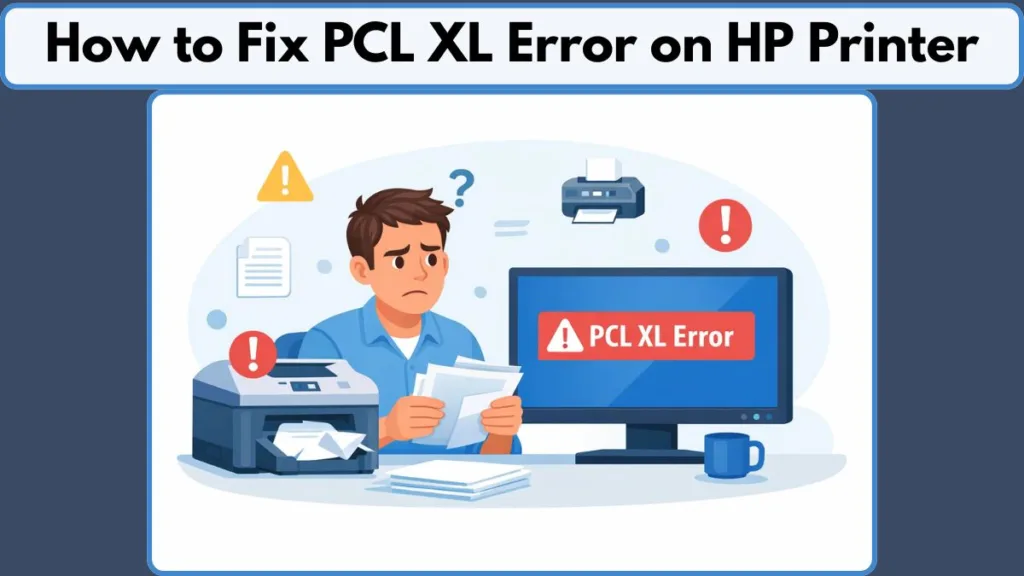
Here’s the reassuring part: in most cases, PCL XL errors are software-related, not hardware failures. That means you usually don’t need to replace your printer or call for expensive repairs. With the right steps, you can often fix the issue quickly and get back to printing without stress.
This detailed guide walks you through what the PCL XL error is, why it happens on HP printers, and how to fix it step by step, using solutions that work reliably on Windows 10 and Windows 11.
Why Does Your HP Printer Throw a PCL XL Error?
The PCL XL error doesn’t appear randomly. It usually shows up in specific situations that many users experience every day.
You’re more likely to see it when printing PDF files, graphics-heavy documents, or when sending multiple pages at once to the printer. It also commonly appears right after a Windows update, a printer driver update, or when using a shared or network printer in an office setup.
Based on widespread user reports and guidance from HP, the issue is most often tied to driver compatibility problems and how print data is interpreted by the printer.
In simple terms, your printer is receiving instructions it can’t properly understand—so it stops the job and shows the error instead of printing something incorrectly.
What Is PCL XL In HP Printer? (Simple Explanation)
PCL XL, also known as PCL 6, is a modern version of HP’s Printer Command Language. Think of it as a translator that helps your computer explain to the printer how text, images, fonts, and layouts should appear on paper.
It’s designed to work especially well with Windows graphical interfaces, which makes printing faster and more efficient. It also compresses print data to improve speed and overall performance.
However, there’s a trade-off. PCL XL is very strict.
If the print data includes unsupported fonts, corrupted elements, or formatting the printer can’t interpret perfectly, the driver fails—and that’s when the PCL XL error appears. Older printer languages are more forgiving, but PCL XL expects everything to be just right.
Common PCL XL Error Messages You Might See
When this issue occurs, the message on your screen can look intimidating. You might see things like PCL XL Error, Subsystem: KERNEL, Error: IllegalTag, or Error: InsufficientMemory.
Even though these messages sound serious, they usually point to print data parsing or driver issues, not a damaged or broken printer.
What Causes PCL XL Error on HP Printers?
Understanding the causes makes troubleshooting much easier. Below are the most common reasons this error appears on HP printers.
1. Corrupt or Outdated Printer Driver
This is the most common cause. Printer drivers can become unstable after Windows updates, partial driver installations, or changes in how the printer is connected, such as switching from USB to a network connection. When the driver isn’t working properly, it can send flawed print data to the printer.
2. Unsupported or Mismatched Fonts
Documents that use custom fonts, embedded fonts, or a mix of text and images can trigger the error. If the printer can’t properly parse a font, the entire print job may fail.
3. PDF and Graphics-Heavy Documents
PDF files are a frequent trigger because they often contain vector graphics, layered images, and compressed fonts. These elements increase the chance of the printer receiving data it can’t interpret correctly.
4. Print Spooler Service Issues
The Windows Print Spooler manages all print jobs before they’re sent to the printer. If this service becomes stuck or overloaded, it can corrupt the print data stream and lead to PCL XL errors.
5. Misconfigured Printing Preferences
Advanced printing features, when configured incorrectly, can interfere with how fonts and graphics are processed—especially on older HP LaserJet models.
6. Network or Shared Printer Conflicts
In offices where multiple computers send jobs to one printer, differences in driver versions or settings can cause conflicts, resulting in frequent PCL XL errors.
Quick Checks Before Applying Fix
Before moving on to deeper fixes, it helps to rule out simple issues.
Restarting your printer and computer clears temporary glitches. Canceling all pending print jobs removes potentially corrupted tasks from the queue. Printing a simple TXT or Word document helps confirm whether the issue is tied to complex files.
If basic documents print fine, the problem is almost certainly driver- or file-related, not hardware-related.
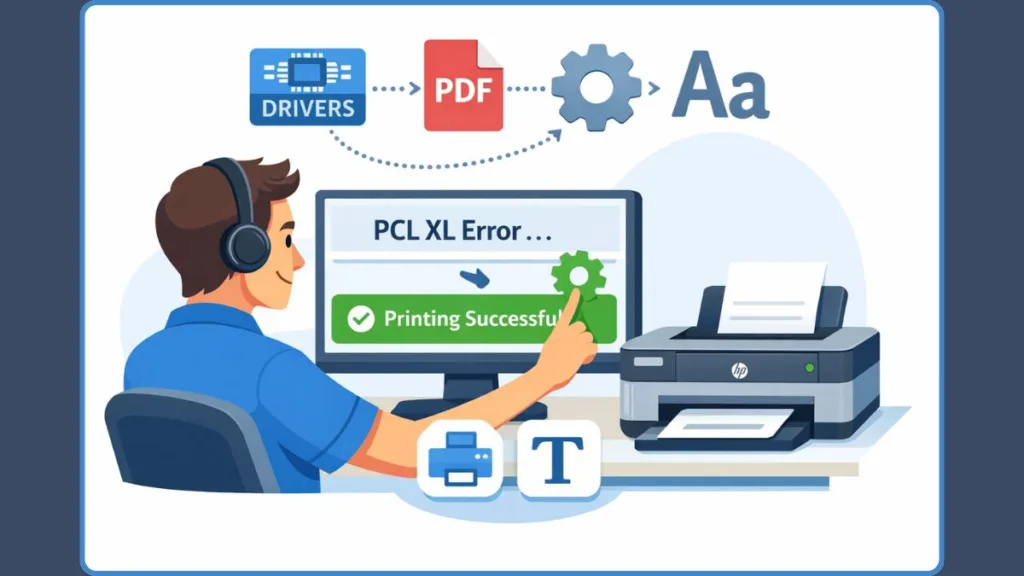
Fix 1: Switch from PCL6 (PCL XL) to PostScript or PCL5e
(Most Reliable Solution)
This is the most consistently successful solution across both home and office environments.
Switching drivers works because PostScript and PCL5e drivers are more forgiving than PCL XL. They handle formatting inconsistencies much better.
PostScript drivers are ideal for PDFs and image-heavy documents, while PCL5e drivers are known for stability with plain text and everyday printing. Once switched, many users see the PCL XL error disappear immediately—no extra tweaking required.
How to Download the Right HP Printer Driver (Quick & Easy)
If you’re switching away from PCL XL, this is the simplest and safest way to download the correct driver.
Start by visiting the official HP Support website for HP Universal Print Driver options. You’ll usually see multiple choices.
Choose PostScript (PS) if you print a lot of PDFs or graphics, or PCL5 / PCL5e if you want maximum stability for everyday documents. Avoid downloading PCL6 / PCL XL, as that’s the driver causing the issue.
Once downloaded, run the installer, follow the on-screen steps, and restart your computer.
After installation, open Control Panel > Devices and Printers, right-click your printer, go to Printer properties > Advanced, and select the new PostScript or PCL5 driver from the list. Click Apply and you’re done.
That’s it. In most cases, this quick driver switch immediately stops the PCL XL error and makes printing smooth again.
Fix 2: Reinstall or Update the HP Printer Driver
If switching drivers isn’t an option, reinstalling or updating the printer driver is the next best step.
Completely removing the existing driver and installing the latest compatible version replaces corrupted files and outdated components. This is especially helpful after Windows updates that change how printing works behind the scenes.
Fix 3: Adjust Printing Preferences (Font Handling Fix)
Font handling plays a major role in PCL XL errors. Adjusting these settings forces Windows to convert complex fonts into simpler formats that printers can always understand.
Setting TrueType Font to Download as Softfont and enabling Send TrueType as Bitmap greatly reduces errors caused by unsupported fonts.
Fix 4: Rename GPD Files (Advanced but Effective)
Generic Printer Description (GPD) files define how Windows communicates with your printer. If these files become corrupted, printing errors can follow.
Renaming the .gpd files located at C:\Windows\System32\spool\drivers\x64\3 force Windows to create fresh copies automatically. This fix is more advanced but very effective in stubborn cases.
Fix 5: Restart the Print Spooler Service
Restarting the Print Spooler clears stuck or damaged print jobs and refreshes the entire printing process. It’s quick, safe, and often resolves PCL XL errors caused by temporary spooler issues.
Fix 6: Perform a Cold Restart
A cold restart resets communication between your computer, printer, and network equipment.
Turning everything off, unplugging power cables, waiting a few minutes, and then restarting in the correct order clears lingering communication problems that can trigger PCL XL errors.
Fix 7: Reset Printer to Factory Defaults
If firmware corruption or deep configuration issues are suspected, restoring factory defaults can help. After resetting, reinstalling the printer ensures everything starts fresh and conflicting settings are removed.
Why Switching Drivers Solve the PCL XL Error
The reason this fix works so well is simple. PCL XL is strict, while PostScript and PCL5e are forgiving.
When print data isn’t perfectly formatted, PCL XL fails quickly. Alternative drivers interpret the same data more flexibly, allowing the print job to complete without errors.
How to Prevent PCL XL Errors in the Future
Preventing future issues is much easier than fixing them.
Avoid unnecessary driver updates unless required.
Use PostScript drivers for PDF-heavy workflows.
Keep one stable driver installed instead of switching often. Split large print jobs into smaller batches, and avoid uncommon or decorative fonts when possible.
Frequently Asked Questions
Is PCL XL error a hardware problem?
No. In most cases, it’s a software or driver issue, not a hardware failure.
Does Windows 11 cause PCL XL errors?
Windows itself doesn’t cause the error, but updates can expose existing driver incompatibilities.
Why does the error happen only with PDFs?
PDFs often include fonts and graphics that PCL XL struggles to interpret correctly.
Should I replace my printer?
Almost never. Software fixes resolve the issue for the vast majority of users.
Conclusion: The Fastest Way to Fix PCL XL Error on HP Printers
A PCL XL error can look serious, but it’s usually straightforward to fix once you understand what’s happening behind the scenes.
For most users, switching away from the PCL6 driver solves the problem instantly. Others may need to adjust font settings, reinstall drivers, or restart the Print Spooler.
Before assuming the worst or investing in new hardware, try the solutions above. In most cases, your HP printer is perfectly fine—it just needs a small software adjustment to get back to smooth, reliable, stress-free printing.
Visit Our Post Page: Blog Page