
Stuck in an infinite queue or facing connection failures? Learn 7 proven methods to fix Rainbow Six Siege Matchmaking Error, including Code 2-0x0000D00A and crossplay glitches on PC, PS5 & Xbox.
If you are currently staring at a frozen lobby screen or battling an endless queue, rest assured that you are not the only one. The Rainbow Six Siege matchmaking error is a pervasive issue that frustrates players across PC, PlayStation, and Xbox. Whether you are trying to grind Ranked on a Friday night or just hopping into a Quick Match, these connection failures can derail your session instantly.
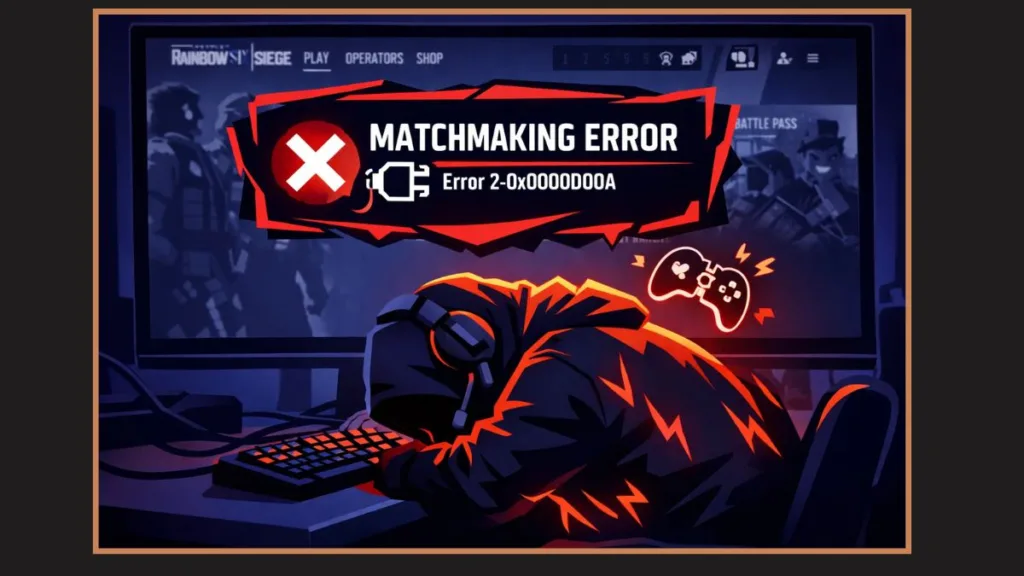
However, there is good news. In most scenarios, these matchmaking errors are merely temporary client-side glitches that you can resolve in minutes. Whether you are seeing Error 2-0x0000D00A, 2-0x0000D019, or simply the dreaded infinite matchmaking loop, this guide covers the most effective methods to fix over 99% of these issues—without resorting to time-consuming reinstalls or random guesswork.
Quick Status Check (Do This Before Anything Else)
Before you start changing router settings or troubleshooting locally, you must verify the Rainbow Six Siege service status. It is entirely possible that the problem lies with Ubisoft, not your equipment.
For instance, during major updates like a new season launch, servers often buckle under the load.
Consequently, if matchmaking services for PC, PlayStation, or Xbox are experiencing outages, no local fix will yield results.
In that specific situation, your only option is to wait until Ubisoft restores service stability. You can verify this by checking the official Ubisoft Service Status page or third-party tracking services like DownDetector, which aggregates real-time user reports.
Once you have confirmed that the servers are fully operational, you can move directly to the fixes below.
What Is the Rainbow Six Siege Matchmaking Error?
To understand the solution, we must first identify the problem. A matchmaking error generally occurs when the game fails to place you into a match after searching for an extended period. Rather than loading you into a lobby, the game might present symptoms such as:
- Infinite matchmaking queues (timers exceeding 5–10 minutes).
- The generic message: “This request did not meet all the matchmaking requirements.”
- Sudden, unexplained cancellation of the matchmaking search.
- Disconnections immediately after finding a team.
Technically speaking, this issue usually points to a failure in server communication, network restrictions, or game synchronization, rather than a ban or an account-level penalty. In most cases, the game simply fails to maintain a stable “handshake” with Ubisoft’s central matchmaking data center.
Common Rainbow Six Siege Matchmaking Error Codes
When matchmaking fails, the game often provides a specific alphanumeric code. Recognizing these can help you pinpoint the exact cause. You may encounter one of the following:
- Error 2-0x0000D00A: This indicates that the connection to the matchmaking service was lost. Players often solve this by simply restarting the game.
- Error 2-0x0000D019: This occurs when the client fails to join a match after a successful queue pop, often due to a timeout.
- Error 2-0x00000060: This code frequently signals a network configuration conflict or a region-related issue.
- Ranked Matchmaking Stuck: This usually suggests a conflict with party MMR (Matchmaking Rating) or rank requirements.
Furthermore, you might see less common codes such as 2-0x0000D017. Community discussions on platforms like Reddit often link this specific code to crossplay desync or issues with party composition.
Why Matchmaking Is Not Working in Rainbow Six Siege
Understanding the root cause allows you to apply the right fix faster. Generally, matchmaking errors stem from one of these primary triggers:
- Server Load: Ubisoft servers are under heavy load or undergoing maintenance.
- NAT Configuration: Your Network Address Translation (NAT) type is set to Moderate or Strict, limiting connections.
- Instability: Your internet connection is fluctuating, causing packet loss.
- Corrupted Files: Essential game files like BattlEye or texture packs are corrupted.
- Software Interference: A VPN or proxy service is actively blocking the matchmaking ports.
- Region Locking: Party members are located in different data center regions (e.g., NA East vs. EU West).
Additionally, in Ranked modes, the game enforces strict MMR rules. Therefore, what looks like a “broken” queue might actually be the system working correctly to prevent a skill mismatch.
How to Fix Rainbow Six Siege Matchmaking Error (Step-by-Step)
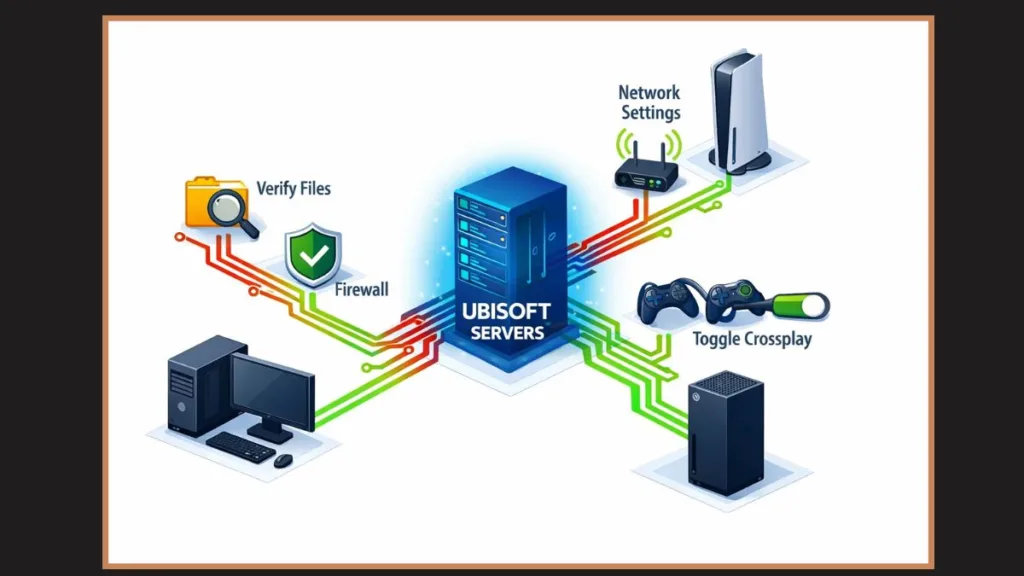
We have organized these solutions from the easiest to the most advanced. Follow them in order for the best results.
Fix 1: Cancel & Re-Queue (The “Zombie Lobby” Fix)
To begin with, try the simplest solution. If your matchmaking timer exceeds 3 minutes, you should immediately cancel the search and restart it.
Often, players get stuck in a “zombie lobby“—a state where the game thinks it is searching, but the request has actually timed out on the server side. Consequently, cancelling and re-queuing refreshes your connection handshake with the data center. This simple action resolves infinite queues more often than any technical fix.
Fix 2: Restart the Game and Your Network
If re-queuing fails, the next logical step is a full reset. This process clears temporary routing tables and session conflicts that accumulate over time.
- Close Rainbow Six Siege completely.
- Shut down your PC or console.
- Power cycle your modem and router (unplug them for 30 seconds).
- Wait for the internet connection to stabilize.
- Relaunch the game.
Restarting allows your router to re-establish a fresh path to the ISP, which frequently clears up Error 2-0x0000D00A.
Fix 3: Check NAT Type and Network Settings
Moving on to network configuration, your NAT type is critical. Rainbow Six Siege matchmaking functions best with an Open NAT. Conversely, a Strict or Moderate NAT can aggressively block incoming connections from other players.
- Enable UPnP: Access your router settings and toggle Universal Plug and Play (UPnP) to “On.”
- Port Forwarding: If UPnP fails, you may need to manually forward ports.
Essential Ports for R6 Siege:
- TCP: 80, 443, 14000, 14008
- UDP: 6015, 50000–60000
By ensuring these ports are open, you create a direct lane for game traffic, significantly improving matchmaking reliability.
Fix 4: Verify Game Files (PC Only)
For PC players specifically, corrupted installation files are a common culprit. If a recent patch failed to install correctly, the game will boot but fail to matchmake.
- On Steam: Right-click Rainbow Six Siege > Properties > Installed Files > Verify integrity of game files.
- On Ubisoft Connect: Go to Games > Rainbow Six Siege > Properties > Verify files.
Furthermore, always remember to restart the launcher after the verification process completes to apply any repairs.
Fix 5: Disable VPN and Background Apps
In addition to game files, background software can interfere with your connection. VPNs and proxy services often route your traffic through servers that Ubisoft’s anti-cheat (BattlEye) or matchmaking systems flag as suspicious.
- Disable your VPN completely before launching the game.
- Pause bandwidth-heavy tasks like large Steam downloads or 4K streaming.
Pro Tip: If you rely on Wi-Fi, you are prone to signal interference. Switching to a high-speed Cat8 Ethernet cable is the single most effective hardware upgrade you can make for Siege stability. Hardlining your connection eliminates the jitter that causes random disconnects.
Fix 6: Change DNS or Matchmaking Region
If your ISP’s default DNS server is slow, it can cause timeouts during the matchmaking “lookup” phase. Therefore, switching to a high-performance public DNS can help.
Recommended DNS Services:
- Google DNS: Primary 8.8.8.8 / Secondary 8.8.4.4
- Cloudflare DNS: Primary 1.1.1.1
Additionally, verify that all party members are queuing for the same region. If you are in New York and your friend is in London, the matchmaker may struggle to find a server that offers acceptable ping for both of you.
Fix 7: Toggle Crossplay (Vital for Consoles)
Finally, for console players, Crossplay desync has emerged as a major issue in recent years. If the “handshake” between Xbox and PlayStation networks fails, you will sit in a queue forever.
How to Reset Crossplay:
- Go to Settings > General.
- Find Crossplay Matchmaking and turn it OFF.
- Save settings and restart the game.
- Turn Crossplay back ON.
This process forces the game to re-authenticate your cross-platform permissions, effectively resolving many stubborn queue failures.
Platform-Specific Matchmaking Fixes
While the general fixes apply to everyone, each platform has unique quirks.
PC Matchmaking Error Fix
- Run as Administrator: Right-click Ubisoft Connect and select “Run as administrator” to prevent permission issues.
- Firewall Exceptions: Ensure Windows Defender is not blocking
RainbowSix.exe.
PlayStation (PS4 / PS5) Matchmaking Error Fix
- Connection Test: Run a “Test Internet Connection” in the network settings to reset the network card.
- Wired Connection: As mentioned earlier, use an Ethernet cable whenever possible.
Xbox Matchmaking Error Fix
- Clear MAC Address: This is a hidden cache clear that works wonders. Go to Settings > Network > Advanced Settings > Alternate MAC Address > Clear > Restart.
Why Ranked Matchmaking Fails More Often
You might notice that errors occur more frequently in Ranked than in Quick Match. This is not a coincidence. Ranked matchmaking enforces much stricter logic, including:
- MMR Limits: You cannot queue with players whose Rank is too far apart from yours (e.g., a Copper cannot queue with a Platinum).
- Abandon Sanctions: If a party member has an active penalty, the queue will fail immediately.
In many instances, the system is not “broken”; it is simply rejecting your party because you do not meet the competitive criteria.
Final Verdict: You Can Fix Rainbow Six Siege Matchmaking Error
Matchmaking errors in Rainbow Six Siege are undeniably frustrating, yet they are almost always temporary. As we have explored, most issues stem from simple network configuration errors, crossplay sync glitches, or momentary server instability.
By following these fixes in order—starting with a simple “Cancel & Re-Queue” and moving to DNS changes or Port Forwarding—you will likely resolve the issue quickly. Avoid unnecessary reinstalls, keep your network drivers updated, and you will return to the action faster, even during peak hours.
Official Ubisoft Support & Troubleshooting
Rainbow Six Siege Help Center – Official hub for guides, troubleshooting, and general game support. You can point readers here for broader help on connectivity issues.
Connectivity & Performance Support – Includes steps for common multiplayer connection problems and official advice on resolving errors like matchmaking failures.
List of Error Codes & Messages – Ubisoft’s official catalog of matchmaking and other error codes with suggested basic fixes (e.g., restart). Useful for explaining what specific codes mean.
Visit Our Post Page: Blog Page