
Are you seeing “Restricted Mode enabled by administrator” while watching YouTube? Can’t turn it off on Chrome or your device? Discover how to disable YouTube Restricted Mode and fix the administrator lock in 2026.
There are few things more frustrating than trying to watch a video, only to be blocked by a message saying “Restricted Mode is enabled by your network administrator”—especially when you’re on your own computer or phone. If you’re trying to figure out how to disable YouTube restricted mode on Chrome or why the toggle is suddenly greyed out, you aren’t alone.
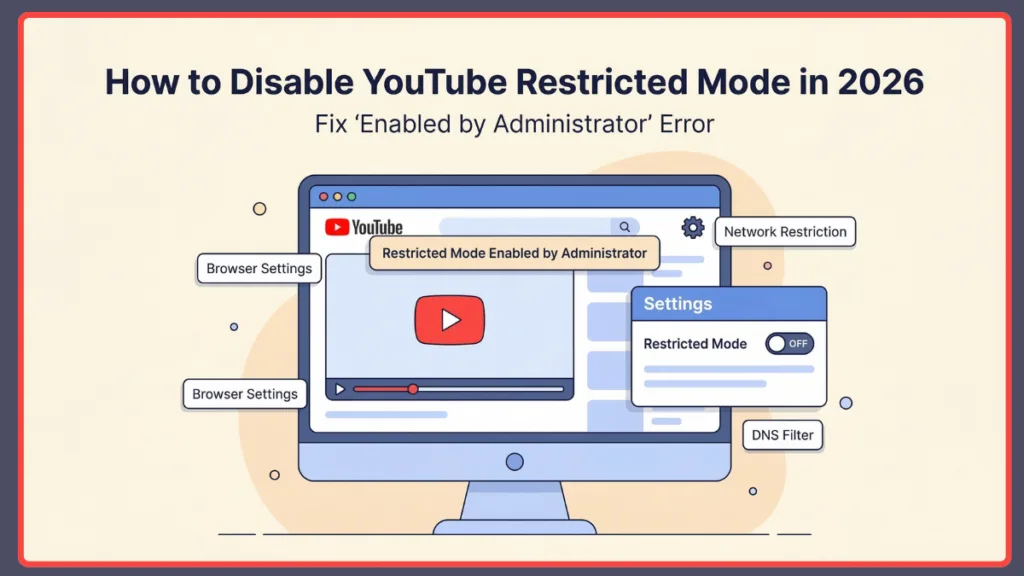
Normally, Restricted Mode is a simple safety setting that hides potentially mature content. However, when it’s locked by an administrator, you cannot turn it off directly from YouTube’s settings.
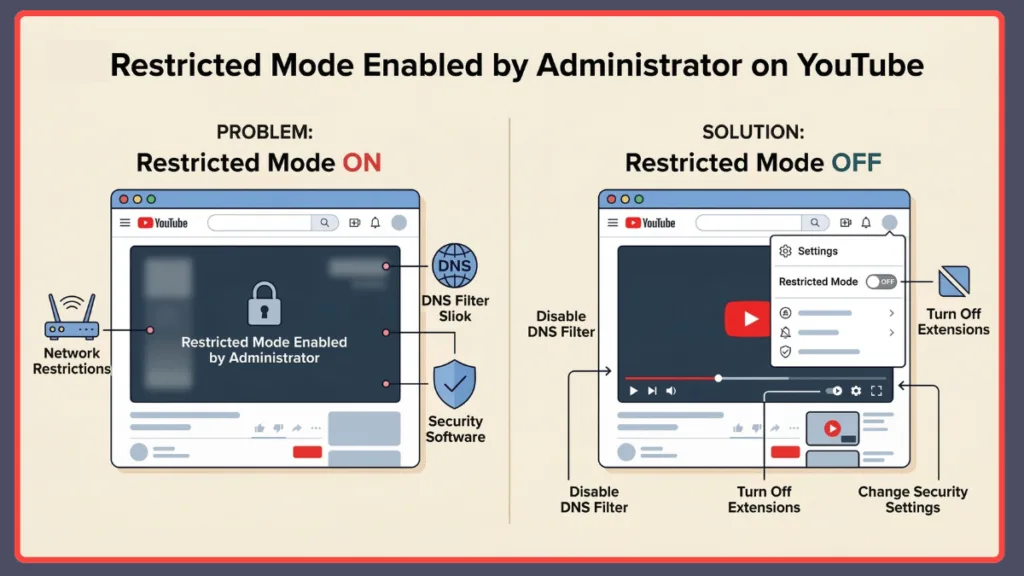
This situation usually happens when a system policy, network filter, DNS provider, browser extension, or security software forces YouTube’s safety filter. In those cases, YouTube assumes an administrator is controlling your connection and prevents you from disabling the setting manually.
The good news is that taking back control of your device is entirely possible. In this guide, you’ll learn why Restricted Mode gets locked and the practical steps you can take to remove the restriction on Windows, browsers, or networks.
Understanding the “Restricted Mode Enabled by Administrator” Error on YouTube
YouTube Restricted Mode is designed to limit access to content that may contain mature themes, language, or sensitive material. It’s often used in environments where content moderation is important, such as schools, workplaces, or public computers.
When this feature is enforced by an outside source, YouTube displays a message like:
“Restricted Mode is enabled by your network administrator to help hide potentially mature videos.”
In normal situations, you can simply toggle Restricted Mode on or off from the YouTube settings menu. However, when the setting is locked, the control becomes unavailable because another system component is enforcing the restriction.
To diagnose exactly what is causing the block, you can visit the YouTube Content Restrictions page at youtube.com/check_content_restrictions. This official tool will show you a checkmark next to the specific source—whether it’s your network, account, or browser—that is triggering the limit.
Common Reasons Why Restricted Mode Is Enabled on Your Device
Understanding the root cause is the first step toward fixing the problem. In most cases, the restriction originates from one of the following sources:
Network Administrator and School Restrictions
Many schools, offices, and managed networks use content filtering systems to prevent access to inappropriate material. These filters operate at the network level, meaning every device connected to that network automatically follows the same rules. When such a filter detects YouTube traffic, it can automatically enforce Restricted Mode. Public Wi-Fi networks, libraries, and educational institutions commonly apply these policies.
Browser Extensions or Add-Ons Interfering
Browser extensions can modify how websites behave. Some extensions—especially content blockers, parental control tools, or security plugins—may activate YouTube filtering automatically. Extensions like Securly or GoGuardian are common in educational environments. Because these tools modify web content directly in your browser, they can force Restricted Mode and make it appear as if an administrator enabled it.
Antivirus or Security Software Web Filtering Policies
Many antivirus and enterprise security programs include web filtering features designed to block harmful or inappropriate websites. Programs like FortiClient, Forcepoint, or Bitdefender often have a “Safe Search” or “Content Control” feature. When YouTube is classified under filtered categories, the software may automatically activate Restricted Mode. Enterprise security applications and network protection tools commonly include this feature.
Secure DNS or Family Filtering DNS Services
DNS services translate website names into IP addresses, but some providers also offer content filtering capabilities. Family-safe DNS providers like CleanBrowsing or OpenDNS FamilyShield block adult or sensitive content automatically. When YouTube detects filtering from such DNS services, it assumes a network administrator is enforcing restrictions.
Microsoft Family Safety or Managed Account Controls
Another common cause is account-level parental control settings. Microsoft Family Safety or Google Family Link allows parents or administrators to restrict certain types of content for child accounts. If your Microsoft account is part of a family group with content filtering enabled, YouTube may enforce Restricted Mode automatically.
Mobile Carrier Web Filters
Some mobile network providers (like T-Mobile with its Web Guard feature) offer content filters at the carrier level. These filters restrict the type of web content you can access when your device is connected to their mobile network, which can trigger the “enabled by administrator” message on your phone even when you are not on Wi-Fi.
Step-by-Step Fix for “Restricted Mode Enabled by Administrator” on YouTube
Because the restriction can come from multiple sources, the best approach is to check each possible cause one by one. Here are the step-by-step methods to resolve the most common scenarios.
1. Disable Browser Extensions
Since browser extensions frequently interfere with website settings, disabling them is a great starting point.
- Open your browser’s extension manager (in Chrome, click the three dots in the top right > Extensions > Manage Extensions).
- Toggle off all active extensions to temporarily disable them.
- Refresh your YouTube page and check if you can now toggle Restricted Mode off.
- If the restriction disappears, re-enable your extensions one at a time, refreshing YouTube after each, to identify the specific extension causing the block.
2. Turn Off Antivirus Web Filtering
If you have security software installed on your computer, its web filtering component might be restricting content.
- Open your antivirus or security application from the system tray or Start menu.
- Navigate to the Web Filtering, Online Safety, or Content Filtering settings.
- Temporarily disable this feature or add YouTube to the allowed/exceptions list.
- Refresh YouTube in your browser to see if the restriction is lifted.
3. Check Chrome Secure DNS Settings
Modern browsers support Secure DNS for privacy, but some DNS providers include built-in family filtering.
- Open Chrome and click the three dots in the top right corner.
- Go to Settings > Privacy and security > Security.
- Scroll down to the Advanced section and locate Use secure DNS.
- If it is set to a family filter (like CleanBrowsing), switch the toggle to With your current service provider or choose a neutral, unrestricted option like Google Public DNS (8.8.8.8) or Cloudflare (1.1.1.1).
- Refresh YouTube and try toggling Restricted Mode again.
4. Check Microsoft Family Safety and Google Family Link
If you use a Microsoft account or Google account managed by a parent, verify the group settings.
- Visit the Microsoft Family Safety dashboard or the Google Family Link app on a parent’s device.
- Navigate to Content filtering or YouTube settings.
- Ensure Restricted Mode is toggled OFF.
- On YouTube, if you see an “Unlock Restricted Mode on this browser” link, click it and enter the password for the account that originally locked the setting to release the restriction.
5. Check Windows Registry and Group Policy (Advanced)
On Windows, a system-wide policy can force this mode. This is often found on work-provided laptops.
- Press
Win + R, typeregedit, and hit Enter. - Navigate to
HKEY_LOCAL_MACHINE\SOFTWARE\Policies\Google\Chrome. - Look for a key named ForceYouTubeSafetyMode. If it exists and is set to
1or2, it is forcing Restricted Mode. Changing this to0may fix it, though it might reset if your PC is part of a domain. - Alternatively, check the Group Policy Editor (
gpedit.msc) under Administrative Templates > Google > Google Chrome for a policy called “Force minimum YouTube Restricted Mode”.
6. Test With a Different Windows User Profile
Sometimes the restriction is linked to local account policies hidden within your Windows profile.
- Open Windows Settings and navigate to Accounts.
- Select Other users (or Family & other users).
- Click Add account to create a new local user profile.
- Sign into the new account, open a browser, and visit YouTube. If Restricted Mode isn’t locked here, your original account configuration is the culprit.
7. Check Router or Network Filters
If the restriction appears across multiple browsers and devices, the cause is likely your network connection itself.
- Access your router’s configuration page by typing its IP address (usually
192.168.1.1or192.168.0.1) into your browser’s address bar. - Log in using your router’s admin credentials.
- Look for Parental Controls, Content Filtering, or Router Firewall Settings.
- Check if there are any custom DNS settings or URL redirection rules pointing to
restrict.youtube.com. - Disable any restrictions that might be blocking media sites and restart your router.
Why YouTube Shows “Network Administrator” on Personal Devices
One of the most confusing aspects of this error is the wording. Many users assume a hacker or an employer is secretly controlling their personal device.
In reality, the message is triggered whenever YouTube detects external filtering beyond normal user settings, such as DNS filtering services, antivirus web filters, or parental control software. Because these systems operate entirely outside of YouTube’s own platform, YouTube labels them as “administrator-controlled” restrictions.
Best Practices to Prevent Restricted Mode From Turning On Again
After resolving the issue, it’s helpful to review the settings that might re-enable the restriction in the future:
- Avoid using DNS providers that advertise family filtering unless you intentionally want content restrictions.
- Regularly review your installed browser extensions and remove those that modify website behavior unnecessarily.
- Configure security software carefully, ensuring that YouTube is not accidentally included in restricted web filtering categories.
- If using a mobile device, contact your mobile carrier to ensure features like Web Guard or Content Filtering are disabled if you want full access.
Frequently Asked Questions
Why can’t I turn off Restricted Mode on YouTube?
Restricted Mode may be locked because of network filters, DNS services, browser extensions, security software, or account-level parental controls that override YouTube’s internal settings.
Who enabled Restricted Mode on my YouTube?
In most cases, no person enabled it directly. Instead, automated systems such as DNS filters, your router, or security software triggered the restriction.
Why does YouTube say Restricted Mode is enabled by administrator?
YouTube displays this message whenever it detects content filtering outside its own settings, which it interprets as administrator control.
How do I remove Restricted Mode on a school account?
If your account is managed by a school or workplace administrator, only the administrator can remove the restriction via the Google Admin Console (admin.google.com). You will need to use a personal account or a completely different network.
Final Thoughts on Fixing YouTube Admin Restrictions
The “Restricted Mode enabled by administrator” message can certainly cause a moment of panic, especially when it pops up on a personal device. But as we’ve covered, it simply means YouTube is detecting an outside filter—like a rogue browser extension, a family DNS service, or a strict antivirus program.
By systematically checking your extensions, diving into your browser’s security settings, and verifying your network filters, you can easily identify the source. Taking back control of your device just takes a little bit of step-by-step troubleshooting. Once you find the culprit and remove the filtering rule, Restricted Mode will unlock, returning your YouTube to its standard, restriction-free viewing experience.
Visit Our Post Page: Blog Page