
Facing the Samsung Account keeps stopping error? Learn why it happens, how to fix Samsung Account crashing fast, and stop the popup loop without factory reset.
If your Samsung phone keeps flashing the message “Samsung Account keeps stopping”, you’re not alone—and no, your phone isn’t broken.
In fact, this is the same error being actively discussed across Samsung’s official support forums and community feedback. Many users report that their Samsung Account app crashes repeatedly, sometimes every few minutes, disrupting normal use and even blocking access to other apps like Microsoft OneDrive, where cloud sync is essential.
Since December 2025, a growing number of Samsung users have reported constant crash pop-ups that interrupt apps, lock them out of cloud settings, and sometimes appear every few minutes.
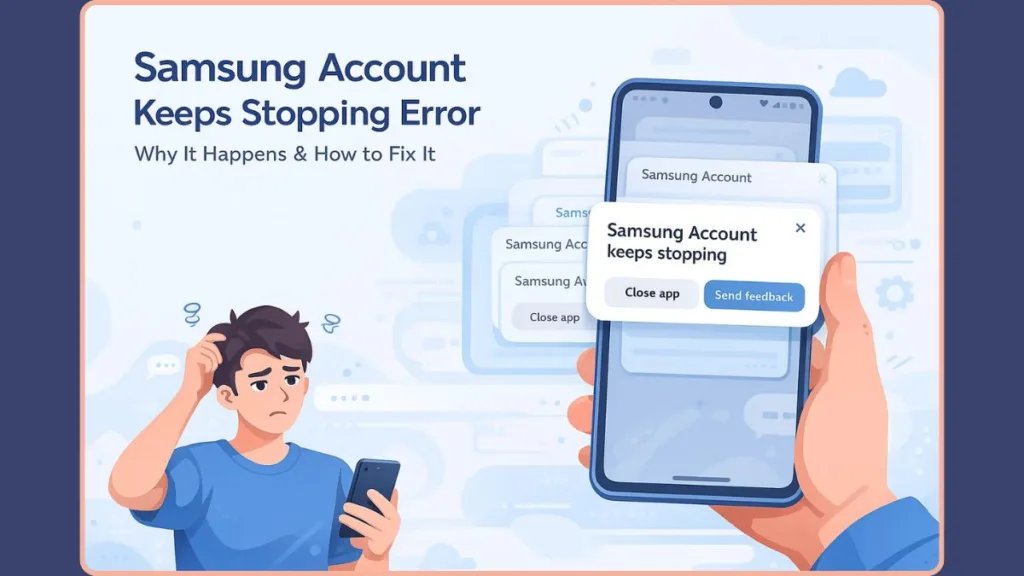
These interruptions are not minor annoyances. They actively disrupt normal phone usage, prevent access to essential services, and create a sense that the device is unstable.
The issue affects a wide range of devices, from the Galaxy S21 series to the latest Galaxy S24 lineup, and even Galaxy Tabs, which confirms that this is not tied to one specific model.
The good news is that this problem has a clear pattern and a reliable workaround. For most users, this error is caused by a specific, known sync bug, and there is a fix that works right now without risking your data.
Trending Fix: Samsung Account Keeps Stopping? Disable OneDrive Sync to Stop the Crash Loop
If you want to stop the popup loop immediately, this is the first solution you should try before anything else.
Why disabling OneDrive fix Samsung Account keeps stopping
Community reports from Reddit and Samsung’s official forums consistently point to a conflict between Samsung Account, Samsung Gallery, and Microsoft OneDrive photo sync.
Samsung deeply integrates OneDrive with Gallery to handle cloud photo backups. When Gallery attempts to sync photos through OneDrive, it repeatedly calls Samsung Account services in the background.
If that background request fails or times out, Android treats it as a system-level crash, triggering the persistent “keeps stopping” message.
Because Samsung Account is a core service, the system doesn’t fail silently. Instead, it triggers the familiar Android crash message and repeats the process, creating an endless popup loop that interrupts whatever you’re doing.
Multiple users have also reported that OneDrive becomes unusable while this bug is active, making the issue even more disruptive.
How to disable OneDrive sync safely without losing data
Disabling OneDrive or Gallery sync does not delete your photos. Your locally stored images remain untouched on your device.
To disable the sync, open your phone’s Settings app and navigate to Apps. Locate Microsoft OneDrive.
Inside the app settings, choose the option to disable it entirely, or turn off the Gallery sync feature within OneDrive if that option is available.
After making this change, restart your phone to reset the background services.
For many users, the error stops immediately after this step, with no further action required.
This works even if OneDrive appears to launch—the crash loop’s root cause appears tied to the sync connection itself.
This is a temporary workaround, but it is currently the most effective fix until Samsung releases an official patch.
Why Samsung Account Keeps Stopping After a One UI or System Update
Samsung Account is not just another optional app you can ignore.
It is a core system service responsible for cloud sync, Gallery backups, Secure Folder access, Samsung Cloud, and multiple ecosystem features that operate silently in the background.
Recent One UI and backend updates appear to have caused changes in how background sync processes are prioritized and managed. These changes have inadvertently triggered this crash loop.
When Samsung Gallery and OneDrive attempt to sync simultaneously under the new behavior, Samsung Account can enter a failure loop.
Android detects repeated background crashes and surfaces them to the user as constant system pop-ups.
This explains why the issue:
- Appeared suddenly for many users
- Affects newer Samsung devices more frequently
- Occurs even if you did not change any settings
Samsung Account Keeps Stopping But You Don’t Use OneDrive? Try These Fix
If disabling OneDrive does not resolve the issue, or if you do not use OneDrive at all, the problem may be caused by corrupted app data, outdated software, or another related system conflict.
In those cases, the following fixes—including ones aligned with Samsung’s own troubleshooting guidance—are known to help.
Clear Samsung Account Cache and Data to Fix Crashing
Over time, temporary files and cached data used by Samsung Account can become corrupted, especially after system updates.
Clearing this data forces the app to rebuild clean configuration files.
To do this, open Settings, go to Apps, and locate Samsung Account.
If it does not appear immediately, enable “Show system apps.”
Once inside the app settings, open Storage and select Clear cache, followed by Clear data.
This process does not delete your Samsung account, but you may need to sign in again afterward.
Many users find that this step alone stops the crash loop when the issue is not related to OneDrive.
Force Stop Samsung Account App to Stop Popup Loop Temporarily
Force stopping Samsung Account does not fix the root cause, but it can temporarily stop the popup loop so you can access other settings or complete additional troubleshooting steps.
You can do this by opening Settings, navigating to Apps, selecting Samsung Account, and tapping Force stop.
This is especially useful if the error appears every few seconds and prevents you from navigating your phone normally.
Uninstall Samsung Account Updates If the Error Started After an Update
If the crashes started immediately after a recent update, rolling back the app can help.
Inside the Samsung Account app settings, open the three-dot menu and choose Uninstall updates.
This restores the app to its factory-installed version, which can sometimes be more stable until Samsung issues a fix.
Some users report that even after uninstalling updates, the app may automatically reinstall newer versions, which is why monitoring official updates remains important.
Samsung Account Keeps Stopping on Galaxy S24, S23, S21, or Galaxy Tab?
This issue is not caused by faulty hardware.
Reports confirm identical behavior on:
- Galaxy S24 / S24 Ultra
- Galaxy S23 series
- Galaxy S21 Ultra
- Multiple Galaxy Tab models
Similar complaints appear across Samsung’s US and EU forums, indicating this is a broad-based software issue.
Newer devices are more commonly affected because they rely more heavily on cloud sync features and background services, increasing exposure to this type of conflict.
Factory Reset Is NOT Recommended Yet for Samsung Account Keeps Stopping
A factory reset can resolve the issue, but in most cases it is completely unnecessary and should not be your first instinct.
Before considering such a drastic step, make sure you have tried:
- Disabling OneDrive
- Clearing Samsung Account cache and data
- Force stopping the app
Samsung’s official support documentation also recommends clearing data and checking updates before performing a full reset.
Samsung is likely to release a server-side fix or app update given how widespread and disruptive this bug is.
Resetting your device too early may result in unnecessary data loss and setup time.
Is There a Permanent Fix for Samsung Account Keeps Stopping Error?
At the moment, disabling OneDrive sync remains the most reliable immediate workaround.
Clearing cache and data works well for older or unrelated cases.
A permanent fix will ultimately come from Samsung in the form of:
- An updated Samsung Account app
- A One UI patch
- A backend sync adjustment
Keeping automatic updates enabled ensures you receive the fix as soon as it becomes available.
Samsung Account Keeps Stopping:FAQs (Quick Answers)
Why does my phone keep saying Samsung Account keeps stopping?
This usually happens because of a sync conflict, most commonly between Samsung Gallery and Microsoft OneDrive, or due to corrupted app data after a system update.
How do I fix the Samsung Account error quickly?
The fastest solution is to disable OneDrive sync. If that does not work, clearing Samsung Account cache and data or uninstalling recent updates can often resolve the issue.
Can I disable the Samsung Account app completely?
You cannot fully disable Samsung Account without rooting your phone, but you can force stop it or temporarily restrict its permissions to reduce interruptions.
Does factory reset fix Samsung Account keeps stopping?
Yes, but it is a last resort and often unnecessary. In most cases, cache-related fixes or disabling OneDrive are enough to stop the error.
Final Thoughts: How to Fix Samsung Account Keeps Stopping Right Now
If you are stuck in a constant popup loop, start by disabling OneDrive sync, then clear Samsung Account cache and data, and avoid a factory reset unless nothing else works.
This is a known, widespread Samsung software issue, not a sign that your phone is failing.
With the right steps, you can stop the crashes and continue using your Samsung device normally while waiting for an official fix.
Visit Our Post Page: Blog Page