
Is Steam showing the 500 Internal Server Error when you try to log in, edit your profile, or access the Community Market? Learn how to fix the Steam error 500 with simple troubleshooting steps in this complete 2026 guide.
Steam is an indispensable platform for gaming in today’s digital age. From playing multiplayer titles and saving profiles to accessing the Community Market, it seamlessly integrates into the PC gaming ecosystem, making it the go-to tool for millions of players. However, even the most reliable platforms can encounter issues, and one of the most frustrating errors users experience is the 500 internal server error on Steam.
If you’ve ever seen the Steam error 500 message while trying to log in, save profile changes, or access the market, you might be wondering why it’s happening and how to fix it. In this blog post, we will walk you through the causes, solutions, and best practices to prevent the Steam 500 internal server error from disrupting your gaming workflow.
What Does the “Steam 500 Internal Server Error” Mean? Decoding the Issue
The steam internal server error meaning is straightforward: the server encountered an unexpected condition and could not complete your request. The 500 internal server error Steam message appears when Steam’s backend services are unable to process communication between your device and their servers due to unmet conditions or infrastructure failures.
Unlike more straightforward error messages like “Incorrect Password” or “No Internet Connection,” this error is typically systemic in nature. When you encounter this error, it means Steam could not process your request due to technical reasons on their end. Understanding why your Steam app says 500 internal server error will help you identify the problem and fix it quickly.
When Does the “500 Internal Server Error” Appear on Steam? Common Scenarios
This error can appear under a variety of circumstances. Most commonly, users encounter it under the following situations:
- Login Issues: Launching games that require authentication or logging into the Steam client itself.
- Profile Updates: Editing your profile information, updating avatars, or saving showcases.
- Marketplace Failures: Accessing the Steam Community Market or trading items.
- Multiplayer Connections: Connecting to multiplayer services or game-specific servers.
- Server Overload: If Steam is receiving exceptionally high traffic (e.g., during a major game release or Summer Sale).
Note: Technically, a 500 internal server error refers to a server-side problem rather than a client-side issue. The request from your computer reached the server successfully, but the server failed internally to complete the action.
Real Steam Community Reports: Tracking Symptoms of the 500 Error
Real user reports help explain how the Steam 500 internal server error actually appears in everyday situations. Several Steam community discussions describe players encountering the error when attempting to save changes to their profile. For example, some users reported seeing the error message immediately after clicking the “Save Changes” button while editing their Steam profile.
Players mentioned problems such as profile changes not saving, an inability to update avatars, showcases failing to update, and editing descriptions causing an error.
One user reported that the issue occurred across multiple devices, including the Steam client, web browser, and mobile phone. This strongly suggests the issue was related to Steam’s servers rather than a specific device. Other users reported similar problems at the same time, which indicates that Steam community 500 error incidents often occur during temporary server instability or backend maintenance.
Another community guide discussing Steam login failures players saw a Steam login failed 500 error while launching a game. The message appeared during authentication and indicated that the authorization server encountered an unexpected condition while processing login requests.
Why is Steam Showing Error 500? Core Causes
There are several reasons why Steam may display the Steam error 500 message. Understanding these causes makes troubleshooting easier.
Scheduled Downtime: Steam Server Maintenance or Outages
One of the most frequent causes of the Steam 500 internal server error is scheduled server maintenance. Steam performs routine updates every week during its Steam Tuesday maintenance schedule, which temporarily interrupts services.
| Maintenance Detail | Expected Window (Pacific Time) | Expected Window (Eastern Time) |
| Weekly Schedule | Tuesday, 3:00 PM – 6:00 PM | Tuesday, 6:00 PM – 9:00 PM |
| Typical Duration | 10 – 30 Minutes | 10 – 30 Minutes |
- What to Do: Check the Steam status page or tools like Down Detector Steam, SteamStat.us, or SteamDB to verify if there are any ongoing service issues globally. If there is a known problem, you’ll need to wait until Valve resolves the issue.
Steam Login or Authentication Failures: Connection Drops
Another common cause of the Steam error 500 occurs during authentication. When you attempt to log in or launch certain online games, Steam must communicate with its authorization servers. If those servers fail to process the request, you may see errors such as Steam login failed 500 or Steam web API 500 internal server error.
- What to Do: These problems often appear when servers are overloaded. Wait for a short while and then try launching the game or logging in again. The rate limit or server load typically resets after a short time.
Steam Cache or Browser Data Problems: Corrupted Local Files
Sometimes the issue originates from corrupted cache files stored on your system. Steam stores temporary data to load pages faster. However, outdated or corrupted files can interfere with requests to the server. This may trigger errors such as a Steam black blank page or Steam network error.
- What to Do: Always clear the Steam web browser cache and browser cookies to resolve these localized data conflicts. If you are only seeing the error in a standard web browser (like Chrome) but the desktop app works, test it in an Incognito or Private window.
Steam Client Bugs or Outdated Software: Version Conflicts
An outdated client can also cause server communication problems. Occasionally, users report Steam error 500 after an update or when the Steam client fails to update properly, resulting in random logouts or repeated login failures.
- What to Do: Check for Steam client updates within the application to ensure compatibility with the latest server changes.
How to Fix Steam Error 500: Proven Solutions
Now that we’ve covered the common causes of the error, let’s dive into how to fix it to get you back into your games.
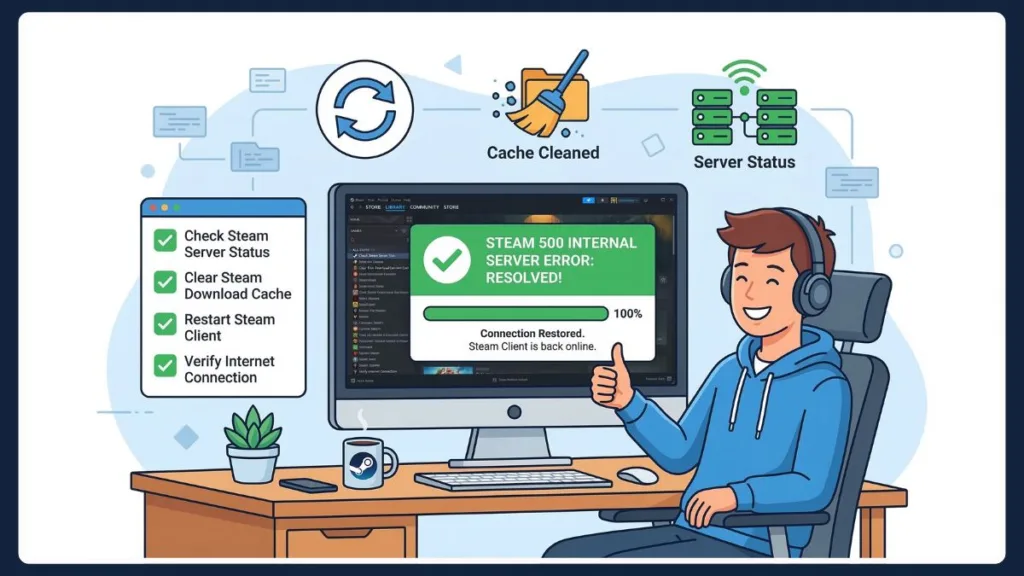
Step 1: Verify Outages and Check Steam Server Status
The first step in fixing the Steam server error is to ensure the servers are actually online. Search for Steam server status, check Down Detector, or look at SteamStat.us.
- Why It Helps: By confirming whether the servers are active, you avoid wasting time troubleshooting your own network.
Step 2: Refresh Your Session and Restart the Steam Client
Restarting the Steam client can often fix temporary connection issues. Close Steam completely, end Steam processes from Task Manager if necessary, and relaunch the client.
- Why It Helps: This refreshes your session and forces a new connection to Steam’s servers.
Step 3: Clear Steam Web Browser Cache and Run Flushconfig
If Steam pages fail to load properly or show a blank page, clearing the cache is essential.
- Open Steam > Settings > Web Browser > Delete Web Browser Cache.
- For a deeper refresh, use the steam flushconfig command: Close Steam, press Windows key + R, type
steam://flushconfig, press Enter, restart your PC, and launch Steam directly fromC:\Program Files (x86)\Steam.
Step 4: Refresh Network Routing to Flush Your DNS Cache
Sometimes a 500 error happens because your computer’s local DNS cache is pointing Steam’s requests to an outdated IP address.
- Press the Windows key, type cmd, select Run as administrator.
- Type
ipconfig /flushdnsand press Enter.
- Why It Helps: Flushing your DNS forces your system to fetch the freshest connection data.
Step 5: Repair Corrupted Installations and Verify Game Files
If the error appears while launching a game and shows Steam login failed 500, go to your Steam Library, right-click the affected game, select Properties, open Installed Files, and click Verify integrity of game files.
Step 6: Ensure Compatibility and Update the Steam Client
Running an outdated client can cause compatibility issues with Steam services. Open Steam, click Steam in the top menu, and select Check for Steam Client Updates.
Step 7: Bypass the Launcher and Launch the Game from the Installation Folder
Some players bypass login problems by launching the game directly from its installation folder. Open the directory and run the start_protected_game file or main executable.
Step 8: Escalate the Issue and Contact Steam Support
If the problem persists for more than a day, submitting a Steam support ticket with error screenshots and timestamps may be necessary.
Steam Errors Related to the 500 Internal Server Error: Associated Issues
Several other Steam errors are closely related to the Steam 500 internal server error. These include:
- Steam content server unreachable
- Steam network error
- Steam login failed
- Steam black blank page
- Steam app logged me out randomly
Insight: Most of these issues occur when Steam services are overloaded or experiencing backend disruptions. For example, Steam content server unreachable typically appears when download servers fail to respond.
When You Cannot Fix the Steam 500 Error Yourself: Backend Failures:
Sometimes the Steam 500 internal server error cannot be fixed locally. If multiple users report the issue simultaneously, it usually indicates a server-side outage.
Signs that the problem is not on your device:
- Many players reporting the same error across social media.
- Steam community pages failing to load universally.
- The error appearing specifically during Tuesday maintenance periods.
In these cases, the best solution is to wait until Steam engineers resolve the server problem.
Frequently Asked Questions (FAQ) about the Steam 500 Internal Server Error
Why is Steam rejecting my login with a 500 error?
The most common causes include scheduled Tuesday server maintenance, overloaded authentication servers, corrupted browser cache data, or an outdated Steam client.
What does 500 internal server error mean?
A 500 internal server error means the server encountered an unexpected condition. It indicates a backend issue on Valve’s side rather than a problem with your personal computer.
Is Steam down for maintenance right now?
Steam performs scheduled maintenance every Tuesday, usually between 3:00 PM and 6:00 PM PT. Checking the Steam status page can confirm this.
Why am I getting a 500 error on the Steam Community Market?
This often occurs when the market servers are overloaded with transaction requests or during routine backend maintenance.
Will clearing my cache fix the Steam 500 error?
Yes. If the server is online but you are still seeing the error, clearing the Steam web browser cache can fix corrupted browser data.
How long does the Steam 500 error last?
If caused by routine maintenance, it typically resolves within 10 to 30 minutes, or occasionally a few hours.
Final Thoughts & Conclusion on the Steam 500 Error
The Steam 500 internal server error can be frustrating, but by understanding the causes and applying the appropriate solutions, you can resolve it quickly. Whether you’re trying to launch a new game or edit your community profile, following these steps will help you avoid panic when encountering the error.
By checking the server status first, ensuring your client is updated, flushing your DNS and cache, and waiting out Tuesday maintenance periods, you’ll be able to tackle any issues that arise and have a smooth Steam gaming experience.
Visit Our Post Page: Blog Page