
Get rid of the api-ms-win-core-winrt-l1-1-0.dll missing error fast. Install the right Visual C++ and Windows updates the safe way.
Launching a much-needed application only to hit a brick wall with a popup stating your program cannot start disrupts your workflow immediately. If you are actively dealing with the api ms win core winrt error l1 1 0 dll issue, a straightforward, technical solution is required.
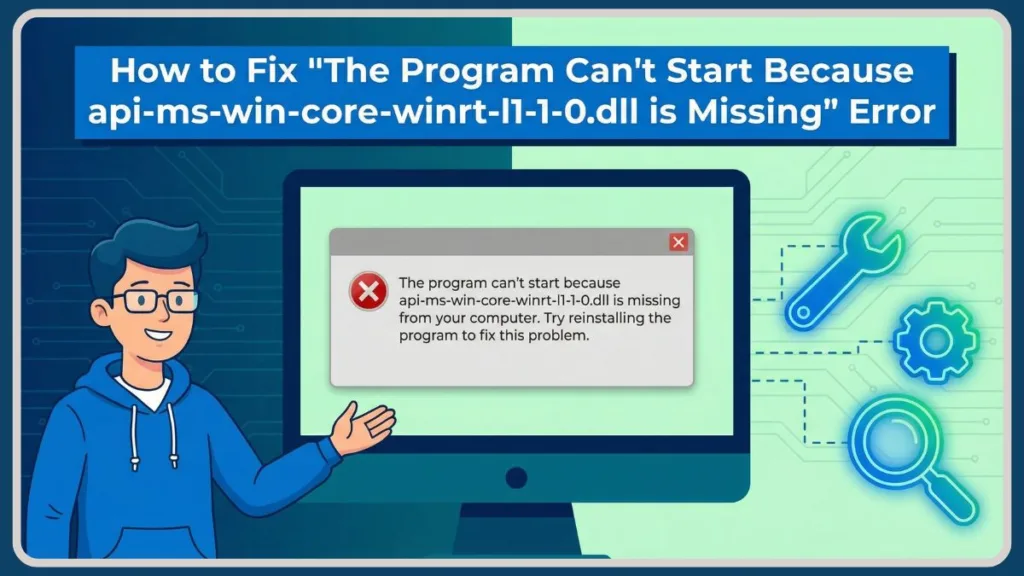
The Bottom Line Up Front (BLUF): > This error does not mean you accidentally deleted a crucial file. Instead, it indicates your system lacks a critical framework dependency (like a Visual C++ package) or an app has updated to a version incompatible with your OS. You can fully resolve this using official Microsoft tools—no sketchy file downloads are needed!
This guide provides the exact technical steps to safely diagnose and fix the api-ms-win-core-winrt-l1-1-0.dll problem.
What Does It Mean When api-ms-win-core-winrt-l1-1-0.dll Is Missing From Your Computer?
Before executing any fixes, understand what this file actually does. The api-ms-win-core-winrt-l1-1-0 dll is not a traditional, standalone program file. It operates as an ApiSet Stub.
Think of it as a digital traffic cop. When a modern application needs to use a Windows Runtime (WinRT) feature, it calls this stub—sometimes appearing under related aliases like api-ms-core-winrt-l1-1-0.dll—which then redirects the app to the actual underlying code in your Windows operating system.
Common Symptoms You Might See:
- “The program can’t start because api-ms-win-core-winrt-l1-1-0.dll is missing from your computer.”
- “The specified module could not be found.”
- Grey screens or immediate crashes upon opening an application.
Why Does It Happen?
- A recent software update requires WinRT features that your older OS does not natively support.
- Your PC lacks the required Microsoft Visual C++ Redistributables or .NET Framework 6.0 components.
- A botched Windows Update corrupted your system’s ApiSet mappings, leading to the api-ms-win-core-winrt-error-l1-1-0.dll.
WARNING: Why It Is Not Safe to Execute an api-ms-win-core-winrt-l1-1-0.dll Download Online
When a computer flags a missing file, the immediate reaction is often to grab that exact file from the web. Do not do this. > Security Alert: > Attempting an api-ms-win-core-winrt-l1-1-0.dll download routes you directly to unverified third-party directories. Standalone files from these sites operate as a prime vector for malware, ransomware, and spyware.
Furthermore, dropping a single downloaded .dll file into your C:\Windows\System32 folder rarely solves the root issue. Because this is an ApiSet stub, manually placing the file there does not fix the broken registry mappings or the missing C++ frameworks. Even if the initial error disappears, the app will likely just crash again with a different 0xc000007b error.
How to Safely Restore and Fix the api-ms-win-core-winrt-l1-1-0.dll Missing Error
Instead of manually forcing the file into your system, install the official Microsoft packages that natively generate and configure the file.
Step 1: Fix the Error by Installing the Latest Microsoft Visual C++ Redistributables
This is universally the most successful fix. Many applications rely heavily on these libraries.
- Navigate to the official Microsoft Visual C++ Redistributable downloads page ,or follow our complete guide to safely downloading and installing the Visual C++ 2015-2022 redistributables for a step-by-step walkthrough.
- Download both the x86 (32-bit) and x64 (64-bit) architecture files for the latest versions (2015, 2017, 2019, and 2022 are typically bundled). Note: Even if you are fixing the api-ms-win-core-winrt-error-l1-1-0.dll 64-bit issue, install both!
- Run both installers.
- Restart your computer. Windows absolutely needs this reboot to register the new DLL mappings.
Step 2: Update the .NET Framework to Resolve Missing WinRT Dependencies
If you run an app built on .NET 6.0 or newer, missing shared components easily trigger WinRT errors.
- Visit the official Microsoft .NET download page.
- Download and run the .NET Desktop Runtime installer (choose version 6.0 or 8.0, depending on the app’s requirements). If you aren’t sure what your system is currently running, check out our quick guide on how to check your installed .NET Framework version.
- Restart your PC.
Step 3: Check for Native Windows Updates to Repair Broken ApiSet Stubs
Windows Updates natively repair broken ApiSet stubs.
- Open your Start Menu and type
Check for updates. - Click Download and install for any pending cumulative updates.
OS and Application-Specific Fix for the api-ms-win-core-winrt-l1-1-0.dll Error
Sometimes, this bug is hyper-specific to your operating system or the software you need to open.
How to Fix api-ms-win-core-winrt-l1-1-0.dll Missing on Windows 7
The Windows Runtime (WinRT) API was introduced after Windows 7. Therefore, missing api-ms-win-core-winrt-l1-1-0.dll windows 7 native support occurs frequently.
The Fix: > Windows 7 does not support the Universal C Runtime (UCRT) without a specific patch. To fix the api-ms-win-core-winrt-error-l1-1-0.dll win7 compatibility issue, you must download Microsoft Update KB2999226 (Update for Universal C Runtime in Windows) directly from the Microsoft Update Catalog.
Whether resolving win7 api-ms-win-core-winrt-l1-1-0.dll complications, dealing with general api-ms-win-core-winrt-l1-1-0.dll win7 bugs, or trying to patch a stubborn win7 api-ms-win-core-winrt-error-l1-1-0.dll, installing KB2999226 acts as the definitive answer.
How to Resolve the api-ms-win-core-winrt-l1-1-0.dll Error in Adobe Acrobat Reader
Note: A known bug emerged where Acrobat Reader suddenly threw this exact error for users on older operating systems.
- The Cause: Adobe pushed updates (versions 21208 and 21223) that forcefully tried to call a WinRT DLL file that doesn’t exist on older OS builds.
- The Fix: Uninstall your current version of Acrobat. Then, download and install the slightly older, stable build (25.001.20997). After installing, open Windows Task Scheduler, locate the “Adobe Acrobat Update Task,” right-click it, and select Disable so it doesn’t auto-update back to the broken version.
Advanced Repair: How to Run a System File Checker Scan to Fix Corrupted DLL Files
If you operate on Windows 10 or 11, have all your Visual C++ redistributables installed, and are still troubleshooting the api-ms-win-core-winrt-error- 1-1-0.dll, your system files may be corrupted. You can fix this using the System File Checker (SFC).
- Click the Start Menu, type
cmd, right-click Command Prompt, and select Run as administrator. - Type the following command exactly and press Enter:
sfc /scannow - Allow the scan to reach 100%. Windows will find and replace corrupted stubs.
- Restart your PC.
FAQ About the api-ms-win-core-winrt-l1-1-0.dll Error
Q: Are there other files related to this error? Yes. You might see similar stubs like api-ms-win-core-winrt-string-l1-1-0.dll, or newer iterations such as api-ms-win-core-winrt-l1-1-1.dll and api-ms-win-core-winrt-error-l1-1-1.dll. You may even encounter formatting variations in error logs, like api-ms-win-core-winrt-error- 1-1-1.dll. The troubleshooting steps for all of these ApiSet stubs remain exactly the same.
Q: What is the difference between this DLL and api-ms-win-crt-runtime-l1-1-0.dll? Both operate as ApiSet stubs. However, the crt-runtime stub directs apps to standard C/C++ math and logic functions, whereas the core-winrt stub directs apps to modern Windows Runtime UI and system features.
Q: Can a failed Windows update break these files? Absolutely. If your PC loses power during an update, the delicate registry mappings that tell your PC where to locate these stubs can become corrupted. Running the sfc /scannow command usually repairs this.
Q: Where is this DLL file normally located? On a healthy 64-bit Windows system, these stub mappings are managed in the C:\Windows\System32 and C:\Windows\SysWOW64 directories, as well as within specific application folders like the .NETCore.App shared directory.
Visit Our Post Page: Blog Page