
Getting the “This isn’t working right now” error on Claude AI? Don’t panic. Here is the complete 6-step guide to fix it immediately and get back to work.
If you are currently trying to use Anthropic’s Claude AI to generate code or write an email and suddenly encounter a roadblock, you are certainly not alone.
Many users report seeing the specific, frustrating message below:
“This isn’t working right now. You can try again later.”
This specific Claude AI error often strikes without warning. It can appear even when the interface looks normal and other websites load perfectly.
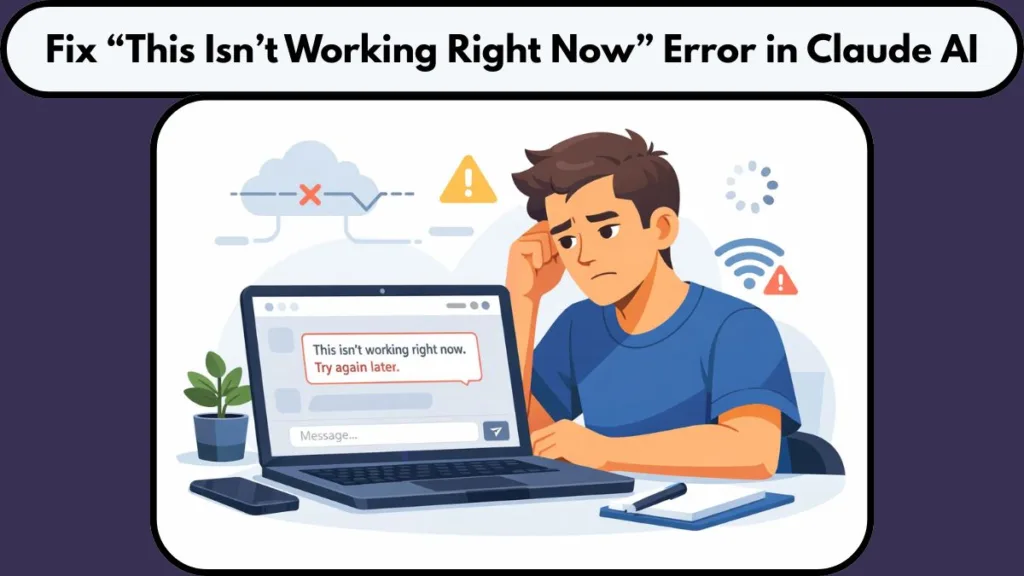
While it disrupts your workflow, the good news is that this issue is usually temporary. Furthermore, it rarely results from user error, so you haven’t broken anything.
In this comprehensive guide, we will walk you through exactly what this error means, why Claude 3.5 Sonnet or other models might fail to respond, and the specific steps you must take to fix it quickly.
What Does “This Isn’t Working Right Now” Mean in Claude?
To better understand the problem, we must first define what the error actually signals.
This message means Claude AI was unable to process your specific request at that exact moment. It does not automatically indicate an account ban, a permanent failure, or that the Claude AI server has crashed completely.
Think of it like calling a busy customer service line; the line works, but all operators are currently busy. In most cases, the error points to one of the following specific triggers:
- A temporary service interruption: The backend is momentarily overwhelmed.
- A session or authentication problem: Your digital “key” to the site has expired.
- A delayed or blocked request: Your browser sent the prompt, but the server never received it clearly.
Users commonly experience this Claude not working error in different ways.
You might see it before a prompt loads, right after clicking “Send,” or repeatedly even after refreshing the page. Although this inconsistency can be confusing, it effectively helps us narrow down the cause.
Why This Error Happens
Based on real usage patterns and technical analysis, this error usually stems from one or more of the specific reasons below.
1. Partial Outage or Capacity Issues Sometimes, Anthropic’s servers experience backend congestion or partial service degradation. Even if the platform appears available, certain complex features—like prompt processing or file uploads—may temporarily fail, triggering this error.
For example, during peak hours in the US, the sheer volume of users can trigger unexpected capacity constraints.
2. Authentication or Session Problems If your secure session expires, becomes unstable, or fails to sync properly, Claude.ai will reject your requests even though you appear logged in.
This often happens after long idle periods, such as leaving the tab open overnight, or during complex login transitions between Google or email authentication methods.
3. Browser or App Session Corruption A corrupted browser session can cause the error to repeat instantly.
In these cases, refreshing alone won’t help because the stored data itself is bad. The browser keeps sending “confused” data to the server, which the server consistently rejects.
4. Network, VPN, or Region Restrictions Network routing issues frequently trigger this error. VPNs (Virtual Private Networks), unstable Wi-Fi connections, or regional filtering can prevent requests from reaching Claude AI correctly.
For instance, aggressive corporate firewalls often block AI traffic, mimicking a server error.
5. Free Plan Constraints (Hidden Limits) Occasionally, if you use the free tier, hitting a hidden usage limit might trigger a vague error message like this instead of the standard “limit reached” notification.
While Claude Pro users have higher limits, they are not immune to general capacity constraints.
Quick Checks Before You Try Fixes
Before you dive deep into troubleshooting settings, you should quickly run through this diagnostic checklist to save time:
- Does the error happen for every prompt, even simple ones like “Hello”?
- Does the error still appear when you switch to Incognito Mode or Private Browsing?
- Does the same issue occur on another browser (e.g., switching from Chrome to Firefox) or a mobile device?
- Did the problem start suddenly and affect multiple attempts at once?
If you answered “yes” to most of these questions, the issue is likely temporary or session-related rather than a deep technical failure.

How to Fix Claude “This Isn’t Working Right Now”: 6 Step Guide
To resolve this efficiently, follow these steps in order. We strongly recommend that you do not skip ahead, as the simpler fixes often work best.
Step 1: Refresh and Retry After a Few Minutes
In many cases, the error resolves on its own. Waiting a short time (3–5 minutes) before retrying often works, especially during brief service interruptions.
Simply reloading the page can re-establish a fresh connection to the server.
Step 2: Log Out and Log Back In
Logging out completely resets your authentication session.
This step alone fixes a large number of cases involving session mismatches where your browser thinks you are logged in, but the server disagrees.
Step 3: Clear Browser Cache and Cookies
If the error appears immediately every time you load Claude.ai, clearing your cache and cookies eliminates corrupted session data that causes the issue.
- For Chrome Users: Go to Settings > Privacy and security > Clear browsing data.
- For Edge Users: Go to Settings > Privacy, search, and services.
Step 4: Try a Different Browser
Switching browsers helps you rule out browser-specific session problems or conflicting extensions.
If Claude works perfectly in Mozilla Firefox or Brave but fails in Google Chrome, you have successfully identified the source of the conflict.
Step 5: Disable VPN or Switch Network
VPNs and certain network routes can block or delay requests. Security services like NordVPN or ExpressVPN sometimes route traffic through IP addresses that Anthropic has flagged or rate-limited.
Temporarily disabling your VPN or switching from Wi-Fi to a mobile hotspot often resolves the network connection error.
Step 6: Try Another Device
Testing Claude on a different device—using the mobile app instead of the desktop site, or vice versa—helps isolate whether the issue is device-specific.
If the mobile app works, your computer’s network settings likely need adjustment.
Is Claude Down Right Now? How to Tell
Claude AI can experience partial service issues where some features fail while others remain accessible. This means you might still load the chat history, but new prompts won’t process.
You should check the official Anthropic Status Page first. Additionally, third-party services like DownDetector can provide real-time user reports to confirm if others are facing the same outage.
However, strong signs of a wider issue include:
- The error appears for every prompt you attempt.
- None of the fixes work across browsers or devices.
- The issue starts suddenly and persists without change for more than 15 minutes.
When this happens, waiting is often the only effective solution, as the engineering team at Anthropic works to restore the service.
Why the Status Page May Still Look Normal
Status indicators typically track core systems, not every individual feature. They may not reflect:
- Regional access issues specific to your location.
- Authentication failures affecting only Google logins.
- Rate limiting on specific models like Claude 3.5 Sonnet.
- Frontend or interface-level problems.
That is why you can see an error even when everything appears “operational” on the official dashboard.
Can This Error Affect Claude Code or API Users?
Yes, absolutely. Authentication or session issues can also affect tool usage for developers.
You may successfully log in but still encounter failures when executing prompts or using connected tools via the Anthropic API. In these cases, the same fixes—session reset, network change, or waiting—apply to your API keys and development environment.
How to Prevent This Error in the Future
While you cannot prevent all service-side issues, you can significantly reduce the chances of seeing this error again by maintaining good “browser hygiene.”
To keep your connection stable:
- Avoid unstable or constantly changing VPN connections during active sessions.
- Keep only one active session at a time (don’t open Claude in multiple tabs).
- Log out explicitly instead of leaving Claude idle for long periods.
- Use updated browsers on stable networks to ensure smooth data transmission.
These steps help maintain a clean, stable session and prevent the “something went wrong” errors from interrupting your work.
FAQs
Why does Claude keep saying “try again later”?
Because the server could not process the request at that moment, usually due to temporary service overload or session timeouts.
Is Claude blocked in some countries?
Access varies by region, and local network routing can affect availability. If you travel, you may face geo-restrictions.
Does Claude restrict VPN usage?
Yes, some VPN routes can trigger request failures or access issues if the IP address has a bad reputation or high traffic volume.
How long does this error usually last?
In most cases, the error lasts only minutes. However, during major updates or outages, it might persist for an hour or more.
Is this an account issue or a server issue?
Most of the time, it is a temporary service or session issue—not a permanent problem with your specific account.
What to Do If Nothing Works
If you have tried every fix listed above and the error still appears, the best option is to stop retrying and wait.
Repeated attempts during a temporary issue won’t speed things up and may actually trigger further rate limits, making the experience more frustrating.
We recommend you come back later and try again once conditions stabilize. In the majority of cases, the error resolves without any action required on your end, allowing you to get back to creating content with Claude AI seamlessly.
Visit Our Post Page: Blog Page