
Stuck on “Preparing Console”? Learn how to fix Xbox One System Error E102 with step-by-step solutions to break the startup loop without guessing or repeating failed resets.
Seeing System Error E102 on your Xbox One can feel like hitting a wall—especially when your console freezes on “Preparing Console,” keeps looping back to the troubleshoot screen, or shuts down in the middle of a reset. For many players, this happens right when they’re expecting a quick fix, not a full-blown startup failure.
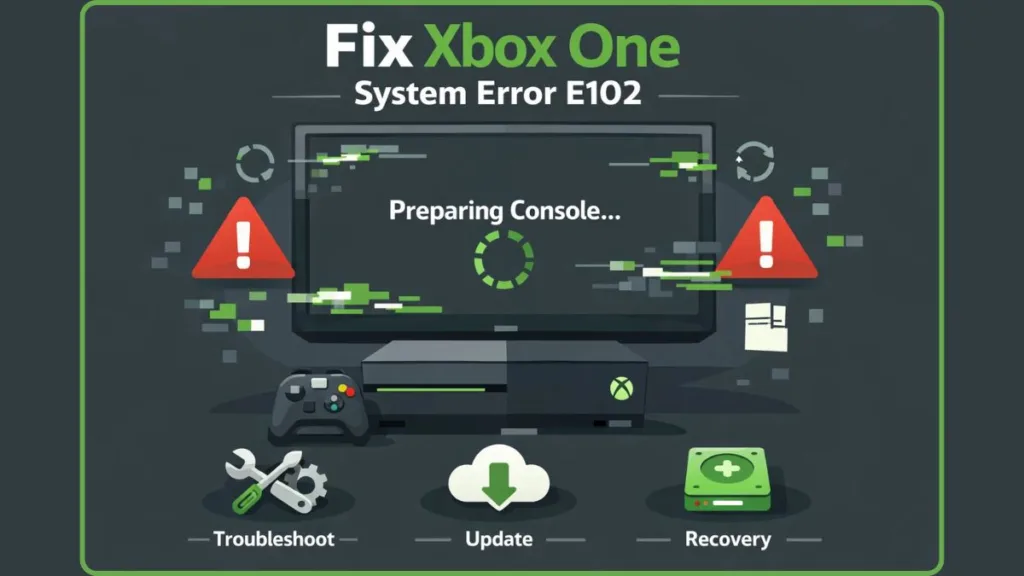
Here’s the reassuring part: this error is common, widely reported, and often fixable. Thousands of users have faced the same issue, documented their symptoms, and successfully recovered their consoles. The real challenge isn’t effort—it’s knowing which steps actually help and when the issue has shifted from software trouble to hardware failure.
This guide walks you through everything clearly and patiently, so you can stop guessing and make confident decisions about your console.
What Is System Error E102 on Xbox One?
Error E102 is a startup and system update failure. It appears when the Xbox operating system is unable to install, verify, or complete a system update during boot or while resetting the console.
In practical terms, the console powers on as expected, the system begins loading or updating, and then the process breaks before completion. When that happens, the Xbox displays E102 and sends you straight to the troubleshooting screen.
Microsoft identifies this error as a failure that occurs when the console tries to turn on or update but the update process doesn’t complete correctly. This is documented in the official Xbox startup error guide on the Xbox Support error E102 page.
You’ll most often encounter system error E102 on Xbox One after a failed update, during a reset that never finishes, or when the console becomes stuck at “Preparing Console.”
Common Symptoms People See Before Error E102 Appears
Before the actual error code shows up, the console usually gives clear warning signs. Many users report being stuck on Preparing Console with no progress bar movement, followed by repeated restarts. Others see the green Xbox boot screen looping without ever reaching the dashboard.
Some consoles show a “Something went wrong” message during startup, while others shut off completely during a reset attempt. In some cases, a reset appears to work once, only for the error to return on the next reboot. The Xbox dashboard not loading is another common sign.
These symptoms matter because they point to a failure during system initialization, not gameplay, apps, or network connectivity.
Why System Error E102 Happens (Software vs Hardware)
Understanding the cause of Xbox error code E102 saves a lot of wasted time. This error almost always starts as a software issue, but it can evolve into a hardware problem if the underlying cause isn’t addressed.
Software-Related Causes (Most Common at First)
In the early stages, E102 is usually triggered by corrupted system update files. This corruption can happen if an update is interrupted, the console freezes mid-process, or the system shuts down unexpectedly. An incomplete reset can also leave the operating system in a broken state where it can’t verify essential files.
When E102 is software-based, recovery is often possible without opening the console. Methods like restoring factory defaults or running an offline system update are designed specifically for this scenario, as outlined in the Xbox Offline System Update (OSU1) guide.
Hardware-Related Causes (When Fixes Fail)
When E102 keeps returning after multiple resets and updates, hardware becomes the likely culprit. The most common issue is a failing internal hard drive. Over time, drives can develop bad sectors or lose the ability to reliably read and write data, which prevents the operating system from installing correctly.
In some cases, internal connectors or the SATA cable can also contribute, but hard drive failure is the most frequent cause reported in long-term E102 loops.
Key insight: A console can still power on normally while being completely unable to install system updates if the internal storage is failing.
Solution That Usually Don’t Work (But People Keep Trying)
When panic sets in, it’s natural to repeat the same actions hoping for a different result. Unfortunately, repeatedly choosing Reset & keep games, performing endless power cycles, or restarting from the troubleshoot screen without changing anything rarely fixes Xbox One E102 startup error long-term.
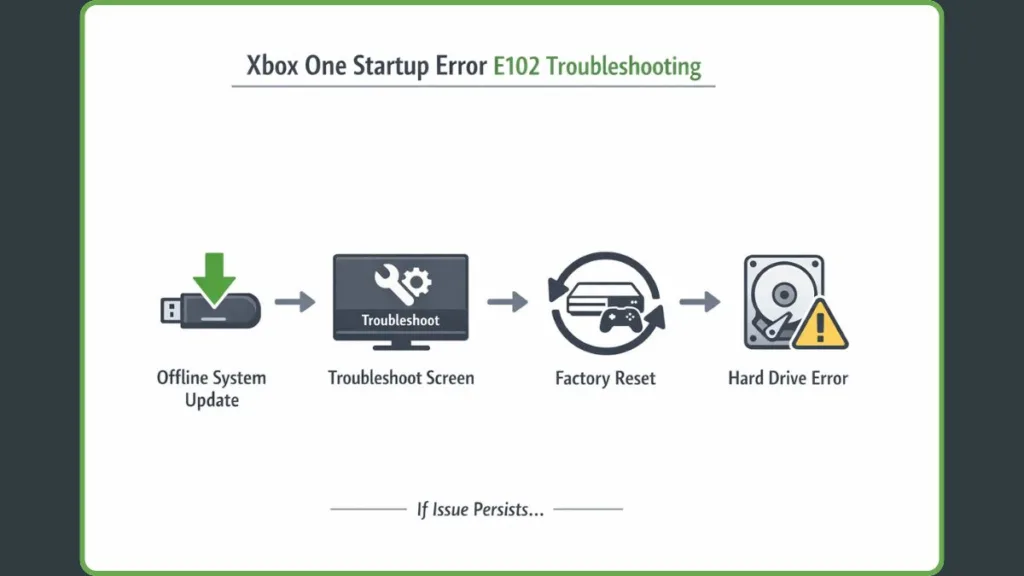
These steps may allow the console to boot once, but they often lead straight back into the same E102 loop.
Step-by-Step Fix for Xbox One System Error E102
The fixes below are ordered intentionally. Each step builds on the last, so it’s important to follow them in sequence and stop as soon as the console works again.
Fix 1: Restart from the Troubleshoot Screen
This is the fastest check and sometimes all that’s needed. After powering the console off completely, you access the troubleshoot menu by holding the Power and Eject buttons together, or Power and Pair on newer models. From there, selecting Restart this Xbox allows the system to attempt a clean boot.
If the console starts normally, the issue was temporary. If E102 returns, move on without repeating this step endlessly.
Fix 2: Factory Reset (Erase Everything)
A full factory reset removes corrupted system files and rebuilds the operating system environment. From the troubleshoot menu, selecting Reset this Xbox and choosing Remove everything forces the console to reinstall core system components.
If the reset freezes on Preparing Console or throws Xbox error E102 again, it’s a strong sign that the system files are too damaged for this method alone.
Fix 3: Offline System Update (USB Method — Most Important Fix)
The offline system update, often called the OSU1 method, is the most effective fix for searches related to xbox one error e102 fix. This method bypasses broken update files entirely by installing a fresh operating system from a USB flash drive.
You’ll need a USB drive with at least 8 GB, formatted as NTFS, and the official OSU1 file available from
Xbox Support’s Offline Update page.
After extracting the update files and placing them on the root of the USB drive, you connect it to the console, open the troubleshoot menu, and choose Offline system update.
If the update completes and the console restarts normally, the system error E102 is resolved.
What If the Offline Update Fails Too?
This is the point where many users finally get clarity. If the offline update stops partway through, the console shuts off during installation, or E102 appears immediately after, the issue is no longer software-only.
Repeated failure at this stage almost always points to internal hard drive issues. When the system can’t write update files to the drive, no amount of resets will succeed.
Does Error E102 Mean Your Xbox Hard Drive Is Dead?
Not always—but when factory reset fails, offline update fails, and E102 loops endlessly, the internal hard drive is the most likely cause. The drive may still partially function, but it can no longer reliably store the operating system.
At this stage, software troubleshooting has reached its limit.
Your Final Options If E102 Won’t Go Away
Replacing the internal hard drive is the most cost-effective solution for many users. After installing a new drive and running the offline system update again, many consoles return to normal operation.
Professional Xbox console repair services are another option if you’re not comfortable opening the console, though repair costs can approach the value of older Xbox One models. In those cases, replacing the console entirely may make more sense—especially if other components are also aging.
Will You Lose Your Data Because of Error E102?
Local data stored on the console is usually lost during full resets or hard drive replacement. However, cloud saves remain safe as long as you were signed in and connected to Xbox Live previously. Purchased games are always tied to your account and can be re-downloaded on any console.
For most players, progress loss is minimal.
FAQ: Xbox One System Error E102
What does error code E102 mean on Xbox One?
It means the system failed to load or install the Xbox operating system during startup.
Can a faulty hard drive cause error E102?
Yes. Persistent E102 errors are very often linked to hard drive failure.
Will a factory reset fix E102?
Sometimes. If it fails repeatedly, an offline system update or hardware repair is required.
What USB format do I need for an offline update?
The USB drive must be formatted as NTFS.
Can Microsoft support fix E102 remotely?
No. This error requires local recovery or hardware repair and cannot be fixed remotely.
Final Thoughts: Is Xbox System Error E102 Fixable?
In many cases, yes. Most E102 errors begin as software corruption, especially after updates or resets, and are resolved with an offline system update. When the error keeps returning, it’s usually a sign of hardware wear, not something you caused.
Once you understand whether you’re dealing with a software issue or a failing hard drive, the path forward becomes clear—and far less stressful.
Visit Our Post Page: Blog Page