
Facebook feed not loading, updating, or showing old posts? Learn how to fix your Facebook feed with this ultimate troubleshooting guide. Including step-by-step solutions for app glitches, connection issues, and algorithm problems in 2026.
Introduction
If your Facebook feed is not loading, showing the same old posts, or just feels completely broken, you’re definitely not alone. One day everything is working perfectly, and the next, your Facebook news feed is not working at all. You might find yourself stuck on an endless loading screen or watching the app refresh randomly without showing anything new.
This can be incredibly frustrating, especially when you rely on Facebook to stay updated with friends, family, favorite pages, or your business. Sometimes the issue of your Facebook feed not updating today isn’t just a minor technical hiccup — it can feel like Facebook has stopped working properly.
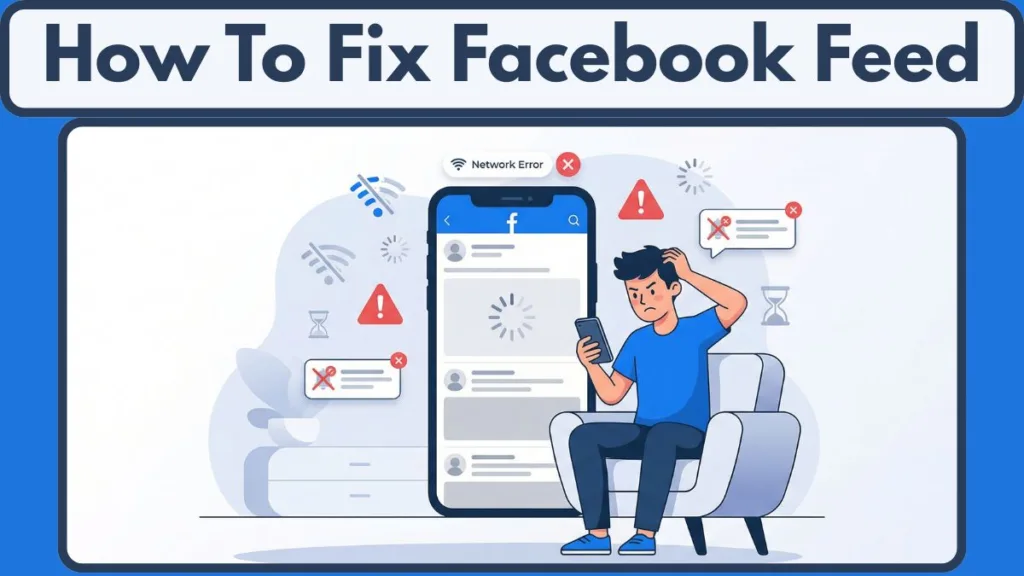
But here is the good news: in almost every case, this problem is completely fixable.
Whether you are staring at a blank screen or stuck looking at outdated content, the issue usually comes down to a few key causes. These usually come from app glitches, poor internet connections, or sudden changes in the Facebook algorithm.
In this guide, we will walk through exactly how to fix Facebook feed issues step by step. From quick fixes you can execute in seconds to deeper troubleshooting methods, this guide will help you get your feed back to normal fast.
If your Facebook feed is not loading or updating, don’t worry — most issues can be fixed in just a few minutes using the steps below.
Things You Should Know About Facebook Feed Issues
Before jumping into the actual fixes, it helps to understand how the platform operates. Your feed is not just a simple, chronological list of posts. It is highly controlled by a complex system called the Facebook algorithm, and that is where most problems begin.
If your feed feels different or fails to load, you are not imagining it. Something has absolutely changed, either within the app’s code or the algorithm itself. While you cannot completely control what Facebook decides to show you, you can heavily influence it.
It is also important to remember that many issues are often temporary glitches. Sometimes the problem isn’t even your app. It could be a server issue on their end, or a weak Wi-Fi connection causing your Facebook feed not loading properly, even if the rest of your phone works fine.
The key takeaway here is simple: Most feed problems are caused by a mix of everyday app bugs, internet connectivity issues, or algorithm behavior. Your app isn’t permanently broken, and we can definitely fix it.
Why Is My Facebook Feed Not Loading or Updating?
If your feed is stuck or showing outdated posts, there is always a logical reason. The trick to solving the problem is identifying which specific cause applies to your current situation. Let’s break down the common reasons behind these problems.
Common Reasons Behind Facebook Feed Problems
Poor Internet Connection: If your Wi-Fi or cellular data connection is unstable, the app cannot pull new content from the servers. This is one of the most common reasons your Facebook feed is not loading. Even a momentary drop in your connection can freeze the feed.
Facebook App Glitches or Bugs: Sometimes the app itself misbehaves. If your Facebook news feed is not working or keeps freezing as you scroll, it could be due to temporary software bugs, an outdated version, or silent background crashes.
Facebook Feed Stuck on Loading: If your screen is stuck on that spinning loading wheel, it is often caused by a corrupted cache. Your phone tries to load incomplete data, gets confused by conflicts, and stops trying to refresh.
Facebook Showing Old Posts Only: Are you seeing the exact same posts again and again? That usually means your Facebook feed is not refreshing properly, or the algorithm has decided not to show you new posts based on your recent engagement.
Facebook App Keeps Refreshing Automatically: If the app keeps auto-refreshing while you are trying to read, it interrupts the actual data loading process. This makes your feed feel incredibly broken, unstable, and impossible to navigate.
Facebook Server Down or Outage: Sometimes the issue isn’t on your side of the screen at all. If there is a massive outage, your Facebook feed not updating today is completely out of your control until their engineers fix it.
Cache and Data Issues: Over time, stored temporary data builds up on your phone. If this cache is never cleared, it easily leads to a feed stuck in a loop, extremely slow loading times, or a completely blank screen.
Here is the bottom line: If your feed is failing to display new content, it’s usually caused by internet issues, app problems, or algorithm behavior. Once you pinpoint the cause, the solution is easy.
How to Fix a Facebook Feed Not Working Step by Step
Now that you understand what is going on behind the scenes, it is time to fix it. The great news is that most of these problems are incredibly easy to resolve using a logical, step-by-step approach.
Each step below targets a specific cause, helping you identify exactly what is affecting your feed.
1. Check Your Internet Connection
Before assuming something is fundamentally wrong with Facebook, start with the basics. A weak or unstable Wi-Fi or cellular data connection is the number one reason why your Facebook feed is not loading.
If your connection drops even slightly, the app will fail to refresh or load new posts. Try switching from your Wi-Fi to your mobile data, or vice versa, and observe if the feed instantly starts working. Restarting your home router can also help stabilize your connection. If other heavy apps like YouTube or Instagram are running slow, the issue is clearly network-related.
2. Force Quit and Reopen the Facebook App
Sometimes, the problem is as simple as the application getting stuck in your phone’s background memory. When your Facebook news feed is not working or the app feels frozen, force closing it can immediately reset its temporary state.
Close the app completely from your recent menu, wait a few seconds, and reopen it. This clears out temporary bugs and often restores normal feed behavior instantly.
3. Clear Cache to Fix Facebook Feed Issues
When you keep seeing outdated content day after day, your phone’s cached data is likely the culprit. Over time, the app stores thousands of temporary files to help speed up daily performance. When this stored data becomes corrupted, it causes serious roadblocks.
Clearing the cache safely removes these temporary files without deleting your account, passwords, or personal photos. Once cleared, the app is forced to rebuild fresh data directly from the server, which almost always fixes issues where you only see old posts.
4. Update the Facebook App to the Latest Version
Running an outdated version of any software can lead to major compatibility issues and bugs. If you notice your Facebook feed not updating today, there is a very good chance your version has fallen behind.
Updating the Facebook app via your store ensures you are using the cleanest, latest version. This can instantly resolve feed loading errors, sudden crashes, or missing posts.
5. Check If Facebook Is Down Right Now
Sometimes, no matter what troubleshooting steps you try, nothing works because the issue isn’t on your device at all. You might be caught in a widespread Facebook outage.
Checking free online tools like the Downdetector server status website can quickly confirm whether Facebook is currently facing a global or regional outage. If they are down, the only solution is to wait until their engineers restore the servers.
6. Adjust Your News Feed Preferences
If your feed is successfully loading but just showing completely irrelevant content, the issue is not technical—it is behavioral. Your specific news feed preferences directly influence exactly what the algorithm decides to show you.
By diving into your settings and adjusting your preferences, you can take back control. Prioritize your close friends, manually unfollow accounts you are no longer interested in, and clean up your overall feed.
7. Switch to the Most Recent Feed
One of the biggest reasons people feel their feed is completely broken is simply because of how the algorithm is designed to work. It does not naturally show you the latest posts first.
Switching your view to sort by most recent forces the app to bypass the algorithm and display fresh content in strict chronological order. This is a remarkably simple but powerful way to fix the issue of a feed showing old posts.
8. Reinstall the Facebook App for a Deep Fix
If none of the above methods have worked, it is time for a deeper reset. Reinstalling the Facebook app removes all stored data from your phone, including deeply hidden, corrupted files causing these persistent issues.
Important Insight: Most users will successfully fix their Facebook feed not loading problems within the first three steps. You should only move on to advanced fixes like a full reinstall if the simpler methods fail to get your feed moving again.
How to Reset Your Facebook Feed and Algorithm
Sometimes, even when your phone and the app are technically working perfectly, your feed still feels wrong. You might notice highly repetitive content, completely irrelevant suggested posts, or you might realize you are missing major life updates from your actual friends.
Why Resetting Your Facebook Feed Actually Works
Every single like, comment, share, and even the literal amount of time you spend pausing to look at a video sends a strong signal to the algorithm. Over time, these signals naturally become outdated.
Resetting your feed is not about pressing a magic button in the settings. It is about changing your daily behavior so the algorithm is forced to adapt to the new you.
Steps to Reset Your Facebook Feed
You need to start by aggressively cleaning up your feed. Unfollow accounts, pages, and random groups that no longer interest you.
Next, begin engaging heavily with the type of content you actually want to see. When you intentionally like, comment on, or share posts that match your current interests, you actively retrain the algorithm in real-time. At the same time, actively avoid interacting with irrelevant content.
What Happens After Resetting
Once you start making these intentional changes, your irrelevant content issues will gradually improve. You will slowly begin to see much more relevant posts and a better, healthier mix of content.
Key Takeaway: You cannot completely reset the algorithm with one click, but you can successfully retrain it through your consistent actions. This is often the most effective way to fix long-term, frustrating Facebook news feed is not working issues.
How to Fix a Facebook Feed Showing Old Posts Only
If your feed is showing old posts, it can feel like nothing new is happening in the world. This is one of the most common reasons people mistakenly think their Facebook news feed is not working.
Facebook rarely shows the latest posts by default anymore. Instead, it prioritizes content based on engagement, relevance, and your past activity.
One of the simplest, most effective fixes is manually switching your feed to sort by most recent. As soon as you tap this setting, you will likely notice your screen immediately refreshing with newer content.
By actively engaging with newer posts, leaving comments, and interacting with a wider variety of content, you send updated, fresh signals to the algorithm. This helps naturally refresh your updates over time and resolves your Facebook feed not updating today.
How to Stop a Facebook Feed Auto-Refreshing
If your screen keeps refreshing entirely on its own, it can be incredibly frustrating. You might be right in the middle of reading a long post, and suddenly the screen reloads, the post vanishes, and you lose your place.
Auto-refreshing usually happens due to a frustrating combination of app behavior and your phone’s system settings. When the app is allowed to constantly refresh in the background of your phone, it continuously reloads content. Try limiting the background activity or toggling off the “background refresh” settings in your phone’s main settings menu.
Your internet connection also plays a massive role here. If your Wi-Fi or cellular data connection is weak or bouncing between towers, the app may repeatedly try to reload the content to catch up, which results in a constant refreshing loop and a Facebook feed not loading correctly.
Advanced Fixes for Facebook Feed Problems
If you have patiently tried all the basic fixes and you are still dealing with constant errors, it is time to go a level deeper.
One highly effective approach is to ensure that all of your phone’s permissions are correctly configured. If basic permissions like background data, local storage, or full network access are accidentally restricted in your settings, your Facebook feed not updating today can be directly tied to that.
Another advanced troubleshooting step is to check for software conflicts with your web browser. If you are using a desktop computer and your screen is completely blank, browser extensions can very often interfere with the site’s code. Disabling all your extensions temporarily can quickly help you identify if a specific ad blocker or plugin is causing the interference.
If you are still facing major issues after all this, it is highly worth reporting the problem directly to Facebook through the help menu. Reporting it helps bring their engineering team’s attention to the problem and may lead to much faster fixes on their end.
Tips to Keep Your Facebook Feed Working Properly
Fixing your broken feed today is one thing, but keeping it working smoothly for the rest of the year is just as important.
One of the absolute simplest habits you can build is regularly clearing your cache. Clearing it out occasionally keeps the app running fast and smoothly. Keeping the Facebook app updated is equally crucial to avoid random crashes and loading screens.
It also massively helps to actively manage your news feed preferences. Make a habit of prioritizing your real friends, ruthlessly unfollowing irrelevant or annoying pages, and actively engaging with the content you actually care about.
Final Insight: Most app issues eventually come back over time simply because of our own usage patterns. If you take the time to maintain your app, carefully manage your preferences, and stay mindful of your daily activity, you can easily keep things running smoothly without constantly needing to troubleshoot.
How Long Does It Take to Fix a Facebook Feed?
When you are deep in troubleshooting mode, one of the first questions that naturally comes to mind is how long it will actually take to fix the problem.
For the vast majority of users, basic fixes work almost instantly. If the problem is directly related to your Wi-Fi or cellular data connection, restarting your home network or force closing the app can restore your screen within seconds.
If the issue is related to heavy cached data or specific software bugs, clearing the cache or updating the Facebook app usually fixes things within just a few short minutes.
However, if the disruption is due to global server outages, the timeline is completely out of your control. In such cases, you may need to wait patiently anywhere from a few minutes to several frustrating hours.
| Issue Type | Time to Fix |
| Internet issues | Seconds to minutes |
| App glitches | Few minutes |
| Server outage | Few hours |
| Algorithm issues | Few days |
In simple terms:
- Basic connection fixes work in seconds to minutes.
- App updates and cache clears take a few minutes.
- Global server issues may take hours to resolve.
- Algorithm retraining fixes take a few days to perfect.
Quick Summary to Fix Your Facebook Feed Fast
If you are in a rush and just need a quick, actionable solution, here is the absolute fastest way to get your feed working again.
Start by immediately checking your internet connection. If your connection is perfectly fine, the next best step is to restart the Facebook app.
If that fails, clear your cache. This safely removes corrupted temporary data. Updating the Facebook app in the store should immediately follow.
If the problem still continues, check the Downdetector server status to ensure there isn’t a global outage. You should also adjust your news feed preferences and manually switch your view to “sort by most recent” if your screen is showing highly outdated content.
Quick Takeaway: Most feed problems can be fixed very quickly by checking your connection, restarting the app, clearing the phone’s cache, and updating the software. You only need advanced fixes in very rare cases.
FAQs About a Facebook Feed Not Working
Why is my Facebook feed not loading on my phone?
If your Facebook feed is not loading on your phone, the absolute most common reason is a weak or unstable Wi-Fi or cellular data connection. In other cases, it could simply be due to temporary app glitches, outdated software versions, or a heavily corrupted cache.
How do I refresh my Facebook news feed?
If your Facebook news feed is not working, you can manually refresh it by pulling down firmly on the screen on mobile, or by clicking the reload button on your desktop browser.
Why am I only seeing old posts on Facebook?
If your feed is stubbornly showing old posts, it is usually because of how the algorithm is deciding to prioritize content based on high engagement rather than chronological time. Switching your view to “most recent” helps fix this.
How do I fix the Facebook app when it glitches?
If your app is severely lagging or completely frozen, try force closing it, clearing your cache, and checking the store for an update.
Why does my Facebook feed keep refreshing on its own?
If your screen keeps refreshing while you are trying to read, it is most often caused by background app activity, highly unstable internet drops, or hidden bugs.
How do I change my Facebook feed to chronological order?
Switching your view to “sort by most recent” will force it to show posts in strict chronological order instead of relying on its algorithm-based ranking.
Does clearing the cache delete my Facebook photos or messages?
No, clearing the cache absolutely does not delete any of your personal data. All of your personal photos, private messages, and account data will remain completely safe.
When should I report a problem to Facebook?
If you have patiently tried all of the fixes in this guide and your app remains completely unresponsive for an extended period of time, it is a good idea to report the issue through the help menu.
Final Thoughts
If your feed is not loading or your Facebook news feed is not working properly today, it might feel like a major, unsolvable issue. But in almost every single case, it is something you can easily fix yourself quite quickly with the right troubleshooting steps.
What makes a truly massive difference in the long run is how you intentionally use Facebook. If you regularly manage your preferences, keep your app updated, and only engage with the specific content you actually care about, you will rarely face frustrating bugs.
That is the real goal. You don’t just want to fix a broken feed today; you want to make sure your entire experience stays smooth, highly relevant, and actually useful every single time you open the app.
If this guide helped you fix your Facebook feed, consider sharing it or bookmarking it for later.
Visit Our Post Page: Blog Page