
Need to access your Amazon purchase records in 2026? Learn how to get a receipt from Amazon using simple steps. From downloading PDFs to printing invoices and finding older orders. Stay in control of your purchase documentation today.
Online shopping on Amazon has become second nature for millions of people around the world. It’s fast, convenient, and filled with endless options. But sometimes, proper documentation matters more than convenience. Whether you’re returning a product, submitting an expense report, claiming a warranty, or simply wishing to keep records for tax purposes, learning how to get a receipt from Amazon can help you maintain control over your financial history.
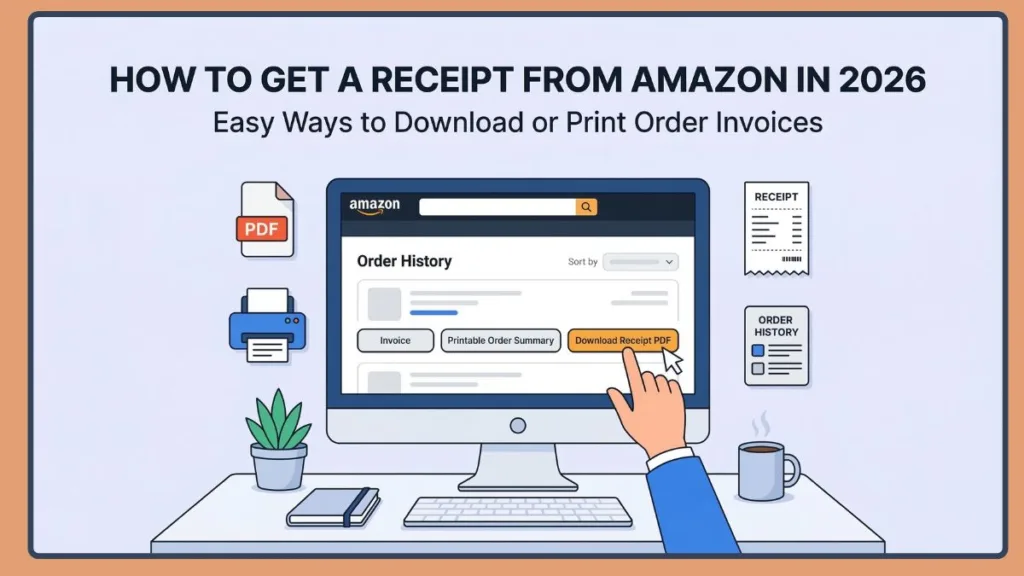
Unlike physical stores, Amazon automatically stores a digital receipt for almost every order you place. This ensures you can easily view, download, or print your Amazon order receipt anytime—even for purchases made several years ago.
Fortunately, there are highly reliable methods that let you retrieve, organize, and manage your Amazon orders. Let’s explore these options in detail and walk through every step to safeguard your records.
Quick Answer: How Do I Get My Receipt From Amazon?
If you need your documentation immediately, here is the fastest way to retrieve it. To get your receipt from Amazon:
- Sign in to your Amazon account.
- Go to Returns & Orders.
- Find the order you need.
- Click View Order Details.
- Select Invoice or Printable Order Summary.
- Download the Amazon receipt PDF or print it directly.
This method works on both desktop computers and the Amazon mobile app, allowing you to quickly access your proof of purchase whenever you need it.
Why You Might Want to Download an Amazon Receipt
There’s nothing wrong with wanting to maintain accurate financial records. While Amazon keeps your history stored, having your own copies minimizes stress. Here are the most common reasons people need to retrieve an order:
- Product Returns: You need official proof of purchase to process a return seamlessly.
- Business Expenses: Employers require detailed invoices for work-related reimbursements.
- Warranty Claims: Manufacturers demand original receipts before repairing or replacing items.
- Digital Record-Keeping: Many users prefer not to rely solely on Amazon’s servers for their long-term tax deductions or bookkeeping.
Regardless of your reason, Amazon offers straightforward tools to help you stay in control of your documentation.
What Is an Amazon Receipt and What Information Does It Include?
An Amazon receipt is a digital document that confirms you purchased a specific item from Amazon. It acts as your official proof of purchase.
A typical Amazon receipt example includes several important details, such as:
- Order number
- Purchase date
- Product name and description
- Item price and quantity
- Payment method used
- Shipping address
- Delivery information
- Total amount paid
Because these details are clearly listed, an itemized receipt from Amazon serves as reliable documentation when you need to verify a purchase.
Amazon Receipt vs Amazon Invoice: What’s the Difference?
Many shoppers assume an Amazon invoice and receipt are the same thing, but there is a distinct difference between the two. Understanding this difference ensures you download the correct document for your situation.
Amazon Receipt An Amazon receipt is a basic purchase confirmation that shows what you bought and how much you paid. It is typically displayed as the order summary or printable order summary. Receipts are usually sufficient for personal purchase records, product returns, warranty claims, and simple reimbursements.
Amazon Invoice An Amazon invoice is a more formal document that includes additional information, such as:
- Seller details
- Billing address
- Tax information (VAT or GST when applicable)
- Itemized price breakdown
Invoices are strictly required for business expense reports, accounting records, and tax deductions. If you are submitting documentation for work or tax purposes, downloading the Amazon invoice instead of the receipt is the safest choice.
Before Downloading Your Amazon Receipt
Before diving into printing a receipt from Amazon, make sure you have a few basic things ready to ensure a smooth process.
First, ensure you have access to the Amazon account used to place the order. Receipts are tied directly to that account, so they won’t appear if you log in with a different one. Next, you’ll need a device that can open PDF documents, since most Amazon receipts and invoices are saved in PDF format. Modern browsers and smartphones usually support this automatically.
You can retrieve your receipts using either a web browser on your computer, the Amazon mobile app, or links from Amazon order confirmation emails.
Method 1: How to Get a Receipt From Amazon Using Desktop
Using a desktop browser is the most robust and reliable way to download or print an Amazon receipt. The desktop interface shows the full order history and makes it easier to access invoice options.
Step-by-Step Guide:
- Sign in to your Amazon account using a desktop browser.
- Navigate to the top-right corner and click Returns & Orders. This opens your complete order history.
- Scroll through the list or use the search bar to locate the item. (You can filter results by year for older purchases).
- Click View Order Details next to the purchase.
- Click the Invoice option. A dropdown menu will appear.
- Choose Printable Order Summary or Invoice depending on what you need.
The receipt will open in a print-friendly format. From here, you can print the document immediately. To save it digitally, press Ctrl + P on Windows or Command + P on Mac, then choose Save as PDF.
Method 2: How to Get a Receipt From Amazon Mobile App
If you prefer using your phone, the Amazon mobile app also allows you to retrieve and download receipts efficiently.
Step-by-Step Guide:
- Open the Amazon app on your Android or iPhone device.
- Tap the profile icon or account section, then select Your Orders.
- Scroll or use the search bar to find the specific item you purchased.
- Tap the order to open its details page.
- Scroll to the order information section and tap Download Invoice.
- The Amazon receipt will open as a PDF file that you can download directly to your phone.
How to Print Invoice From Amazon App on iPhone
- After opening the invoice document in the Amazon app or PDF viewer, tap the Share icon located near the top of the screen.
- From the menu that appears, select Print.
- Choose your connected wireless printer from the list and confirm the print settings. (If you don’t have a printer, save the PDF to your Files app to print later).
How to Print Invoice From Amazon App on Android
- Once you open the invoice PDF, tap the three-dot menu or the print option in your document viewer.
- Choose Print and select a wireless printer connected to your device.
- Preview the page to confirm the order details are visible, then print. (Or, choose Save as PDF for a digital copy).
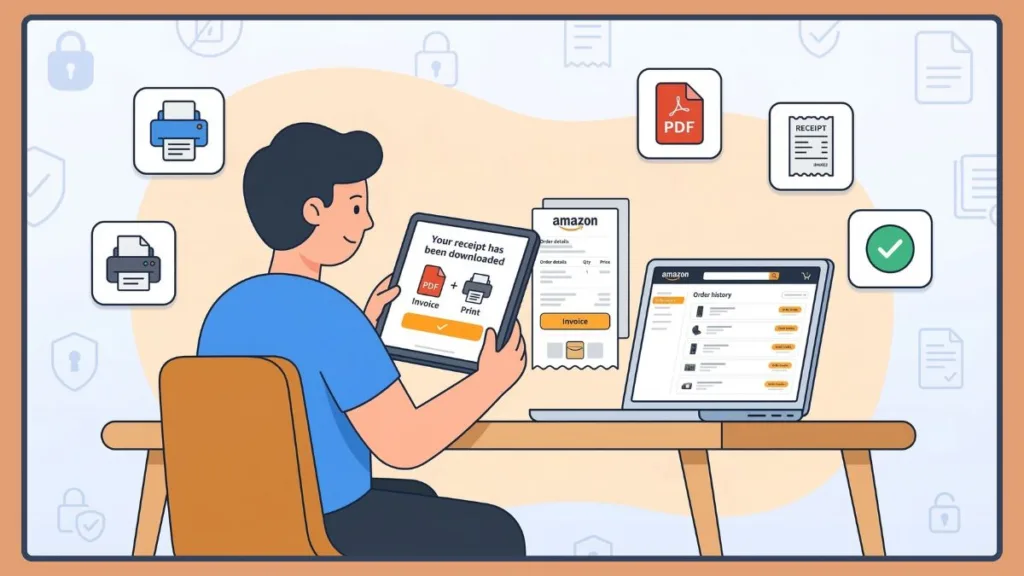
Additional Ways to Manage Your Amazon Receipts
Even if your order is complex or years old, you can still take control of your documentation using the following strategies:
1. Find Receipts for Older Orders: To perform an Amazon store receipt lookup for past years, open the Returns & Orders page and use the filter dropdown to select the correct year. Locate the order and download the invoice exactly as you would for a recent purchase.
2. Get a Receipt for a Single Item: If your order contains multiple items but you only need the receipt for one, open the order and select the Invoice or Printable Order Summary. The receipt will display all items and individual prices, effectively acting as an itemized receipt you can use for specific reimbursements.
3. Retrieve an Amazon Prime Subscription Invoice: To find billing records for Prime, navigate to Memberships & Subscriptions in your account. Select your Prime membership, go to billing details, and download the subscription invoice.
What to Do If Amazon Invoice Is Not Available
Sometimes users encounter situations where the Amazon invoice option is completely missing. This usually happens because:
- The order has not shipped yet (Amazon generates invoices only after shipping).
- The product was sold by a third-party marketplace seller who does not provide formal invoices.
In these cases, you can usually download the Printable Order Summary, which still serves as valid proof of purchase. If you specifically require an invoice, contact the seller directly through the order page.
Common Problems When Printing Amazon Receipts
Even with these tools, there are a few minor issues you might encounter:
- Blank Pages: If the document prints incorrectly or appears blank, refresh the page and reopen the invoice.
- Formatting Errors: If the receipt won’t print correctly from the browser, download it as a PDF first and print from the saved file instead.
Understanding these quick fixes ensures you know what to expect while managing your order history.
Frequently Asked Questions (FAQ)
Q1: How do I get my receipt from Amazon?
Sign in to Amazon, open Returns & Orders, find your purchase, and select Invoice or Printable Order Summary. From there, you can download the Amazon receipt or print it.
Q2: Does Amazon give you a digital receipt?
Yes. Amazon automatically generates digital receipts for all purchases, which can be accessed through your order history.
Q3: How do I find a receipt for something I purchased on Amazon?
Go to Your Orders, locate the item, and select the Invoice or Printable Order Summary option to view the receipt.
Q4: How do I download my Amazon order receipt?
Open the order details and choose the Invoice option, then select Save as PDF to download the receipt.
Q5: Can I view a receipt on Amazon?
Yes. You can view receipts anytime from your Amazon order history, even for archived orders.
Q6: How do I print my Amazon receipt?
Open the invoice or printable order summary and select the Print option in your browser or PDF viewer.
Q7: Where can I find Amazon receipts for old orders?
Use the year filter in your order history to locate older purchases and download their receipts.
Final Thoughts on Getting an Amazon Receipt
While the exact steps might vary slightly between desktop and mobile, there are highly effective ways to manage your order history.
To summarize:
- Use the Returns & Orders dashboard on desktop for the easiest access to printable summaries.
- Use the mobile app’s Download Invoice feature when you are on the go.
- Always save formal Invoices (rather than basic receipts) if you are submitting business or tax documents.
- Save documents as PDFs to keep your financial records organized offline.
These methods ensure your purchase records remain accessible, your tax filings stay accurate, and your documentation remains completely under your control. Being proactive and using these tools helps you maintain authority over your data, even as Amazon continues to evolve its platforms.
Visit Our Post Page: Blog Page