
Want to get a YouTube transcript? Learn 4 free methods to download text, convert video to text, and copy clean transcripts on desktop or mobile.
Getting a transcript from a YouTube video should be simple. But if you have ever tried copying captions directly from YouTube, you already know the frustration—timestamps everywhere, messy formatting, and extra steps that waste time.
If you want a clean, readable transcript without technical hassle, you are in the right place. We will show you every reliable way to get a YouTube transcript, starting from the built-in option and moving to faster, cleaner alternatives like Tactiq or DownSub that we recommend for real-world situations.
Why You Need a Clean YouTube Video Transcript
YouTube transcripts exist—but they are not user-friendly by default. If you try the native method, you often end up manually copying text, removing timestamps line by line, or struggling to even find the transcript button on mobile.
We guarantee you do not need to do all that.
In this guide, you will learn easy, clean, and free ways to get a YouTube video transcript. You will also discover how to download YouTube transcript files as .TXT or .SRT formats, which makes them ready for studying, blogging, SEO work, or translation without extra mucking around.
YouTube Transcript Meaning & File Formats (.TXT vs .SRT)
A YouTube transcript is the written text version of everything spoken in a video. It is usually generated automatically by YouTube, though creators can upload their own captions too.
It is important to understand the difference:
- Captions: On-screen text synced with audio.
- Subtitles: Translated captions for other languages.
- Transcript: The full spoken text in readable form.
Best Formats to Download YouTube Transcripts
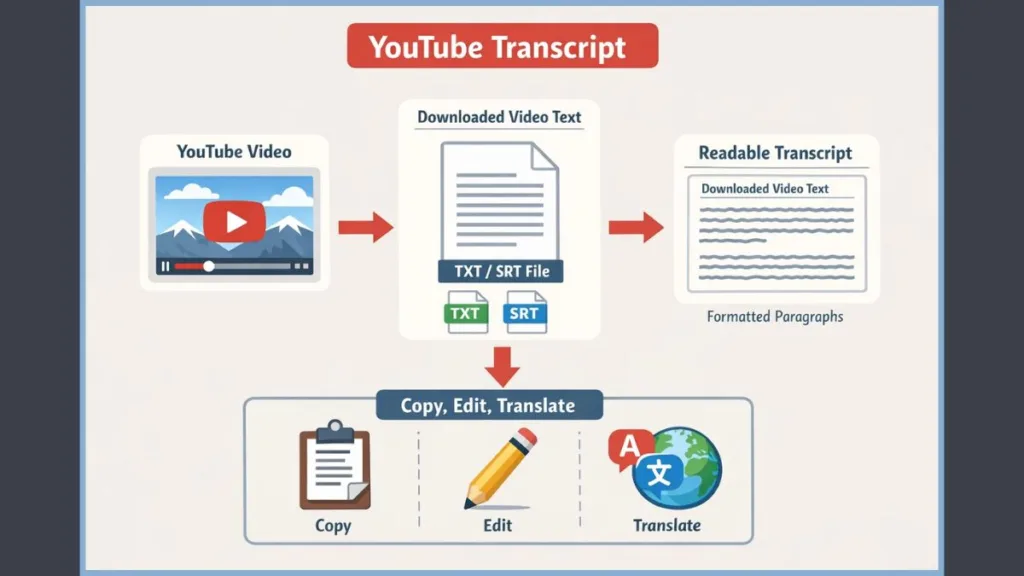
When you extract or download a transcript, it usually comes in one of these formats:
- .TXT (Plain Text): Best if you want to download a YouTube transcript as a text file for notes or publishing. Many tools let you export exactly this.
- .SRT (SubRip Subtitle): A subtitle file that includes timestamps. This is a standard caption format often used for importing subtitles to a video editor like Premiere Pro or adding to other platforms.
Choosing the right format depends on how you plan to use the transcript, whether it is for studying, content repurposing, or research.
4 Methods to Get Transcript of YouTube Video
Method 1: How to Get Transcript from YouTube (Built-In Feature)
This is YouTube’s official method. It works well for quick checks, but it is not perfect for long documents.
Steps to Open YouTube Transcript on Desktop
- Open the YouTube video.
- Click the “More” button in the video description to expand it.
- Scroll down and click “Show transcript”.
- The transcript appears beside the video (or below it).
How to See Transcript on YouTube App (Mobile)
Finding the transcript on a phone used to be impossible, but recent updates have changed that.
- YouTube App (Newer Versions): Open the video > tap “More” in the description > select “Show transcript”.
- Browser Workaround: If the app fails, open YouTube in a mobile browser (Chrome/Safari), switch to “Desktop Mode,” and follow the desktop steps above.
Limitations of Native YouTube Transcripts: While this method is free, it has significant drawbacks. Transcripts often include timestamps that are hard to remove, and copying long text requires precise scrolling. Because it is so manual, you will likely prefer the better alternatives below.
Method 2: Use a YouTube Transcript Generator by Link (No Timestamps)
This is the method most users prefer. We strongly recommend it because it reduces friction and lets you convert YouTube video to text nearly instantly. You simply paste a YouTube link, and the service generates a readable transcript for you—often with no signup.
Best Free YouTube to Text Converters
Here are quick examples of services you can use right now:
- Tactiq: Originally a meeting tool, their free YouTube Transcript Generator lets you paste a URL and instantly view, copy, and download the transcript. It is excellent for capturing “How-to” steps.
- DownSub: This tool is a classic for a reason. It lets you download subtitles in multiple formats (.SRT, .TXT, .VTT). It is ideal for language learners because it often exposes hidden auto-translated tracks.
- NoteGPT: This AI-powered tool not only pulls the transcript but also summarizes the video. If you need to understand a 20-minute TED Talk in 2 minutes, this is your solution.
- Mapify.so: A newer entrant that supports over 100 languages. It is particularly good at handling non-English content and exporting to clean text files.
Benefits of Using a Transcript Extractor
- No timestamps: Most of these tools have a simple “toggle timestamps” button.
- Mobile-friendly: These websites work on mobile browsers without the need for app “hacks.”
- Clean Formatting: You get readable paragraphs instead of a wall of broken text lines.
How to Convert YouTube Video to Text Online
- Copy the YouTube video URL.
- Paste it into one of the tools above (e.g., Tactiq or DownSub).
- Generate and download your transcript in .TXT or .SRT format.
Because these services use speech-to-text or caption extraction, you get cleaner text than copying YouTube-provided captions manually.
Method 3: How to Download YouTube Transcript on Mobile (Android & iPhone)
Mobile users face the most limitations—but you still have good options that make the task feel seamless.
Challenges with the YouTube Mobile App Transcript
YouTube’s built-in transcript feature is inconsistent across app versions. Furthermore, text copying on a small screen is awkward and often results in selecting unwanted UI elements.
Easy Ways to Get Transcripts on Phone
- Use URL Paste Tools: The websites mentioned in Method 2 (like DownSub) are optimized for mobile. Open them in Chrome or Safari on your phone, paste the link, and download the file directly to your “Files” app.
- Browser Extensions: If you use a mobile browser that supports extensions (like Kiwi Browser on Android or Orion on iOS), you can install extensions like “YouTube to Text” to transcribe videos directly in a readable format.
Common Mistakes When Copying Transcripts
- Relying on screenshots: Do not try to screenshot captions; OCR tools are rarely accurate enough for long texts.
- Paying for basic features: Many “app store” apps charge for what websites like Tactiq do for free.
With the right approach, you can download YouTube transcript text on mobile just as efficiently as on desktop.
Method 4: Advanced Ways to Extract Text from YouTube Video
These methods are for power users or those with specific needs, such as developers or researchers handling large datasets.
- Python Scripts: Open-source utilities like [suspicious link removed] or yt-dlp allow you to extract audio and subtitles via the command line. This is the industry standard for archiving content.
- Developer Tools: You can open your browser’s “Inspect Element” network tab to grab the JSON caption data directly from YouTube’s servers.
- AI Transcription Services: Services like Otter.ai or Descript can transcribe the audio if no caption file exists. You simply record the system audio while the video plays.
These are powerful, but for most readers, the URL paste method is sufficient and much simpler.
Comparison: Best Way to Get YouTube Video Transcripts
Here is a quick way to decide based on your specific priorities:
| Your Goal | Recommended Method |
| Fastest & Cleanest | URL-based Tools (Method 2) |
| Best Free Option | YouTube Built-in (requires cleanup) |
| Best for Mobile | DownSub or Tactiq (via Browser) |
| Best for Long Videos | NoteGPT (includes Summary) |
| Best Without Timestamps | Mapify or Tactiq |
We recommend starting with online transcript generators because they require no installs and deliver text immediately.
Troubleshooting: YouTube Transcript Not Available or Working
Even with the best tools, you might run into hiccups. Here is how to solve them.
No Transcript Option on YouTube
Some videos disable captions or do not support transcripts, especially if the creator turned off auto-generated captions.
- Fix: Use an external AI tool like Otter.ai to record and transcribe the audio in real-time.
YouTube Auto-Generated Captions Missing
New uploads or private videos may not have captions yet because YouTube’s servers are still processing the audio.
- Fix: Wait an hour, or use a tool like Descript to generate your own subtitles.
Incorrect Transcript Language
The transcript might appear in a language you do not read.
- Fix: Tools like Mapify can translate YouTube transcript output into multiple languages instantly during the extraction process.
Region-Restricted Video Transcripts
Some videos block transcripts by location.
- Fix: External services typically bypass regional UI restrictions because they access the video data directly.
How to Repurpose YouTube Transcripts for SEO & Study
Once you have the transcript, the real value begins. You can use it for:
- Study Notes: Read transcripts faster than watching a 40-minute lecture.
- SEO Blogging: Google cannot “watch” videos, but it can read text. Publishing a transcript (or a blog post based on it) significantly boosts your SEO traffic.
- Content Repurposing: Turn a single video into a week’s worth of LinkedIn posts, Tweets, or a long-form article.
- Accessibility: Provide text alternatives for users who prefer reading or have hearing impairments.
- Translation: Use services like HappyScribe to translate video transcripts into 120+ languages for broader global reach.
Frequently Asked Questions About YouTube Transcripts
Can I download a YouTube transcript for free?
Yes, many tools in this guide, including Tactiq and DownSub, let you download transcripts for free without signup.
Can I download it as a TXT or SRT file?
Yes—most online tools provide both text and subtitle export formats.
Why does my transcript have timestamps?
Timestamps come from the raw caption file. However, generators like NoteGPT let you strip them out with a single click.
How do I see transcripts in the YouTube app?
Use the “More > Show transcript” method. If that is missing, update your app or use the mobile browser method.
Is it legal to copy YouTube transcripts?
For personal use, study, or research—yes. However, republishing someone else’s full script as your own may violate copyright laws.
Final Thoughts on Getting YouTube Transcripts
Getting a YouTube transcript does not have to be complicated. With the right tools like Tactiq, NoteGPT, or DownSub, you can quickly convert a YouTube video to text, download the transcript as a clean file, and even translate it into your native language.
Start with the method that fits your workflow today and enjoy turning video content into readable text in seconds.
Visit Our Post Page: Blog Page