
WMIC deprecated in Windows 11? Learn how to get your Serial Number in CMD using fast PowerShell CIM commands. Retrieve BIOS and motherboard IDs instantly.
Microsoft has officially deprecated WMIC in Windows 11 (starting with version 24H2), as confirmed in Microsoft’s official WMIC removal notice. If you try to run your old wmic bios get serialnumber command, you likely see this error:
“’wmic’ is not recognized as an internal or external command, operable program or batch file.”
You aren’t alone. WMIC is being removed from Windows by default. Even if the command does run, many users are tired of seeing generic results like “To Be Filled by OEM”.
Whether you need to fix the “command not found” error or find a better way to dig up hardware IDs, here is the modern, reliable way to pull your serial number using CMD.
Why WMIC No Longer Works for Serial Number Lookup in CMD
WMIC was deprecated by Microsoft in 2016 and has been phased out from Windows for years. In Windows 11 builds starting with 24H2, WMIC is disabled or removed by default, and this trend will continue as newer versions are released.
That means:
- The command may simply not exist (‘wmic’ is not recognized…).
- You may still find WMIC as an optional feature and reinstall it manually via Optional Features in Windows Settings.
- Even if WMIC runs, it will only return a value if the BIOS/UEFI firmware has a real serial number stored in it.
How to Get Your Serial Number in CMD Without WMIC
You can still use CMD as your launcher, but you must rely on PowerShell CIM commands (the modern replacement for WMIC). PowerShell’s CIM commands access the same underlying Windows management infrastructure in a supported and future-proof way.
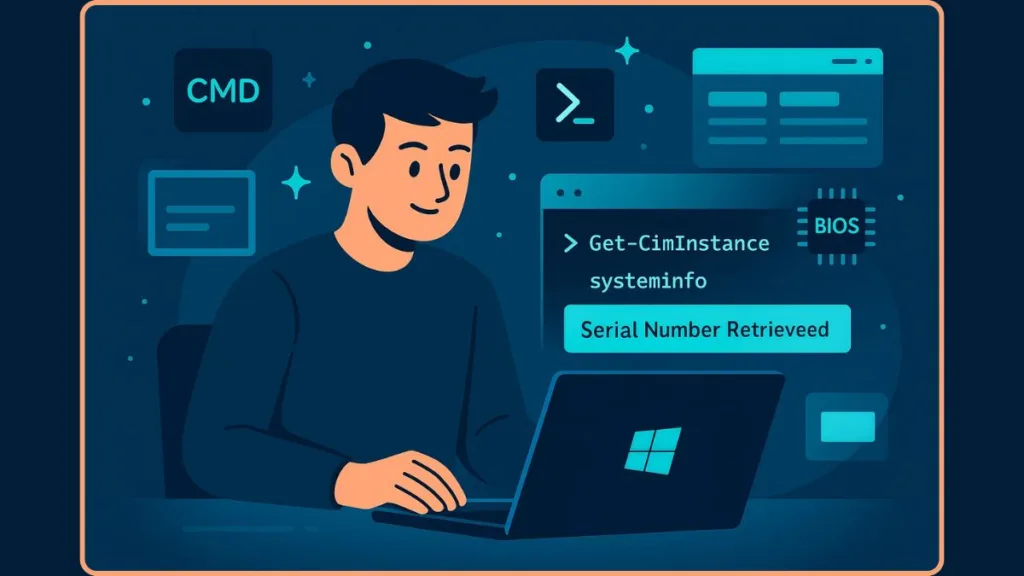
Quick Tip: You can run PowerShell commands right from CMD by prefixing them with
powershell. This lets you stick with CMD scripts if needed.
Method 1: The Best Method (PowerShell via CMD)
This is the direct replacement for WMIC. It is faster and more reliable.
Copy and paste this single line into your Command Prompt:
powershell "Get-CimInstance -Class Win32_BIOS | Select-Object -ExpandProperty SerialNumber
Method 2: The “SystemInfo” Check
If the first method fails, try this quick check.
systeminfo | findstr /i "Serial"This checks if Windows autogenerated a serial field. It sometimes works on desktops and laptops from major OEMs, but it’s not reliable because many BIOS vendors do not populate this field.
Method 3: Run PowerShell CIM Commands Directly From CMD (Recommended for Additional Checks)
These commands query modern WMI classes using CIM and are the best replacements for WMIC when you need alternate identifiers.
Get BIOS Serial Number
Copy and paste this into CMD:
powershell "(Get-CimInstance -ClassName Win32_BIOS).SerialNumber"
This returns the BIOS serial number if the manufacturer programmed it.
Get Motherboard Serial Number
powershell "(Get-CimInstance -ClassName Win32_BaseBoard).SerialNumber"
Useful if the BIOS serial number is missing but the baseboard has one.
Get System Product Identifier
powershell "(Get-CimInstance -ClassName Win32_ComputerSystemProduct).IdentifyingNumber"
This often returns a unique identifier even when the BIOS serial number is blank.
Why CMD and PowerShell May Still Return a Blank Serial Number
If all the above commands show empty output or placeholders like:
""(blank)- To Be Filled By OEM
…it almost always means:
- The manufacturer did not program a serial number into the BIOS/UEFI firmware.
- This often happens on custom builds, older machines, or white-box desktops.
A command can only read what’s stored in firmware; it cannot generate a serial number out of thin air.
What to Do When Your PC Has No BIOS Serial Number
If the serial isn’t in firmware, you still have practical workarounds:
Use a UUID (Consistently Reliable)
`powershell "(Get-CimInstance -ClassName Win32_ComputerSystemProduct).UUID"This gives a system-wide unique identifier that works for asset management.
Use the Built-in MAC Address
getmacMAC addresses aren’t perfect, but they can uniquely identify network interfaces.
Look for Physical Stickers or Documentation
Check the machine’s back, underside, original box, or documentation—manufacturers often print the serial there.
Reinstall WMIC Temporarily (Optional)
If you absolutely must use WMIC on a system that still supports it, you can reinstall it via Settings > Apps > Optional Features > Add a Feature > WMIC.
Best Practices for Asset Management When Serial Numbers Are Missing
In enterprise environments, consider the following to avoid headaches:
- Automate serial number collection via PowerShell inventory scripts. You can export results to CSV or remote-collect across multiple machines.
- Use task scheduling to regularly update your asset inventory.
- Maintain your own asset tags in a management system.
This future-proofs your workflow regardless of what firmware does.
FAQ: Common Issues When Getting Serial Number Without WMIC
Why is WMIC deprecated?
Microsoft deprecated WMIC in favor of PowerShell CIM cmdlets, and newer versions of Windows may no longer include it by default.
Why is my serial number blank or says OEM?
Because the manufacturer never wrote a serial number into BIOS/UEFI.
Can I get a serial number from CMD without admin rights?
Yes—CIM queries usually work without needing elevation on local machines.
Is PowerShell better than CMD for serial lookups?
Yes. PowerShell CIM commands are the supported modern approach and output structured objects you can script against.
Can I export results to CSV?
Yes—PowerShell can export any results to CSV, making bulk inventory easy.
Summary: Working Ways to Get Serial Number in CMD Without WMIC
Here’s the fastest path forward:
- Try this first:
**`powershell "(Get-CimInstance -ClassName Win32_BIOS).SerialNumber"`** - If that fails, try motherboard + system identifier commands.
- If all commands return empty, the system likely has no BIOS serial number—use UUID or MAC instead.
With WMIC being deprecated and removed from newer Windows versions, PowerShell’s CIM commands are the modern, supported way to get serial numbers and other hardware identifiers.
Visit Our Post Page: Blog Page