
Need subtitles on Amazon Prime? Learn how to enable Prime Video subtitles on Android, iPhone, PC, and TV, plus fix subtitles not working or out of sync easily.
Need the quick answer on how to get subtitles on amazon prime right now? You can turn on subtitles Amazon Prime instantly during playback by clicking or tapping the CC (speech bubble) icon in the upper right corner of your screen and selecting your language.
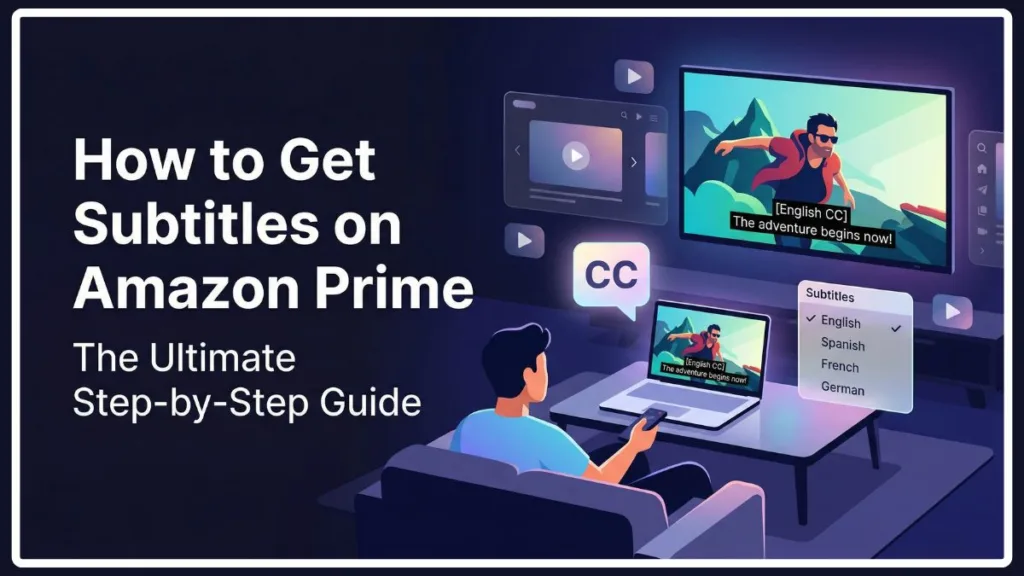
Whether you’re looking to catch every word of dialogue, understand a foreign film, or utilize Prime Video accessibility captions, this guide covers exactly how to manage your amazon prime subtitles. Read on for device-specific instructions, customization tips, and fixes for when your prime video subtitles are acting up. The platform’s subtitles, unfortunately, are not always the most synchronized, but they are incredibly useful for understanding content whose language is not mastered by the viewer, working seamlessly across Android, iOS, Web, and Windows platforms.
How to Turn On Subtitles on Amazon Prime Video (Quick Steps)
If you just want the universal method to how to turn on subtitles on Amazon Prime Video, follow this simple process that works across most platforms:
- Start playing your movie or TV show. You can click the play button or select one of the episodes displayed at the bottom of the screen.
- Bring up the playback controls by tapping the screen, moving your mouse, or pressing a button on your remote.
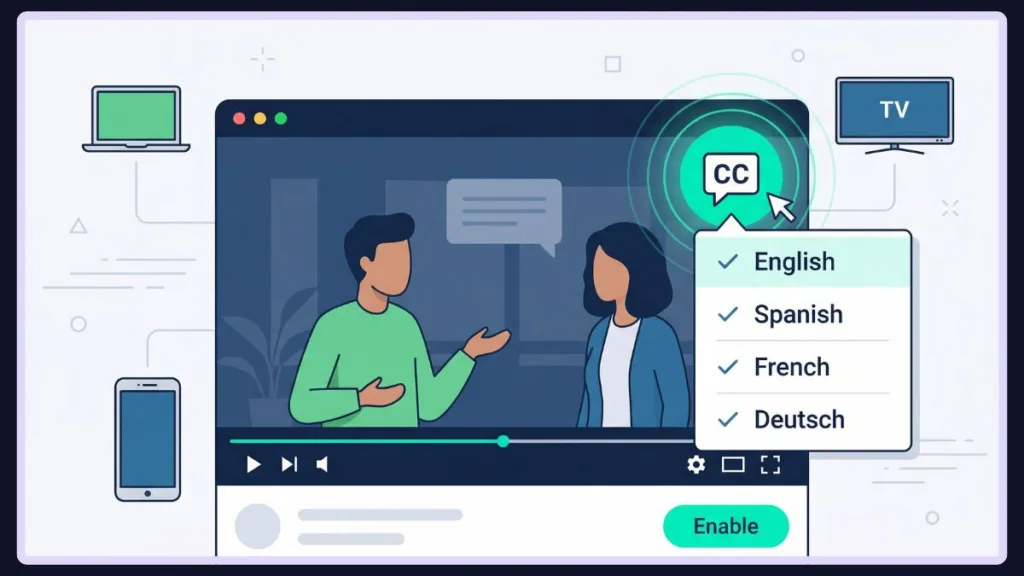
- Select the Prime Video CC icon (it looks like a speech bubble) located in the upper right corner.
- Choose your preferred language to confirm and enable your subtitles. Select the text bubble again to ensure the subtitles are enabled; there should be a checkmark next to the language you selected.
Enable Subtitles Prime Video on Different Devices
While the Prime Video CC icon is standard, the exact navigation can vary slightly depending on your hardware.
Enable Captions Prime Video Android & iPhone
If you’re watching on the go, here is how to enable captions Prime Video Android and iOS:
- Open the mobile app and select a movie or series from the home page.
- Start playing the content and tap the screen to reveal the playback controls.
- Tap the speech balloon icon located in the upper right corner.
- A window will appear showing dubbing and subtitle options Prime Video offers. Explore the options until you find the desired language, then tap your desired language to turn on captions Prime Video. The Prime Video Windows app functions very similarly to the mobile experience, allowing you to click the same icon to access these features.
Turn On Subtitles Amazon Prime (PC & Web Browser)
For those watching on a laptop or desktop, the Prime Video subtitle settings web browser steps are straightforward:
- Navigate to the Amazon website, sign in, and click “Prime Video” from the menu. You can find this by clicking the Menu icon—the three horizontal lines in the upper-left corner—and looking under “Shop by Category.”
- Choose your title and after the show’s info populates, click “Watch Now.”
- Once playback begins, hover your cursor over the screen and click the speech bubble icon in the top-right corner.
- Select your language from the drop-down menu to turn on captions Prime Video web. A checkmark will appear next to your selection. On the computer, there is also the option to edit the text directly from the player. To do so, simply click on “Subtitle Settings” in this pop-up menu.
Prime Video Subtitles on Smart TV & Fire TV Stick
Managing Prime Video subtitles on smart TV or console requires your remote:
- Start playing your show or movie.
- Press the options or menu button on your remote or controller.
- Navigate to the Subtitles or CC menu on your screen.
- Select your language to enable Fire TV Stick subtitles Amazon Prime. This method also applies to gaming consoles and set-top boxes that support the Prime Video app.
How to Customize Subtitles on Prime Video
Sometimes the default text is hard to read. You can easily change subtitle size color Prime offers to better suit your needs.
- Go to the Amazon home page and navigate to Prime Video by selecting the menu icon (the three horizontal lines in the top-right corner).
- Click the “Settings” menu (often found under the gear icon or main menu bar) once you’re on the Prime Video page.
- Select the “Subtitles” tab to access your subtitle language settings Prime.
- Here, you will see a default subtitle and options for editing the captions. Click “Edit” next to a preset to change the font size, text color, background opacity, and more. Specifically, on the “Size” tab, you can choose the font you prefer, and under “Preset settings,” tap on one of the templates. At the bottom of the screen, you will see a live example of how Prime Video will display the customized subtitles.
Exploring the subtitle options Prime Video provides is a great way to customize your viewing experience.
Amazon Prime Subtitles Not Showing? Fix It Fast
If your Amazon Prime subtitles not showing is ruining movie night, here are the best step-by-step fixes to try, in order:
- Toggle Subtitles Off and On: Access the playback menu, turn the subtitles off, and then immediately turn them back on to recalibrate the display.
- Check Other Shows: Test a different movie. If the text works there, the previous title simply might not have subtitles encoded. If subtitles don’t work on other titles, it’s likely an app-wide problem.
- Restart the App: Exit and force-close the Prime Video app to clear temporary cache files. Depending on the device you’re using, exiting out of the app may not actually close it.
- Restart Your Device: Completely power-cycle your smartphone, computer, or smart TV. If your gaming console supports app suspension, make sure you manually quit out of the Prime Video app before initiating a reboot.
- Update the App: Check your app store where you initially downloaded the app. A bug might be why subtitles not working on Prime, and a simple update to the latest firmware version can fix it.
- Reinstall the App: Delete the app completely and reinstall it to clear out any corrupted files. Depending on the device, this option will be labeled as Uninstall or Delete App under your device’s app settings.
- Watch on a Different Device: Try using Prime Video on a different platform to see if the problem is isolated to the device you’re streaming from.
- Delete Your Watch History: If issues persist across devices, delete your viewing history to remove user preferences for a particular show or movie, which can sometimes clear up account-level glitches.
Why Subtitles May Not Work on Prime Video
There are a few common culprits behind captioning errors:
- The specific TV show or movie doesn’t support subtitles for your chosen language. Sometimes, you might receive an explicit error message stating “Subtitles are not supported on this video.” However, this message may not always appear.
- Closed Captioning (CC) needs to be activated in your device’s primary Accessibility Settings. Prime Video may offer both with and without CC options for a specific language. Also, note that some titles only show subtitles during foreign-language audio; toggling the CC option might resolve this.
- You’re using a legacy device (such as an older model of Apple TV or Fire Stick) that no longer receives updates from Amazon.
- Corrupted app or browser cache data is interfering with playback.
How to Fix Subtitle Sync Issues on Prime Video
If the audio and text are out of sync (especially common with subtitles for foreign language shows Prime), the platform’s caption timing might just need a refresh.
To enact a Prime Video subtitles delay fix, try pausing the video, toggling the subtitles off and back on via the speech bubble icon, and rewinding the video by 10 seconds. If it persists, fully restarting your playback device usually forces the audio and text to realign.
Advanced Subtitle Settings & Accessibility Options
For deep customization of your Prime Video accessibility settings, use the web dashboard.
By visiting the Amazon Prime captions page (Amazon.com/cc in a web browser), you can easily create and save permanent subtitle presets that will apply to your account across all your connected devices.
You can also change your device’s default language settings so Prime Video automatically selects the right captions for you without you having to manually configure it each time.
Contact Amazon for Subtitle Issues (When Nothing Works)
If you’ve tried all the troubleshooting steps and need Prime Video subtitle help, it’s time to reach out to the source.
To contact Amazon for subtitle issues, log in to your account in a web browser or the app.
Go to Your Account > Customer Service > Choose Something Else > I need more help.
This will open a customer support chat window where you can report missing subtitles and get help identifying backend errors. If you prefer to speak with a representative over the phone, simply choose the “Request a phone call” option in the chat window.
Do All Prime Video Titles Have Subtitles?
Viewers often wonder, do all Prime Video titles have subtitles?
The short answer is no.
Because the content creator or studio typically encodes the subtitles, some older or niche titles may not support them. If you attempt to turn them on for an unsupported title, you may see an error message stating “Subtitles are not supported on this video.” You cannot directly download subtitles Amazon Prime via the official app to fix this, as the files must be provided by the publisher.
FAQs About Amazon Prime Subtitles
How do I turn on subtitles on Amazon Prime Video?
During playback, tap or click the screen to reveal the media controls. Select the speech bubble or CC icon located in the top right corner. Choose your preferred language from the drop-down menu to instantly turn on your subtitles. A checkmark confirms they are activated.
Why are subtitles not showing on Prime Video?
Subtitles may not show if the specific title doesn’t support them, if your app’s cache is corrupted, or if your app needs an update. Try toggling the subtitles off and on, restarting your device, or testing a different movie to isolate the problem.
How do I change subtitle language on Prime Video?
You can change the language while watching a video by selecting the speech bubble icon in the top right corner. A list of available audio and subtitle languages will appear; simply tap or click the one you want to switch to.
Can I customize subtitle size and color on Prime Video?
Yes. Log into Prime Video on a web browser, go to Settings, and select the Subtitles tab. Here, you can click “Edit” on any preset to change the font size, text color, background color, and opacity to your liking. You can also access size and style options directly in the app by pressing the options button on your controller or remote.
Do all Prime Video titles have subtitles?
No, not all titles have subtitles. The availability of captions depends entirely on whether the original content creator or studio encoded them for that specific movie or TV show. If they are missing, the CC icon will not offer language options, and you may see a “Subtitles are not supported” warning.
Final Thoughts
Managing subtitles on Amazon Prime Video is designed to be incredibly simple. Whether you’re on a smartphone, a web browser, or your living room TV, that little speech bubble icon is your universal key to accessibility. If you run into trouble, remember that a quick restart or app update usually clears up the issue in seconds!
Visit Our Post Page: Blog Page