
Are you trying to keep certain apps private on your iPhone? Learn how to hide apps on iPhone iOS 26, lock them with Face ID, and find hidden apps in the App Library to protect your privacy effortlessly.
Your iPhone holds a lot more than just apps — it holds your personal world. From social networks and financial tools to dating and productivity apps, some things are better kept away from curious eyes. Whether you want to protect your privacy, reduce distractions, or simply declutter your Home Screen, the latest iOS 26 update makes it easier than ever to manage what others can see.
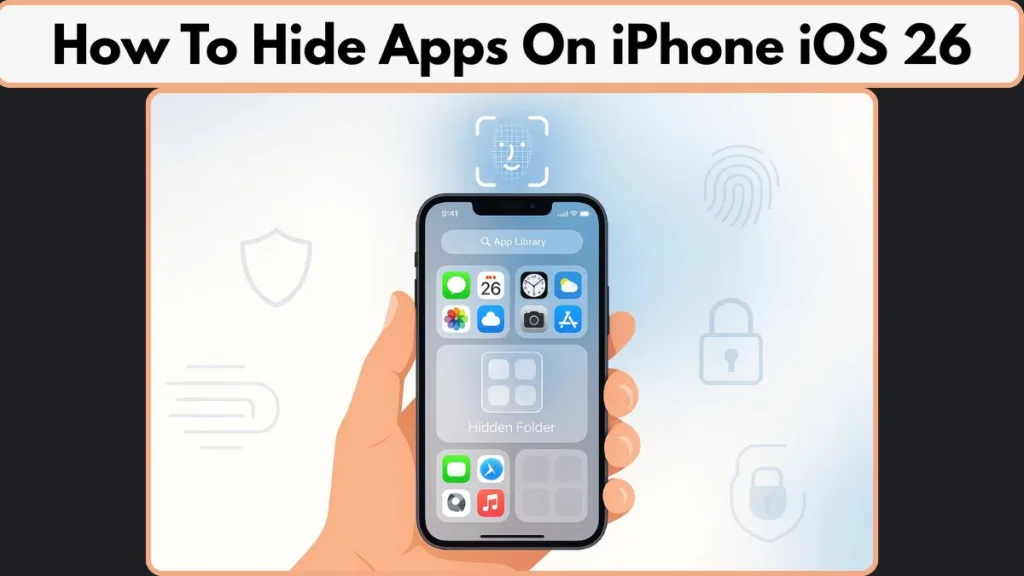
Apple has finally introduced a built-in option to lock and hide apps on iPhone, giving users direct control over how private their device feels. With just a few taps, you can move an app out of sight — without deleting it or losing any of its data. The best part? These hidden apps remain fully functional and can still be accessed securely when needed.
In this guide, you’ll learn how to hide apps on iPhone iOS 26 using the new features inside your App Library and Face ID security settings. You’ll also discover practical tips to organize your screen, manage hidden folders, and maintain a balance between convenience and privacy.
Whether you’re hiding sensitive apps, limiting distractions, or just tidying up your layout, this walkthrough will help you take full advantage of iOS 26’s enhanced privacy tools — so your iPhone feels a little more like yours.
Quick tip: These steps don’t delete or disable your apps. They simply remove them from plain sight, keeping your information safe, hidden, and instantly retrievable whenever you need it.
What’s New in iOS 26: The Lock & Hide Feature Explained
Apple has always emphasized user privacy, but with iOS 26, it’s taken things to an entirely new level. The latest update introduces a powerful, built-in feature that lets you lock and hide apps right from your iPhone’s Home Screen — no third-party apps, no complicated settings, and no shortcuts required.
This feature is designed to give users greater control over their personal data, while making sure that sensitive apps stay exactly where they should be — out of sight.
The Evolution of App Privacy on iPhone
Before iOS 26, users relied on workarounds like removing apps from the Home Screen, disabling Siri suggestions, or using Screen Time restrictions to hide certain apps. While these methods worked to some extent, they weren’t truly private — anyone who knew where to look could still find and open your apps.
Now, with iOS 26, Apple has finally introduced a dedicated Hide App feature that integrates seamlessly with Face ID, Touch ID, and passcode authentication. This means only you can open, view, or even locate these hidden apps — offering the kind of privacy iPhone users have been requesting for years.
How the New Lock & Hide System Works
The system uses the same biometric authentication that protects your device and Apple Pay transactions. When you lock an app, it requires Face ID, Touch ID, or a passcode every time you try to open it. When you hide an app, it disappears from your Home Screen and moves to a Hidden folder located at the bottom of the App Library.
This doesn’t just make your apps invisible; it ensures that their contents stay private across your entire iPhone. Hidden apps won’t appear in Search results, Siri suggestions, notifications, or CarPlay. Even call history and message previews tied to these apps are concealed — giving you complete peace of mind.
Key highlight: The hidden or locked status of an app doesn’t sync via iCloud. This means each device under your Apple ID can have its own privacy setup — perfect if you use multiple iPhones or share one within your household.
Why This Feature Matters More Than Ever
In today’s digital world, where we use apps for everything from banking and shopping to health tracking and communication, privacy isn’t optional — it’s essential. The new Hide App feature is Apple’s way of addressing this reality.
- For professionals, it means sensitive work apps can be hidden when sharing your device during presentations or meetings.
- For parents, it’s a way to safeguard certain apps when kids borrow their phone.
- For everyday users, it’s about decluttering and maintaining a sense of digital control.
What’s remarkable about iOS 26’s design is how intuitive it feels. There’s no new app or complicated setting to learn — everything happens through a simple long-press menu on your app icons. It’s subtle, secure, and built into the familiar iOS experience.
Limitations You Should Know
While the Hide App feature is powerful, there are a few restrictions to keep in mind:
- Built-in system apps like Settings, Camera, Clock, Maps, and Contacts cannot be hidden or locked.
- The app’s name may still appear in Screen Time or Battery Usage statistics.
- Hidden apps still receive updates and background notifications, though they remain invisible to others.
- The feature applies only to the device you’re using — hidden apps won’t automatically stay hidden on another iPhone with the same Apple ID.
Despite these small caveats, the new Lock & Hide feature represents one of the most user-friendly privacy upgrades in Apple’s ecosystem — combining security, simplicity, and flexibility in a single, sleek design.
Step-by-Step: How to Hide Apps on iPhone (iOS 26)
Apple’s new Hide App feature in iOS 26 brings simplicity and precision to privacy management. Whether you’re looking to conceal sensitive apps, remove distractions, or maintain a clutter-free interface, the process is designed to be quick, secure, and effortless.
Follow these detailed steps to hide any app on your iPhone safely — without deleting or disabling it.
Step 1: Locate the App You Want to Hide
Begin from your Home Screen or App Library. Identify the app you’d like to keep private — it might be a financial tool, a messaging platform, or any app you prefer not to display openly.
Pro Tip: The hide feature currently supports third-party apps downloaded from the App Store. Built-in apps like Camera or Settings can’t be hidden, but you can still manage their visibility through Screen Time or Content Restrictions if needed.
Once you’ve found the app, make sure your Face ID or Touch ID is already set up — you’ll need it to secure and authenticate the hidden app.
Step 2: Long-Press the App Icon to Open the Quick Actions Menu
Touch and hold the app icon until a menu of quick actions appears. This is the same interaction you use when deleting or rearranging apps.
In this menu, you’ll notice a new option introduced in iOS 26: “Require Face ID” (or “Require Touch ID” / “Require Passcode”, depending on your device’s security settings).
Selecting this option instantly places a lock on the app, ensuring only you can open it using biometric verification or your passcode. This alone prevents unauthorized access — but the next step fully removes the app from public view.
Step 3: Tap “Hide and Require Face ID” to Conceal the App
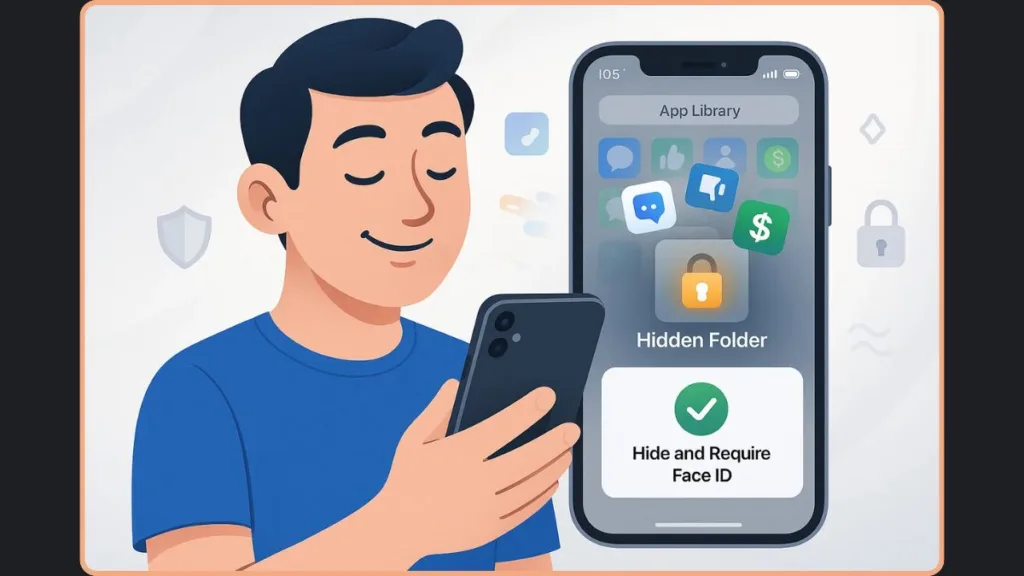
Once the lock is enabled, tap “Hide and Require Face ID.” Your iPhone will prompt you to authenticate using your Face ID, Touch ID, or passcode to confirm.
After authentication, the app disappears from your Home Screen. It’s not deleted — just moved securely to a Hidden Folder located at the bottom of your App Library.
This action ensures that:
- The app’s icon is no longer visible on your Home Screen.
- Its notifications, search results, and Siri suggestions are hidden automatically.
- App activity and content are shielded across the system, offering a higher level of privacy than ever before.
Important: Hidden apps are still installed on your iPhone and remain fully functional in the background. They will receive updates and retain stored data — only their visibility changes.
Step 4: Verify the App Is Hidden in the App Library
Swipe left past all your Home Screen pages to access the App Library. Scroll down to the bottom — you’ll find a new section labeled Hidden Folder.
Tap this folder and authenticate again to open it. Inside, you’ll see all the apps you’ve chosen to hide. This extra security layer ensures that even someone scrolling through your phone can’t casually open or identify which apps are hidden without your permission.
Tip for better organization: If you plan to hide multiple apps — for instance, a group of banking, dating, or messaging apps — hide them all at once. They’ll stay neatly organized inside the Hidden Folder, making them easy to manage while keeping them secure.
Step 5: Manage or Unhide Hidden Apps When Needed
To bring a hidden app back to your Home Screen, head to the Hidden Folder in your App Library. Touch and hold the app’s icon until you see the menu again.
Select “Don’t Require Face ID” (or Touch ID/Passcode), authenticate, and your iPhone will restore the app to its Recently Added section in the App Library. From there, you can drag it back to your Home Screen or choose “Add to Home Screen” from the options.
This flexibility ensures you can switch between privacy and accessibility in just a few seconds.
Extra Tips for Using the Hide App Feature Effectively
- Combine hiding and locking: You can lock certain apps while keeping others hidden entirely for a layered approach to privacy.
- Use for digital balance: Hide time-consuming apps like social media platforms to reduce screen time and improve focus.
- Keep sensitive apps safe: For personal or confidential apps — such as notes, banking, or photos — hiding them ensures they remain unseen, even during screen sharing or device borrowing.
- Double-check App Library access: Make sure the Hidden Folder remains protected under Face ID in Settings > Face ID & Passcode to avoid unauthorized access.
The new Hide and Lock App feature in iOS 26 makes it incredibly easy to take control of your device’s privacy. Each step is integrated seamlessly into your existing iPhone experience, ensuring you stay secure without adding extra complexity. Whether your goal is to protect sensitive data or streamline your Home Screen, this step-by-step guide helps you make the most of iPhone’s enhanced privacy ecosystem — all while keeping your personal world just one Face ID scan away.
How to Access or Unhide Apps on iPhone (iOS 26)
Hiding apps in iOS 26 gives you peace of mind — your personal apps stay protected, and your Home Screen remains clutter-free. But what happens when you need to open one of those apps again?
Thankfully, Apple has made it just as easy to access and unhide hidden apps as it is to conceal them. Whether you’re unlocking an app for regular use or making it visible again, the process is smooth, secure, and entirely under your control.
Let’s go through the steps in detail so you can quickly get back to your hidden apps whenever you need them.
Accessing Hidden Apps in the App Library
When you hide an app, it doesn’t vanish completely — it’s simply moved to a special, password-protected Hidden Folder located at the bottom of your App Library. This secure space ensures that only you can open those apps after verifying your identity.
Step 1: Navigate to the App Library
From your Home Screen, swipe left until you reach the App Library — the page beyond your final Home Screen. This area organizes all your apps into smart categories like “Social,” “Utilities,” and “Productivity.”
Step 2: Locate the Hidden Folder
Scroll all the way to the bottom of the App Library. You’ll notice a new category labeled “Hidden.” This folder is exclusive to iOS 26 and serves as your private space for apps you’ve intentionally concealed.
Step 3: Authenticate to Unlock Hidden Apps
Tap on the Hidden Folder. Your iPhone will immediately prompt you to authenticate using Face ID, Touch ID, or your passcode. This extra verification ensures that even if someone borrows your phone, they won’t be able to access these apps without your consent.
Once authentication is complete, all your hidden apps appear neatly in a list — ready to open or manage.
Pro Tip: The Hidden Folder is invisible to Spotlight Search and Siri, meaning even if someone tries to find an app by name, it won’t appear in search results unless you unhide it.
Opening and Using Hidden Apps Securely
After unlocking the Hidden Folder, you can open and use apps as usual. Each time you attempt to launch a hidden app, your device will ask for authentication again, ensuring that every access remains private and intentional.
For example, if you’ve hidden a messaging or finance app, you’ll need to confirm your identity before viewing its content. This double-layer protection helps prevent accidental exposure of personal information.
Note: Hidden apps retain all data, settings, and permissions while hidden. Any updates, background syncs, or notifications (if allowed) continue to function normally. You’re simply adding a secure privacy layer — not disabling the app.
How to Unhide Apps on iPhone (Bring Them Back to the Home Screen)
If you no longer need to keep an app private, you can easily restore it to your Home Screen. The unhide process reverses your earlier steps and takes only a few seconds.
Step 1: Go to the Hidden Folder in the App Library
Just like before, swipe left to the App Library and scroll down to find the Hidden Folder.
Step 2: Authenticate to Access the Folder
Tap the folder and authenticate using Face ID, Touch ID, or your passcode to open it.
Step 3: Long-Press the App You Want to Unhide
Find the app you want to restore, touch and hold its icon until the quick-action menu appears.
Step 4: Select “Don’t Require Face ID” (or Passcode/Touch ID)
Tap “Don’t Require Face ID” — your iPhone will once again ask you to authenticate. Once confirmed, the app is removed from the Hidden Folder.
Step 5: Add the App Back to Your Home Screen
The unhidden app automatically moves to the Recently Added section in your App Library. From here, you can either:
- Drag it manually to your preferred Home Screen page, or
- Tap and hold the icon, then choose “Add to Home Screen.”
Within moments, the app returns to its normal, visible position on your iPhone.
Best Practices for Managing Hidden and Unhidden Apps
Keeping your hidden apps organized and easily retrievable helps you maintain control over your iPhone’s privacy ecosystem. Here are a few smart ways to manage them effectively:
1. Label Hidden Apps for Easy Recall
If you regularly hide and unhide certain apps, jot down their names in your Notes app or create a secure list in the Hidden Notes folder. This ensures you don’t forget which apps are hidden — especially if you use multiple devices.
2. Use Face ID for Consistent Security
Make sure Face ID is enabled under Settings > Face ID & Passcode. This ensures seamless authentication whenever you open hidden apps. If you use passcodes instead, choose a strong one that others can’t guess easily.
3. Avoid Unnecessary Unhiding
Keep your sensitive apps hidden unless you actively need them. This prevents accidental exposure and keeps your device looking tidy.
4. Manage Notifications Smartly
If you don’t want to receive alerts for hidden apps, open Settings > Notifications, locate the app, and toggle off Allow Notifications. This ensures total discretion even when the app remains hidden.
5. Re-hide Apps Quickly When Done
Once you finish using a hidden app, you can long-press it again and select “Hide and Require Face ID.” It instantly returns to the Hidden Folder, maintaining your privacy flow.
Troubleshooting Access Issues
Sometimes, users notice that their Hidden Folder doesn’t appear or an app doesn’t move correctly after un-hiding. Here’s how to handle it:
- Restart your iPhone: Minor software glitches can prevent the Hidden Folder from showing up.
- Re-enable Face ID or Touch ID: If you’ve recently disabled biometrics, reactivating them restores hiding and unhiding functionality.
- Check for Updates: Ensure your device is running the latest iOS 26 version — Apple occasionally refines privacy features through patches.
- Reset Home Screen Layout: If you can’t find your unhidden app, go to Settings > General > Transfer or Reset iPhone > Reset > Reset Home Screen Layout. This brings all visible apps back to default arrangement without affecting data.
Why Unhiding Apps Is Just as Important as Hiding Them
Hiding apps helps protect your privacy, but knowing how to unhide them efficiently is equally important. Life changes — sometimes you’ll need quick access to an app you previously concealed. Whether it’s your digital banking tool, a social app, or something personal, iOS 26 ensures the transition between private and visible is seamless.
By combining Face ID protection, App Library organization, and one-touch unhiding, Apple gives you full control over how and when your apps appear. It’s privacy that’s flexible, intentional, and uniquely personal — exactly how your iPhone experience should be.
In essence: Accessing and unhiding apps in iOS 26 isn’t just about visibility — it’s about choice. You decide what stays hidden, what returns to view, and when it happens, all secured under your authentication.
Which Apps Can or Can’t Be Hidden on iPhone (iOS 26)
The Hide App and Lock App features introduced in iOS 26 have redefined how iPhone users manage privacy and visibility. But while Apple gives users unprecedented control over their apps, it also maintains certain restrictions to keep essential system functions accessible. Understanding which apps can and can’t be hidden ensures you use this feature confidently without confusion or unnecessary trial and error.
Let’s explore the full breakdown — from third-party apps you can easily hide to built-in apps Apple keeps visible for system integrity and functionality.
Apps You Can Hide or Lock in iOS 26
With iOS 26, most third-party apps downloaded from the App Store can be hidden or locked using Face ID, Touch ID, or a passcode. These include everyday apps that may contain private conversations, financial details, or personal preferences — the kind of content you don’t want casually displayed when someone borrows your phone.
Here are some examples of apps you can safely hide or lock:
- Messaging and Social Apps: WhatsApp, Telegram, Signal, Messenger, Instagram, X (Twitter), Threads, Discord, and other communication tools.
- Finance and Banking Apps: PayPal, Google Pay, Venmo, Robinhood, or any app that contains financial data.
- Productivity and Work Apps: Slack, Zoom, Notion, Trello, Microsoft Teams, and Asana — useful for concealing work-related information.
- Shopping and Service Apps: Amazon, eBay, Swiggy, Zomato, and other apps you might not want visible to others.
- Lifestyle and Personal Apps: Dating apps like Tinder, Bumble, or Hinge; or personal habit trackers like Calm and Headspace.
- Entertainment Apps: Netflix, Hulu, YouTube, and Spotify — ideal if you share your phone with family or kids and want to restrict access.
Highlight: Any app downloaded from the App Store and authenticated through your Apple ID can be hidden — provided it’s not tied to system-level operations or essential iOS frameworks.
When hidden, these apps will:
- Move to the Hidden Folder in your App Library.
- Disappear completely from the Home Screen.
- Require Face ID or Touch ID before opening.
- Stop appearing in Siri suggestions, notifications, and search results.
This gives you total control over how much of your app usage is visible to others while maintaining seamless functionality whenever you need it.
Apps That Cannot Be Hidden in iOS 26
While Apple gives you wide flexibility with third-party apps, it restricts the ability to hide core system apps that are essential for your iPhone’s operation. These apps are deeply integrated into iOS and are necessary for the system’s smooth functioning and user experience.
Here’s a list of common built-in apps that cannot be hidden in iOS 26:
- Settings: The hub for managing all your device preferences.
- Phone: Core to communication and emergency functionality.
- Messages: System-integrated SMS and iMessage functions.
- Camera: Required for Face ID, QR scanning, and multiple apps.
- Photos: Directly tied to Camera and file system management.
- Clock: Needed for alarms, timers, and automation.
- Find My: Crucial for device tracking and Apple ecosystem safety.
- Maps: Integral to location services and Apple CarPlay.
- Contacts & Calendar: Embedded into calling, messaging, and event systems.
- Shortcuts: Linked to automation, Siri, and app management.
- App Store: Core to downloading, updating, and verifying apps.
Note: Apple intentionally excludes these system apps from the hiding feature to ensure users don’t accidentally disable critical functions like security tracking, system updates, or Face ID recognition.
However, there are still workarounds to manage their visibility. You can use Screen Time Restrictions to temporarily disable certain system apps (like Safari, Mail, or FaceTime) or hide them behind Content & Privacy settings.
Partially Restricted Apps and Regional Exceptions
Some apps fall into a middle ground — they can be hidden under specific conditions or in certain regions. For example:
- Default Browser or App Marketplace: In regions like the European Union, users can set third-party browsers or app stores as defaults. However, these chosen defaults cannot be hidden while active.
- System Services Linked to Siri or Spotlight: Certain apps that power Search and Suggestions can’t be fully hidden because they’re part of iOS’s background intelligence.
- Family Sharing & Parental Controls: In family accounts, children under 13 cannot hide or lock apps. Teens aged 13–17 can do so, but parents can still see download history and usage via Screen Time.
What Happens When You Try to Hide an Unsupported App
If you attempt to hide a system app, the “Hide and Require Face ID” option simply won’t appear in the quick actions menu. Instead, you’ll only see standard actions like Edit Home Screen or Remove App.
For certain apps, like Phone or Messages, even using Screen Time won’t fully conceal them. They’ll only become temporarily inaccessible but will reappear once restrictions are disabled.
This ensures that essential communication and safety functions — like emergency calls, notifications, and iCloud sync — remain uninterrupted.
Apple’s Approach: Privacy Without Breaking Functionality
Apple’s decision to limit which apps can be hidden reflects a balance between user freedom and system stability. The company prioritizes giving users privacy without compromising usability or security. For instance, hiding the Settings or Phone app could interfere with authentication processes, network functions, or core identity management — something Apple avoids for reliability reasons.
At the same time, Apple empowers users to manage their personal apps with precision — letting you lock or hide sensitive tools while keeping essential apps accessible at all times.
Smart Privacy Strategies for Hidden and Visible Apps
If you want to maintain a consistent privacy setup, here are a few strategic suggestions:
- Hide Only What Truly Needs to Be Hidden: Reserve the Hide App feature for personal or sensitive apps to keep your App Library organized and meaningful.
- Use Screen Time for System Apps: Instead of hiding, restrict system apps temporarily through Screen Time when needed.
- Create Privacy Zones: Dedicate a specific Home Screen page for frequently used apps and keep sensitive ones hidden — this adds a layer of psychological separation for focus and discretion.
- Monitor Hidden App List Regularly: Visit the Hidden Folder in the App Library occasionally to ensure only the apps you intend to hide are listed there.
- Remember Hidden Apps Still Consume Storage: They aren’t deleted, so keep an eye on storage usage in Settings > General > iPhone Storage.
Privacy Tips and Pro Tricks to Hide Apps on iPhone (iOS 26)
Hiding apps on your iPhone goes beyond just decluttering your Home Screen — it’s about protecting your privacy, reducing distractions, and taking control of your digital environment. While iOS 26 offers an impressive built-in Lock and Hide App feature, there are smart ways to enhance that privacy even further.
These pro-level tips will help you maintain a discreet, secure, and distraction-free iPhone experience that fits your lifestyle.
1. Combine Lock and Hide for Maximum Privacy
If your goal is complete discretion, use both Lock and Hide together. Locking an app with Face ID, Touch ID, or passcode ensures no one can open it without your permission, while hiding it from the Home Screen and App Library removes any visual trace.
How to Combine Both:
- Long-press the app you want to protect.
- Tap Require Face ID (or Touch ID / Passcode) to lock it.
- Then, choose Hide and Require Face ID to make it disappear from your Home Screen.
Pro Tip: This dual layer means even if someone knows an app exists, they can’t open or find it without authenticating twice. It’s perfect for sensitive apps like banking tools, password managers, or private messaging platforms.
2. Disable App Notifications for Hidden Apps
Even when hidden, some apps might still send notifications that appear on your lock screen or in your Notification Center. This can reveal the app’s presence. To keep things truly private, disable notifications for those apps entirely.
Steps to Turn Off Notifications:
- Go to Settings > Notifications.
- Find the app you’ve hidden.
- Turn off Allow Notifications.
Why It Matters: Turning off notifications ensures that no app content, alert sound, or preview appears unexpectedly — a crucial move for maintaining discretion.
3. Hide App Previews from Search and Siri Suggestions
Even if an app is hidden from your Home Screen, Spotlight Search or Siri Suggestions may still surface it when typing keywords or app names. You can prevent this visibility completely.
How to Hide from Search and Siri:
- Open Settings > Siri & Search.
- Scroll to the hidden app and tap it.
- Disable the toggles for Show App in Search, Show Content in Search, and Suggest App.
Bonus Tip: Disable Learn from this App as well — this stops Siri from using activity data to suggest or predict related app actions.
By removing these traces, even advanced search tools like Siri or Spotlight won’t expose your hidden apps.
4. Use Neutral or Decoy Folder Names
If you choose to use folders for subtle hiding, don’t name them after their contents. Instead, disguise them under generic titles that blend with your iPhone’s design.
Examples of Neutral Folder Names:
- “Utilities”
- “System Tools”
- “Documents”
- “Calendar & Tasks”
Move apps like dating, shopping, or personal finance tools into these folders and place them on a secondary Home Screen page.
Pro Trick: Keep your most sensitive app on the second or third page inside a folder — out of sight at a glance but easy to reach when you need it.
5. Use Screen Time as a Hidden Lock Layer
Even if you already use the Hide App feature, adding Screen Time restrictions adds a third security layer that makes your privacy setup nearly unbreakable.
How to Use Screen Time for Extra Privacy:
- Go to Settings > Screen Time > Content & Privacy Restrictions.
- Turn on Content & Privacy Restrictions.
- Tap Allowed Apps to toggle off specific system apps, or choose Content Restrictions > Apps to block certain categories based on age ratings.
When combined with the Hide feature, this method ensures apps don’t appear anywhere — not even in App Library or Search — until Screen Time restrictions are lifted with a passcode.
Best For: Parents, shared devices, or users who want temporary privacy (like lending their iPhone to someone else).
6. Keep Face ID and Touch ID Settings Updated
The strength of iOS 26’s Hide App feature depends heavily on your biometric security setup. If your Face ID or Touch ID isn’t properly calibrated, anyone who knows your passcode could bypass the lock.
To Strengthen Authentication:
- Go to Settings > Face ID & Passcode (or Touch ID & Passcode).
- Review which features use biometric authentication.
- Make sure iPhone Unlock and Other Apps are toggled on.
- Regularly update your alternate appearance for more consistent scanning accuracy.
Expert Tip: Avoid sharing your passcode — it overrides biometric locks. Face ID is your best defense for keeping hidden apps secure and accessible only to you.
7. Review App Privacy Reports Regularly
Starting from iOS 15, Apple introduced the App Privacy Report, which shows how apps use your data — including which ones access your camera, location, and microphone. This report can help identify apps that might still gather data even when hidden.
How to View It:
- Go to Settings > Privacy & Security > App Privacy Report.
- Enable it if you haven’t already.
- Review app permissions and network activity.
If a hidden app is accessing more data than you’d like, consider adjusting its permissions under Settings > Privacy & Security.
Why It’s Useful: Even if an app is hidden, transparency about its behavior ensures complete control over your personal information.
8. Manage Hidden Folder Security
Your Hidden Folder in the App Library is the heart of your privacy setup. Keeping it secure is essential to ensure your data stays out of sight.
Best Practices for the Hidden Folder:
- Enable Face ID for Hidden Folder Access under Settings > Face ID & Passcode.
- Avoid unlocking hidden apps in public settings where others might glance at your screen.
- Review the list of hidden apps occasionally to confirm nothing important has been left exposed.
- Keep your iOS version updated — Apple frequently enhances privacy mechanisms through system updates.
Important Reminder: The Hidden Folder is not synced across devices via iCloud — it’s unique to your iPhone. If you use multiple devices, repeat the process separately for each.
9. Use Shortcuts to Disguise Access Points
If you’re comfortable using automation, Shortcuts offers creative ways to “disguise” app access while keeping your privacy intact.
Example: Create a Disguised Shortcut
- Open the Shortcuts app and tap + to create a new shortcut.
- Select Add Action > Open App, then choose a hidden app.
- Rename the shortcut to something unnoticeable like “Weather Sync” or “System Logs.”
- Change its icon to a generic symbol.
- Add the shortcut to your Home Screen.
Now, your sensitive app appears as a neutral icon — completely blending in. When tapped, it opens your chosen app after Face ID authentication.
Why It Works: Anyone browsing your phone sees harmless app names, while you maintain instant private access.
10. Periodically Audit Your Privacy Setup
Privacy isn’t a one-time setup — it’s a habit. Make it part of your routine to review your settings every few weeks.
Your Monthly Privacy Checklist:
- Check which apps are currently hidden.
- Reassess if any app permissions need to be adjusted.
- Ensure Face ID, Touch ID, and Screen Time passcodes remain secure.
- Re-hide any apps that were recently unhidden for temporary use.
Quick Tip: Set a recurring reminder in the Reminders app titled “Privacy Check-Up” — this ensures you maintain a secure digital space consistently.
Why These Pro Tricks Matter
Your iPhone is a reflection of your personal world — it deserves intentional privacy management. Apple’s iOS 26 tools make it easy to hide apps, but combining that feature with these additional strategies turns your phone into a customized privacy fortress.
From biometric security to notification control, folder organization, and Siri search management, these techniques give you layered protection that feels seamless, not restrictive.
In essence: Privacy isn’t just about hiding apps — it’s about building confidence in how you use your iPhone every day. When your device feels secure and distraction-free, it doesn’t just protect your data — it protects your peace of mind.
Conclusion: Take Control of Your Privacy with iOS 26
Apple’s iOS 26 brings a refreshing sense of simplicity and empowerment to iPhone privacy. The new Hide and Lock App feature lets you manage your personal space effortlessly — giving you full control over what stays visible and what remains private. With tools like Face ID authentication, the Hidden Folder, and customizable app visibility, privacy now feels seamless, not complicated.
Whether you’re protecting sensitive apps, minimizing distractions, or keeping your Home Screen organized, iOS 26 makes it easy to do it all with confidence. Every hidden app stays secure, accessible, and functional — exactly as you left it.
In short: iOS 26 transforms privacy into a natural part of your iPhone experience. You decide what’s shown, what’s hidden, and how your device reflects your world — your way.
Useful Resources to Learn More About Hiding Apps on iPhone (iOS 26)
If you’d like to explore further or verify details, here are some trusted resources to help you get the most from iOS 26’s privacy tools:
- Apple Support — Lock or Hide Apps: Step-by-step guide from Apple explaining how to lock, hide, and unhide apps securely.
- Apple Support YouTube Video: Quick visual tutorial showing how to use Face ID, Touch ID, and the Hidden Folder in action.
- Apple — Hide Purchased Apps: Official instructions on concealing App Store purchases, ideal for Family Sharing users.
- Apple Community Discussions: Real user conversations about iOS 26 privacy settings and troubleshooting.
Visit Our Post Page: Blog Page