
Want to know how to hide your birthday on Facebook? Learn how to make your birthday private on Facebook and easily change who can see your birthday across desktop and mobile. Find out why you can’t hide your birthday on Facebook, how to stop Facebook from showing birthday reminders, hide your age on your profile, and even hide just your birthday month and day for stronger privacy.
Keeping your personal details under control on Facebook is one of the simplest ways to protect your digital privacy. Your birthday may feel like harmless information, but it’s often used in identity verification — which means sharing it publicly can increase your risk of identity theft or misuse.
If you’ve been wondering how to hide your birthday on Facebook, or you’re simply tired of birthday spam, you’re not alone. Many users prefer a quieter profile and want to stop Facebook from announcing their birthday to everyone on their timeline.
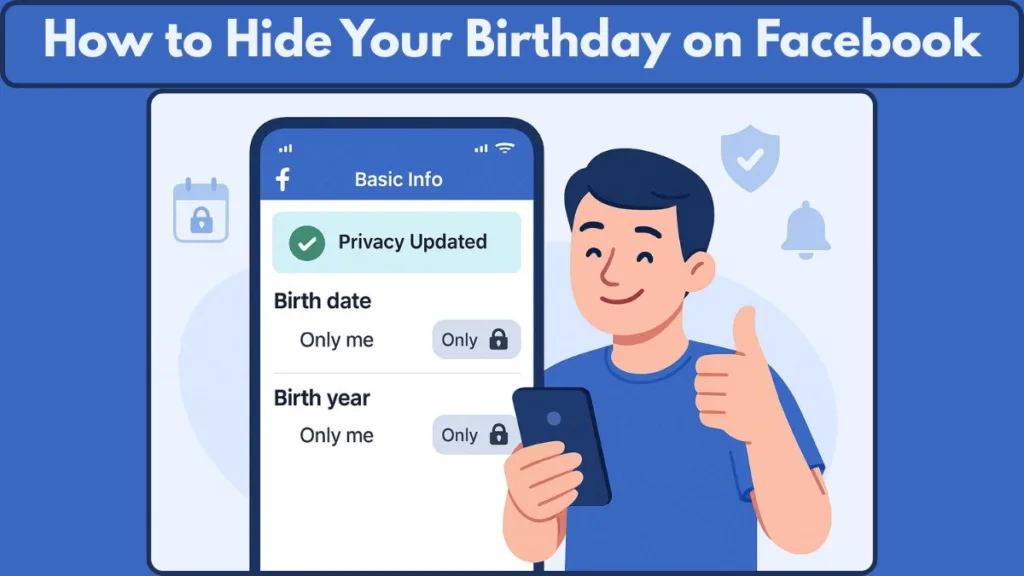
In this guide, you’ll learn how to make your birthday private on Facebook across both mobile and desktop, adjust who can see it, and even explore what to do if Facebook still shows it due to a privacy glitch or outdated settings. Everything is laid out in a clear, friendly way, so you’ll always know exactly where to tap or click.
By the end, you’ll feel confident customizing your birthday privacy settings, whether your goal is to hide your birth year, keep the date visible to Only Me, or fully remove your birthday from your profile. This gives you more control over your public profile, helps avoid unwanted attention, reduces the risk of personal data exposure, and strengthens your overall account security.
Things to Know Before You Hide Your Birthday
Your Birthday Isn’t Deleted — Just Hidden
Before you change your Facebook birthday privacy settings, it helps to understand what actually happens when you make your birthday private.
Hiding this detail doesn’t delete it — it simply controls who can see it on your public profile and whether Facebook will highlight it to others.
No More Public Birthday Announcements
When you hide your birthday on Facebook, your friends won’t receive reminders, notifications, or timeline prompts. This is great if you want to stop Facebook from showing your birthday or avoid a rush of messages you’re not in the mood for.
Still, close friends or family who already know your date may reach out on their own, and that’s completely normal.
Connected Apps May Still Access Your Basic Info
Another helpful thing to know is that certain apps or services connected to Facebook may still rely on your basic info, including your birthday — even if you hide it from public view.
That’s because third-party apps you’ve authorized can sometimes access underlying profile details unless you review app permissions carefully.
Birth Date and Birth Year Are Separate Settings
It’s also good to remember that on Facebook, your birth date and birth year are treated as two separate fields.
However, you can hide just your birth year to avoid revealing your age, while still allowing friends to see the day and month to get birthday wishes.
You Can Change Your Audience Anytime
You can switch between Only Me, Friends, or Friends Only anytime using the Audience and Visibility controls under your Contact and Basic Info.
So even if you want to temporarily hide your birth year or adjust who sees your date later, the setting is flexible and easy to update.
A Small Change for a More Private Experience
These small reminders make it easier to decide how much information you want to share — and help you take another step toward a more private, personalized Facebook presence.
How to Hide Your Birthday on Facebook From Your PC
Adjusting your Facebook birthday privacy settings on a desktop gives you full control over how your personal details appear on your public profile.
These steps walk you through every part of the process so you can confidently hide your birthday on Facebook and safeguard your information.
Open Your Facebook Profile on Desktop
Start by opening Facebook and clicking your profile name at the top of the homepage. This brings you to your public profile, where Facebook stores your posts, photos, and important details like your basic info and contact information.
Being on the correct page ensures that any changes you make apply directly to your profile details and not a separate section such as the feed or settings menu.
Navigate to the About Section to Access Personal Details
Under your cover photo, click the About tab. This area organizes your personal data into categories like Work and Education, Places You’ve Lived, and most importantly, Contact and Basic Info.
This is the central hub where Facebook stores your birth date, birth year, and other private details. Editing your birthday requires accessing this exact section, so this step is essential.
Open the Contact and Basic Info Section for Birthday Settings
On the left sidebar, select Contact and Basic Info. Scroll through until you find the Birthday fields.
Facebook divides this into two separate pieces:
- Birth Date (Month & Day)
- Birth Year
This separation lets you customize visibility more precisely — helpful if you want to hide your age on Facebook by concealing your birth year only.
Open the Birthday Privacy Menu to Change Visibility
Next to each birthday field, you’ll see an audience icon. The icon may appear as:
- A globe (Public)
- Two people (Friends or Friends of Friends)
- A lock (Only Me)
Click this icon to open the privacy menu. This menu is part of Facebook’s Audience and Visibility system, giving you full control over who can view each part of your birthday.
Select “Only Me” to Make Your Birthday Private
Choose Only Me from the audience options.
This step ensures:
- Your birthday is hidden from everyone
- It no longer appears on your timeline
- It cannot be viewed through your public profile
- Friends won’t receive birthday reminders or notifications
This setting is ideal for anyone who wants to stop Facebook from showing their birthday or reduce unwanted attention.
Save Your Updated Birthday Privacy Settings
Click Save or Done to apply your changes.
This final step locks in your new privacy preference. Once saved, your birthday will no longer appear anywhere on your profile, significantly improving your account security and minimizing unnecessary timeline visibility.
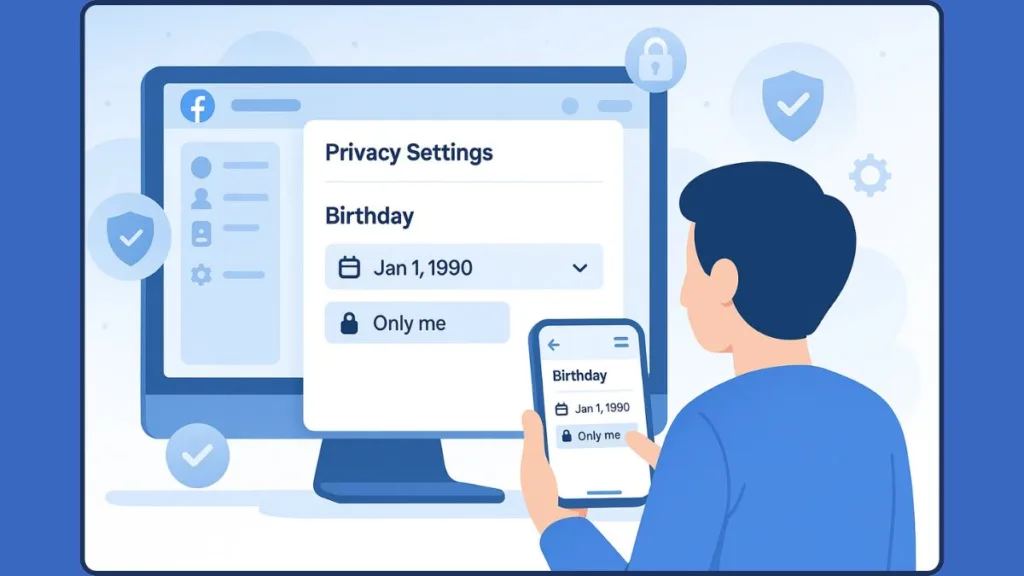
How to Hide Your Birthday on the Facebook Mobile App (iPhone & Android)
Using the Facebook mobile app gives you quick access to your privacy tools, making it easy to manage your birthday settings anytime.
These steps help you update your visibility whether you’re using iPhone or Android, with each step covering exactly where to tap and what settings matter most.
Open the Facebook App and Access Your Profile
Start by launching the Facebook app and tapping your profile picture at the top. This is the fastest way to reach your public profile, where you can adjust your basic info and profile details.
Mobile navigation is slightly different from desktop, so using the profile shortcut saves time and avoids confusion.
Go to the About Info Section to View Basic Information
Scroll down your profile and tap See Your About Info.
Here, Facebook organizes your personal data, including:
- Basic Info
- Contact Details
- Relationship Info
- Other editable profile categories
Your birthday is listed within Basic Info, which is where you’ll be making your changes.
Edit Your Birthday Details Inside Basic Info
Tap Edit in the Basic Info section. You will see two separate fields:
- Birth Date (Day & Month)
- Birth Year
This layout allows for flexible privacy control — especially useful if you want to hide your birth year while keeping your birthday visible for close friends.
Tap the audience selector next to your birth date or birth year. This opens the full list of visibility options, such as Public, Friends, and Only Me.
Choose “Only Me” to Hide Your Birthday on Mobile
Select Only Me from the available options.
This action ensures:
- Your birthday is fully hidden from all Facebook users
- No one can view your birthday on your timeline or basic info page
- Friends won’t receive automatic birthday reminders
- Strangers cannot use your birthday as part of identity guessing
This makes it easy to hide your birthday on Facebook iPhone or hide birthday on Facebook Android, improving your overall digital privacy.
Save Your Changes to Update Birthday Privacy Settings
Tap Save once you’ve selected your desired audience.
Your new settings apply instantly, and your birthday visibility will update across your profile, notifications, and search-related areas.
With these steps, you can confidently:
- Remove birthday visibility from your Facebook profile
- Manage privacy on any device
- Strengthen your social media privacy
- Reduce exposure to birthday-related spam
This ensures a cleaner, safer, and more personalized profile experience.
How to Turn Off Birthday Notifications About Friends
If your notification feed feels crowded with reminders about friends’ birthdays, you’re not alone. Facebook enables these alerts by default, but you can easily turn off birthday notifications and regain a more peaceful, focused experience.
The steps below walk you through how to manage this both on desktop and the mobile app while keeping your notification settings, privacy tools, and timeline visibility clean and organized.
Manage Birthday Notifications on Facebook (Desktop)
Adjusting this setting on your computer is straightforward and gives you complete control over how Facebook communicates updates related to your friends.
Open the Notifications Menu From the Top Bar
At the top of Facebook, click the bell icon. This area shows everything Facebook wants you to see—from friend requests to comments, tags, and of course, birthday reminders.
Opening this hub makes it easier to access the tools needed to update what types of notifications appear throughout your day.
Access Notification Settings Through the Three-Dot Menu
Inside the dropdown, click the three-dot menu located in the upper-right corner of the notification panel.
Select Notification Settings.
This section is part of Facebook’s broader Settings & Privacy dashboard, where you can control various categories including:
- Birthdays
- People You May Know
- Comments & Tags
- Activity About You
- Connections & Friend Requests
Facebook groups these categories so you can clearly choose what matters to you and silence what doesn’t.
Turn Off Birthday Notifications in Notification Preferences
Scroll down until you see the Birthdays option.
Click to open it, then toggle off Allow Notifications on Facebook.
Once disabled:
- You won’t receive reminders about upcoming birthdays
- Facebook won’t show belated birthday alerts
- The notifications tab becomes cleaner and less overwhelming
- No birthday-related prompts appear on your device
This change is immediate, and you can reverse it anytime by re-enabling the toggle.
Turn Off Friend Birthday Notifications on the Mobile App (iPhone & Android)
Whether you’re on an iPhone or Android device, Facebook gives you quick access to birthday notification controls for managing alerts on the go.
Open Your Notifications Tab in the Facebook App
Tap the bell icon at the top or bottom of the app interface, depending on your device.
This is your central location for alerts like tags, comments, event reminders, and birthdays.
Scrolling through this tab gives you direct access to the notification you want to disable.
Use the Three-Dot Menu to Disable Birthday Alerts Quickly
Find a birthday reminder within the notifications list, then tap the three-dot icon beside it.
Choose Turn Off Notifications About Friends’ Birthdays.
This is the fastest shortcut for users who don’t want to dig through the complete settings menu.
Use Facebook’s Full Notification Control Center (Mobile Advanced Method)
For users who want more granular control:
- Tap Menu (☰)
- Select Settings & Privacy > Settings
- Scroll to Notifications
- Tap Birthdays
- Toggle off:
- Allow Notifications on Facebook
- Push Notifications
- Email Notifications
- SMS Notifications
This ensures you stop seeing birthday reminders across all notification channels — not just inside the app.
Why Turning Off Birthday Notifications Helps You Stay in Control
Silencing these alerts isn’t just about decluttering your phone. It also:
- Reduces unnecessary digital noise
- Helps you stay focused without social interruptions
- Makes your Facebook experience more personalized
- Aligns with broader privacy habits, especially when combined with steps like hiding your birthday or adjusting profile visibility
- Minimizes notification fatigue, especially if you have hundreds of Facebook friends
These adjustments give you more intentional control over how Facebook interacts with you, letting you curate a calmer, distraction-free experience.
Why You Might Want to Hide Your Birthday on Facebook
Your birthday may seem like a small detail, but on social platforms, even basic information can reveal more than you expect.
Choosing to hide your birthday on Facebook is a simple step that can make a meaningful difference in your overall digital privacy, account security, and everyday experience on the platform.
Many cybersecurity experts note that a full birth date is one of the key pieces of information used in impersonation and fraud attempts, making it especially important to manage who can see it.
Protect Yourself From Identity Risks and Data Misuse
Your birthday is frequently used as a verification factor in financial accounts, online services, and recovery forms. When this information is public, it becomes easier for someone to gather enough data to impersonate you or bypass weak security questions.
Hiding your birthday — or even just hiding your birth year — provides stronger protection against:
- Identity theft and phishing attempts
- Guessing account recovery questions
- Social engineering attacks, which often rely on small personal details
- Unauthorized profiling, where scammers build digital dossiers from public data
Cybersecurity organizations such as the FTC and privacy advocates strongly recommend limiting exposure of personal information like birth dates to reduce the risk of identity-based fraud.
Reduce Unwanted Attention and Birthday Spam
Some people enjoy birthday messages, but others prefer a quieter digital space. When Facebook automatically highlights your birthday, it can lead to dozens of notifications, tags, and timeline posts — even if you aren’t actively using the platform.
By updating your Facebook birthday privacy settings, you can:
- Stop Facebook from announcing your birthday publicly
- Avoid overwhelming timeline activity
- Keep celebrations intimate or completely private
- Prevent auto-generated reminders from prompting engagement you don’t want
This also reduces notification fatigue, which many users experience due to constant alerts across multiple apps.
Keep Your Profile Clean, Professional, and Minimal
Whether you’re using Facebook socially or professionally, controlling what appears on your public profile helps shape how you present yourself to others. People who maintain a professional presence often choose to remove birthday visibility to minimize personal information exposure.
A cleaner profile:
- Reduces the amount of personal data visible to acquaintances or strangers
- Helps project a more focused, polished image
- Prevents assumptions about age, which can influence professional impressions
- Reduces the chance of others misusing information on your profile
With Facebook’s Audience and Visibility tools, you can manage your basic info in a flexible way — hiding only your birth year, keeping the day visible to close friends, or making everything private.
Maintain Consistent Privacy Across All Devices and Platforms
Once you hide your birthday on Facebook — whether through desktop, Android, or iPhone — the setting is synchronized across your entire account. This means:
- Your birthday disappears from your timeline
- Friends stop receiving automated reminders
- Your profile becomes harder for strangers to analyze
- Search tools cannot surface your birth date
- Third-party apps connected to Facebook are limited by your privacy settings
These changes make your profile safer and harder to exploit in data scraping or automated OSINT (Open-Source Intelligence) activities, which sometimes target publicly visible details like birthdays.
Align Your Digital Footprint With Your Privacy Comfort Level
Everyone has different preferences for how much personal information they share online. Hiding your birthday empowers you to take control of your digital footprint without deleting data entirely.
This helps you:
- Share only what you’re comfortable with
- Reduce exposure to personal identifiers
- Strengthen your social media privacy habits
- Prevent strangers from estimating your age
- Create a more intentional, secure online presence
Even small privacy adjustments like this support a safer experience across social media and help minimize the amount of personal information available to the public.
Troubleshooting: Why Is Your Birthday Still Showing on Facebook?
If you’ve already tried to hide your birthday on Facebook but it’s still visible — on your profile, timeline, or showing up in friends’ notifications — don’t worry.
This can happen for several reasons.
Below are common causes, and accurate ways to check and fix them, using trusted info from Facebook documentation and privacy-focused resources.
Separate Fields: Birth Date vs Birth Year — Both Need Privacy Settings
On Facebook, your birth date (month/day) and birth year are stored separately.
If you only changed visibility for one — say, hiding the year but leaving the date public — your birthday may still show up on profile or timelines.
What to do: Go to Profile > About > Contact & Basic Info > Basic Info, and change the audience for both fields to Only Me. That way, both day/month and year remain hidden.
Old Posts or Timeline Entries May Still Show Birthday Info or Wishes
Even if you hide birthday settings now, previous birthday posts — like old “Happy Birthday!” posts, auto-generated birthday notifications from past years, or shared celebrations — may still remain visible, because those fall under timeline visibility settings, not birthday privacy settings.
Facebook’s privacy settings only control profile fields; they don’t automatically hide old posts.
To fix this: Use Activity Log or manually manage your timeline. Filter by date or keyword (like “birthday”) and either hide or delete outdated birthday-related posts.
Cached or Sync Issues May Be Causing Delay in Privacy Update
Sometimes changes on Facebook take time to fully reflect across all devices — especially if you switch between desktop, mobile app, or different browsers. Cached profile data may still show old values until it refreshes.
If your birthday still appears after updating the audience, consider:
- Logging out and back in
- Clearing browser cache or app cache
- Waiting a few hours or a day for settings to sync
This often resolves display issues after a privacy update.
Friends May Still Get Birthday Reminders Already Scheduled
Even after you hide your birthday, Facebook may have pre-scheduled birthday reminders for friends — especially if your birthday was visible earlier in the year. These reminders can still show up because they were generated before your privacy changes.
In other words: turning off “show birthday” doesn’t cancel already queued notifications. For future years, reminders won’t generate if your birthday is private.
Third-Party Apps or Connected Services Could Be Exposing Birthday Info
If you’ve used Facebook login on other websites/apps or granted permissions to third-party services, those apps may still have access to your basic info, including birthday — even if your profile now hides it.
If privacy is your goal, check Settings > Apps and Websites, review all permissions, and remove access where possible.
Privacy Settings Are Profile-Specific — Check If You’re on the Right Profile
If you manage multiple accounts or profiles under Facebook’s Accounts Center, it’s possible you modified the wrong profile’s settings. Each profile keeps birthday visibility independent.
Double-check you’re editing the correct profile before making any changes again.
Platform-Specific Bugs or Browser/ App Version Issues
Facebook is updated frequently. Sometimes old versions of the mobile app or browser glitches can interfere with privacy settings, causing them to behave unexpectedly.
What To Do: Clearing cache, updating the app, or using a different browser/device often solves such problems.
If none of the above fixes work, give it some time — often the update sync completes within hours.
What to Do When Nothing Seems to Work
If after checking all above — birthday visibility, old timeline posts, app permissions, correct profile, clearing cache — your birthday still shows:
- Review Timeline & Tagging and Activity Log to catch hidden birthday references.
- Use “View As” mode (on desktop) to see what your profile looks like to the public/friends. This helps check if visibility has truly changed.
- If needed, adjust other privacy settings or contact Facebook support for persistent glitches.
FAQ
How do I make my birthday private on Facebook mobile?
Open the app and go to Profile > See Your About Info > Basic Info > Edit. Choose Only Me for both birth date and birth year, and tap Save. This hides your birthday from friends, your timeline, and birthday lists.
Can I hide my birth year but still show my birthday (day & month)?
Yes — Facebook stores birth date and birth year separately. You can set the year to Only Me while keeping just the day and month visible if you wish.
Why can some friends still see my birthday after I hid it?
That usually means only one of the fields (date or year) was hidden — or old posts with birthday info still exist on your timeline. Also, previously scheduled birthday notifications might still go out even after hiding your birthday.
How to stop Facebook from notifying friends about my birthday?
Set both your birth date and birth year to Only Me. With birthday visibility off, Facebook won’t generate reminders or show your birthday in friends’ notification lists.
How do I remove birthday-related posts from my timeline?
Go to Profile > Manage Posts (or Activity Log), search or filter by date or the word “birthday,” then hide or delete those posts. Privacy settings only hide fields — old posts won’t auto-disappear.
Is it safe to show your full birthday on Facebook?
Not always. A full birthdate is often used in identity verification and could be exploited in phishing or identity theft attempts. Limiting who sees it is a good step for better digital privacy.
Why is my birthday still visible in search results even after hiding it?
Sometimes, cached information or saved previews (on Facebook or via search engines) show old profile data. The visibility setting is updated — but external caches might take time to refresh.
Does hiding my birthday on Facebook affect my account in other ways?
No — hiding your birthday doesn’t block your access to Facebook features like messaging, games, or updates. It simply limits who can see your birthday information.
Final Thoughts
Adjusting your birthday visibility may seem like a small change, but it’s a powerful way to take control of your digital privacy and keep your public profile clean and intentional.
Whether your goal is to hide your birthday on Facebook, stop Facebook from announcing your birthday, or simply reduce the amount of personal information you share online, these tools give you the flexibility to choose what feels right for you.
By updating your Facebook birthday privacy settings, you create a safer space for yourself while avoiding unnecessary notifications, automated reminders, and birthday-related clutter on your timeline.
It’s a simple switch, but it goes a long way in strengthening your account security and protecting details that are often used in identity verification or by third-parties to build digital profiles.
Remember, your birth date and birth year are yours to control.
You can adjust visibility anytime using Only Me, Friends, or custom settings under Audience and Visibility.
And with the option to turn off friends’ birthday notifications, you’re fully in charge of how much birthday activity happens around your account.
“Small privacy choices add up — and hiding your birthday is an easy win for stronger account security.”
This one change helps you enjoy Facebook on your own terms, without oversharing information you’d rather keep private.
Especially today, when personal data is frequently targeted for exploitation or misused in phishing or identity-theft attempts, being mindful about what you share reduces your exposure significantly.
If you’re exploring more ways to protect your information, continue reviewing your basic info, notification settings, and other areas of your profile for even stronger social media privacy.
Visit Our Post Page: Blog Page