
Learn how to insert an emoji in Outlook in 2026 using all working methods. Add emojis on Windows, Mac, Outlook Web, and mobile with easy shortcuts.
Why Emojis Matter in Outlook Emails Today
If you’ve ever sent an email and worried it sounded too cold, unclear, or easy to misread, you’re not alone. Text-only messages often miss tone—and that’s exactly where emojis make a difference. Today, knowing how to insert emoji in Outlook isn’t about being casual; it’s about communicating clearly and effectively.
Modern email communication has changed. Emojis are no longer seen as unprofessional add-ons. When used thoughtfully, they help you add personality, express intent, and improve readability—whether you’re sending a quick update, a follow-up, or a friendly confirmation. A simple smiley face 😊 or thumbs up 👍 can instantly clarify tone in ways plain text cannot.
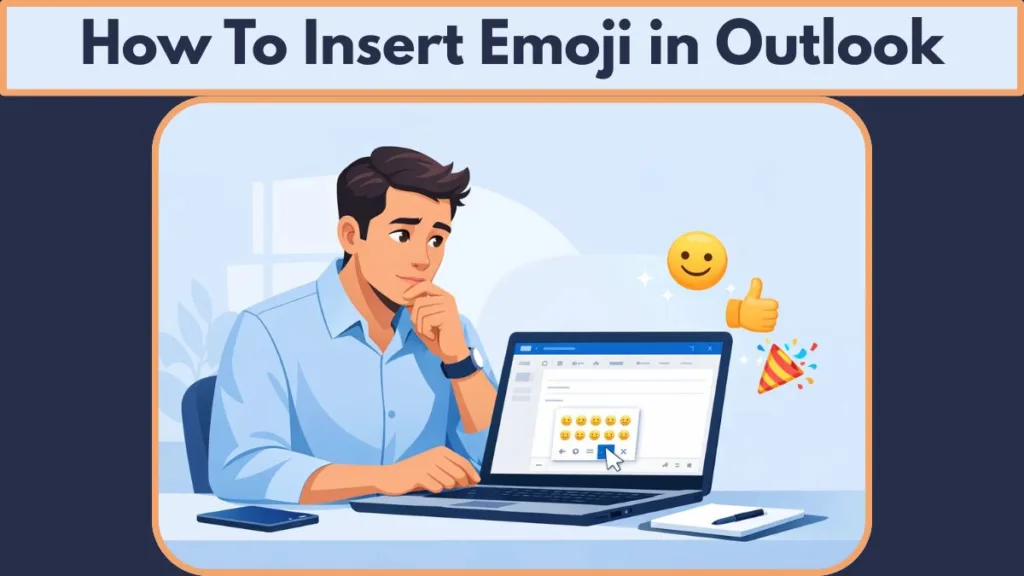
Microsoft Outlook fully supports Unicode emojis, which means you can add emoji to Outlook email messages using built-in tools like the emoji panel, emoji picker, and keyboard shortcuts. Whether you want to insert a smiley face in Outlook, use the Outlook emoji shortcut, or figure out how to put emojis in Outlook across desktop, web, or mobile, the options are already at your fingertips.
That said, many users still struggle with questions like:
- Why do Outlook emojis appear black and white?
- What’s the emoji keyboard shortcut for Outlook on Windows or Mac?
- Is it actually professional to use emojis in email?
If you want clarity—and control—you’re in the right place. In this guide, you’ll learn how to insert emoji in Outlook the right way, across devices and formats, so your emails sound human, confident, and intentional—every time.
Why Add Emojis in Outlook Emails for Better Communication?
Emojis Improve Clarity in Text-Only Emails
When you add emoji to an Outlook email, you’re not just decorating your message—you’re improving how it’s understood. Email lacks facial expressions, voice, and context, which is why even well-written messages can feel blunt or confusing. Emojis help bridge that gap by adding emotional clarity where words alone fall short.
Emojis Boost Engagement and Readability
Using emojis in Outlook can boost engagement instantly. A well-placed smiley face or thumbs up naturally draws the reader’s eye, making your message feel more approachable and easier to scan. This is especially helpful in long email threads, follow-ups, or quick confirmations where you want your intent to be clear at a glance.
Emojis Help You Control Tone and Intent
Emojis also play a key role in expressing tone. A short line like “Sounds good” can be interpreted in multiple ways, but adding a simple emoji changes everything. When you know how to insert emoji in Outlook, you gain more control over how your message is received—friendly, positive, or appreciative—without rewriting the entire sentence.
Emojis Are Now Accepted in Professional Emails
From a workplace perspective, emojis are no longer out of place. Outlook supports Unicode symbols, emoji panels, and emoji keyboard shortcuts, making it easy to use them in both personal and professional emails. When used in moderation, emojis can:
- Humanize communication in remote or hybrid work environments
- Make emails feel less rigid and more collaborative
- Improve readability by breaking up dense text
Using Emojis in Outlook the Right Way
If you’ve ever wondered whether it’s acceptable to insert a smiley face in Outlook or use the Outlook emoji shortcut in work emails, the answer is yes—when done thoughtfully. The key is balance. Emojis should support your message, not overpower it.
Once you understand how to put emojis in Outlook properly, they become a powerful communication tool—helping you sound clearer, warmer, and more intentional in every email you send.
Things to Know Before Using Emojis in Outlook
Before you start learning how to insert emoji in Outlook, it’s important to understand a few basics. These small details help you avoid common issues like emojis not displaying correctly or looking unprofessional to the recipient.
Emoji Support Depends on Method and Location
In Outlook, emojis can appear in different parts of an email depending on how you insert them. Some methods allow you to add emoji to the Outlook email body only, while others also work in the subject line. For example, the Outlook emoji shortcut using the emoji keyboard works almost everywhere, but built-in emoji panels may be limited to the message body.
Emojis Are Unicode-Based (Display Can Vary)
Outlook uses Unicode emojis, which are widely supported across modern devices. However, how an emoji looks can change based on:
- The recipient’s operating system
- The email client they’re using
- Font rendering settings
This is why some users see Outlook emojis in black and white instead of color. It’s not an error—it’s a compatibility difference.
Emoji Shortcuts May Work Differently on Each Platform
When you’re trying to put emojis in Outlook, shortcuts vary by device:
- On Windows, emojis rely on the Windows key + period or Windows key + semicolon
- On Mac, Outlook uses Control + Command + Space to open the Character Viewer
If the Outlook emoji shortcut is not working, it’s usually due to system settings, outdated software, or the email format being used.
Email Format Matters (Rich Text vs HTML)
Outlook emails can be composed in Rich Text or HTML format. While emojis generally work in both, HTML format offers better compatibility and consistent display—especially when you insert a smiley face in Outlook for professional communication.
Emojis Are Supported—But Moderation Is Key
Yes, it is professional to use emojis in Outlook emails—when done carefully. Emojis work best when they:
- Reinforce your message
- Clarify tone
- Stay relevant to the context
Overusing emojis or relying on non-standard symbols can reduce clarity and credibility, especially in formal conversations.
Add-ins and Alternatives Exist
If you want more flexibility, Outlook also supports emoji add-ins, copy-paste methods, and symbol insertion tools. These options can help if you’re trying to enable emojis in Outlook or need specific symbols beyond the standard emoji picker.
Once you understand these basics, inserting emojis becomes simple and predictable. With the right method, you can add emojis to Outlook emails confidently, without worrying about formatting issues or misunderstandings.
How to Insert an Emoji in Outlook on Windows (All Working Methods)
If you’re using Outlook on a Windows PC, you have multiple reliable ways to add emojis. Windows 10 and Windows 11 both include built-in emoji support, which means you can insert emoji in Outlook emails, subject lines, and even signatures—once you know the right method.

Below are all working options, explained clearly so you can choose what fits your workflow.
Method 1: Use the Windows Emoji Keyboard (Fastest Outlook Emoji Shortcut)
This is the most popular and flexible way to add emojis in Outlook on Windows.
You simply place your cursor where you want the emoji—either in the email body or subject line—and use the Outlook emoji keyboard shortcut:
- Windows key + period (.)
- Windows key + semicolon (;)
This opens the built-in emoji picker, where you can scroll through categories, search by name, and insert multiple emojis at once. Because this method relies on the Windows emoji panel, it works across Outlook desktop, web, and even other apps.
If you’re wondering how to put emojis in Outlook quickly, this is the method we recommend you use first.
Method 2: Use Outlook’s Emoji / Expressions Panel
Outlook also includes its own Expressions (Emoji) panel, accessible directly from the email composer.
When you’re writing an email:
- Go to the Insert tab
- Select the Emoji icon to open the expressions panel
You can browse emojis and click to insert them at the cursor’s position. This method is simple, but there’s an important limitation to know: it only works in the main email body, not the subject line. If you need an emoji in the subject, you can copy the emoji from the body and paste it where needed.
This option is useful if you prefer a mouse-based approach instead of shortcuts.
Method 3: Insert Emoji Using the Symbol Menu (Windows Only)
If you want more control—or you’re working on a system where shortcuts aren’t available—you can insert emojis using Outlook’s Symbol feature.
From the email window:
- Go to Insert → Symbol → More Symbols
- Choose Segoe UI Emoji or Segoe UI Symbol from the font list
This method lets you insert emojis as Unicode symbols, but display can vary. On some systems, emojis may appear black and white, especially if the recipient’s setup doesn’t fully support color emojis.
Use this method when you need maximum compatibility or when the Outlook emoji shortcut is not working.
Method 4: Type Emoticons or Emoji Names
Outlook also supports text-based emoji conversion, which feels natural if you’ve been emailing for years.
For example:
- Typing
:)or:-)and pressing Space can automatically convert it into a smiley face - Typing
:smile:may show emoji suggestions that you can confirm with Enter
This method works best in the email body and relies on Outlook’s emoticon and symbol recognition. If you prefer plain text, you can always press Backspace to revert to the original emoticon.
Which Windows Method Should You Use?
If your goal is speed and flexibility, the Windows emoji keyboard shortcut is the best choice. For precision or compatibility, the Symbol menu works well. And if you want a lightweight option, emoticons still get the job done.
Once you know these methods, inserting emojis in Outlook on Windows becomes effortless—and you’ll never struggle again to add emoji to an Outlook email the right way.
How to Insert an Emoji in Outlook on Mac (Using Emoji Viewer)
If you’re using Outlook on macOS, adding emojis is built right into the system. Apple provides a dedicated Emoji Viewer (also called the Character Viewer), which works seamlessly with Microsoft Outlook. Once you know where to look, you can insert emoji in Outlook on Mac in seconds—no add-ins or copy-paste tricks required.
Use the Mac Emoji Keyboard Shortcut (Fastest Method)
The quickest way to add emoji to an Outlook email on Mac is with the system shortcut:
- Press Control + Command + Space
This opens the Emoji Viewer, where you’ll see a full collection of Unicode emojis, symbols, and emoticons. You can scroll through categories, search by keyword (like smiley face or thumbs up), and click any emoji to insert it exactly where your cursor is placed in the email body.
If you’re looking for the Outlook emoji shortcut on Mac, this is the one you should rely on.
Insert Emojis Using the Menu Bar (No Shortcut Needed)
If keyboard shortcuts aren’t your thing, macOS also lets you open the emoji panel through menus:
- In Outlook, place your cursor in the email body
- Click the Edit menu from the top
- Select Emoji & Symbols
This launches the same Character Viewer, giving you full access to emojis, symbols, and special characters. It’s a reliable option if the shortcut isn’t working or if you prefer a visual workflow.
Where Emojis Work in Outlook for Mac
On Mac, emojis inserted through the Emoji Viewer work best in the main email body. Depending on your Outlook version, subject-line support may vary. If you need to insert a smiley face in an Outlook subject line, a simple workaround is to copy the emoji from the body and paste it into the subject field.
Display and Compatibility Notes
Because Outlook for Mac uses Unicode emoji support, most emojis display correctly for recipients. However, appearance can still depend on:
- The recipient’s email client
- Their operating system version
- Whether the email is sent in HTML format
If you ever notice emojis displaying differently—or not at all—it’s usually a compatibility issue, not a problem with Outlook itself.
Once you’re familiar with the Emoji Viewer and the Control + Command + Space shortcut, adding emojis in Outlook on Mac becomes effortless. It’s one of the easiest ways to put emojis in Outlook while keeping your emails clear, friendly, and professional.
How to Add Emojis in Outlook Mobile (Android & iPhone)
When you’re sending emails on the go, Outlook mobile makes it easy to add emojis using your phone’s built-in keyboard. You don’t need any special settings or add-ins—once you know where the emoji key is, you can add emoji to Outlook email messages on both Android and iPhone in just a few taps.
Add Emojis in Outlook on iPhone
On iOS devices, emojis are part of the default keyboard. To insert emoji in Outlook on iPhone, follow a simple flow:
- Open the Outlook app and start a new email or reply to an existing one
- Tap inside the email body where you want the emoji
- Switch to the emoji keyboard by tapping the smiley face or globe icon on your keyboard
- Select a Unicode emoji and it will be inserted instantly
This method works smoothly for adding common emojis like a smiley face, thumbs up, or heart, helping you communicate tone clearly even in short messages.
Add Emojis in Outlook on Android
On Android, the process is just as straightforward:
- Launch the Outlook mobile app
- Tap the message area to bring up the keyboard
- Tap the smiley icon (or long-press the Enter key on some keyboards) to open emojis
- Choose the emoji you want and place it directly into your email
Because Android keyboards fully support Unicode symbols and emoticons, emojis appear consistently for most recipients.
Where Emojis Work in Outlook Mobile
On both Android and iPhone, emojis work best in the main email body. Subject-line support may vary by app version, but if you need an emoji there, you can often copy and paste it from the body.
Since Outlook mobile sends emails in HTML format, emojis generally display as expected across devices. If you ever notice emojis missing or appearing differently, it’s usually tied to the recipient’s email client rather than your phone.
Why Mobile Emojis Are Ideal for Quick Communication
Knowing how to put emojis in Outlook mobile is especially useful for quick replies, confirmations, or friendly follow-ups. Mobile emojis let you keep messages short while still sounding polite, positive, and human.
Once you’re comfortable using your phone’s emoji keyboard, inserting emojis in Outlook mobile becomes second nature—making everyday email communication faster and more expressive.
Alternative Ways to Insert Emojis in Outlook Emails
Even though Outlook offers built-in ways to insert emojis — like using the emoji panel or keyboard shortcuts — there are other smart methods you can use to put emojis in Outlook when you want more flexibility or can’t access the usual tools.
Use Emoji Add-Ins (Extensions for More Options)
If the standard emoji picker in Outlook doesn’t give you enough choices, you can explore emoji add-ins from the Microsoft Store. These add-ins may include larger emoji libraries, stickers, or fun reactions you can insert directly into your email. You can find these by going to Home > Get Add-ins and searching for emoji — then follow the installation steps.
Add-ins are especially helpful if you want professional emojis for email or themed emojis that your regular emoji keyboard doesn’t show.
Copy and Paste Emojis from the Web
Sometimes the fastest alternative is simply copying the emoji you want from a website (like an emoji directory or online emoji library) and pasting it into your Outlook email. This works in both desktop app and Outlook Web — and you can even use this trick to insert emojis in Outlook signature or subject lines.
This method is useful when:
- You want an emoji not easily found in the picker
- You need to add emoji to areas where the built-in picker doesn’t work
- You’re using an older Outlook build without a visible emoji button
Insert Online Pictures or Custom Emoji Images
Another alternative — especially if you need custom emojis or large icons — is to insert them as pictures:
- While composing an email, go to Insert > Pictures > Online Pictures.
- Search for emoji or a specific symbol you want.
- Choose and insert the image directly into your message.
This lets you use emojis as visual elements rather than text characters, which is helpful when sending newsletters or graphic-rich messages.
Use Text Codes and AutoConvert Emoticons
Outlook often recognizes familiar emoticon text codes (like :-) or ;)) and can convert them into emojis automatically when the email is sent. This is a tiny but convenient way to insert a smiley face in Outlook without touching any menus — just type and let Outlook do the rest.
This works well if:
- You’re in a hurry
- You prefer text-to-emoji conversion
- You like keeping your workflow keyboard-centric
Customize Your Own Shortcut Replacements
If you find yourself using certain emojis often — like 👍, 😊, or ❤️ — you can create your own AutoCorrect replacements in Outlook. For example, typing :thumbs: could be set to automatically replace with 👍. While this takes a bit of setup, it speeds up repetitive actions in long email threads.
These alternative methods ensure that regardless of how you compose your message — desktop app, web, signature field, or subject line — you always have a way to add emoji to Outlook emails without breaking your flow. Just remember: whatever method you use, emojis should enhance your message, not overpower it.
Emojis Not Showing Correctly in Outlook? (Fixes & Compatibility Tips)
Sometimes, emojis don’t display the way you expect in Outlook — and that can be confusing when you’re trying to make your message clear and friendly. This usually isn’t a sign of a broken feature, but rather a compatibility or rendering issue that’s worth understanding before you send your next email.
Why Emojis Might Look Different (Black & White or Grayscale)
One of the most common quirks people notice is that emojis appear black and white or in grayscale — especially in older versions of Outlook on Windows. This happens because some Outlook clients rely on an older rendering engine (like Word’s engine) that doesn’t display emojis in full color, even if you inserted a colorful symbol using the Windows emoji keyboard or other methods.
For example:
- Outlook for Windows (Classic) may show emojis in grayscale, especially in the subject line or certain parts of the email body.
- Modern versions such as Outlook on the Web, New Outlook for Windows, and Outlook on Mac or mobile use system-level support that shows emojis in full color.
This doesn’t mean your emoji didn’t get inserted correctly — it’s just a display limitation of the email client you’re using.
When Emojis Show as Weird Symbols or Question Marks
If an emoji shows up as a box, question mark, or strange symbol, it usually means the Unicode character wasn’t interpreted correctly — either by your email app or the recipient’s. This can happen when the email or device doesn’t support the newest emoji sets or when the email encoding isn’t set properly.
To avoid this:
- Make sure you’re composing in HTML format rather than plain text.
- Use standard emojis instead of very new or custom symbols.
- Update your Outlook and operating system to the latest version.
Fix: Update Outlook and Your System
If emojis aren’t showing up correctly, one of the best fixes is to ensure both Outlook and your operating system are up to date. Newer builds include support for the latest Unicode emojis and often fix rendering issues that caused emojis to display incorrectly in older versions.
Fix: Use Supported Fonts
Outlook uses specific fonts like Segoe UI Emoji to render emojis. If the font isn’t available or supported, emojis may fall back to black-and-white symbols or boxes. Switching to a supported font, or ensuring that font is available, can help improve how emojis display.
Tip: Test Before Sending
Because emoji rendering can vary based on device and email client, it’s a good idea to send yourself a test email before sending to a larger audience. This helps you confirm that the emoji appears correctly in both the body and — if you’re trying it — the subject line.
Best Practices for Using Emojis in Outlook Emails Professionally
Knowing how to insert emoji in Outlook is only half the job. The real value comes from using emojis the right way, especially in professional communication. When emojis are used thoughtfully, they enhance clarity and tone. When overused, they can distract or dilute your message.
Use Emojis With Purpose, Not for Decoration
Every emoji you add should support the message, not replace it. A smiley face can soften a follow-up, and a thumbs up can confirm agreement—but random emojis add noise. When you add emoji to an Outlook email, ask yourself if it improves understanding or tone. If it doesn’t, skip it.
Match Emojis to the Email Context
Professional emails aren’t all the same. Emojis work well in:
- Quick confirmations
- Friendly follow-ups
- Internal team communication
They’re less appropriate in legal, financial, or formal announcements. Even when you insert a smiley face in Outlook, moderation keeps your message credible.
Stick to Standard, Widely Supported Emojis
Outlook relies on Unicode emojis, which ensures better compatibility across devices. To avoid display issues like Outlook emojis appearing black and white, use common emojis rather than newly released or niche symbols. This is especially important if recipients use different email clients or older Outlook versions.
Be Careful With Subject Lines
Yes, you can insert emoji in Outlook subject lines, but use them sparingly. One well-placed emoji can boost visibility; too many can look unprofessional or trigger spam filters. Always test how the subject line appears before sending important emails.
Prefer Keyboard Shortcuts and Built-In Tools
Using the Outlook emoji shortcut, emoji panel, or emoji picker ensures clean insertion without formatting issues. Avoid copying image-based emojis unless you intentionally want a visual element, such as in newsletters.
Consider Your Audience First
What feels friendly to one recipient may feel informal to another. Before you put emojis in Outlook emails, think about:
- Your relationship with the recipient
- Company culture
- The purpose of the email
If in doubt, keep emojis minimal—or leave them out.
When used intentionally, emojis become a professional communication tool, not a gimmick. Mastering both how to add emoji in Outlook and when to use them ensures your emails stay clear, respectful, and effective.
Frequently Asked Questions About Inserting Emojis in Outlook
What is the shortcut key for emojis in Outlook?
The Outlook emoji shortcut depends on your device. On Windows, press Windows key + period (.) or Windows key + semicolon (;) to open the emoji panel. On Mac, use Control + Command + Space to launch the Emoji Viewer. These shortcuts are the fastest way to insert emoji in Outlook emails.
How do I get the emoji keyboard on Outlook?
Outlook itself doesn’t have a separate emoji keyboard. Instead, it relies on your system’s built-in tools. On Windows, use the Win key shortcut to open the emoji picker. On Mac, open the Character Viewer. In Outlook Web, use the emoji icon in the message toolbar to add emojis directly.
Why don’t emojis show up correctly in my Outlook?
If emojis appear as boxes, question marks, or black and white symbols, it’s usually a compatibility issue. Common causes include:
- Using plain text instead of HTML format
- An outdated Outlook or operating system
- Font limitations (such as missing Segoe UI Emoji support)
Switching to standard Unicode emojis and keeping Outlook updated usually resolves this.
Is it professional to use emojis in Outlook emails?
Yes, it can be professional to add emoji to Outlook email messages—when done carefully. Emojis work best in friendly, conversational emails or internal communication. Use them sparingly, choose relevant symbols like a smiley face or thumbs up, and avoid overusing emojis in formal or external emails.
How do I insert a thumbs up emoji in Outlook?
To insert a thumbs up in Outlook, place your cursor where you want the emoji and:
- Press Windows key + . on Windows
- Press Control + Command + Space on Mac
- Use the emoji button in Outlook Web or mobile
Then search for or select the 👍 emoji from the list.
Final Thoughts: How to Insert Emojis in Outlook the Right Way
Knowing how to insert emoji in Outlook gives you more than just a visual extra—it gives you better control over communication. When used correctly, emojis help you express tone, reduce misunderstandings, and make emails feel more human without sacrificing professionalism.
Outlook offers multiple reliable ways to add emoji to Outlook email messages across Windows, Mac, Outlook Web, and mobile. Whether you rely on the Outlook emoji shortcut, the emoji panel, the emoji picker, or simple keyboard-based methods, you always have an option that fits your workflow. Even if you need to insert a smiley face in Outlook, add a thumbs up, or place an emoji in the subject line, the tools are already built in.
The key is intentional use. Stick to standard Unicode emojis, send emails in HTML format, and be mindful of compatibility issues like black and white emojis on older Outlook versions. When you balance clarity with moderation, emojis enhance your message instead of distracting from it.
Once you understand how to put emojis in Outlook properly, email communication becomes clearer, warmer, and more effective. Use emojis as a support tool—not a replacement for words—and you’ll write emails that are easy to read, easy to understand, and easy to respond to.
Useful Resources to Learn More About Emojis in Outlook
If you want to go beyond basic steps and understand how emojis work across different Outlook versions, the following resources are reliable and practical. We recommend these because they come from official sources or well-established tech guides.
Official Microsoft Resources (Most Reliable)
- Microsoft Support – Add flair to your email with emojis: This is Microsoft’s official guide explaining how to use the Windows emoji picker, emoji shortcuts, and add-ins in Outlook. If you want confirmation straight from Microsoft, this is the best reference.
- Microsoft Support – Keyboard shortcuts in Outlook for Mac: This resource confirms the correct Mac emoji shortcut (Control + Command + Space) and other useful Outlook shortcuts.
Visit Our Post Page: Blog Page