
Do you want to download Windows Store for 7? Let’s learn if it is possible to install Microsoft Store in Windows 7 and explore the safest alternatives for your PC.
You are trying to install the Microsoft Store on Windows 7 because you want a simple, centralized way to download apps. As you look around online, you keep seeing phrases like “Download Microsoft Store for Windows 7” or “Microsoft Store app download for Windows 7 Ultimate.” At this point, you need to stop. This is not something you are doing wrong, and it is not a missing setting or broken file.
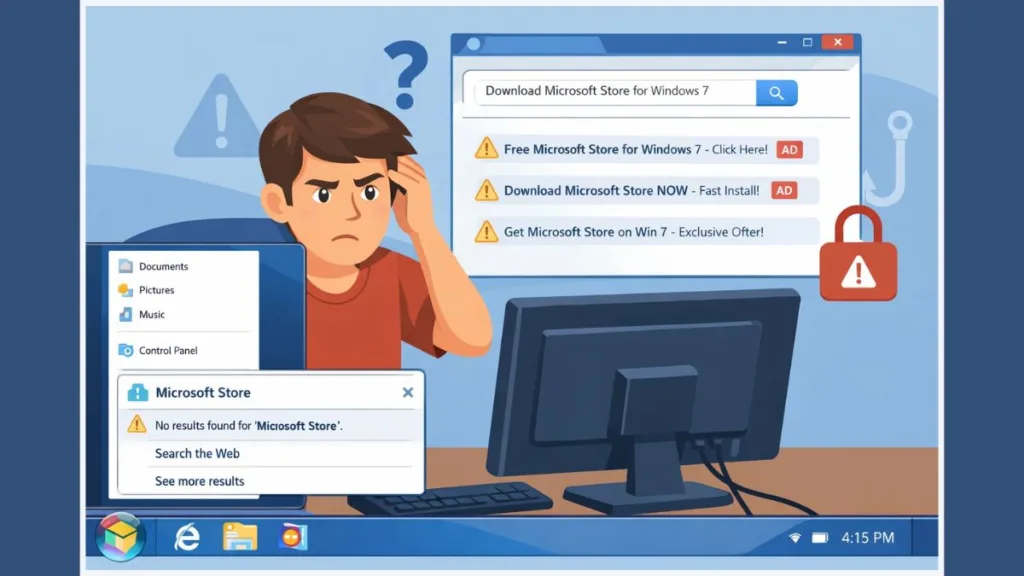
The Microsoft Store app does not exist for Windows 7. It cannot be installed. It cannot be enabled.
Your risk right now is not “missing out on apps.” Your real risk is downloading something unsafe while chasing a feature that was never built for your system. This guide stays beside you while you’re clicking, searching, and troubleshooting, tells you exactly where things break, and then redirects you to the correct and safe way to get apps on Windows 7.
Is It Possible to Install Microsoft Store on Windows 7?
No. It is not possible to install Microsoft Store on Windows 7.
As you check your system, you may open the Start Menu and search for “Microsoft Store.” Nothing appears. You may go into Control Panel or Programs and Features expecting to find it disabled or uninstalled. It is not there. When you search online and see people talking about a “missing Microsoft Store in Windows 7,” that language is misleading.
The Store was never included in Windows 7. There is nothing missing.
Microsoft introduced the Store starting with Windows 8. Windows 7 predates the entire platform. If you are on Windows 7, the Store is not hidden, broken, or removed—it simply does not exist on your system.
At this point, if you are still trying to “enable” it, you are already moving toward unsafe territory.
Why Microsoft Store App Download for Windows 7 Does Not Exist
As you dig deeper, you may try searching for a direct installer. You may think, “If I can just download the Microsoft Store setup file, this will work.” That file does not exist.
The Microsoft Store depends on UWP, AppX, and a modern application framework that Windows 7 does not support. Even if you fully update Windows 7, install Service Pack 1, and apply .NET Framework 4.8, the core platform is still missing.
When you try tutorials that mention PowerShell scripts, AppxManifest.xml, or copying Store files from another PC, you hit dead ends. Commands fail. Windows throws errors like “Element not found.” Buttons referenced in guides are not present. Features mentioned simply do not appear.
This is not a configuration issue. This is a platform limitation.
No amount of updates or registry edits can add a platform that Windows 7 was never designed to run.
Why Installing Windows 10 Store on Windows 7 Fails Every Time
At this stage, you may try a different angle. You search for “install Windows 10 Store on Windows 7” or “run Windows Store apps on Windows 7.” You may land on blogs, forums, or GitHub pages claiming success.
When you follow those steps, here’s what actually happens: files copy but do not register, services fail to start, and the Store never launches. If it launches at all, it crashes immediately. Compatibility Mode does nothing because this is not a version check—it’s a missing subsystem.
Even tools like wsreset.exe that are commonly mentioned do not apply here. That utility does not exist for Windows 7. If you try to run it, nothing happens because the Store itself is not present.
There is no functional method to install Windows 10 Store files on Windows 7. Every guide claiming otherwise is incomplete or false.
Warning: Download Microsoft Store for Windows 7 Is a Common Scam
This is the most important point where you must slow down.
As you continue searching, you will see pages using terms like:
- Microsoft Store for Windows 7 64 bit free download
- Microsoft Store download for PC Windows 7 32 bit
- Microsoft Store app download for Windows 7 Ultimate
Treat every one of these phrases as a red flag.
You may see big download buttons, countdown timers, or claims that “Microsoft doesn’t want you to know this.”
These are scams. There is no legitimate Microsoft Store installer for Windows 7.
If you download a random .exe claiming to be the Store, you are not installing an app store. You are installing malware, adware, or a system hijacker. This is how browsers get redirected, systems slow down, and personal data gets exposed.
If you are at a page that is not owned by Microsoft and it claims to install the Store on Windows 7, close it immediately.
Method 1 – Use Microsoft Store Web Version on Windows 7 (Safe Workaround)
This does not install the Store app, but it gives you a Store-like interface without risk.
You open Microsoft Edge and search for Microsoft Store. When you click the official result, you land on apps.microsoft.com. This is Microsoft’s official Store website. As you browse, you may recognize the layout from newer Windows versions.
Assuming you are running the last supported version of Microsoft Edge on Windows 7 (v109), when you open Edge’s menu and choose “Install this site as an app,” you create a desktop shortcut that opens the Store website in its own window. When you switch to this shortcut, it feels like an app—but it is still a website.
This does not install the Microsoft Store app. It gives you a safe, official interface to download supported desktop software.
UWP-only apps will still not install. That limitation does not change.
Method 2 – Best Alternatives to Microsoft Store for Windows 7 (Recommended)
If what you actually want is an easy, safe way to install apps, this is the path that makes sense.
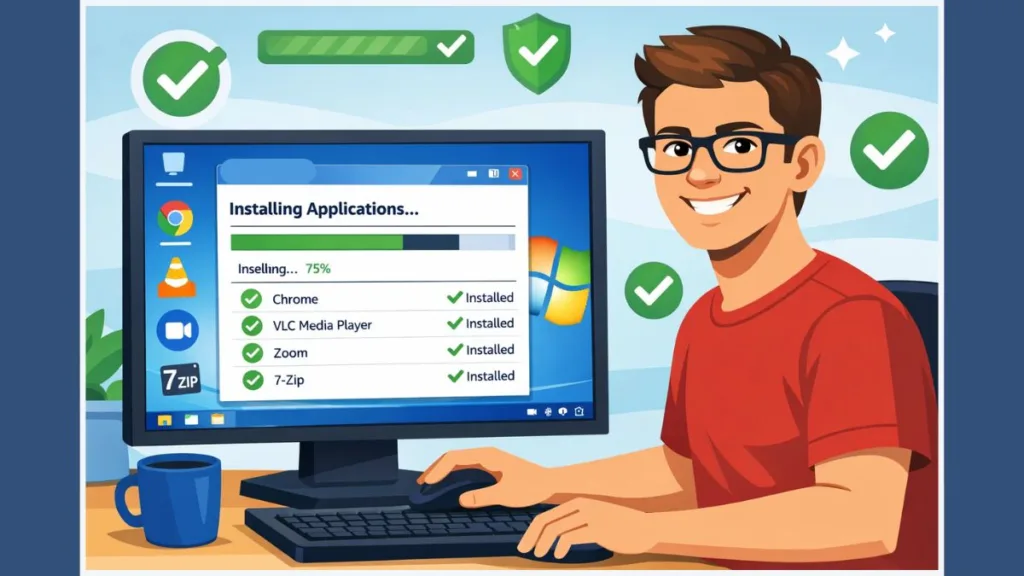
You use Ninite.
As you open the site, you see a list of common applications. You check the ones you need, download one installer, and run it. As it installs, there are no pop-ups, no toolbars, no fake offers. Everything installs silently in the background.
This replaces the function of the Microsoft Store without pretending to be the Store itself.
This is the safest and most practical solution for Windows 7.
How to Download Apps on Windows 7 Without Microsoft Store
When you want apps on Windows 7, you must think in terms of desktop installers, not Store apps.
As you try to install WhatsApp, Instagram, or similar apps, you may notice that Store-only versions will not run. That is expected. In these cases, you either use official desktop versions or the web interface through your browser.
When you switch your approach from “Store apps” to “desktop software,” Windows 7 works exactly as intended.
Can You Install Windows 10 Apps on Windows 7 Using Virtual Machine?
If you truly need Store-only apps, there is only one technical path.
You run Windows 10 inside a Virtual Machine using a legitimate ISO image. When you do this, the apps run inside the virtual system, not on Windows 7 itself. This requires additional RAM, CPU power, and setup time.
This does not convert Windows 7 into a Store-compatible system. It isolates a newer OS inside it.
Anything else claiming native installation is misleading.
Microsoft Store Not Opening or Missing in Windows 7 – Explained
When you search for fixes like “Microsoft Store not opening Windows 7,” you are solving the wrong problem.
The Store is not failing to open. It is not installed. Reset commands, reinstall steps, and troubleshooting guides for Windows 10 do not apply here.
There is nothing to repair because nothing was ever installed.
Frequently Asked Questions About Microsoft Store on Windows 7
Is it possible to install Microsoft Store on Windows 7?
No. It was never supported and cannot be added.
How do you download apps on Windows 7?
You use desktop installers, the Store web interface, or trusted alternatives.
Why is there no Microsoft Store on your computer?
Because Windows 7 predates the Microsoft Store platform.
Can you install Windows 10 apps on Windows 7?
Not natively. Only through virtualization.
What is the best app store for Windows 7?
There is no official Store. Safe installers and verified alternatives are the correct approach.
Final Verdict: What to Do Instead of Trying to Install Microsoft Store on Windows 7
If you are still trying to install the Microsoft Store on Windows 7, stop. That path leads to broken tutorials and unsafe downloads.
What works is using official installers, trusted alternatives, and—only if absolutely required—virtual machines. This keeps your system stable, secure, and usable.
Stop chasing the Store. Start installing the apps. That is the only correct move forward on Windows 7.
Visit Our Post Page: Blog Page