
Want to know how to teleport anywhere in Minecraft 2025? Learn the easiest way to use the /tp command for fast travel across worlds.
Have you ever found yourself lost deep underground, far from your base, and wished you could magically appear back home? Or maybe your friend got stranded across the map, and you’d love to teleport directly beside them instead of spending hours traveling? That’s the beauty of teleportation in Minecraft — your instant, in-game travel system that takes you anywhere with a simple command.

Teleporting allows you to move instantly between specific coordinates, locations, or even dimensions in Minecraft. Once you understand the basics, it can completely transform how you play — saving time, improving teamwork, and adding new layers of creativity to your builds.
This comprehensive guide explains how to teleport in Minecraft for Java, Bedrock, and console editions. You’ll learn how to enable cheats, understand coordinate systems, use teleport commands correctly, create teleport pads, and even teleport across worlds. Whether you’re a new player or a server admin, this guide has everything you need to master Minecraft teleportation.
What Is the Teleport Command in Minecraft?
The Minecraft teleport command — written as /teleport or its shortcut /tp — is a built-in game command that instantly moves players or entities to another location. It’s one of the most powerful features available in Minecraft’s command system and works across all major editions with small syntax differences.
Think of it as Minecraft’s fast travel system. It lets you jump anywhere in your world, reach specific coordinates, or even teleport between the Overworld, Nether, and End dimensions. You can:
- Teleport to friends or teammates instantly during multiplayer games.
- Return to your base after exploring distant lands.
- Move mobs or entities for farms, redstone contraptions, or builds.
- Teleport between dimensions in Java Edition using the
/executecommand.
Example commands:
/tp Steve Alex
/teleport @p 150 64 250
The first moves Steve to Alex’s position, and the second teleports a player to specific coordinates.
Since Minecraft version 1.13, both /tp and /teleport perform the same function. You can use either depending on your preference.
Why Players Use Teleport Commands in Minecraft
Teleportation isn’t just a fun trick — it’s a huge time-saver and an essential tool for both solo adventurers and team players. It enhances gameplay by making travel more efficient and safer.
Fast Travel and Time-Saving in Minecraft Worlds
Minecraft worlds are massive, stretching millions of blocks in every direction. Walking or sailing to faraway biomes can take hours of in-game time. The teleport command makes exploration faster and smoother by allowing players to move across these vast distances instantly. This is especially helpful for large-scale building projects or exploration-based gameplay.
Teleport for Multiplayer Coordination and Events
In multiplayer worlds, teleportation is perfect for organizing group events, raids, or team builds. It ensures players can easily gather in the same place, no matter where they are. For instance:
/tp @a @s
This command teleports all players in the world to your current location — a convenient tool for server hosts or event organizers.
Survival Safety and Quick Escapes
Teleporting isn’t just for convenience — it’s also a lifesaver. Whether you’re exploring dangerous caves, stuck in lava, or surrounded by mobs, a teleport command can quickly bring you to safety. It’s one of the best ways to avoid item loss and save valuable resources in survival mode.
How to Enable Cheats to Use Teleport Commands in Minecraft
Before using any teleport command, you must enable cheats in your Minecraft world. Without cheats, commands like /tp won’t work.
Enabling Cheats in Minecraft Java Edition
- When creating a new world, set Allow Cheats: ON before starting.
- If your world is already created, open the Pause Menu, select Open to LAN, toggle Allow Cheats: ON, and click Start LAN World.
You don’t need to be connected to a LAN — this simply enables commands for your current session.
Activating Cheats in Minecraft Bedrock Edition (Mobile, Console, Windows 10)
- Pause your game.
- Go to Settings > Game > Cheats.
- Turn on Allow Cheats.
Enabling Teleportation on Servers or Realms
In multiplayer or server-based gameplay, only players with operator (OP) permissions can use teleport commands. If you’re the server owner or admin, type:
/op <playername>
Once enabled, you can freely use teleport commands and other operator features like /give, /time set, or /weather.
Tip: Enabling cheats disables achievements for that world. If you care about progress tracking, make a backup first before turning on cheats.
Understanding Minecraft Coordinates (X, Y, Z System)
To teleport precisely, you need to understand Minecraft’s coordinate system — which uses three values: X, Y, and Z. These define your position in the world:
| Axis | Meaning | Direction | Example |
|---|---|---|---|
| X | East ↔ West | Positive = East / Negative = West | 150 / -150 |
| Y | Up ↔ Down | Positive = Higher / Negative = Lower | 70 / 50 |
| Z | North ↔ South | Positive = South / Negative = North | 200 / -200 |
Example:
/tp Steve 150 64 -200
This moves Steve to coordinates X=150, Y=64, Z=-200.
Key Reference Levels:
- Sea level: Y = 62
- Nether lava level: Y = 31
To check coordinates:
- Java Edition: Press F3 for the debug screen or type
/tp ~~~to see your current location. - Bedrock Edition: Go to Settings > Game > Show Coordinates.
Understanding coordinates ensures you always know exactly where you’re going — crucial when teleporting long distances or between worlds.
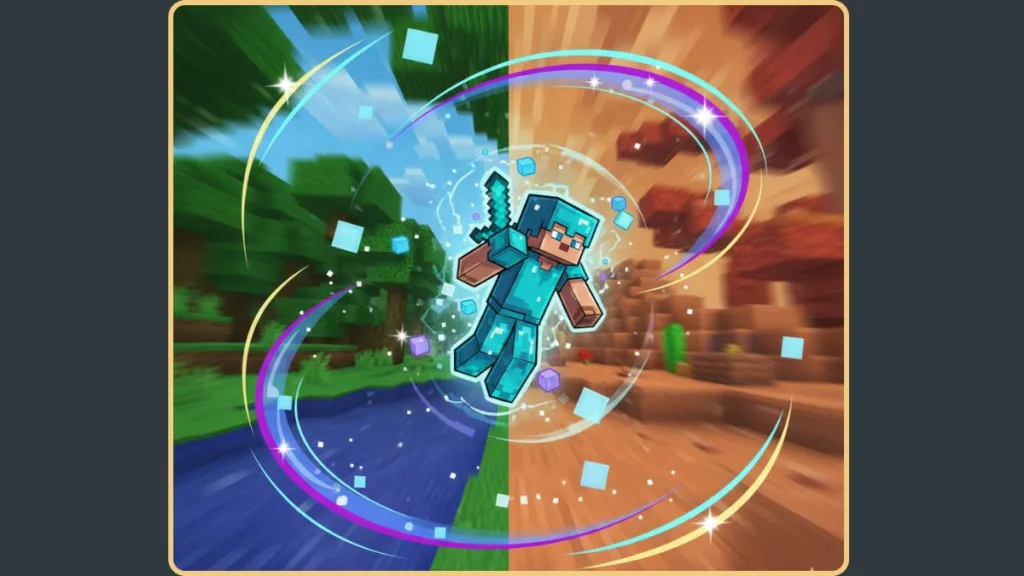
Minecraft Teleport Command Syntax by Edition
Each Minecraft version has its own teleport syntax, though the basic structure remains the same.
Java Edition Teleport Syntax
/teleport <targets> <destination>
/teleport <targets> <x> <y> <z>
/teleport <targets> <x> <y> <z> [yRot] [xRot]
/teleport <targets> <x> <y> <z> facing <entity or location>
- <targets>: Specifies who or what to teleport (e.g.,
@p,@a,@e, or player name). - <destination>: The coordinates or entity where the teleport ends.
- [yRot] [xRot]: Adjusts facing direction after teleportation.
- facing: Lets you make the player face another entity or direction.
Bedrock Edition Teleport Syntax
/teleport <victim> <destination>
/teleport <victim> <x> <y> <z> [yRot] [xRot]
/teleport <victim> <x> <y> <z> facing <lookAtEntity>
- <victim>: The player or entity being teleported.
- facing: Sets the orientation of the teleported player.
Coordinate Limits: In Java Edition, the maximum teleport range is ±30,000,000 for X/Z and ±20,000,000 for Y. Attempting to teleport outside this range will fail.
Step-by-Step Guide: How to Teleport in Minecraft
Once cheats are enabled, teleporting is simple and works the same way on all platforms.
Step 1: Open the Chat Window
Commands are entered via chat:
- PC: Press T
- Console: Press Right on the D-Pad
- Mobile: Tap the Chat icon
Step 2: Enter a Teleport Command
Examples:
/tp PlayerName 120 70 -340
/tp @p @s
/tp @e[type=cow,limit=3] ~ ~5 ~
The first command teleports a player to specific coordinates. The second brings the nearest player to you, while the third moves a limited number of entities upward by 5 blocks.
Step 3: Execute the Command
Press Enter. If the syntax is correct, you’ll instantly move to the target location and see a success message such as “Teleported Steve to 120, 70, -340.”
Step 4: Try Relative Coordinates
The tilde symbol ~ allows relative movement from your current position:
/tp @p ~10 ~ ~-5
This moves the player 10 blocks east and 5 blocks north, keeping the same height.
How to Teleport to Players, Entities, and Coordinates in Minecraft
You can teleport to other players, mobs, or coordinates — or teleport them to you.
- Teleport to another player:
/tp Steve Alex - Teleport everyone to your position:
/tp @a @s - Teleport entities or mobs:
/tp @e[type=sheep] 100 65 200 - Teleport vertically upward:
/tp @p ~ ~100 ~
Selectors such as @a (all players) and @e (entities) give you more control for creative builds or multiplayer commands.
Advanced Teleport Commands and Creative Uses in Minecraft
Teleport commands also serve creative and administrative purposes beyond simple travel.
Controlling Facing Direction and Rotation
Use rotation parameters to control where players face after teleporting — perfect for adventure maps or cinematic builds:
/tp Steve 100 64 200 facing @p
Teleporting Between Minecraft Dimensions
In Java Edition, you can teleport across dimensions:
execute in minecraft:the_nether run teleport ~ ~ ~
This moves you to the Nether at the same coordinates as your current Overworld position.
Creating Teleport Pads with Command Blocks
Command blocks automate teleportation for adventure maps or server hubs.
/teleport @p 200 70 150
Attach the command block to a button or pressure plate to activate.
Combine Redstone circuits and teleport commands to create interactive teleport stations, puzzle maps, or custom hubs.
Best Alternatives to Teleporting in Minecraft (Without Cheats)
If you prefer not to enable cheats, Minecraft offers several natural teleportation methods:
- Ender Pearls: Throw them to teleport to the landing spot. They’re fast but cause minor damage.
- Nether Portals: Use the Nether’s 8:1 coordinate ratio to travel long distances efficiently.
- Warp Plugins: Many multiplayer servers use plugins or datapacks to create warp points or “home” commands without cheats.
Some technical players also use Redstone teleport chambers or chunk-loaded Ender Pearl systems to mimic teleportation without commands.
Fixing Common Minecraft Teleport Command Errors
| Issue | Reason | Solution |
|---|---|---|
| “Unparseable command” | Typo or spacing error | Double-check syntax |
| “Target not found” | Player/entity not in range | Use selectors (@p, @a, @e) |
| Teleport fails (Bedrock) | Block collision detected | Add checkForBlocks:false |
| Coordinates exceed limit | Too far outside map range | Stay within ±30,000,000 X/Z |
| Nothing happens | Cheats off or no permission | Enable Allow Cheats or request OP status |
Bedrock syntax is stricter than Java, so always verify that the order and format match the correct edition.
Pro Tips and Expert Practices for Using Teleport Commands
- Always record your base coordinates before exploring distant areas.
- Use
/setworldspawnor/spawnpointto mark safe teleport locations. - Combine
/locateand/tpto jump directly to discovered structures:/locate structure minecraft:stronghold /tp @p <coordinates> - Avoid teleporting underground or inside lava. Always double-check the Y value.
- Use relative coordinates (
~) for precise short-distance movement. - For servers, use command blocks or datapacks to automate teleport functions for players.
FAQs About Teleporting in Minecraft
Can I teleport without using cheats?
Yes, by using Ender Pearls or Nether Portals for long-distance travel.
How do I teleport to a friend in Bedrock Edition?
Enable cheats, then type:
/tp YourName FriendName
What does the “~” symbol mean?
It means “relative to your current position.” Example: ~10 moves you 10 blocks from your current spot.
Can I teleport between dimensions?
Yes, but only in Java Edition. Use the execute in command to specify the destination dimension.
Why isn’t my teleport command working?
Common reasons include disabled cheats, typos, or missing permission levels. Ensure commands are correctly formatted and cheats are turned on.
Conclusion: Travel Smarter and Build Faster in Minecraft
Teleportation transforms the way you experience Minecraft. Instead of spending hours traveling or risking your life in dangerous biomes, you can instantly move anywhere you want — from your home base to a faraway village or your friend’s build.
Learning how to teleport in Minecraft gives you greater freedom, efficiency, and control over your world. Whether you’re exploring, building, or managing a server, teleportation opens new creative and practical possibilities.
Now you know how to teleport in Minecraft — explore, build, and adventure without limits!
Visit Our Post Page: Blog Page