
Looking to invite friends to like your FB page? Learn how to send your Facebook page invites quickly with simple steps you can follow on mobile and desktop devices.
Growing your Facebook page doesn’t have to be complicated.
One of the easiest and most effective ways to get traction is simply by inviting your existing friends to like your page.
Whether you’re running a business, building a personal brand, or starting a community, this small step can significantly boost your organic reach and early engagement.
In today’s highly competitive digital landscape, organic reach on Facebook can sometimes hover between 1% and 5% for standard pages.
Before you even think about spending money on Meta Ads Manager to promote your content, tapping into your warm network is the smartest, most cost-effective first move.
In this complete guide, you’ll learn exactly how to invite friends to like your Facebook page across mobile, desktop, and Messenger.
We’ll also cover practical troubleshooting fixes, limits, and proven strategies to grow faster using the latest tools available in 2026.
Why You Should Invite Friends to Like Your Facebook Page: The Algorithm Advantage
Inviting friends is more than just a quick numbers game—it’s the absolute foundation of your page’s early growth and social proof.
When you launch a brand new page, Facebook’s algorithm has zero data on who your target audience is or what content resonates.
Here is why it matters:
- Increased Visibility: More likes mean your content is shown to a wider audience through Facebook’s algorithm. As your friends engage with your initial posts, Facebook registers that your content has value, pushing it out to the friends of your friends (the multiplier effect).
- Stronger Social Proof: When people see your page is already liked by mutual friends, they are far more likely to trust and follow it. This psychological phenomenon, often called the “bandwagon effect,” is a massive driver of conversion. A page with 250 likes looks infinitely more credible than a page with 3 likes.
- Better Engagement: Your existing network is more likely to interact with your posts, helping boost early organic reach. Friends are typically willing to leave a supportive comment or share a post just to help you out, which feeds the algorithm positive signals.
- Faster Growth Momentum: Your first 100–500 likes often come straight from your existing friends list. Reaching that 100-follower milestone is crucial because it unlocks deeper page insights and analytics within the Meta Business Suite, allowing you to track demographics and engagement metrics accurately.
- Building a Custom Audience Foundation: Later on, if you decide to run Facebook Ads, you can create a “Lookalike Audience“ based on the people who currently like your page. If your friends match your target demographic, this gives Meta’s ad algorithm a fantastic head start in finding new, paying customers.
If you’re wondering, “Should I invite friends to like my Facebook page?” — the answer is absolutely, but you need to do it smartly and strategically.
Before You Start Sending Invites: The Essential FB Page Setup Checklist
Before you send out a single invite, take a few minutes to optimize your page in the Meta Business Suite or page settings.
People will check out your page before hitting “like,” so first impressions matter! > Sending traffic to an empty, unoptimized page is like inviting guests to a house that hasn’t been built yet.
Make sure you complete this setup checklist to maximize your conversion rate:
- Add a high-quality profile picture and cover photo: Use tools like Canva or Adobe Express to design professional-looking graphics formatted perfectly for Facebook’s 2026 dimensions. Ensure your logo is centered in the profile picture and that your cover photo clearly communicates your value proposition.
- Write a clear, compelling “About” section: Don’t leave this blank. Clearly state who you are, what you do, and what kind of content followers can expect. Use relevant keywords naturally so your page can also be discovered via Facebook Search.
- Publish at least 3 to 5 quality posts so the page doesn’t look empty: This is critical. Post a welcome message, a helpful tip related to your industry, an engaging question, or a behind-the-scenes look at your project. You want visitors to immediately see the value of subscribing to your feed.
- Include your contact details, website link, or business hours: Ensure your Linktree, official website, or primary contact method is easily accessible.
- Set up your Action Button (CTA): Right below your cover photo, Facebook allows you to add a primary call-to-action button. Set this to “Send WhatsApp Message,” “Learn More,” “Book Now,” or “Sign Up” depending on your primary business goal.
- Pin a Top Post: Take your best piece of content or a detailed introduction and pin it to the top of your page. This guarantees it is the first thing your friends see when they click your invite link.
How to Invite Friends to Like Page on Facebook App (Mobile): Step-by-Step Tutorial
Using the Facebook app is the most common and convenient method, as most users manage their social media directly from their smartphones.
Here is how to do it on both iPhone and Android devices using the standard Facebook application:
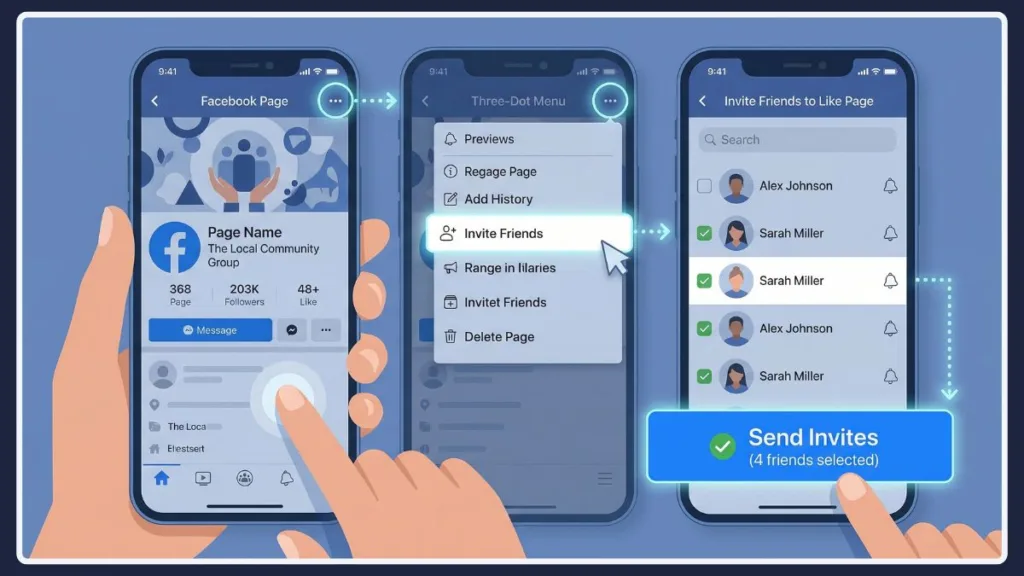
- Open the Facebook app and navigate to your Page. You can find your pages by tapping the menu icon (your profile picture with three horizontal lines) usually located at the bottom right on iOS or top right on Android.
- Tap the three dots (•••) located under the page name and cover photo. This opens your Page settings and management menu.
- Tap Share.
- Select Invite Friends to Like This Page.
- Select the specific friends you want to invite. (Pro Tip: Use the search bar to quickly find specific people if you have a massive friends list).
- Tap the Send icon.
Using the Meta Business Suite App:
If you are serious about managing your page, it is highly recommended to download the dedicated Meta Business Suite mobile app.
This app separates your personal feed from your business management tools.
Inside the Meta Business Suite app, you can navigate to the “Explore” or “Tools” tab, where Facebook regularly prompts you with a dedicated “Grow Your Audience” module that allows you to seamlessly invite friends and track how many accepted your invitation over time.
How to Invite Friends to Like Facebook Page on Desktop: Computer & Browser Guide
If you’re working from a computer, the process gives you a bit more control and makes bulk selecting easier.
Navigating via a desktop browser (like Chrome, Safari, or Edge) is highly recommended for initial setups because the interface is less cramped and you have a clearer view of your audience lists.
- Open Facebook in your web browser and go to your Page. Ensure you are logged into the personal profile that has administrative access to the page.
- Click the three dots (•••) under your cover photo.
- Select Invite Friends from the dropdown menu.
- Choose All Friends to see your full list. You can also filter this list by specific parameters, such as friends who are in specific groups you manage or friends from specific geographic locations.
- Select the people you want to invite.
- Click Send Invites.
How to Invite All Friends to Like Your Facebook Page at Once: Time-Saving Hacks
Want to save time? When you have the desktop invite window open, look for the Select All option.
This allows you to send bulk invitations in one click.
However, be mindful of Facebook’s limits (detailed below) and try to send invites in batches so you don’t look like a spammer.
While there are Google Chrome extensions that claim to “auto-invite” all friends bypassing Facebook’s limits, use these at your own risk.
In 2026, Meta’s security algorithms are incredibly strict, and using unauthorized automated scripts can result in your personal account being temporarily restricted or your page being shadowbanned. Stick to the native “Select All” feature.
A More Personal Approach to Facebook Page Invites: The Messenger Method
If you want a significantly higher acceptance rate, skip the automated notification and use Messenger.
Automated Facebook notifications easily get lost in a sea of tags, group alerts, and friend requests.
A direct message, however, commands immediate attention.
This personal touch works incredibly well for business pages, tight-knit communities, and service-based professionals.
- Copy your Facebook page link. You can do this by going to your page, clicking the three dots, and selecting “Copy Link to Page.”
- Open Messenger (either the mobile app or via desktop).
- Send a direct message with the link and a quick, genuine note explaining why you are starting this page and why their support matters.
High-Converting Sample Invite Messages for Your Network
Tailor your approach based on your relationship with the person. Here are several templates you can copy, paste, and customize:
| Tone | Message Template | Best Used For |
| Friendly & Casual | “Hey [Name]! I just created a Facebook page about [Topic]. I’m putting a lot of work into it and I’d really appreciate your support—feel free to check it out and drop a like if you enjoy it! 😊” | Close friends, family members, and peers. |
| Professional | “Hi [Name], I hope you’re doing well! We’ve officially launched our new Facebook page for [Business Name] to share industry updates and helpful content. It would mean a lot if you could follow and support us. Here is the link: [Link]” | Colleagues, former coworkers, and professional acquaintances. |
| Value-Driven | “Hey [Name]! I know you’re interested in [Niche/Topic], so I wanted to share my new page with you. I’ll be posting free guides and tips every week. Would love to have you in the community! [Link]” | Friends you know share a specific hobby or interest with your page. |
| Short & Simple | “Hey! Would love your support on my new page. Check it out here: [Link] 👍” | Acquaintances or quick bulk messages to a wide network. |
Avoiding Restrictions: The Facebook Page Invite Friends Limit Explained
Facebook has a few restrictions in place to prevent spam, protect user experience, and stop bot accounts from artificially inflating page numbers.
Understanding these limits prevents you from landing in “Facebook Jail.”
- Session Limit: You can typically only invite up to 200 friends at a time within a single session. If you try to select more, the system will usually gray out the names or return an error message.
- Daily Limits: While not officially disclosed in Meta’s documentation, sending too many invites in a 24-hour window can temporarily block your ability to send more. Community consensus indicates that sending over 500 invites in a single day triggers algorithmic red flags.
- Algorithmic Cooldowns: If a large percentage of the people you invite reject the invitation or mark it as spam, Facebook will temporarily revoke your invite privileges.
- Best Practice: Invite your network gradually over a few days rather than spamming everyone at once. Start by inviting 50 to 100 of your closest friends who are guaranteed to accept. This builds a 100% acceptance rate history, signaling to Facebook that your invites are high quality, which keeps your account in good standing when you send out larger batches later in the week.
Why Can’t I Invite Friends to My Facebook Page? Quick Troubleshooting
Technology doesn’t always work flawlessly. If you hit a roadblock while trying to grow your audience, here are the most common issues and their technical fixes:
- The Invite Button is Missing: Make sure you are interacting as your personal profile, not as the Page itself.
With Facebook’s “New Pages Experience,” your page acts as its own separate profile. You cannot invite personal friends while operating under the Page’s identity.
Click your profile picture in the top right corner and switch back to your personal account. Then, navigate to the page and try again.
- You Cannot Invite Certain Friends: They might have already liked the page, which automatically removes them from the eligible invite list. Alternatively, their personal privacy settings might block incoming page invites. Many users toggle off “Page Invites” in their notification settings to avoid spam.
- You Lack Admin Privileges: If you are listed as an “Analyst” or have restricted access on a business page, you will not have the permission level required to send mass invites. Ensure the Page Owner has granted you full or partial management access.
- Invites Aren’t Being Accepted: Your friends might just be missing the notifications. Try following up with a gentle Messenger note! Also, check your Page Quality dashboard to ensure your page hasn’t been flagged for community standard violations, which can sometimes suppress your notifications.
- App Glitches: If the feature simply refuses to load on your smartphone, go to your phone settings and clear the Facebook app cache (on Android, go to Settings > Apps > Facebook > Storage > Clear Cache). If you are on an iPhone, try uninstalling and reinstalling the app to force an update to the latest version.
Frequently Asked Questions (FAQ) About Facebook Page Invites
Can I invite non-friends to like my Facebook page?
No, Facebook’s direct invite tool only works for people currently on your personal friends list.
To reach non-friends, you’ll need to share your page publicly on your timeline, post valuable content in relevant Facebook Groups, collaborate with other creators, or ask your existing audience to share your content.
You can also utilize Meta Ads to run “Page Likes” campaigns targeted at specific demographics outside your network.
Can you invite friends more than once?
No. Once an invitation is sent, you cannot resend it immediately.
The user has the choice to accept or ignore it. If they ignore it, the system prevents you from continually harassing them.
How do I invite people who liked a post to my page?
This is a highly effective growth hack! If you are using Professional Mode or the Meta Business Suite, you can often click on the reaction counts (the thumbs up or heart icons) on a specific post. This pulls up a list of everyone who reacted.
Next to the names of people who aren’t following your page yet, you will see an “Invite” button.
Clicking this sends a notification saying, “[Your Page] invited you to follow them after you reacted to their post.” This has a very high conversion rate because the user has already demonstrated interest in your content.
Is it a good idea to buy Facebook likes to get started?
Absolutely not. Buying likes from third-party click farms will flood your page with bot accounts.
While your follower count will look high, these accounts will never engage with your content.
When Facebook sees that you have 10,000 followers but your posts only get 2 likes, their algorithm assumes your content is terrible and will stop showing it to real people entirely.
Always prioritize authentic, organic growth.
What if my friends aren’t in my target audience?
This is a common concern for niche B2B business pages. If you run a highly specialized software company, your family members probably won’t engage with your technical posts.
In this case, you should still invite a small core group of supportive friends just to build initial social proof (getting those first 20-50 likes).
After that, pivot entirely to content marketing, SEO, and targeted groups rather than relying on your personal network, to ensure your engagement metrics remain accurate to your ideal customer profile.
Final Thoughts: Growing Beyond the Initial Facebook Page Invites
Inviting friends to like your Facebook page is the perfect way to kickstart your growth, but it is only step one of a much larger journey.
With the right approach—whether you use the mobile app, the desktop interface, or a personalized Messenger note—you can quickly build a strong, credible foundation for your brand.
Once your friends have joined your page, your focus must shift immediately to retention and engagement.
Create a consistent content calendar using scheduling tools like Buffer or Hootsuite.
Focus on delivering high-value video content, leveraging Facebook Reels (which currently receive massive organic push from the algorithm), and interacting genuinely with every comment you receive.
Building a thriving online community takes time, but every massive page on Facebook started with a single “like.”
Take action today: Open up your Facebook page, optimize your profile to look as professional as possible, and send out your first batch of invites!
Visit Our Post Page: Blog Page