
Discover how to leave a review on Facebook in 2026. Step-by-step guide to posting a recommendation on a business page, adding photos, and managing your Facebook reviews.
Online reviews influence how people choose restaurants, services, shops, and even local professionals. Facebook reviews are one of the easiest ways to share your experience and help others make informed decisions. If you recently interacted with a business and want to share feedback, learning how to leave a review on Facebook only takes a few minutes.
Facebook has evolved its review system over the years. Instead of relying only on a traditional star rating, the platform now focuses on recommendations, where users choose whether they recommend a business and then explain their experience. These reviews appear publicly on the business page and help build trust through real customer feedback.

In this guide, you’ll learn how to leave a Facebook review step-by-step, how to post reviews from mobile devices, how to edit or delete a review, and what to do if the review option is missing.
Facebook Review or Recommendation: Understanding the Basics of the Platform’s System
Before learning how to write a review on a Facebook page, it helps to understand how Facebook’s review system works today.
Facebook originally used a star rating system, where users rated businesses from one to five stars. Over time, the platform shifted toward a recommendation model, which focuses on whether users recommend a business instead of only assigning a rating.
Now when leaving a review you typically see the question:
“Do you recommend this business?”
You can choose: Yes (Recommend). No (Do Not Recommend).
After selecting an option, you can write a detailed explanation of your experience and add photos or tags.
Even though the interface focuses on recommendations, Facebook page ratings are still calculated using past reviews and recommendations combined. This means both older star ratings and modern recommendations contribute to a business’s reputation.
Facebook Business Page Reviews: Why They Matter and the Power of Social Proof
Facebook remains one of the most widely used platforms for customer feedback and social proof. When someone leaves a review, it becomes part of the business’s public profile where potential customers can see real experiences.
Here’s why Facebook business page reviews matter:
| Benefit | Description |
| They help customers make better decisions. | People often check reviews before choosing restaurants, service providers, or online sellers. |
| They build trust and credibility. | Positive feedback increases confidence in a business and can influence purchasing decisions. |
| They support local businesses. | Reviews give small businesses visibility and highlight quality service. |
| They help businesses improve. | Constructive feedback allows business owners to identify problems and enhance customer experiences. |
Because of these benefits, learning how to recommend a business on Facebook can make a real difference for both customers and companies.
Requirements Before You Leave a Review on Facebook: An Essential Checklist
Before posting a review, a few conditions must be met.
First, you must have an active Facebook account and be logged in. Without an account, you cannot leave a review on a Facebook page.
Second, the business must have a Facebook Business Page with reviews enabled. Some businesses turn off the review feature in their settings.
Finally, make sure you are on the correct business page. Searching the exact business name helps avoid reviewing the wrong page.
Once these requirements are met, you’re ready to leave a Facebook review.
How to Leave a Review on Facebook: A Complete Step-by-Step Walkthrough
If you’re wondering how to leave a review on Facebook, follow these simple steps.
Step 1: Log in to Your Facebook Account for Active Access
Start by opening Facebook on your browser or the mobile app and signing in using your email address or phone number and password. Once logged in, you will see your Facebook home feed, confirming that your account is active.
Step 2: Search for the Business Facebook Page to Ensure Accuracy
Use the search bar at the top of Facebook and type the name of the business you want to review. From the results, select the official Facebook business page. Many businesses include branding, location details, or verification badges that help confirm authenticity.
Step 3: Open the Reviews Tab to Locate the Feedback Section
After opening the page, look for the Reviews tab near the top menu.
If the tab is not visible, try the following: Check the About section. Click More. Scroll until you find the review section.
This area displays existing Facebook business reviews from other customers.
Step 4: Select “Do You Recommend This Business?” to Begin the Process
At the top of the review section, you will see the question: “Do you recommend this business?” Choose either Yes or No depending on your experience. This recommendation system replaces the traditional star-only rating method.
Step 5: Write Your Facebook Review with Specific and Helpful Details
After selecting Yes or No, a text box will appear where you can write your feedback.
When writing your review, try to include: What product or service you used. What stood out during your experience. Any helpful details for future customers.
Facebook typically requires a minimum character count to ensure reviews contain meaningful feedback.
Step 6: Add Photos or Tags to Enhance Your Facebook Recommendation (Optional)
You can enhance your review by uploading images.
Examples include: Photos of food or products. Images of the business location. Screenshots of services.
Photos make reviews more helpful and provide context for other users.
Step 7: Post Your Facebook Review After Selecting Your Audience
Before posting, you can choose who will see your review.
Audience options usually include: Public. Friends.
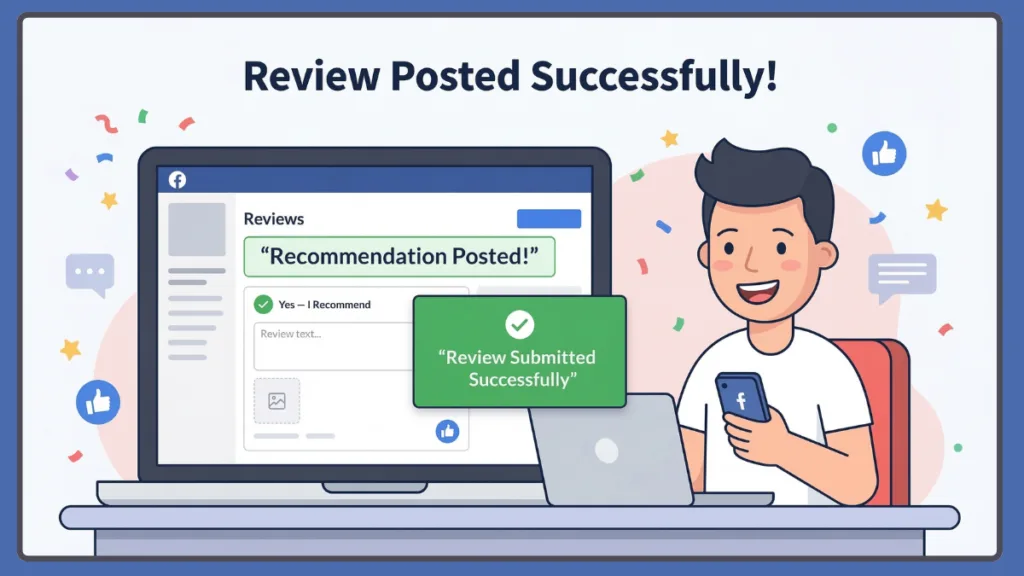
Most users keep reviews public so others can benefit from the feedback. Once everything looks good, click Post. Your review will immediately appear on the business page.
How to Leave a Facebook Review on Mobile (Android & iPhone): App Instructions
Many people prefer leaving reviews using the mobile app. Fortunately, the process for leaving a Facebook review on mobile is almost identical.
To leave a review on Facebook using Android or iPhone: Open the Facebook app. Search for the business page. Tap the Reviews tab or check the About section. Select Yes or No to recommend the business. Write your review and tap Post.
The only difference is that the layout may look slightly different on mobile devices, but the steps remain the same.
How to Rate a Seller on Facebook Marketplace: E-commerce Feedback Rules
Facebook Marketplace also allows buyers to rate sellers. However, Marketplace reviews work differently from business page reviews.
After completing a transaction, Facebook may prompt buyers to rate the seller. The rating system usually appears in the chat or transaction history.
To rate a Marketplace seller: Open the Marketplace conversation. Locate the Rate Seller option. Select a rating and add feedback.
This system helps maintain trust within the Marketplace community.
How to Edit or Delete a Facebook Review: Updating Your Feedback Easily
If you change your mind or want to update your experience, you can easily modify your review.
To edit or delete a Facebook review: Go to the business page where you posted the review. Navigate to the Reviews section. Find your review. Click the three-dot menu beside it. Choose Edit Review or Delete.
Editing reviews can be useful if your experience improves or if the business resolves a problem.
Why You Can’t Leave a Review on Facebook: Troubleshooting Common Issues
Sometimes users cannot find the option to post a review. Common reasons include:
| Issue | Reason |
| Reviews are disabled. | Some businesses turn off the review feature in their page settings. |
| The page is not a business page. | Personal profiles or community pages may not allow reviews. |
| The review tab is hidden. | Facebook interface updates sometimes move the tab to the About section. |
| App interface differences. | If you cannot find the option on mobile, try using the desktop version. |
If the Facebook review tab is missing, checking these possibilities usually solves the issue.
Facebook Reviews vs Recommendations: What’s the Difference in Platform Updates?
Many users wonder what happened to Facebook star ratings. Originally, Facebook used a simple 1-to-5 star rating system. Businesses were ranked based on the average of those ratings.
Today, the platform uses recommendations instead of pure star ratings.
The key difference is: Reviews focused on star scores. Recommendations focus on whether users recommend the business.
However, Facebook still calculates an overall rating using both historical reviews and modern recommendations.
Tips for Writing a Helpful Facebook Review: Best Practices for Users
Writing a good review helps others understand what to expect. Consider these tips when leaving feedback.
| Tip | Details |
| Be specific about your experience. | Mention what product or service you used. |
| Highlight what stood out. | Explain why the experience was good or bad. |
| Stay respectful and honest. | Constructive criticism is more useful than emotional comments. |
| Avoid vague reviews. | Short comments like “Great!” or “Bad service” provide little value. |
Detailed reviews contribute to better customer feedback and stronger social proof.
Can You Leave an Anonymous Review on Facebook? Privacy Settings Explained
Many users ask whether it’s possible to leave a review anonymously. In most cases, Facebook reviews are linked to your profile, meaning your name and profile picture appear with the review.
However, you can adjust visibility settings before posting by choosing an audience such as Friends instead of Public.
Completely anonymous reviews are not supported because Facebook aims to keep feedback authentic.
Frequently Asked Questions: Facebook Reviews and Recommendations
How do I leave a review on a Facebook page?
Open the business page, go to the Reviews section, select Yes or No under the recommendation question, write your feedback, and click Post.
Why can’t I leave a review on Facebook?
You may not see the review option if the business disabled reviews, the page is not a business page, or the review tab is hidden in the interface.
How do I edit or delete my Facebook review?
Go to the Reviews section on the business page, find your review, click the three-dot menu, and choose Edit or Delete.
How do I leave a review on Facebook from mobile?
Open the Facebook app, search for the business page, tap the Reviews tab, select Yes or No, write your review, and tap Post.
What’s the difference between a recommendation and a review on Facebook?
A recommendation asks whether you recommend the business and includes written feedback, while older reviews relied mainly on star ratings.
Final Thoughts on Sharing Your Experience: Facebook Reviews Impact
Learning how to leave a review on Facebook is simple, but it can have a significant impact. Your feedback helps businesses improve, guides future customers, and builds trust within online communities.
Whether you’re recommending a great restaurant, reviewing a local service, or sharing your experience with a business, posting a Facebook review takes only a few minutes but can influence many people’s decisions.
So the next time you have an experience worth sharing, consider leaving a thoughtful Facebook review and helping others discover businesses they can trust.
Visit Our Post Page: Blog Page