
Want to transfer and use your Pokémon across games in 2026? Learn how to link Pokémon Champions to Pokémon HOME with easy steps. From connecting accounts to transferring Pokémon and fixing errors, build powerful battle-ready teams today.
Competitive Pokémon battling has become second nature for millions of trainers around the world. With the official launch of Pokémon Champions on April 8, 2026, the ecosystem is faster, more streamlined, and filled with endless strategic options. But sometimes, technical synchronization matters more than the battle itself. Whether you’re preparing for a high-stakes regional tournament, bringing in a cherished Shiny from a past generation, or simply looking to consolidate your battle-ready roster, learning how to link Pokémon Champions to Pokémon HOME is the first step toward competitive dominance.
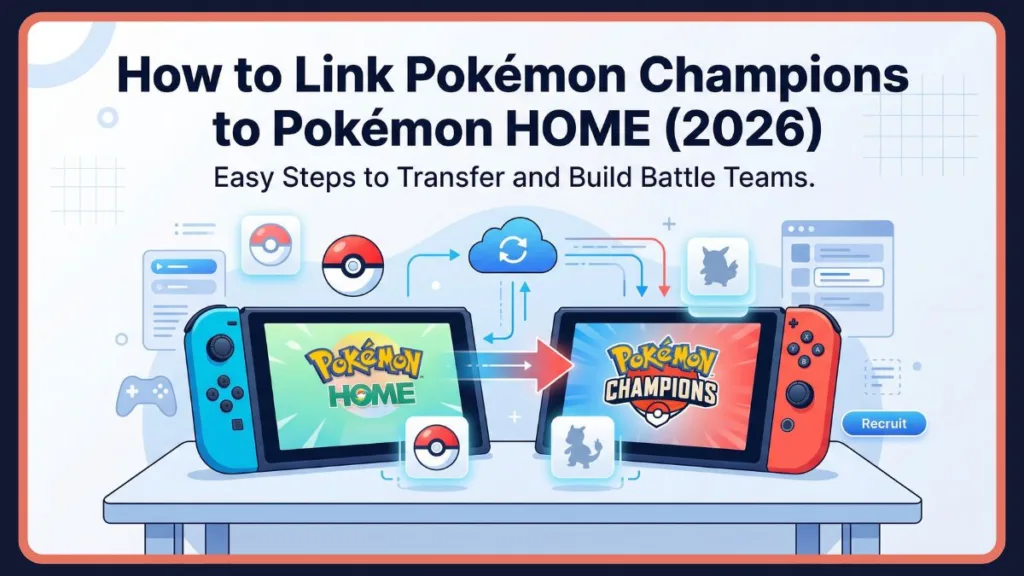
In 2026, The Pokémon Company made a major structural change—the traditional “Transfer” feature, once a permanent move between games, has been replaced by the Visitor System. This shift, introduced alongside the Nintendo Switch 2 and the HOME v4.0.2 update, has left some users searching for the correct workflow to manage their rosters effectively.
Fortunately, there are reliable methods and high-security protocols that let you link, organize, and protect your Pokémon collection across the cloud. Let’s explore these options in detail and walk through every step to safeguard your data and your competitive edge.
Why You Might Want to Link or Transfer to Pokémon Champions
There’s no doubt that the modern trainer wants to maintain a flexible collection—especially when your Pokémon career spans multiple games like Scarlet, Violet, Legends: Arceus, and the new Legends: Z-A. While Pokémon Champions focuses purely on the competitive PvP experience, linking to HOME is what provides the “fuel” for your teams.
Here are the most common reasons trainers want to link their accounts:
- Legacy Rosters: You have years of “Battle Ready” Pokémon stored in HOME that you want to test in the 2026 Mega Evolution meta.
- The VGC Transition: With the Play! Pokémon circuit officially moving to the Champions platform, linking is mandatory for sanctioned tournament play in the US, UK, Canada, and Australia.
- Resource Efficiency: It is often cheaper to train EVs and Natures in Scarlet/Violet and then “bring them in” rather than grinding for Victory Points (VP) inside the Champions hub.
- Mega Evolution Synergy: Many Pokémon require specific legacy ribbons or origins to unlock their full potential in the 2026 “Championship Pass” tiers.
Regardless of your reason, the integration between these apps offers tools like the Recruit Ranch, Snapshot Lock, and Visitor Tags to help you stay in control of your roster’s competitive viability.
Can You Still Link Pokémon Champions to Pokémon HOME in 2026?
For years, moving Pokémon was a one-way street. In 2026, the Direct-Link Architecture changed the game. It allows for a non-permanent “Visit” where the Pokémon’s data is essentially mirrored in Champions while the “Original Soul” remains safe in the cloud.
However, as of the April 2026 launch, The Pokémon Company began implementing new security phases. Here is the current status of the link:
Official Pokémon Support Statement:
“Starting April 8, 2026, all competitive data synchronization must be initiated through the Pokémon HOME v4.0.2 interface on the Nintendo Switch family of systems. The in-game ‘Direct Link’ button within Pokémon Champions has been deprecated in favor of the cloud-first Recruit Ranch protocol.”
This means:
- You cannot link your accounts from inside the Pokémon Champions app menu.
- The Recruit Ranch serves as the only valid entry point for external Pokémon.
- The system is now optimized for the Switch 2, though it remains fully compatible with original Switch hardware.
Quick Answer
To link Pokémon Champions to Pokémon HOME:
- Open Pokémon HOME on your Nintendo Switch.
- Tap the Pokémon Champions icon (found in the bottom-right corner of the main menu).
- Select the Pokémon you want to send from your HOME Boxes to the “Recruit Queue.”
- Open Pokémon Champions → Navigate to Recruit → Select Collect from Pokémon HOME.
This process works through Pokémon HOME—not inside Champions—so always start there. The system uses a link-and-collect workflow, meaning Pokémon are first selected in HOME and then collected in Champions.
Prerequisites Before Linking
Before you start the synchronization process, ensure your hardware and software meet the 2026 “Gold Standard” for data integrity. A failure to meet these prerequisites often results in the dreaded “Error 2-ALZBA-0045” (Region Handshake Failure).
Technical System Requirements
- System Firmware: Your console must be on Version 19.1.0 or higher.
- App Versions: Pokémon HOME must be v4.0.2; Pokémon Champions must be v1.0.4.
- Nintendo Account: Both apps must be logged into the exact same Nintendo Account.
- Tutorial Status: You must have defeated Rival Arlo in the Champions opening ceremony to unlock the “Recruit” menu.
Storage & Subscription Limits
- HOME Basic: 30 slots available for transfer.
- HOME Premium: Up to 6,000 slots, allowing for massive batch recruits.
- Champions Roster Ranch: Limited to 1,000 slots per save file.
Mobile users: Linking can be viewed and managed through the Pokémon HOME mobile app, but the actual “Collect” functionality is locked to the Switch version of Champions due to the 2026 security handshake requirements.
Additionally, ensure your internet connection is stable. Because account verification happens in real-time on the cloud, a drop in signal can lead to a “Partial Sync,” where Pokémon appear in your queue but cannot be collected.
How to Connect Pokémon Champions to Pokémon HOME
Step-by-Step Account Linking
- Close Pokémon Champions on your Switch. (Running the game in the background can cause a save-data lock).
- Open Pokémon HOME from your console dashboard.
- Sign in with your primary Nintendo Account.
- Tap the Pokémon Champions icon in the bottom-right corner of the selection screen.
- Confirm the Support ID. Ensure the 16-digit ID shown matches your Champions Trainer Card.
- Approve the connection when the “Establish Link” prompt appears.
- Your accounts are now linked.
Important: You cannot connect accounts from inside Pokémon Champions. This is a deliberate design choice to prevent the cloning glitches that appeared in the early 2020s.
How to Transfer Pokémon from HOME to Champions
Step-by-Step Transfer Process
- Open Pokémon HOME.
- Tap the Pokémon Champions icon.
- Browse your HOME boxes. Only Pokémon within the 650-species National Dex will be eligible.
- Select your Pokémon. (Hold ZL for multi-select).
- Press Y to confirm the move to the “Recruit Queue.”
- Open Pokémon Champions.
- Navigate to Recruit → Collect from Pokémon HOME.
Understanding the “Visitor System”
In the 2026 meta, Pokémon are not permanently moved. Instead, they “visit” Pokémon Champions, which offers several unique benefits:
- Data Preservation: The “Original Soul” remains in HOME.
- Usage Rights: The Pokémon is usable in all Champions battle formats immediately.
- Safety Net: You can “Recall” the Pokémon back to HOME at any time.
This system ensures that your Pokémon are never lost or overwritten. It also allows you to use the same Pokémon across multiple games without duplication issues. However, while visiting, certain actions in Pokémon HOME are restricted to prevent data desync. You cannot trade or move a “Visiting” Pokémon to Legends: Z-A until it has been returned from Champions.
What Transfers vs What Changes
When a Pokémon enters the Champions environment, it undergoes a “Competitive Normalization” to ensure a level playing field for the 2026 VGC circuit.
| Attribute | Behavior in Champions | Technical Notes |
| EVs | Transfer as-is | Custom spreads (e.g., 252/252/4) are preserved. |
| Natures | Transfer | Mints used in prior games are fully recognized. |
| Moves | Transfer | Illegal moves are temporarily replaced by “Struggle.” |
| Abilities | Transfer | Hidden Abilities (HAs) function as intended. |
| IVs | Set to 31 | Every visiting Pokémon is scaled to 6IV for fair play. |
| Level | Set to 50 | Standardized for all Ranked and Tournament tiers. |
| Shininess | Preserved | 2026 “Ray-Tracing” shaders are applied to sparkles. |
Your original stats (actual IVs and Level) remain unchanged in Pokémon HOME. When the Pokémon returns, it reverts to its original state.
One-Shot Training Rule (Very Important)
This is the most critical rule of the 2026 competitive era. Once a Pokémon enters Pokémon Champions for the first time, its stats are locked as a Temporal Snapshot.
- Future Changes: Any Mints or Vitamins used in Scarlet/Violet AFTER the first transfer will NOT update the Champions version.
- Internal Adjustments: Only changes made inside Champions using Victory Points (VP) will apply.
This means you should fully train your Pokémon BEFORE transferring.
If you send a Pokémon with incomplete training, you cannot simply “fix” it in another game and re-sync it. You would have to use the expensive internal retraining systems in the Roster Ranch.
Transfer Restrictions & Limitations
Pokémon HOME Restrictions
- Trade Lock: “Visiting” Pokémon cannot be traded via GTS or Wonder Box.
- Release Lock: You cannot release a Pokémon that is currently active in Champions.
- Metadata Lock: You cannot change labels or favorite status while the link is active.
Pokémon Champions Restrictions
- Native Lock: Pokémon recruited inside Champions (via VP or Events) cannot be sent to HOME.
- Box Limits: You must have an open slot in the 1,000-slot Roster Ranch.
- Active Duty: Pokémon registered in a “Battle Box” for an ongoing tournament cannot be sent back to HOME until the tournament concludes.
Common Error & Fix (Based on Real Player Issues)
Pokémon Champions Account Not Found
- Cause: Profile mismatch on the Nintendo Switch 2.
- Fix: Ensure the user icon in the top-left of the HOME screen matches the one used to launch Champions.
Connection Not Working (The “Arlo” Block)
- Cause: The tutorial has not been completed.
- Fix: You must defeat Rival Arlo and receive your Championship Pass before the HOME API will accept the handshake.
The “Limbo Bug” (CP-SYNC-77)
- Cause: A server-side delay during peak hours (common in the US and UK).
- Fix: Restart both applications. The Pokémon usually appears in the “Recruit” menu within 5 minutes.
Pro Tips for Competitive Players in Tier 1 Regions
The 2026 meta varies significantly across the US, UK, Canada, and Australia. Here is how to optimize your link:
- USA Meta Prep: Prepare your Mega Charizard Y in Scarlet/Violet to save on the high VP cost of the “Solar Core” training in Champions.
- UK Meta Prep: Mega Dragonite is currently top-tier. Ensure your Dragonite is transferred from a game where it has “Multiscale.”
- VP Economy: Save your Victory Points for exclusive 2026 items like Greninjite or Lucarionite. Do all your basic EV training in legacy games before clicking “Transfer.”
- The GO Advantage: Pokémon from Pokémon GO retain their “XXL” or “XXS” sizes, which trigger unique entry animations in the Champions engine.
Final Thoughts on How to Link Pokémon Champions to Pokémon HOME
While the transition to the Visitor System and the Recruit Ranch represents a major shift in how we manage our collections, it is a powerful tool for the modern competitive trainer.
To summarize:
- Always start in Pokémon HOME to initiate the link.
- Complete the tutorial (Defeat Arlo) before trying to sync.
- Train before you transfer to avoid the Snapshot lock.
- Use the Visitor System to keep your legacy collection safe while dominating the 2026 ranks.
Being proactive and using these tools ensures your roster remains elite, your data remains secure, and your focus remains exactly where it should be—on winning the next battle.
FAQ
Q1: Can you really hide or delete a Pokémon in Champions?
You cannot “delete” a visitor, but you can “Send Back to HOME” to remove it from your Champions boxes. “Native” Pokémon caught in Champions can be released, but never sent to HOME.
Q2: Does Pokémon Champions support Mega Evolution for HOME Pokémon?
Yes! As long as the species is compatible and you have the required Mega Stone (purchased with VP in the Champions shop), any visitor can Mega Evolve.
Q3: How do I fix the “Account Not Found” error on Switch 2?
Check your “Primary Console” settings. If you are playing on a secondary console, you must be connected to the internet for the license check before the HOME link will activate.
Q4: How many Pokémon can you archive/transfer at once?
You can move up to 30 Pokémon per batch into the Recruit Queue.
Q5: Does the “Snapshot Rule” apply to Shiny Pokémon?
The snapshot applies to stats (IVs/EVs/Natures), not aesthetics. If a Pokémon is Shiny in HOME, it will always be Shiny in Champions, regardless of when it was transferred.
Visit Our Post Page: Blog Page