
How to Make a Shared Calendar in Outlook with this Easy Step-by-Step Guide. Coordinate Schedules Efficiently While Keeping Your Team Organized and On Track.
Outlook Shared Calendar Tutorial: What You Need to Know
If you’ve ever tried to manage a team’s schedule, coordinate a project timeline, or simply find a time when everyone in your family is free, you know how messy it can get. Sending endless emails asking “Are you free Tuesday at 2 PM?” feels clunky, relying on memory leads to double-bookings, and using separate, disconnected calendar apps often strips away any sense of unified organization. That’s where a Shared Calendar in Outlook steps in.
Think of it as Outlook’s way of blending individual schedules into a centralized, accessible hub, so each person stays informed rather than operating in the dark. It’s especially useful for project management, departmental planning, or resource allocation where managing schedules one at a time simply isn’t realistic.
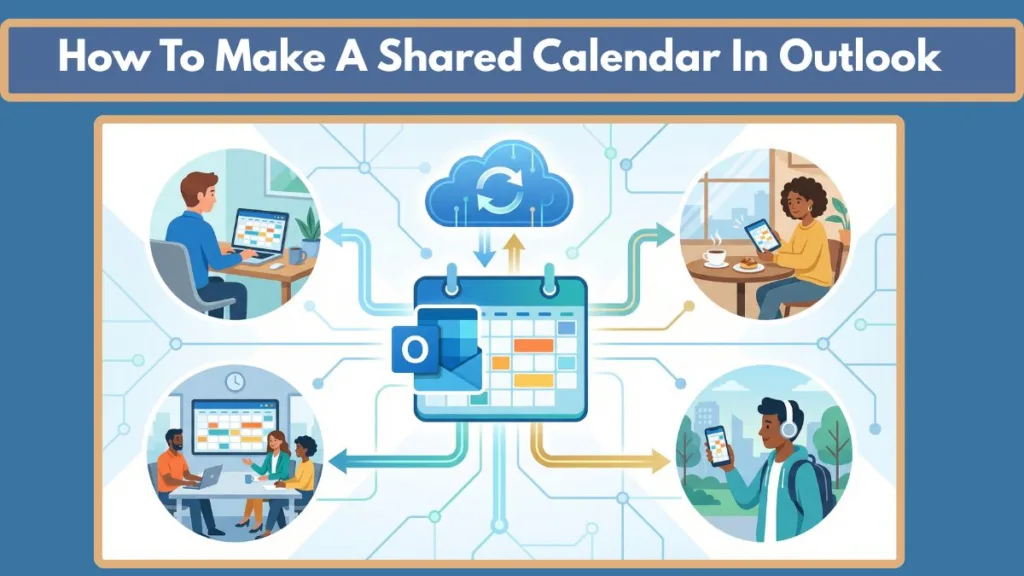
The best part? You don’t need a complex, expensive project management tool to make it work. With the right setup, you can leverage the Outlook infrastructure you already have, create a calendar once, and let Microsoft Exchange handle the synchronization in the background.
More than efficiency, a shared calendar is about operational transparency. By maintaining a clean, easily accessible schedule instead of relying on chaotic email threads, you build team synergy, optimize resource usage, and avoid the common scheduling mistakes that can quickly damage productivity.
Preparation and Strategy for Your Outlook Shared Calendar
Determine Your Calendar Strategy
Before you dive into creating and sharing, start by organizing your approach. You must decide what kind of calendar you are creating. Are you sharing your personal availability, or are you creating a brand-new calendar dedicated solely to a specific project? Making this decision now prevents confusion and saves time later.
Create a Dedicated Blank Calendar
Next, you should create a fresh, dedicated calendar. Think of this as your blank canvas. Setting up a separate calendar specifically for your project or team ensures that your private, personal appointments do not get mixed up with public group deadlines. This separation is what makes the shared calendar functional rather than cluttered.
Plan Your Permission Levels
Outlook allows you to dictate exactly what others can see and do. By determining who needs to simply view the calendar and who needs the authority to edit or create events, you can automatically secure your schedule and prevent unauthorized changes. This is where a simple calendar becomes a tightly managed collaborative tool.
Why Preparation Matters
Spending time organizing your strategy and deciding on permission levels ensures a smooth sharing experience. It’s not just about efficiency—it’s about creating a centralized schedule that looks professional, serves the right audience securely, and maintains data privacy. For official guidance, check out Microsoft’s support pages on Exchange permissions to make sure your setup is seamless.
Best Ways To Make A Shared Calendar In Outlook
Start by Creating a New Blank Calendar
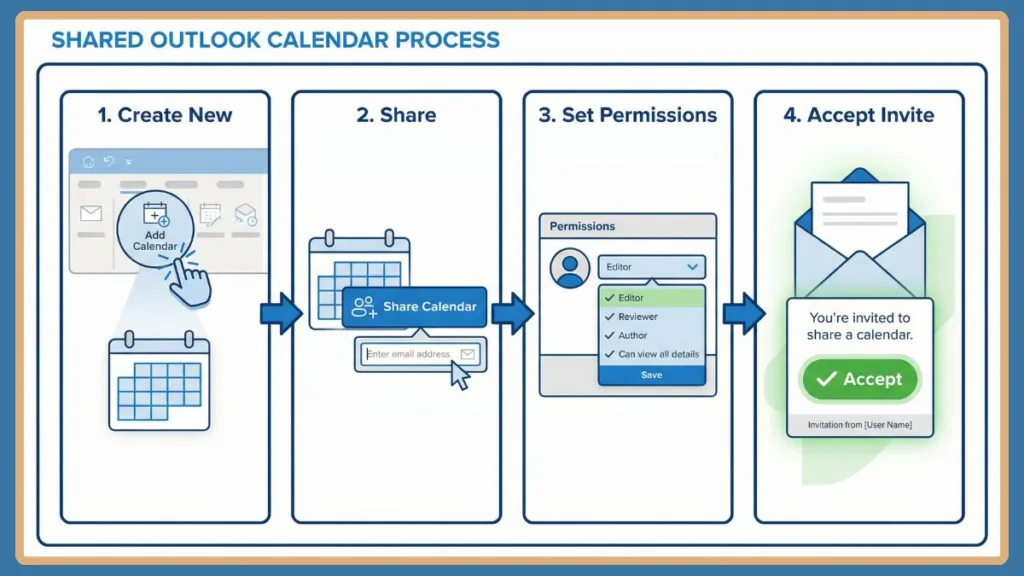
Before sharing a schedule with your team, open Outlook and navigate to your Calendar view. Make sure you have the Home tab selected, click on Add Calendar in the ribbon, and select Create New Blank Calendar. This sets your foundation, ensuring you are building a new collaborative space rather than exposing your personal agenda.
At this stage, your calendar is ready to be customized. Take a moment to give it a clear, professional name, such as “Q4 Marketing Campaign,” and assign it a distinct color.
“Setting up a dedicated, clearly named calendar at the start ensures that the entire sharing process runs smoothly and professionally.”
Share the Calendar with Your Team
Next, right-click on your newly created calendar under “My Calendars” and choose Share Calendar. If you are using Outlook Web, hover over the calendar, click the three dots, and select Sharing and permissions.
You can choose recipients directly from your Outlook contact list or type their email addresses. Verify that you are selecting the correct colleagues. Choosing the right recipient list is crucial, as it determines who has visibility into the schedule and reduces the risk of data leaks. Even a single incorrect email can lead to confusion or unprofessional results.
“A carefully selected recipient list is the foundation of a secure and effective shared calendar.”
Assign the Correct Permission Levels
Once your recipients are selected, it’s time to define their access. Click the permission dropdown next to their name to set their rights. Typical fields might range from “Can view when I am busy” to full “Editor” or “Delegate” access.
Assign these permissions thoughtfully based on the user’s role. For example, giving an executive “Reviewer” access allows them to see all details without accidentally deleting an event, while giving your project manager “Editor” access empowers them to modify the timeline. This step transforms a basic calendar into a dynamic, role-based organizational tool.
“Granular permissions create a secure environment, making your shared calendar functional while protecting it from unwanted alterations.”
Have Recipients Accept the Invitation
After sending the sharing invitation, the recipients must take action. They will receive an email notification containing an “Accept” button. They must click this button for the calendar to populate in their own Outlook view.
This is also the stage where users can manually add the calendar by going to Add Calendar > Open Shared Calendar. Ensuring your team actually accepts the invitation avoids the scenario where you are updating a calendar that no one else is looking at.
“Always verify that your team has accepted the invitation—what looks perfect in your Outlook may not display in theirs if they missed the email.”
Creating Calendars in Shared or Resource Mailboxes
If you are managing a large team or company resources, navigate to the Microsoft 365 Admin Center to utilize Shared Mailboxes or Resource Mailboxes. Create the calendar within these special mailboxes rather than a personal user account.
This step ensures that your calendars are resilient, permanent, and not tied to any single employee’s tenure, protecting the organization’s scheduling infrastructure if staff changes occur.
“Housing calendars in shared mailboxes protects institutional knowledge and maintains the professional integrity of your team’s workflow.”
Verify Synchronization and Access
After the calendar is shared and accepted, verify that synchronization is working. Spot-check by creating a test event on the shared calendar and asking a colleague to confirm they can see it. Verify that those with Editor rights can modify the test event, while those with View-Only rights cannot.
This final step confirms that your collaborative setup is efficient, functioning correctly, and error-free.
“A quick review of synchronization guarantees that your scheduling tool hits the mark and maintains team alignment.”
Shared Calendars vs. Group Calendars: What’s Different?
Microsoft 365 brings multiple approaches to collaborative scheduling, designed to accommodate different types of teams. While Shared Calendars and Group Calendars may feel familiar at first glance, there are a few key architectural differences that can affect how you manage your team’s time.
Streamlined Group Management
One of the first things you’ll notice about a Group Calendar (which is automatically generated when you create a Microsoft Team or Microsoft 365 Group) is that it is tied to group membership. Unlike Shared Calendars, you won’t manually assign individual permissions. This change encourages rapid collaboration and reduces the administrative burden of managing access one person at a time.
When someone joins the Microsoft Team, they automatically gain access to the Group Calendar. When they leave, their access is revoked.
“Group Calendars nudge you toward agile, team-based collaboration, simplifying access management for everyone.”
Limited Permission Customization in Groups
Currently, Group Calendars do not support the granular, dynamic permission fields that Shared Calendars do. While this limits deep control (you cannot make one person a viewer and another an editor within the same Group Calendar—everyone has equal editing rights), it encourages a flat, trusting team dynamic.
Group Calendars are ideal for fast-paced project teams where efficiency and collective ownership outweigh the need for strict, hierarchical access control.
Adjusting Your Workflow
The steps to use either calendar remain similar: you create an event, invite attendees, and manage your time. However, choosing the right architecture is more important than ever. Analyzing your team’s needs ahead of time and selecting a Shared Calendar for strict control, or a Group Calendar for open collaboration, ensures that your scheduling tools feel professional and fit your specific workflow.
Benefits of the Shared Calendar Approach
While managing individual permissions may feel tedious at first, the Shared Calendar design has clear advantages for specific scenarios. Controlling access is highly precise, there’s less room for unauthorized modifications, and you can handle executive scheduling, cross-departmental resource tracking, or external client visibility without relying on the all-or-nothing approach of a Microsoft Group.
“Shared Calendars focus on precision and security, giving you confidence that your schedules are managed correctly without unauthorized alterations.”
Shared Calendar Limitations in Outlook You Should Know
While the Shared Calendar in Outlook is a powerful tool for coordinating teams efficiently, it does have some important limitations that can affect how you plan and execute your project management. Being aware of these constraints helps you avoid mistakes and ensures your scheduling maintains a professional standard.
Network Synchronization Delays
Outlook’s calendar sharing relies on Microsoft Exchange servers to synchronize data. This means that when you add an event to a shared calendar, it may not appear instantaneously on your colleague’s screen. Depending on network latency, cached exchange mode settings, and server load, there can be a delay. For teams that rely on up-to-the-second accuracy for rapid-fire appointments, this can be a noticeable limitation. Planning requires understanding that syncs may take a few moments.
“Without instant synchronization, you’ll need to rely on clear communication and avoid making split-second changes to critical meetings without notifying the team.”
Complex External Sharing Restrictions
The options for sharing your calendar with people outside your organization (like clients using Gmail) are often limited by enterprise IT policies. While you can publish an HTML or ICS link, you generally cannot grant dynamic “Editor” permissions to external, non-Microsoft users. This can make it challenging to create truly collaborative schedules with external vendors, so keeping external sharing to “view-only” HTML links is often the only secure path.
Mobile App Limitations
Unlike the robust desktop application, the Outlook mobile app has limitations regarding how it handles shared calendars. While you can view and add events, modifying complex delegate permissions or managing the sharing hierarchy is often unsupported or difficult to navigate on a smartphone. If your workflow requires heavy administrative calendar management on the go, you’ll need to use alternative methods like accessing Outlook Web via a mobile browser.
Risk of Accidental Data Deletion
Granting “Editor” or “Delegate” access to a large number of users increases the risk of accidental data loss. Because anyone with Editor rights can delete events, a careless click by one user can wipe out a critical meeting for the entire team. Outlook does not provide a simple “undo” button for a deleted shared event that propagates across all users, so it’s best to keep the number of Editors small and restrict the majority of the team to “Reviewer” status.
No Built-In Analytics or Audit Trails
Shared Calendars must be managed based on trust; there’s no built-in, easily accessible audit trail for standard users to see exactly who created, moved, or deleted an event. If accountability is important—such as tracking who modified a shift schedule—this limitation requires careful management, or reliance on IT administrators to run complex backend Exchange audit logs.
Managing Massive Teams Can Be Challenging
While Shared Calendars can handle significant numbers of recipients, managing individual permissions for a department of 500 people increases the risk of administrative errors. Ensuring your access lists are clean, up-to-date, and tied to security groups rather than individual names is essential to avoid managing an unwieldy and broken permission structure.
“Understanding these limitations allows you to plan smarter and avoid common pitfalls that could undermine your team’s coordination.”
By keeping these constraints in mind, you can use Outlook’s Shared Calendars more effectively. Preparation, strict permission management, and an understanding of network sync times are your best tools for overcoming these challenges while maintaining professional, efficient, and reliable team coordination.
FAQs: Shared Calendars in Outlook
Even with a clear process, many users have questions about how Shared Calendars work in Outlook. Here, we address some of the most common concerns to help you feel confident every step of the way.
How Do I Share My Calendar Without Sharing My Private Appointments?
To make sure your personal life stays private, do not share your default calendar. Instead, create a brand-new, blank calendar by clicking “Add Calendar” and “Create New Blank Calendar.” This ensures every recipient only sees the project-specific events you place on that specific calendar, rather than your personal doctor’s appointments. Taking the time to separate your schedules makes a big difference in maintaining professional boundaries.
Can I Share a Calendar Directly in the Outlook Mobile App?
Yes, while the desktop handles the most complex tasks, you can share a calendar in the mobile app. Tap the calendar icon, tap the plus sign to add a new calendar, and then use the gear or “People” icon next to the calendar’s name to invite users and set their permissions. Think of the mobile app as a convenient way to grant access on the fly.
How Do I Use a Shared Mailbox for a Shared Calendar?
If your IT department has granted you access to a shared mailbox, you can create a highly resilient calendar. During the creation step, expand the shared mailbox folder in your navigation pane and create the new calendar inside that shared mailbox structure. Ensuring the calendar lives in the shared mailbox prevents it from being deleted if an individual employee leaves the company.
What Is the Easiest Way to View a Calendar Someone Shared With Me?
The simplest approach is to look for the sharing invitation in your inbox. Open the email and click the “Accept” button. Outlook will automatically process the link and add the shared calendar to your left-hand navigation pane. Following this workflow minimizes frustration and ensures that the calendar connects correctly.
How Do I Share a Calendar with External Clients Without Exposing Internal Data?
Outlook allows you to “Publish” a calendar to the web. Right-click the calendar, choose “Publish to Web,” and set the detail level to “Can view when I’m busy” or “Can view titles and locations.” Outlook will generate an HTML link. Just make sure you never publish a calendar containing sensitive internal data, as anyone with the link can view the schedule.
Conclusion: Use Shared Calendars in Outlook
Creating a Shared Calendar in Outlook is a powerful way to manage schedules efficiently, whether for business projects, resource tracking, or team coordination. By preparing a dedicated calendar, carefully managing permissions, and utilizing shared mailboxes where appropriate, you can keep a large team synchronized while maintaining a professional and secure environment.
While there are limitations—like synchronization delays, mobile app constraints, and a lack of user-facing audit trails—understanding them helps you plan smarter and avoid administrative headaches. Even with these constraints, the Outlook Shared Calendar is a reliable, essential tool for effective organizational communication.
Official Microsoft Resources
- Share an Outlook Calendar with Other People – Introduction and setup instructions for basic calendar sharing.
- Create, View, or Delete a Calendar Group – Guidance on managing multiple calendars and overlaying schedules.
- Open and Use a Shared Mailbox in Outlook – Covers the full scope of utilizing shared mailboxes for robust team calendars.
- Calendar Delegation in Outlook – Step-by-step guide focused specifically on assigning Delegate access for executive assistants and managers.
Visit Our Post Page: Blog Page