
Friends can’t share your post? Learn how to make a Facebook post shareable after posting in 2026. And learn exactly how to edit your privacy settings and fix the missing share button today.
You publish a brilliant Facebook post, you wait for the interaction to roll in, and the worst-case scenario happens: your friends tell you they cannot share it. Now you’re frantically searching, “how do I make a Facebook post shareable after posting?”
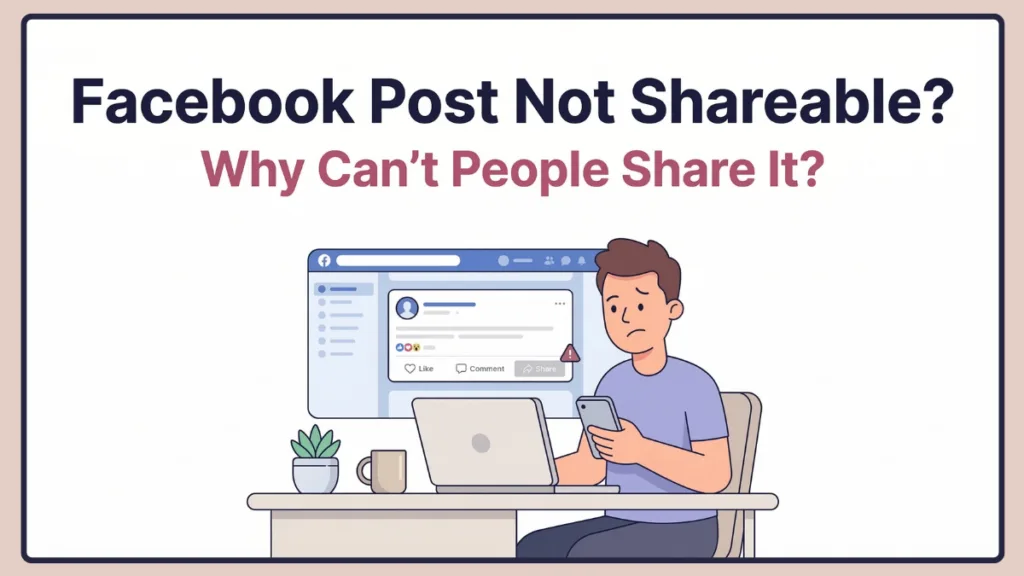
This guide will show you exactly how to do that, explain what makes a post shareable, and provide strategies to fix missing share buttons. It covers both mobile and desktop, clearly explains audience options, and includes tips to ensure your posts can reach the people you want.
What Makes a Facebook Post Shareable: Understanding Your Privacy Settings
Before adjusting settings, it helps to understand what actually makes a Facebook post shareable. Facebook determines whether a post can be shared based on its audience visibility setting. When you create a post, you select who can see it using the audience selector, which appears under your name before posting.
The audience setting controls two things: who can see your post and whether others can share it on their own timeline. If your post is set to Public, anyone on Facebook—and sometimes even people outside Facebook—can see and share it. But if the post is limited to Friends or a custom audience, sharing options become restricted.
Facebook Audience Options Explained: Public vs. Friends Visibility
Understanding these settings helps explain why a post might not be shareable.
| Audience Option | What It Means |
| Public | This setting allows anyone to view and share the post. When a post is public, a globe icon appears next to it, indicating it is visible to everyone and can be shared widely. |
| Friends | Only people on your friends list can see the post. Sharing may still be limited depending on how Facebook handles visibility between different friend networks. |
| Friends Except | This option lets you hide the post from specific friends while allowing others to see it. |
| Specific Friends | Only selected individuals can view the post. |
| Only Me | This keeps the post completely private. It appears only on your own timeline and cannot be shared. |
Tip: If your goal is to allow others to share your post, the safest option is to set the audience to Public.
How to Make a Facebook Post Shareable After Posting: The Core Method to Fix It
If you have already published a post and realized that people cannot share it, don’t worry. Facebook allows you to edit the audience setting of an existing post, which can instantly make it shareable. This is the most common solution when people search for how to make a post public after posting.
Make an Existing Facebook Post Public: Step-by-Step Fix
Follow these steps to change the privacy settings of a post you’ve already published:
- First, open Facebook and go to your profile or timeline where the post is located.
- Next, locate the post you want to make shareable. Once you find it, look at the top-right corner of the post where you’ll see a three-dot menu.
- Click the three-dot menu, and a dropdown list will appear with several options.
- From the list, select Edit Audience or Edit Privacy depending on your device.
- After clicking this option, Facebook will show a list of audience choices such as Public, Friends, Friends Except, Specific Friends, or Only Me.
- Choose Public to allow anyone to see and share the post.
- Finally, confirm the change.
Tip: Once the setting updates, you should see the globe icon next to the post, which indicates that the post is now public and shareable.
How to Make a Facebook Post Shareable on Mobile (Android & iPhone): App Solutions
Many users access Facebook through the mobile app, which means the steps to change audience settings may look slightly different from the desktop version. Fortunately, the process is still simple and works for Android, iPhone, iPad, and the Facebook mobile app.
Enable Sharing on Facebook Mobile: Quick App Steps
- Open the Facebook app on your phone.
- Navigate to your profile or timeline.
- Scroll until you find the post you want to edit.
- Tap the three dots in the top-right corner of the post.
- A menu will appear showing several options.
- Select Edit Privacy.
- You will then see the audience selection screen.
- Choose Public from the list of options.
- Tap Done to save the change.
Tip: This is the easiest way to make a Facebook post shareable on mobile after posting. Once completed, others should instantly see the share button below the post.
How to Make a Facebook Post Shareable on Desktop: Browser Solutions
If you are using Facebook from a web browser, such as Chrome or Edge, the process is very similar.
Enable Sharing on Desktop: Simple Browser Steps
- Open Facebook.com and log into your account.
- Go to your profile page.
- Find the post you want to edit.
- Click the three-dot menu in the top-right corner of the post.
- Select Edit Audience.
- Choose Public.
- Save the changes.
Tip: This desktop method allows for quick privacy updates, instantly making your post public and shareable across all devices.
Why Is My Facebook Post Not Shareable? Troubleshooting Missing Buttons
Sometimes users change their privacy settings but still notice that people cannot share their posts. If this happens, several factors might be responsible. Understanding these causes can help you quickly fix the issue.
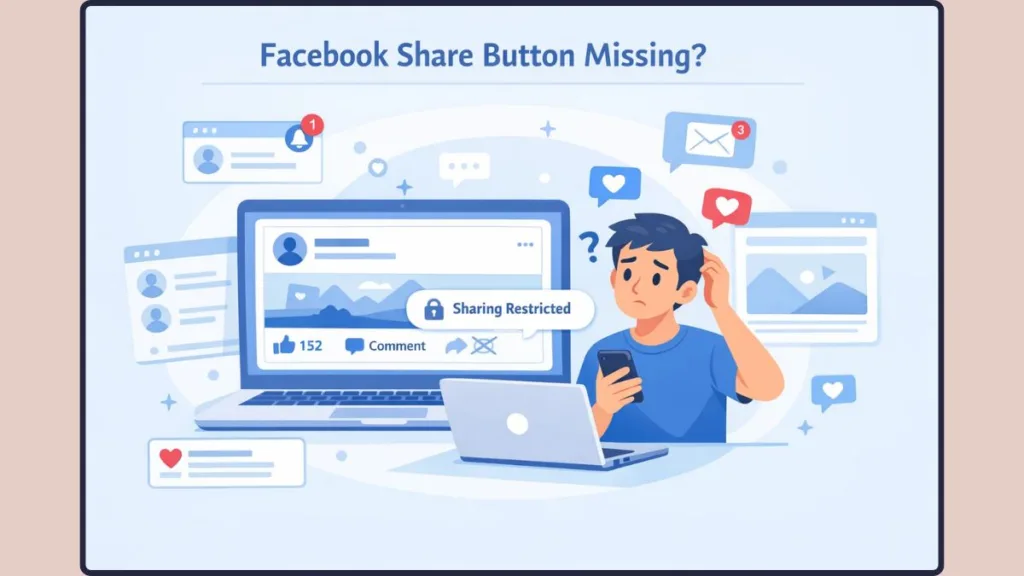
Cannot Share Facebook Post: The Friends Only Privacy Setting
If the post audience is restricted to Friends, the share button may not appear for everyone. Changing the post to Public usually solves the problem.
Private Facebook Group Sharing: Why Content Remains Restricted
Posts published inside private Facebook groups cannot be shared outside the group, even if you adjust the settings. Group privacy rules override individual post settings.
Facebook Page vs Personal Profile Sharing: Admin Restrictions
If the post is published on a Facebook page, the page’s sharing settings might limit who can share it.
Why Is There No Share Button on My Facebook Post: Fixing the Missing Button
Sometimes users report that the share button disappears. In most cases, this occurs because the post is restricted to a limited audience. Changing the audience to Public restores the share option.
How to Allow Others to Share Your Facebook Post: Proactive Setup Guide
The easiest way to ensure your post is shareable is to choose the correct audience before publishing it.
When creating a new Facebook post, you will see the audience selector located beneath your name. Click this option before posting, and choose Public. Once the post is published, it will automatically be shareable by others.
Tip: Checking your audience selector before hitting publish prevents the issue where people later ask, “Why can’t I share your Facebook post?”
How to Make Future Facebook Posts Shareable by Default: The Long-Term Fix
If you frequently want your posts to be shareable, you can change your default Facebook privacy setting so that future posts are automatically public.
Change Default Privacy Settings: Quick Steps
- Open Facebook Settings.
- Click Settings & Privacy.
- Select Privacy.
- Look for the section called Your Activity.
- Find the option labeled Who can see your future posts.
- Click Edit.
- Select Public.
Tip: After updating this setting, any new post you create will automatically be public and shareable, saving you the hassle of editing settings later.
How to Make a Facebook Post Shareable in Groups or Pages: Platform Differences
Sharing works differently depending on where the content is posted.
| Post Location | How Sharing Works |
| Personal Profile Posts | Posts on your personal profile become shareable when set to Public. |
| Facebook Pages | Posts on Facebook pages are usually shareable by default because pages are designed for public content. |
| Facebook Groups | Groups have different privacy levels. Public Groups allow posts to be shared outside the group. Private Groups mean posts cannot be shared outside the group regardless of audience settings. This is why some users cannot make posts shareable when they post in private communities. |
Can You Make a Facebook Post Shareable but Not Public? Navigating Privacy
This is a common question. Unfortunately, Facebook does not provide a direct setting for shareable but not public posts. If a post is restricted to Friends only, sharing becomes limited. However, you can sometimes choose Friends of Friends, which expands the audience slightly while still maintaining some level of privacy.
Tips to Increase Facebook Post Sharing: Engagement Strategies
Making a post public is only the first step. If you want people to actually share your content, consider a few engagement strategies:
- Posts that include interesting images, helpful information, or entertaining content tend to receive more shares.
- Asking questions or encouraging discussion can also increase engagement.
- Timing matters as well. Posting when your audience is most active increases the chances that your content will be shared.
- Finally, content that provides value—such as tips, announcements, or helpful guides—often performs better than simple status updates.
Frequently Asked Questions About Facebook Post Sharing
How do I make a Facebook post shareable after posting?
You can edit the audience setting of the post. Click the three-dot menu, choose Edit Privacy, and change the audience to Public.
Why is there no share button on my Facebook post?
The share button may be missing because the post privacy is restricted to Friends or Only Me.
Can I change a Facebook post from friends to public after posting?
Yes. Facebook allows you to edit the audience of a post at any time.
Can you make a Facebook post shareable later?
Yes. You can modify the audience setting even after the post has been published.
Does tagging someone make a Facebook post shareable?
No. Tagging someone does not automatically make the post shareable. The audience setting controls shareability.
Conclusion: Mastering Your Facebook Post Privacy
Learning how to make a Facebook post shareable after posting is mostly about understanding Facebook’s privacy and audience settings. If a post cannot be shared, the problem usually comes from its audience being restricted to Friends or a custom group.
By editing the post’s privacy through the three-dot menu and selecting Public, you can quickly enable sharing and allow others to spread your content across Facebook.
Once you understand how the audience selector, privacy settings, and share button work together, managing your posts becomes much easier. Whether you’re sharing a personal update, promoting an event, or spreading useful information, adjusting the right settings ensures your content can reach the audience you intend.
Tip: Check your post settings frequently to maintain a highly visible profile, minimize share button glitches, and manage your Facebook content like a pro.
Visit Our Post Page: Blog Page