
Learn to manage Windows Update Delivery Optimization (WUDO) to reduce network congestion. Explore GPO settings, bandwidth limits, and enterprise best practices.
What Is Windows Update Delivery Optimization: How WUDO Actually Works
Windows Update Delivery Optimization, often abbreviated as WUDO, is Microsoft’s built-in system for distributing updates more efficiently across devices. Instead of forcing every computer to download the same update directly from Microsoft’s servers, Delivery Optimization allows devices to share parts of update files with each other using a controlled peer-to-peer P2P update mechanism.
This feature exists in both Delivery Optimization Windows 10 and Delivery Optimization Windows 11, and it operates silently in the background whenever Windows Update or Microsoft Store content is being downloaded.
At its core, WUDO breaks large update packages into smaller encrypted fragments. When your device checks for updates, it doesn’t rely on a single source. It can download portions from Microsoft’s content delivery network and, if enabled, from other PCs on your local network or even from external peers on the internet. This method reduces repeated downloads across multiple machines and can significantly lower overall bandwidth consumption in environments with many devices.
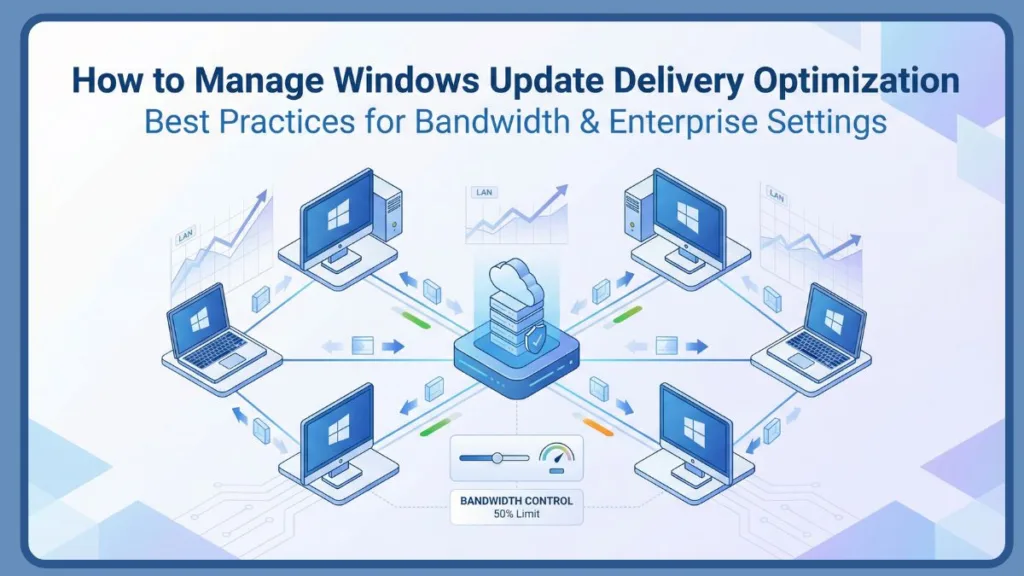
The process works through intelligent source selection. The Delivery Optimization service DoSvc communicates with Microsoft’s cloud service to identify the fastest and most reliable source for each update fragment. If multiple devices share the same public IP address behind a NAT router, they can form a natural LAN update distribution group. In enterprise networks, administrators can define peer groups using a Group ID to control how update traffic flows between subnets.
It is important to understand that Delivery Optimization does not share personal files. Only digitally signed update packages from Microsoft are distributed, and all transfers occur over encrypted connections, typically through Port 7680 TCP for peer communication and HTTPS over Port 443 for secure service communication.
In simple terms, WUDO acts like a controlled content distribution network inside your own network. If ten computers in your office need the same Windows update, only one might download most of the content from the internet. The others retrieve it locally, reducing external data usage and lowering update latency.
However, when misconfigured, Windows Update Delivery Optimization can create unexpected side effects. You might notice high network activity, increased disk usage due to cached files, or slower internet speeds during major update releases. This is not a flaw in Windows Update itself, but rather how WUDO configuration and bandwidth policies are set.
Understanding how Delivery Optimization works is the foundation of managing it properly. Whether your goal is to limit bandwidth usage, speed up updates across a local network, improve update compliance in an enterprise environment, or restrict peer sharing for privacy reasons, everything begins with how this peer-to-peer architecture operates behind the scenes.
Understanding Delivery Optimization Download Modes: 0, 1, 2 and 99 Explained Clearly
If you want real control over Windows Update Delivery Optimization, the most important setting to understand is Download Mode. This single configuration determines how your device retrieves update content and whether peer-to-peer P2P updates are used at all.
Every effective WUDO configuration, whether for a home PC or a large enterprise network, starts with choosing the correct download mode.
Download Mode 0: HTTP Only – No Peer-to-Peer Sharing
When set to 0, Delivery Optimization downloads updates directly from Microsoft’s servers using standard HTTP or HTTPS connections. No peer discovery takes place, and no local or internet devices are used as content sources.
This mode is ideal when your priority is strict control. If you want to eliminate all local network sharing and prevent external P2P activity, this setting ensures updates come from a single trusted source. It is commonly used in tightly controlled corporate environments or in situations where firewall rules block Port 7680, which is required for peer communication.
Mode 0 still uses the Delivery Optimization engine for efficient download handling, but without peer distribution logic.
Download Mode 1: LAN Only – Local Network Peering
When set to 1, Delivery Optimization allows devices to share update fragments only with other systems on the same local network. Devices behind the same NAT router effectively become a peer group.
This is one of the most practical settings for offices and homes with multiple computers. If one device downloads a major Windows update, others can retrieve portions locally, reducing external bandwidth consumption and improving update speed across the network.
Mode 1 strengthens LAN update distribution without exposing your system to internet-based peers. It is often the safest balance between efficiency and privacy.
Download Mode 2: LAN and Internet Peering
When set to 2, Delivery Optimization expands peer sharing beyond the local network. Your device can both download from and upload update fragments to other Windows devices on the internet.
This mode maximizes distribution efficiency but increases outbound traffic. In large-scale environments, especially those integrated with Microsoft Connected Cache or segmented via Group ID, Mode 2 can significantly reduce overall download latency.
However, for home users or privacy-focused environments, this setting can raise concerns about external upload usage. Even though all update fragments are encrypted and digitally signed, Mode 2 increases participation in global P2P update sharing.
Download Mode 99: Disable Delivery Optimization
When set to 99, Delivery Optimization is effectively disabled. The system falls back to basic download behavior without peer logic.
This setting is typically used in enterprise scenarios where administrators want to enforce centralized update distribution through systems like WSUS or other controlled deployment pipelines. It can also be applied temporarily during troubleshooting when isolating network issues.
Disabling Delivery Optimization removes its peer-based optimization benefits. In many cases, Mode 0 offers a better balance than Mode 99 because it preserves intelligent HTTP-based downloading while avoiding P2P.
Choosing the correct Delivery Optimization download mode directly affects how your network behaves during update cycles. If updates are slowing your internet or consuming too much upload bandwidth, the issue is often tied to Mode 2 being active without proper bandwidth limit policies. If updates are slow across multiple devices in a shared office, Mode 1 may dramatically improve efficiency.
Before adjusting advanced policies like bandwidth throttling or cache size limits, always verify your Download Mode. It is the foundation of managing Delivery Optimization Windows 10 and Delivery Optimization Windows 11 effectively.
How to Manage Delivery Optimization on Windows 10 & Windows 11: Simple Settings for Home Users
If your internet slows down during updates or your system becomes unresponsive, the problem is usually not Windows Update itself. It is how Windows Update Delivery Optimization is configured. On both Delivery Optimization Windows 10 and Delivery Optimization Windows 11, the default settings may allow more bandwidth usage than you expect.
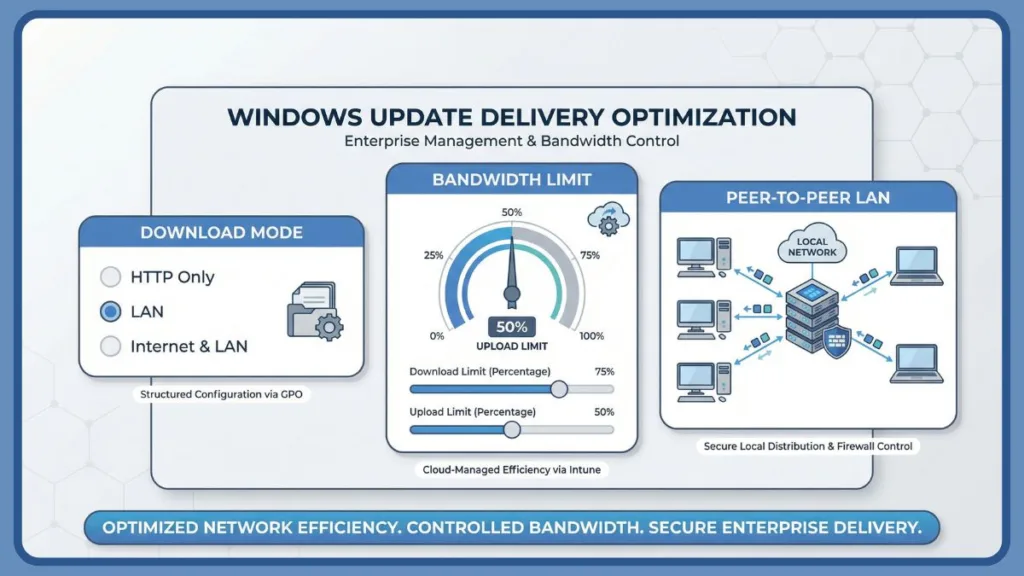
For home users, managing WUDO configuration does not require advanced tools. Everything can be adjusted directly inside Windows Settings.
Manage Delivery Optimization via Windows Settings: Turn On, Turn Off or Restrict to LAN
Open Settings, then go to Windows Update, choose Advanced options, and select Delivery Optimization. This is where peer sharing behavior is controlled.
The main toggle labeled “Allow downloads from other PCs” determines whether your device participates in peer-to-peer P2P updates.
If this option is turned off, your computer downloads updates only from Microsoft servers. No local or internet peer sharing occurs.
When enabled, you can usually choose between sharing updates on your local network only or with devices on both your local network and the internet.
Restricting sharing to the local network is the safest balance between efficiency and privacy for most home environments.
Limiting Delivery Optimization to LAN allows faster updates across multiple devices in your home without increasing outbound upload traffic to unknown internet peers.
If you are using a mobile hotspot or a capped plan, also verify whether your network is marked as a metered connection.
A metered connection can pause or restrict update downloads to prevent excessive data usage.
Understanding this basic setting alone resolves many complaints about unexpected upload or download spikes.
Set Delivery Optimization Bandwidth Limits: Stop Windows Update Using All Your Internet
Even when peer sharing is configured properly, background update downloads can consume too much bandwidth. This is where bandwidth control becomes critical.
Inside Delivery Optimization, open Advanced options. Here you can adjust how much network capacity is used for downloads and uploads.
You will see separate controls for background and foreground downloads. Background downloads occur silently. Foreground downloads happen when you manually resume or initiate updates.
If your internet slows down during video calls or streaming, reduce the background bandwidth limit first.
Setting a realistic percentage prevents Delivery Optimization bandwidth consumption from overwhelming your connection while still allowing updates to complete steadily.
You can also configure upload limits if internet-based peer sharing is enabled.
Limiting upload bandwidth ensures your system does not dedicate excessive upstream speed to distributing update fragments to other PCs.
These controls do not disable Windows Update Delivery Optimization. Instead, they shape how it behaves within your available internet capacity.
For most home users, combining LAN-only sharing with moderate bandwidth limits creates a stable balance. Updates download efficiently, but your everyday internet usage remains unaffected.
Configure Delivery Optimization Using Group Policy: GPO Settings for IT Admins
For IT administrators, managing Windows Update Delivery Optimization through local Settings is not scalable. In structured environments, control must be centralized, enforceable, and consistent across all endpoints. This is where Group Policy GPO becomes essential for proper WUDO configuration.
Using Group Policy allows you to define how devices participate in peer-to-peer updates, how much bandwidth they consume, and whether they are allowed to communicate beyond the local network.
Accessing Delivery Optimization Policies in Group Policy
Open the Local Group Policy Editor by running gpedit.msc, then navigate to:
Computer Configuration > Administrative Templates > Windows Components > Delivery Optimization
This section contains the core policies required to manage Delivery Optimization Windows 10 and Delivery Optimization Windows 11 at scale.
Group Policy overrides local Settings, ensuring users cannot bypass administrative decisions.
This makes GPO the preferred method for enterprise environments where update governance and network stability are priorities.
Configure Download Mode via GPO
The most critical setting inside Group Policy is Download Mode. This determines how update content is sourced.
When you enable the Download Mode policy, you can define values such as:
0 for HTTP only
1 for LAN-only peering
2 for LAN and Internet peering
99 to disable Delivery Optimization
In enterprise networks, Mode 1 LAN-only is commonly recommended to optimize internal bandwidth without exposing devices to public peer sharing.
Mode 0 is often used in tightly controlled environments or where updates are distributed through centralized systems such as WSUS or SCCM Delivery Optimization workflows.
Mode 2 should only be deployed after evaluating firewall rules, outbound policies, and upload capacity, as it enables external P2P participation.
Set Delivery Optimization Bandwidth Limits Through GPO
Beyond Download Mode, Group Policy allows precise control over Delivery Optimization bandwidth limits.
You can configure percentage-based throttling using policies that control background and foreground download behavior. You can also define absolute bandwidth limits in kilobytes per second, which is often preferable in low-bandwidth branch offices.
Absolute bandwidth policies provide predictable control in environments where percentage-based throttling is insufficient.
Administrators can also configure business-hour policies to reduce network impact during peak working times. This prevents update downloads from causing network congestion during office hours while allowing full-speed downloads overnight.
Integrating Delivery Optimization with WSUS and SCCM
When using WSUS Delivery Optimization or SCCM Delivery Optimization, understanding the interaction between centralized update servers and peer distribution is critical.
Delivery Optimization does not replace WSUS. Instead, it complements it. Devices can still retrieve update metadata and approvals from WSUS while using peer distribution to reduce WAN traffic between branch offices.
In distributed organizations, combining LAN-only peering with WSUS reduces repeated internet downloads across multiple sites.
This approach improves update compliance, reduces external bandwidth usage, and maintains centralized administrative control.
Enforcing Policy and Applying Changes
After configuring policies, run gpupdate /force to apply them immediately. Otherwise, changes will take effect during the next policy refresh cycle.
Because Group Policy defines device behavior at the system level, it ensures consistent enforcement across domain-joined machines.
Managing Windows Update Delivery Optimization through GPO transforms it from a background feature into a controlled network optimization tool. Instead of reacting to bandwidth spikes or update delays, administrators can proactively shape how update distribution behaves across the organization.
Manage Delivery Optimization with Intune & MDM: Modern Cloud-Based Policy Control
As organizations move away from traditional domain-based management, Group Policy is no longer the only way to control Windows Update Delivery Optimization. In cloud-managed environments, policies are enforced through Intune and modern MDM Mobile Device Management frameworks.
If your devices are enrolled in Microsoft’s cloud ecosystem, WUDO configuration should be handled centrally through policy profiles rather than local settings.
Configure Delivery Optimization in Intune
Inside Microsoft Intune, Delivery Optimization settings are available through device configuration profiles. These profiles allow you to define how devices handle peer-to-peer updates, bandwidth limits, and download modes across both Delivery Optimization Windows 10 and Delivery Optimization Windows 11.
Policies are located under the Delivery Optimization configuration path within MDM settings. From here, administrators can enforce Download Mode, restrict peer sharing, and define bandwidth usage rules without requiring direct device access.
Intune policies apply regardless of user-level changes, ensuring centralized enforcement across remote and hybrid work environments.
This is especially critical for distributed teams where devices operate outside traditional LAN boundaries.
Control Download Mode in Cloud-Managed Environments
Just like in Group Policy, Download Mode remains the core control point. Through Intune, administrators can configure devices to operate in LAN-only mode, HTTP-only mode, or disable Delivery Optimization entirely.
For remote-first organizations, LAN-only peering may not always be practical because devices rarely share the same local network. In such cases, administrators may prefer HTTP-only mode combined with structured bandwidth controls.
Cloud-managed environments must evaluate peer sharing based on network topology rather than assuming LAN availability.
This prevents unintended upload traffic across consumer-grade home networks.
Manage Bandwidth Consumption with MDM Policies
Intune allows granular control over Delivery Optimization bandwidth limits. You can define background and foreground download behavior using percentage-based or absolute bandwidth settings.
These policies are particularly useful when managing remote workers who rely on residential internet connections. Without control, large Windows feature updates can consume significant bandwidth and impact productivity.
Applying bandwidth policies through MDM ensures updates remain efficient without disrupting critical business operations.
Administrators can also define time-based throttling to minimize update impact during working hours.
Integrating Delivery Optimization with Windows Update for Business
In modern environments, Windows Update for Business WUfB often replaces traditional WSUS deployments. Delivery Optimization integrates directly with WUfB to enhance update distribution efficiency.
While WUfB manages update rings, deferrals, and compliance reporting, Windows Update Delivery Optimization handles the actual content distribution logic. Together, they provide both governance and network optimization.
WUfB controls when updates deploy. Delivery Optimization controls how updates download.
This separation of responsibility allows administrators to fine-tune deployment strategy while maintaining bandwidth stability.
Why Intune Is Critical for Remote and Hybrid Work
Traditional LAN-based peer-to-peer updates work best in office environments. However, hybrid and remote setups require cloud-native management.
With Intune and MDM policies, organizations can:
- Enforce consistent WUDO configuration across geographically distributed devices.
- Restrict internet-based peer sharing if security policies demand it.
- Apply bandwidth limits to prevent network congestion on home connections.
Cloud-based policy control transforms Delivery Optimization from a reactive setting into a proactive network governance tool.
In modern deployments, managing Windows Update Delivery Optimization through Intune ensures scalability, compliance, and predictable bandwidth usage without relying on on-premises infrastructure.
Optimize WUDO for LAN Efficiency: Speed Up Windows Updates on Your Local Network
When you manage multiple Windows PCs on the same local network, Windows Update Delivery Optimization can be more than just a background feature — it can become a powerful internal distribution mechanism that improves update speed and significantly reduces external bandwidth use. This section shows you how to optimize WUDO configuration so updates flow efficiently within your LAN without burdening your internet connection.
Enable LAN-Only Peer-to-Peer Sharing for Faster Local Updates
For most small offices and homes with several computers, setting Delivery Optimization to work only within the local network delivers the best results. By enabling LAN-only peer sharing, you allow devices behind the same router to exchange pieces of update files directly. Instead of each device downloading the same update from Microsoft’s servers, they fetch fragments from a neighbor device that already has them, dramatically reducing overall bandwidth consumption and speeding up the update rollout. This behavior is part of how Delivery Optimization Windows 10 and Delivery Optimization Windows 11 reduce unnecessary external traffic.
Setting your devices to use LAN-only peer distribution ensures update downloads happen within your own network before resorting to the internet.
If no local sources are present or reachable, Delivery Optimization will automatically fall back to downloading directly from Microsoft’s content servers, ensuring reliability.
Use Group ID and Network Segmentation for Controlled Peer Sharing
In more complex environments, especially where several subnets or departments exist, you can take LAN peering a step further by assigning a Group ID. This allows related devices to form a peer group for update sharing while preventing cross-site peering that might cause unnecessary network chatter or congestion. Microsoft’s official guidance explains how peer groups can be defined using a combination of group identification policies and network topology settings, enabling fine-grained control over how devices share update parts.
Defining Group ID for specific network segments lets you optimize update distribution without interfering with unrelated subnets.
This approach is especially useful in larger local networks where devices are grouped by physical location, department, or function.
Combine Delivery Optimization with Microsoft Connected Cache for Maximum Efficiency
For even greater performance, especially in widely distributed organizations, integrating Microsoft Connected Cache can further enhance LAN efficiency. Connected Cache acts as a dedicated local repository for update content, where devices first attempt to retrieve updates from that cache before reaching out to other peers or Microsoft servers. According to Microsoft documentation, Delivery Optimization can use both peer sources and Connected Cache simultaneously, connecting to whichever source delivers content most efficiently.
Using Microsoft Connected Cache effectively creates a local update hub that significantly reduces external bandwidth usage.
This hybrid model is ideal for branch offices with limited internet connectivity or for environments with many managed devices that regularly download large update packages. Administrators can configure Delivery Optimization policies to point devices toward specific cache hosts, ensuring content is served locally whenever possible.
Limit Internet Bandwidth Use During Major Update Releases
Large Windows feature updates can be several gigabytes in size. Without LAN optimization, every device would independently pull that content from Microsoft’s servers, consuming huge amounts of external bandwidth and potentially causing congestion for other users and services.
By optimizing WUDO for LAN distribution, the workload shifts inward, where internal network capacity is typically higher and more stable. Devices on the same network can synchronize update downloads, minimizing repeated external fetches. Microsoft documentation points out that Delivery Optimization serves as an optional peer-to-peer solution precisely to reduce bandwidth load by sharing update content across the local network first.
Ensuring updates come from local peers or cache servers prevents unnecessary downloads over limited or expensive internet connections.
Verify That LAN Peering Is Working Correctly
After enabling LAN-only peer sharing and, optionally, a local cache host, the final step is to verify the configuration. Windows includes tools and reports that show whether devices are pulling update fragments from peers or the internet. For example, you can check the Delivery Optimization Activity Monitor on individual clients to see the breakdown of traffic sources, and administrators can use Windows Update for Business reporting to validate performance gains across a fleet.
If you observe updates still being pulled directly from Microsoft instead of local sources, review your firewall rules to confirm that Port 7680 TCP is open between devices, and verify that no proxy or routing configuration is blocking peer discovery.
By focusing on LAN efficiency, you turn Windows Update Delivery Optimization into a smart, bandwidth-aware internal distribution system that accelerates update delivery, eases pressure on internet connections, and improves overall update performance for everyone on your local network.
Limit Bandwidth to Prevent Network Congestion: Control Windows Update Data Usage
Uncontrolled network usage during Windows updates is one of the most common concerns for both everyday users and IT administrators. Even when Windows Update Delivery Optimization is configured correctly for local efficiency, updates can still consume significant capacity if bandwidth isn’t governed deliberately. Fortunately, Windows includes built-in controls that let you shape how much data Delivery Optimization uses, ensuring critical network traffic remains unaffected while updates continue smoothly.
How Delivery Optimization Uses Bandwidth
By default, Windows Update Delivery Optimization adjusts its upload and download usage dynamically, aiming to complete updates without manual intervention. Without explicit limits, particularly on slower broadband connections, Microsoft’s delivery engine can still use a large portion of your connection for both background downloads and foreground downloads (the latter when you manually initiate or resume updates). This behavior can lead to noticeable slowdowns for other applications like video conferencing, cloud backups, and streaming.
Background downloads occur silently and can compete with normal network traffic, while foreground downloads take precedence but still consume bandwidth aggressively if not limited.
Understanding these patterns is essential to preventing network congestion. Without bandwidth controls, Windows can saturate available capacity simply to finish updates quickly, which is not ideal in shared network environments.
Set Percentage-Based Bandwidth Limits
Windows lets you limit the percentage of your total available bandwidth that Delivery Optimization can consume. This can be done through the Advanced options section within Delivery Optimization settings or via management tools such as Group Policy and Intune. In the Settings app, you can choose to cap both background and foreground downloads using a percentage of measured bandwidth.
Setting a percentage limit ensures that Delivery Optimization shares network capacity fairly, preventing updates from monopolizing your connection during active hours.
For example, a 40 percent cap on background downloads ensures that more than half of your bandwidth remains free for other tasks. This method is particularly effective in networks with fluctuating speeds or where dozens of users depend on the same link.
Use Absolute Bandwidth Limits for Predictable Control
In addition to percentage limits, Windows also allows absolute bandwidth limits expressed in megabits per second (Mbps). These absolute limits define a hard ceiling on how much data Delivery Optimization can use, regardless of total network capacity.
Absolute limits are especially useful in environments with consistently slow or capped internet connections where predictable behavior is necessary. Setting such limits prevents update processes from automatically scaling up and consuming more bandwidth than intended.
Absolute bandwidth controls work well for offices and remote workers on limited broadband connections, where unrestricted update traffic might otherwise degrade everyday network use.
Configure Upload Limits to Protect Upstream Capacity
If you have enabled peer sharing with the internet, Delivery Optimization may use your upload capacity to send update fragments to other devices. Windows lets you limit upload bandwidth as a percentage or set a monthly upload cap, which can be especially helpful on connections where upstream speed is limited or costly.
Upload limits prevent Delivery Optimization from competing with upstream traffic, such as video calls, real-time collaboration, or cloud backups.
By setting sensible upload constraints, you keep upstream bandwidth available for critical services while still benefiting from Delivery Optimization when needed.
Apply Time-Based Throttling During Business Hours
Enterprise and hybrid environments often experience predictable peak network usage during business hours. To avoid update traffic interfering with critical workflows, Delivery Optimization supports time-based throttling policies that restrict background download bandwidth during specified periods.
This is especially helpful in corporate settings where you want updates to continue downloading but at a reduced rate during peak usage times. Outside business hours, these restrictions can be relaxed to accelerate update completion without impacting network performance.
Time-based bandwidth controls strike a balance between maintaining productivity and ensuring your devices stay up to date.
Reduce Data Usage on Metered Connections
For devices on mobile hotspots or data-capped broadband plans, marking a connection as metered tells Windows to treat it more cautiously. When a network is identified as metered, Windows limits background update downloads and may defer large feature updates until you connect to a non-metered network.
Setting your network as metered prevents unexpected multi-gigabyte downloads, giving you control over when and how updates occur.
This is particularly valuable for users who travel often or rely on cellular data where consumption can translate directly into higher costs.
Limiting bandwidth within Windows Update Delivery Optimization transforms the feature from a network burden into a controlled background process. By applying percentage caps, absolute limits, upload restraints, and time-based throttling, you prevent updates from disrupting daily activities while ensuring that your systems remain secure and current. These controls allow you to leverage WUDO intelligently, balancing update speed with overall network performance.
Fix Delivery Optimization High CPU, Disk or Network Usage: Troubleshooting Slow or Stuck Updates
When updates freeze at 0 percent, the Service Host: Delivery Optimization process spikes in Task Manager, or your disk activity remains unusually high, the problem is rarely Windows Update itself. In most cases, the issue is related to how Windows Update Delivery Optimization is handling cached files, background transfers, or peer communication.
Troubleshooting WUDO configuration requires isolating whether the problem is network-related, service-related, or cache-related.
Restart Delivery Optimization and Related Services
Delivery Optimization relies on three critical services:
DoSvc – Delivery Optimization Service
wuauserv – Windows Update Service
BITS – Background Intelligent Transfer Service
If updates are stuck downloading or CPU usage remains abnormally high, restarting these services often resolves temporary synchronization issues.
Open the Services console and restart these services one by one. This refreshes update communication without requiring a full system reset.
Restarting DoSvc and BITS can immediately resolve stalled update sessions without modifying system files.
If you are managing devices remotely, these services can also be restarted using administrative command-line tools or remote management scripts.
Reset the Windows Update Cache
Corrupted download fragments inside the SoftwareDistribution folder can cause repeated update failures or constant disk activity.
Stopping Windows Update services and renaming the SoftwareDistribution directory forces Windows to rebuild the update database from scratch. After restarting the services, Windows re-initiates update detection and downloads fresh copies of required files.
Resetting the update cache is safe and does not remove installed updates. It only clears temporary download data.
This method is particularly effective when updates remain stuck at 0 percent or repeatedly restart without progressing.
Clear Delivery Optimization Cached Files
Over time, Delivery Optimization stores update fragments locally to assist peer distribution. While these files are temporary, they can accumulate and consume several gigabytes of storage.
Using Disk Cleanup to remove Delivery Optimization files reduces disk usage and eliminates potential corruption in cached fragments.
It is safe to delete Delivery Optimization cache files. Windows will re-download only what it still requires.
If disk usage remains unusually high even after cleanup, review cache size policies such as DOMaxCacheSize and DOAbsoluteMaxCacheSize in managed environments.
Address High Network Usage from Delivery Optimization
If Task Manager shows sustained network activity under Service Host: Delivery Optimization, verify your Download Mode setting. Internet peer sharing in Mode 2 can increase upload activity.
Switching to LAN-only mode or temporarily using HTTP-only mode can help determine whether peer communication is contributing to congestion.
You should also confirm that no VPN or proxy configuration is interfering with peer discovery. In some environments, VPN detection automatically disables peering, which may cause devices to rely entirely on external downloads.
High network usage is often tied to peer distribution settings rather than a malfunctioning update engine.
Monitoring the Delivery Optimization Activity Monitor provides visibility into whether content is being downloaded from peers, cache servers, or Microsoft directly.
Resolve High CPU or Disk Usage During Updates
Short spikes in CPU or disk usage during update unpacking are normal. However, prolonged high usage may indicate that update packages are repeatedly validating or re-downloading.
Check available disk space. Large feature updates require adequate free space to unpack compressed files. Low disk space can cause repeated retries, increasing disk activity.
Additionally, review whether third-party security software or network filtering tools are scanning update files in real time, which can significantly increase CPU load during installation.
Persistent high disk activity during updates is often linked to low free space or repeated download retries.
When to Temporarily Disable Delivery Optimization
As a final diagnostic step, temporarily switching to Download Mode 0 HTTP only can help isolate whether peer communication is contributing to the issue.
If updates complete successfully in HTTP-only mode, the root cause may lie in LAN communication rules, firewall restrictions on Port 7680, or misconfigured bandwidth policies.
This should be treated as a troubleshooting step rather than a permanent solution, especially in enterprise environments where LAN optimization improves efficiency.
Troubleshooting Windows Update Delivery Optimization requires methodical isolation rather than immediate disabling. Restarting services, clearing cache files, reviewing bandwidth limits, and verifying download modes resolve the majority of high CPU, disk, and network usage issues.
Proper configuration ensures Delivery Optimization works as intended — accelerating update delivery without compromising system performance.
Delete Delivery Optimization Files & Manage Cache Size: Free Up Disk Space Safely
If you run Disk Cleanup or review Storage settings and notice several gigabytes listed as Delivery Optimization Files, you are looking at cached update fragments stored by Windows Update Delivery Optimization. These files are not personal data. They are temporary update packages kept locally to support peer-to-peer updates and faster reinstallation if needed.
Over time, especially after major Windows feature updates, this cache can grow large enough to concern laptop users or systems with limited storage.
Understanding what these files are — and how to manage them — prevents unnecessary worry.
What Are Delivery Optimization Files?
Delivery Optimization stores encrypted fragments of Windows updates inside the system’s data directory. These files help your device share updates across the local network and reduce repeated downloads from Microsoft’s servers.
By default, Windows automatically manages this cache. It removes older content when storage pressure increases. However, on devices with small SSDs, the cache may still consume noticeable space before cleanup triggers.
Delivery Optimization files are temporary update fragments, not user documents or application data.
Deleting them does not remove installed updates or affect system stability.
Is It Safe to Delete Delivery Optimization Files?
Yes. It is completely safe to delete cached Delivery Optimization files.
When you remove them, Windows simply re-downloads any update content it still needs. No system files are damaged, and no update history is lost.
Deleting Delivery Optimization files only clears cached update data. It does not uninstall updates.
This makes cleanup a safe and effective way to reclaim disk space when storage is running low.
How to Clear Delivery Optimization Cache Using Disk Cleanup
The easiest way to remove cached files is through the built-in Disk Cleanup utility.
Open Disk Cleanup, select your system drive, and choose the option labeled Delivery Optimization Files. After confirming the deletion, Windows removes cached fragments and related temporary data.
This method is preferred because it uses Windows’ own cleanup logic, reducing the risk of accidentally deleting unrelated system components.
In modern versions of Delivery Optimization Windows 10 and Delivery Optimization Windows 11, you can also access cleanup options through the Storage settings panel.
Always use built-in cleanup tools instead of manually deleting system folders unless you understand the structure fully.
Managing Cache Size in Enterprise Environments
In managed networks, administrators can control how much disk space Delivery Optimization is allowed to use. Policies such as DOMaxCacheSize and DOAbsoluteMaxCacheSize define either a percentage of total disk space or a fixed size limit.
By adjusting these values through Group Policy, Intune, or other MDM solutions, organizations can prevent excessive cache growth across multiple devices.
Setting a controlled cache limit prevents unexpected storage consumption while preserving peer distribution benefits.
Administrators can also define DOMaxCacheAge, which determines how long cached update fragments remain available before automatic cleanup.
This ensures devices with ample storage can act as stable peer sources, while constrained devices maintain minimal cache footprints.
When Should You Reduce Cache Size?
You should consider reducing cache limits if:
Your device has limited SSD storage.
You manage lightweight virtual machines.
You notice recurring disk pressure warnings.
For enterprise desktops with large storage capacity, maintaining a moderate cache size improves LAN update distribution efficiency. In contrast, portable devices often benefit from tighter limits.
Cache size should reflect device role and storage capacity, not a one-size-fits-all configuration.
Managing Windows Update Delivery Optimization cache properly allows you to benefit from faster update distribution without sacrificing valuable storage space. Whether you clear files manually or enforce policy-based size controls, the goal is balance — preserving update efficiency while maintaining system performance and disk health.
Privacy & Security: Should You Turn Off Delivery Optimization or Restrict It to LAN Only
When users discover that their system can upload update fragments to other devices, the first reaction is often concern. Questions about privacy, unknown IP addresses, and outbound traffic are common. However, understanding how Windows Update Delivery Optimization actually operates is essential before deciding whether to disable it entirely.
The decision is not simply about turning the feature on or off. It is about configuring WUDO in a way that aligns with your network policy and security requirements.
Does Delivery Optimization Share Personal Data?
Delivery Optimization does not share documents, photos, or user files. It only distributes digitally signed Microsoft update packages. All data transfers are encrypted and verified for integrity before installation.
The peer-to-peer system is limited strictly to update content. It does not expose file systems, user accounts, or system directories.
Delivery Optimization shares encrypted update fragments only, never personal or corporate data.
This distinction is important. Many privacy concerns stem from misunderstanding how the service works.
When Should You Restrict Delivery Optimization to LAN Only?
For most users and organizations, restricting peer sharing to the local network offers the safest balance between performance and security.
When configured in Download Mode 1 LAN-only, devices share updates only with other systems behind the same NAT router or within the same defined group. No external internet peers are involved.
LAN-only mode improves update speed internally without allowing internet-based peer uploads.
This configuration is ideal for homes with multiple PCs and offices seeking internal bandwidth efficiency without public peer participation.
When Should You Turn Off Delivery Optimization?
Completely disabling Delivery Optimization or switching to Download Mode 0 HTTP-only may be appropriate in certain environments.
Organizations with strict compliance rules, regulated industries, or segmented network architectures may prefer centralized update delivery through WSUS or SCCM without any peer sharing.
In highly restricted environments such as kiosks, exam labs, or secure government networks, administrators may choose to disable P2P functionality entirely.
Disabling Delivery Optimization eliminates peer sharing but also removes internal bandwidth savings.
For most networks, HTTP-only mode offers sufficient control without fully disabling the service.
Controlling Peer Traffic Through Firewall and Port Settings
Peer communication relies on Port 7680 TCP for local device connections. If this port is blocked internally, peer distribution will not function.
Organizations concerned about unintended peer activity can manage firewall rules to restrict communication between subnets or block internet-based peer discovery.
Blocking Port 7680 prevents peer-to-peer update transfers while allowing standard HTTPS update downloads over Port 443.
This provides an additional layer of control beyond policy configuration.
Does Delivery Optimization Work Over VPN?
By default, Windows detects many VPN connections and disables peer-to-peer sharing when a VPN is active. This prevents devices from attempting LAN-based distribution across virtual tunnels.
Administrators can override this behavior using policies such as DOAllowVPNPeerCaching if internal VPN networks are trusted and properly segmented.
VPN detection protects against unintended peer traffic across external networks.
For remote workers, LAN-only sharing typically has no impact unless multiple devices share the same home network.
Balancing Privacy with Performance
Turning off Windows Update Delivery Optimization entirely is rarely necessary. In most cases, simply restricting peer sharing to LAN-only mode provides adequate privacy protection while preserving performance benefits.
Home users concerned about upload usage can disable internet-based peer sharing without sacrificing update reliability. Enterprises can enforce policy-level restrictions through Group Policy, Intune, or firewall rules.
The key principle is controlled participation. Delivery Optimization is designed to reduce network congestion, not create security exposure. With the correct configuration, it becomes a predictable, secure update distribution system rather than a privacy risk.
Choosing between disabling and restricting depends on your environment’s tolerance for peer sharing, regulatory obligations, and network design. In most scenarios, restricting to LAN-only mode provides the strongest balance between security control and update efficiency.
Delivery Optimization Best Practices: Smart Configuration for Home and Enterprise Networks
Configuring Windows Update Delivery Optimization correctly is less about enabling every feature and more about applying the right settings for your environment. The same configuration that improves efficiency in a large office could create unnecessary complexity in a small home setup.
The goal of best practices is simple: maintain update reliability while preventing network congestion, excessive bandwidth consumption, or unnecessary storage usage.
Best Practices for Home Networks
In a typical home environment, simplicity and stability matter more than architectural precision. Most homes operate behind a single router, with a limited number of devices sharing one internet connection.
The most balanced setup is LAN-only peer sharing combined with moderate bandwidth limits. This ensures that if multiple PCs need the same update, only one performs the full external download while others retrieve fragments locally.
Restricting Delivery Optimization to the local network prevents unnecessary upload activity to internet peers while preserving speed benefits inside the home.
Background download limits should be set conservatively to avoid streaming interruptions or online gaming latency. If your connection is data-capped, marking it as metered adds an additional safeguard against large feature updates.
For devices with limited SSD space, periodically clearing cached update fragments helps maintain storage health without affecting system stability.
Best Practices for Small and Mid-Sized Businesses
In office environments with multiple devices on a shared connection, Delivery Optimization becomes a bandwidth management tool rather than just a convenience feature.
Enabling Download Mode 1 LAN-only significantly reduces repeated external downloads during Patch Tuesday or feature update releases. If your network contains multiple subnets, define Group ID segmentation to ensure peer sharing stays localized to relevant devices.
Segmenting peer groups improves update efficiency without creating unnecessary cross-network traffic.
Apply structured bandwidth limits during business hours and allow more aggressive download speeds overnight. This prevents update cycles from interfering with productivity.
If branch offices have limited WAN capacity, combining LAN-based peer sharing with centralized update approval systems such as WSUS or cloud-based Windows Update for Business ensures both compliance and efficiency.
Best Practices for Large Enterprise Environments
In enterprise-scale deployments, Delivery Optimization must align with network topology, compliance policies, and infrastructure design.
Implement peer groups deliberately using Download Mode and segmentation policies. For distributed offices, integrating Microsoft Connected Cache reduces WAN traffic and improves update performance at scale.
Absolute bandwidth controls are often preferable in large networks where predictable performance matters more than adaptive scaling. Time-based throttling policies should reflect peak operational hours.
In enterprise networks, Delivery Optimization should be policy-driven, not user-configured.
Regular monitoring through Activity Monitor and enterprise reporting tools ensures that peer efficiency is actually delivering expected savings.
Storage and Resource Management Practices
Cache size policies such as DOMaxCacheSize and DOAbsoluteMaxCacheSize should reflect device role. Workstations with large disks can maintain larger caches to serve as reliable peer sources. Lightweight laptops or virtual machines benefit from stricter limits.
If devices are frequently on battery power, review upload policies to prevent unnecessary resource drain.
Cache size and upload behavior should match the device’s role and hardware capacity.
A Principle of Controlled Optimization
The strongest best practice across all environments is intentional configuration. Delivery Optimization should never be left entirely at default in structured networks, nor should it be disabled out of misunderstanding.
Home users benefit from moderate controls. Businesses benefit from segmentation and scheduling. Enterprises benefit from policy enforcement and monitoring.
When properly configured, Windows Update Delivery Optimization improves update compliance, reduces redundant downloads, and protects network stability. When ignored, it can appear unpredictable.
Smart configuration transforms WUDO from a background process into a strategic network optimization layer.
Monitor Delivery Optimization Activity: Check If Peer-to-Peer Updates Are Working
Configuring Windows Update Delivery Optimization is only half of the equation. The real validation comes from monitoring whether your policies are working as intended. Without verification, you cannot determine whether updates are being downloaded from local peers, from the internet, or from a configured cache server.
Monitoring ensures that your WUDO configuration is actually reducing bandwidth usage, improving latency, and maintaining update compliance across devices.
Use the Delivery Optimization Activity Monitor
Windows includes a built-in Activity Monitor that provides real-time visibility into update traffic sources. You can access it by navigating to:
Settings > Windows Update > Advanced options > Delivery Optimization > Activity Monitor
This interface breaks down update traffic into categories such as:
- Content downloaded from Microsoft
- Content downloaded from local network peers
- Content downloaded from internet peers
- Content uploaded to other devices
The Activity Monitor also displays average download speed and total data usage for the current month.
If most content is coming from Microsoft instead of local peers, your LAN optimization may not be functioning correctly.
This is the fastest way to confirm whether peer-to-peer updates are actively contributing to bandwidth savings.
Verify Peer Efficiency in LAN Environments
When Download Mode 1 LAN-only is enabled, devices should retrieve a measurable portion of update content from other PCs on the same network. If the Activity Monitor shows zero peer downloads, check the following:
- Ensure devices are powered on simultaneously during update cycles.
- Confirm that Port 7680 TCP is open between devices internally.
- Verify that no firewall rules are blocking local peer discovery.
- Check that devices share the same NAT or properly configured Group ID segmentation.
Peer sharing only works when devices can communicate directly on the network without restriction.
In distributed offices, improper subnet configuration can prevent devices from detecting one another as eligible peers.
Monitor Through Windows Update for Business Reporting
In enterprise environments using Windows Update for Business, administrators can leverage reporting dashboards to track update deployment performance and Delivery Optimization behavior at scale.
These reports provide visibility into update compliance, deployment status, and download source trends across multiple devices. When combined with structured bandwidth limit policies, administrators can measure the actual impact of WUDO on network performance.
Enterprise reporting validates whether Delivery Optimization is reducing WAN usage as planned.
Without centralized reporting, bandwidth optimization assumptions may remain unverified.
Use PowerShell to Inspect Delivery Optimization Status
For deeper analysis, PowerShell commands can be used to retrieve Delivery Optimization metrics. Administrators can query service status, review peer configuration values, and inspect active policies.
Checking the status of the DoSvc – Delivery Optimization Service confirms whether the service is running properly. If the service is disabled or failing, peer-to-peer behavior will not function regardless of policy configuration.
Monitoring service health ensures that configuration policies are actually being enforced.
PowerShell is especially useful in remote or automated environments where manual inspection through Settings is impractical.
Validate Connected Cache and Enterprise Peer Groups
If you are using Microsoft Connected Cache, monitoring becomes even more critical. Devices should first attempt to retrieve update fragments from the local cache before reaching external sources.
If cache utilization appears low, verify:
Cache host configuration policies are applied correctly.
Delay policies are allowing sufficient time before fallback to HTTP.
Devices can reach the cache server without proxy interference.
If devices fall back to internet downloads immediately, Connected Cache efficiency is reduced.
Proper validation ensures that local infrastructure investments are delivering expected bandwidth savings.
Identify Abnormal Usage Patterns
Monitoring also helps detect anomalies. Sustained upload traffic may indicate internet peer sharing is enabled unexpectedly. Zero peer usage may signal firewall restrictions or misconfigured Download Mode policies.
If the Service Host: Delivery Optimization process consistently consumes high network resources without corresponding update activity, review policy alignment and active update schedules.
Unexpected traffic patterns usually indicate misconfiguration rather than a malfunction.
Regular review of Activity Monitor statistics prevents minor inefficiencies from escalating into larger network issues.
Establish a Routine Monitoring Strategy
For home users, periodic review during major update releases is sufficient. For businesses and enterprises, monitoring should be integrated into routine IT audits.
Administrators should validate:
Peer download percentages
Bandwidth consumption trends
Cache utilization rates
Update completion timelines
Delivery Optimization monitoring transforms reactive troubleshooting into proactive network management.
Without measurement, optimization remains theoretical. With structured monitoring, Windows Update Delivery Optimization becomes a measurable, controllable system that supports both performance and compliance objectives.
BranchCache vs Delivery Optimization: What’s the Difference for Update Distribution
When planning how to distribute Windows updates efficiently, you may see references to both BranchCache and Windows Update Delivery Optimization. Although these technologies share a high-level goal — reducing redundant network traffic — they operate very differently and serve distinct purposes. Understanding these differences allows you to choose the best solution for your environment’s update distribution needs.
What BranchCache Is and Where It Fits
BranchCache is a legacy Microsoft feature designed to reduce WAN traffic between branch offices and central servers by caching server data locally and allowing other clients to retrieve it from that cache instead of the WAN. There are two primary operating modes for BranchCache:
Hosted Cache mode stores cached content on a designated server for all clients in a branch to use.
Distributed Cache mode lets clients cache and share pieces of the content with one another without a centralized cache server.
BranchCache was originally built to optimize general network content, such as file shares or web content hosted on Windows servers, and it doesn’t natively integrate with Windows Update Delivery Optimization for update distribution on Windows 11.
BranchCache is focused on general content caching and redistribution between clients and on-premises servers, not specifically Microsoft update distribution.
Because of this design, BranchCache works most effectively in scenarios where you have traditional on-premises file servers or distribution points and clients need to access and reuse downloaded content without repeatedly pulling it across a WAN link.
How Delivery Optimization Is Built for Modern Windows Updates
Windows Update Delivery Optimization is a cloud-aware, peer-to-peer content distribution technology built into Windows 10 and Windows 11 that directly supports update and Microsoft Store app delivery. Unlike BranchCache, Delivery Optimization:
- Integrates with Windows Update, WSUS, and management tools such as Intune and Configuration Manager.
- Can source update content from Microsoft’s content delivery network, local peers, internet peers (if allowed), and Microsoft Connected Cache servers.
- Uses an intelligent engine to choose the fastest and most efficient source for each piece of content.
Delivery Optimization is designed specifically for Windows updates and application downloads, making it the recommended solution for update distribution in both home and enterprise scenarios.
This evolution reflects Microsoft’s shift toward cloud-managed devices and hybrid update deployment models, where updates are delivered efficiently without relying exclusively on on-premises infrastructure.
Key Differences in Architecture and Use Cases
The most important differences between BranchCache and Delivery Optimization lie in how they find and deliver content:
- Peer discovery: Delivery Optimization uses both cloud-assisted discovery and LAN communication, while BranchCache relies on on-premises mechanisms and network broadcasts.
- Content scope: Delivery Optimization focuses on Windows updates and Microsoft Store apps, whereas BranchCache optimizes general server content.
- Cloud integration: Delivery Optimization is built for modern update scenarios involving Microsoft’s cloud services, which BranchCache does not natively support.
Because BranchCache is not supported for update content delivered via Delivery Optimization on Windows 11, administrators who want peer caching for modern update workflows must adjust Download Mode policies or use technologies such as Microsoft Connected Cache instead.
When You Might Use One or the Other
For modern update distribution, Delivery Optimization is generally the most effective choice because it’s designed for Windows updates, supports cloud and LAN sources, and offers policy-driven controls. It also scales more naturally across hybrid and cloud-managed environments, especially when integrated with Intune or Windows Update for Business.
BranchCache may still be useful in legacy environments where on-premises file servers dominate and content other than Windows updates needs to be cached and shared. In those cases, BranchCache can reduce WAN traffic for general content, but it is not a replacement or direct compliment for Delivery Optimization in modern update workflows.
Can They Be Used Together?
In complex enterprise setups, BranchCache and Delivery Optimization can coexist, but they serve different pieces of the overall content optimization strategy. For example, you might use BranchCache to reduce WAN traffic for non-update content hosted on internal servers, while relying on Delivery Optimization for Windows update distribution and Microsoft Store content.
However, because Delivery Optimization takes precedence for update content on Windows 10 and Windows 11 devices, BranchCache must be explicitly enabled to operate in scenarios that require it, and Delivery Optimization may need to be bypassed or disabled for BranchCache to function as intended in those specific contexts.
In summary, while both BranchCache and Delivery Optimization aim to reduce redundant network traffic, Delivery Optimization is built for modern Windows update distribution — integrating cloud, peer-to-peer, and cache sources — whereas BranchCache is a broader content caching feature that can support legacy content distribution needs alongside update workflows.
Frequently Asked Questions: Windows Update Delivery Optimization Explained
This FAQ section answers the most frequent queries users and administrators have about managing Windows Update Delivery Optimization on Windows 10 and Windows 11, including configuration, bandwidth use, errors, and proxy/firewall settings.
What Delivery Optimization settings are available and what do they do?
Windows includes a range of Delivery Optimization controls that let you manage how updates are shared and downloaded. You can limit bandwidth, specify peer behavior, schedule throttling, and choose download modes that define whether devices use local peers, internet peers, or only direct HTTP downloads from Microsoft.
These settings help tailor WUDO configuration to different environments — from a home network with a few PCs to large corporate deployments with segmented group policies.
Does Delivery Optimization work with WSUS or local update servers?
Yes. Delivery Optimization integrates with Windows Server Update Services (WSUS). Devices still obtain the update payloads and approvals from WSUS, but Delivery Optimization works in the background to determine the most efficient source for the actual update data.
Even when WSUS is used, Delivery Optimization can reduce repeated internet traffic by sharing fragments locally.
Why does Delivery Optimization sometimes download content from an IP address directly?
Seeing download activity from an IP address is expected. Delivery Optimization may pull data from a Microsoft Connected Cache server that your ISP or Microsoft hosts nearby, or directly from peers on your network.
It still verifies authenticity and integrity of every update fragment before installation.
How do I turn off peer-to-peer update sharing?
You cannot fully disable the WUDO system without forcing devices to download updates only from Microsoft servers. However, you can disable peer sharing by setting Download Mode to HTTP-only (0) or disabling peer options in Settings.
Turning off peer sharing does not stop Windows Update — it simply forces updates to come directly from Microsoft’s CDN without local or internet peer assistance.
Does Delivery Optimization throttle download bandwidth?
Yes — Delivery Optimization dynamically tries to limit background downloads to no more than approximately 45 % of available bandwidth and foreground (user-initiated) downloads to no more than 90 % by default.
If these defaults don’t fit your needs, you can configure explicit percentage or absolute limits through Settings, Group Policy, or Intune to control how aggressive WUDO is on your network.
Which ports does Delivery Optimization require?
For peer-to-peer functionality to work, TCP port 7680 must be open in your firewall for inbound and outbound traffic. If cross-NAT peer sharing is enabled (e.g., group or internet mode), you may also need to allow UDP port 3544 for NAT traversal.
Even if peer communication is blocked by firewall rules, devices can still download updates directly from Microsoft servers using standard HTTP or HTTPS ports (80 and 443) without P2P.
How do proxies affect Delivery Optimization?
Delivery Optimization requires proxy configurations that support byte-range requests. If a proxy blocks these requests, peer-assisted or cached delivery may fail. Proper proxy setup in Windows Settings or through Group Policy is required to let Delivery Optimization function correctly behind corporate proxies.
How does Delivery Optimization handle VPNs?
By default, Windows tries to detect VPN connections and may suspend peer uploads while on a VPN unless specifically allowed by policy. This ensures peer traffic isn’t unintentionally routed across insecure networks.
Administrators can enable peer caching over VPN through policy if the VPN is trusted and internal traffic is allowed.
Why might Delivery Optimization not find peers?
Delivery Optimization looks for other devices that have downloaded the same update content and are eligible to serve it. If no eligible peers are available (e.g., devices are on different networks, versions differ, or peer sharing is restricted), Delivery Optimization quietly falls back to downloading content from Microsoft’s servers.
This behavior ensures updates continue even when peer sources are unavailable.
What should I do if Delivery Optimization shows errors?
Some error codes — for example, 0x80d03002 — can occur if peer bypass modes are misconfigured or if services are restricted. Microsoft recommends switching to a supported Download Mode such as HTTP-only (0) rather than using deprecated or unintended modes.
Additionally, reviewing the Delivery Optimization Troubleshooter or official error documentation can help isolate specific issues.
How does Delivery Optimization measure and adjust bandwidth during downloads?
Delivery Optimization continuously measures available throughput and adjusts download behavior dynamically. The service evaluates the speed from different sources — local peers, Connected Cache, and Microsoft’s CDN — and adjusts to minimize impact on other network traffic.
This means Delivery Optimization can transparently adapt during periods of congestion while still progressing update downloads efficiently.
Conclusion: How to Manage WUDO Without Slowing Down Your Network
Managing Windows Update Delivery Optimization is not about switching it off whenever your internet slows down. It is about configuring it intelligently so updates remain secure, timely, and efficient without overwhelming your network.
Delivery Optimization is designed as a cloud-assisted peer-to-peer update system. It pulls update content from multiple possible sources — Microsoft’s CDN, local peers, internet peers if enabled, or Microsoft Connected Cache — and automatically selects the fastest available source. It also falls back to direct HTTP downloads if peer sources are unavailable. This built-in resiliency ensures updates continue even if one source fails.
However, efficiency without configuration can still feel disruptive.
Understand What Delivery Optimization Is Designed to Do
By default, Delivery Optimization attempts to dynamically balance update speed with available bandwidth. It measures throughput in real time and adjusts download behavior automatically.
In unmanaged environments, this can result in high background download activity during large cumulative or feature updates.
Delivery Optimization prioritizes completing updates quickly unless you define bandwidth limits.
This is why intentional configuration matters more than reactive disabling.
Restrict Peer Sharing Instead of Disabling It
Completely disabling WUDO forces every device to download update content independently from Microsoft servers. In networks with multiple devices, this increases total external bandwidth consumption.
A smarter approach is switching to LAN-only Download Mode. This allows devices behind the same NAT router to share update fragments locally while preventing uploads to internet peers.
LAN-only mode preserves internal efficiency without exposing your device to internet-based peer distribution.
This configuration works well for homes, classrooms, and small offices.
Apply Structured Bandwidth Limits
Windows allows you to configure both percentage-based and absolute bandwidth limits for foreground and background downloads. These settings prevent Delivery Optimization from saturating your connection during update cycles.
By default, Windows attempts to limit background usage to a portion of available bandwidth and foreground downloads to a higher threshold. However, explicit limits provide more predictable behavior.
Controlled bandwidth allocation ensures updates run quietly without disrupting video calls, streaming, or cloud services.
In business environments, combining bandwidth limits with time-based throttling during business hours protects productivity while allowing full-speed downloads overnight.
Monitor and Validate Your Configuration
Configuration without verification is guesswork.
Windows includes an Activity Monitor that shows how much content is downloaded from Microsoft versus peers. In managed environments, administrators can use reporting tools and PowerShell commands such as Get-DeliveryOptimizationStatus to measure peer efficiency and network savings.
If most content still downloads from Microsoft, peer configuration or firewall rules may require review.
Regular monitoring transforms Delivery Optimization from an invisible background service into a measurable network optimization layer.
Align WUDO with Network Infrastructure
For larger networks, proper alignment with firewall and proxy configuration is critical. Peer-to-peer communication relies on Port 7680 TCP, while update delivery uses standard HTTPS traffic over Port 443.
If proxy servers block byte-range requests or if firewall rules prevent peer communication, Delivery Optimization may silently fall back to internet downloads.
Infrastructure configuration determines whether WUDO delivers real bandwidth savings or behaves like standard HTTP downloading.
Understanding this relationship ensures predictable performance.
The Right Approach: Controlled Optimization
Delivery Optimization is not a bandwidth problem. It is a bandwidth management tool. When misaligned with network policy, it feels intrusive. When properly configured, it reduces redundant downloads, improves update compliance, and minimizes WAN traffic.
Home users should focus on LAN-only sharing and moderate bandwidth limits.
Small businesses should combine segmentation with time-based throttling.
Enterprises should enforce policy-driven configuration and monitor results continuously.
Updates are unavoidable. Network slowdowns are optional.
By applying intentional settings, structured limits, and consistent monitoring, you ensure that Windows Update Delivery Optimization strengthens your update strategy instead of disrupting your network performance.
Useful Official Resources for Managing Delivery Optimization in Windows
If you want reliable, Microsoft-backed information about Windows Update Delivery Optimization, the following official resources are worth reviewing. They cover how the feature works, how to configure it, and how to monitor or clean it safely.
How Delivery Optimization Works – Official Overview: Microsoft explains the full logic behind Delivery Optimization, including how updates are downloaded, how peer-to-peer sharing functions, and why temporary cache files are stored on your device.
Delivery Optimization in Windows – Official Support Guide: A user-friendly guide covering what the feature does in Windows 10 and Windows 11, how downloads are handled, and how Windows manages update storage and cleanup.
Delivery Optimization Reference – Advanced Settings & Policies: Technical documentation outlining policy settings such as Download Mode, bandwidth limits, cache size controls, and enterprise configuration options via GPO or MDM.
Free Up Drive Space in Windows: Microsoft’s general cleanup guide that includes removing Delivery Optimization files safely as part of routine system maintenance.
Delivery Optimization & Privacy Details: An official explanation of what Delivery Optimization can and cannot access. Microsoft clearly states that it does not share personal files and only distributes encrypted update fragments.
Monitor Delivery Optimization Usage: A monitoring guide that shows how to track bandwidth usage, peer activity, and cache behavior using built-in tools and reporting features.
Visit Our Post Page: Blog Page