
Do you want to hide your surprise order from Amazon from your spouse? Let’s learn how to order from Amazon without your wife knowing using 7 proven methods.
Ordering a surprise gift for your wife should feel exciting—not stressful. Whether it’s for a birthday, anniversary, or a special occasion like a secret vacation reveal, the biggest fear isn’t choosing the wrong gift. It’s Amazon accidentally spoiling the surprise before the big day.
Many surprise givers worry about very specific things: Alexa flashing a yellow ring and announcing a delivery out loud, a gift appearing in the “Recently Viewed” section, or a notification popping up on a shared phone.
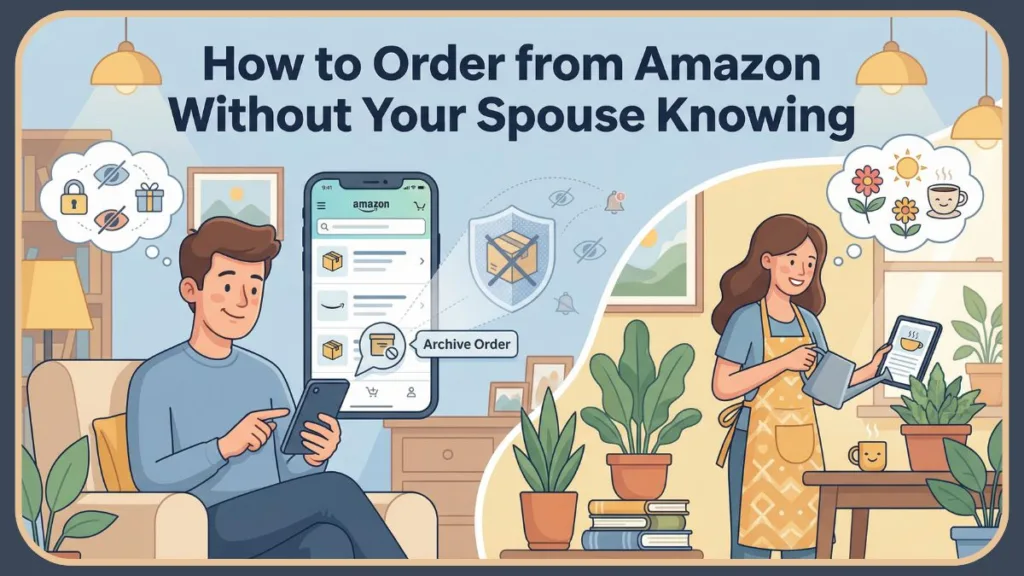
Amazon’s convenience features are helpful most of the time, but when you’re planning a surprise, they can work against you.
The good news is that you can stay in control. If you take the right steps immediately—especially disabling Alexa notifications and archiving orders—you can safely order gifts without ruining the moment. This guide walks you through every method you need, starting with the most important ones for surprise givers.
Can You Hide Amazon Orders? Understanding Archive vs. Delete for Privacy
When planning a surprise, it’s important to understand what Amazon can and cannot do.
Amazon does not allow you to permanently delete orders. There is no single “private gift” button. However, Amazon does provide tools that let you reduce visibility, which is exactly what you need for surprise gifting.
For most gift buyers, the goal isn’t long-term secrecy—it’s short-term protection until the special day arrives. That’s why archiving orders, managing browsing history, and disabling notifications matter so much.
7 Proven Methods To Keep Amazon Purchases Secret from Your Spouse
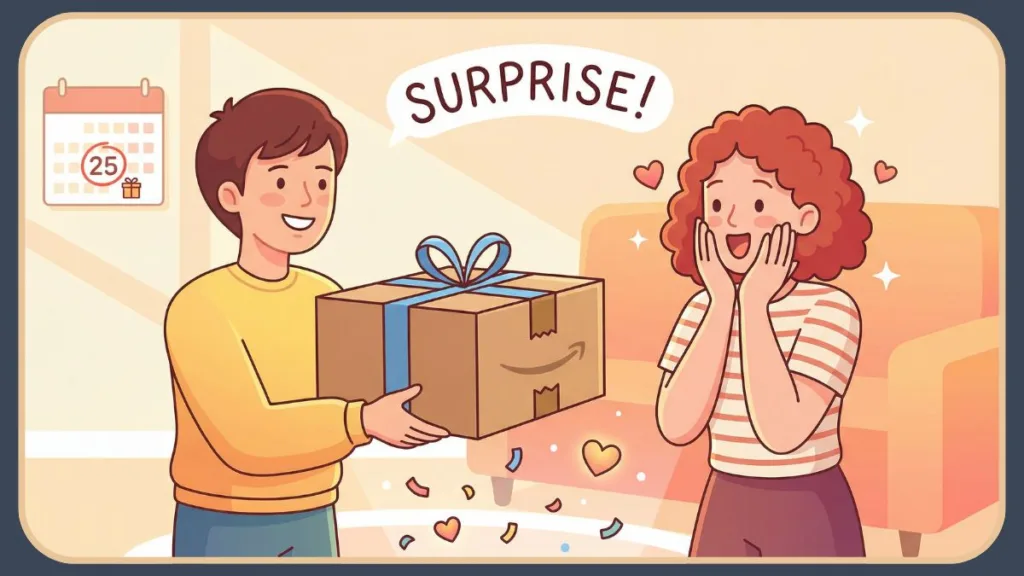
Method 1: Archiving Amazon Orders to Hide Them from Order History
For surprise givers, this is the first action you should take after placing the order.
Archiving ensures that the gift does not appear in the main order history, where it could easily be spotted if your wife checks past purchases to reorder coffee or check a delivery status.
How Order Archiving Works When you archive an order, Amazon removes it from the default order list. This means the gift will not appear alongside everyday purchases like groceries or household items.
The order still exists for you, but it’s hidden from casual view. Think of it like moving a file from your desktop into a hidden folder—it’s still on the computer, but no one will stumble upon it by accident.
Step-by-Step Guide to Archiving an Amazon Order
- Open Your Orders on Amazon as soon as the purchase is complete.
- Locate the gift order and open its details.
- Select Archive Order and confirm the action.
Doing this immediately reduces the risk of accidental discovery. Note that Amazon currently allows you to archive up to 500 orders, so you don’t need to worry about hitting a limit during a holiday shopping spree.
How to Archive Amazon Orders on the Amazon App
If you ordered from your phone, this step is especially important. The archive option can be difficult to find in the mobile app.
Pro Tip for Mobile Users: You cannot archive orders directly inside the standard Amazon App. You must open your mobile browser (Chrome, Safari, or Firefox), go to Amazon.com, and select “Request Desktop Website” from the browser menu (usually found in the settings or the “AA” icon). Only then will the “Archive Order” button appear. This extra step is worth it when a surprise is on the line.
Limitations of Archiving You Should Know
Archiving does not delete the order
If someone knows exactly where archived orders are stored, they could still find it. However, for most surprise scenarios, archiving is more than enough—especially when combined with the next methods.
If you ever need to find the order yourself (e.g., to return a ring that didn’t fit), you can find it by going to Your Orders > Filter > Archived Orders.
Method 2: Setting Up Amazon Household for Separate & Private Accounts
If you regularly buy gifts or want zero risk of spoilers, Amazon Household offers a stronger safety net.
What Amazon Household Actually Does Amazon Household allows two adults to share Prime benefits while keeping separate accounts. Each person has their own login, their own order history, and their own recommendations.
It’s comparable to having two separate keys to the same house; you both live there, but you can’t see inside each other’s personal rooms. This is invaluable if you are planning multiple surprises throughout the year—like birthdays, anniversaries, and holidays—because using your own Household account ensures none of those purchases accidentally appear while you are browsing together.
Does Amazon Household Share Order History?
No. Orders placed under your account stay visible only to you. Your wife won’t see the gift in her order history, delivery list, or recommendations.
Critical Warning: When setting this up, pay close attention to the “Family Library” settings. If you check the box to share “Apps/Games,” “Audiobooks,” or “eBooks,” your wife might see a notification that you just bought a book titled “How to Plan a Surprise Party” or a self-help book you wanted to keep private. Always uncheck content sharing if you want total privacy.
Why Surprise Givers Prefer This Method
This method eliminates the need to archive every single gift. Since histories are separated by default, there’s no risk of a surprise appearing on a shared screen. It is the only way to effectively shop for “household” items together while keeping “personal” gifts completely invisible.
How to Set It Up
- Go to Manage Your Household in your Amazon account.
- Add your wife as the second adult (or vice versa).
- Always place surprise orders while logged into your own account.
Method 3: Clearing Amazon Browsing History to Remove “Recently Viewed” Spoilers
This step directly addresses one of the biggest fears for surprise givers: “Recently Viewed” giveaways.
Why Browsing History Exposes Gifts
Even if the order itself is hidden, Amazon may display the product on the homepage, in recommendations, or under “Recently Viewed.” This can instantly ruin the surprise.
Imagine your wife logging in to buy batteries and seeing a row of “Recommended for you” items that are all related to the specific necklace you just bought.
How to Clear or Turn Off Browsing History
After searching for or viewing a gift, remove it from browsing history or pause browsing tracking altogether. Doing this ensures that the item doesn’t reappear when your wife opens Amazon later.
- To remove specific items: Go to “Browsing History” and click “Remove from view” on the gift items.
- The Nuclear Option: You can toggle “Turn off browsing history” entirely in the Manage History menu. This stops Amazon from tracking anything you look at until you turn it back on.
Method 4: Using Incognito Mode & Logging Out for Shared Device Privacy
This method prevents shared devices from betraying you.
What This Prevents
Private browsing (Incognito) stops Amazon from saving search activity, cookies, and login sessions on the device. Logging out afterward ensures no order details remain visible.
If you use a standard browser window, Amazon often keeps you logged in for weeks, meaning anyone opening that laptop is instantly in your account.
When This Method Is Useful
This is especially important if you and your wife share a “family iPad” or a desktop computer in the living room.
Always use a fresh Incognito window (Ctrl+Shift+N in Chrome) for gift shopping, and close the window immediately after you see the “Order Confirmed” screen.
Method 5: Disabling Alexa Delivery Notifications to Stop Voice Spoilers
For surprise givers, this is often the biggest threat.
Where Orders Leak Unexpectedly
Alexa can announce deliveries out loud, sometimes including item details. A glowing yellow ring on your Echo device indicates a notification is waiting.
If your wife asks, “Alexa, what are my notifications?” the device might cheerfully reply, “You have a shipment containing [Brand Name] Jewelry arriving today.”
Stop Alexa From Saying Package Contents
In the Alexa app, turn off delivery announcements and item detail notifications. This prevents Alexa from revealing when the gift arrives or what it contains, keeping the surprise intact.
How to turn it off: Open the Alexa App > Tap More > Settings > Notifications > Amazon Shopping. Look for the section “Say or Show Item Titles” and toggle it OFF.
Emergency Voice Command: If you slip up and say something suspicious near the device, you can immediately say, “Alexa, delete what I just said,” to wipe that voice recording from the history.
Method 6: Utilizing Amazon Locker for Secure & Discrete Delivery
Even perfect digital privacy won’t help if the box arrives at the door.
Why This Method Is Essential
A delivery on the porch is often the final giveaway. If your wife sees the package or the label, the surprise may be over. Even if she doesn’t open it, seeing a box arrive creates curiosity (“What did you order?”).
Bonus Reason: Using a Locker isn’t just about secrecy; it’s the best excuse to give if you are caught. You can honestly say you were worried about “porch pirates” stealing the package while you were at work, transforming a “sneaky” act into a “protective” one.
How Amazon Locker Works
Instead of shipping to your home, select an Amazon Locker or Amazon Hub Counter (often located inside stores like Whole Foods, Rite Aid, or GNC) during checkout. The package is delivered there, and only you receive the pickup code.
This is perfect for high-stakes items, such as sending an anniversary gift to a locker at a nearby store, which allows you to collect it privately and hide it until the special day—no boxes, no questions.
Note on Time Limits: You typically have 3 calendar days to pick up your package from a Locker. If you wait too long, it is automatically returned to Amazon for a refund, so plan your pickup schedule accordingly.
Method 7: Masking the Paper Trail with Gift Cards & Bank Statement Privacy
For some surprise givers, financial records are the last risk.
Why This Helps
Shared bank or credit card statements can reveal unusual purchases or merchant activity that raises questions.
While the statement will likely just say “AMZN MKTP” or “Amazon.com” and not “Diamond Earrings,” the dollar amount ($500.00) is often a dead giveaway that something big is happening.
When to Use This Method
If you share finances and want to avoid any hints, using gift cards or prepaid payment methods adds an extra layer of discretion.
- The Grocery Store Method: Buy a physical Amazon Gift Card at a grocery store using cash or a personal debit card. Load that gift card onto your account and use it for the purchase. The bank statement will show “Kroger” or “7-Eleven,” not Amazon.
- Virtual Cards: Services like Privacy.com allow you to generate virtual card numbers for online shopping. This can help mask the merchant name on your bank statement if you use their specific features, though the cash-for-gift-card method remains the most untraceable.
What Does NOT Work – Important Privacy Warnings
You cannot permanently delete Amazon orders, and archiving alone does not protect against notifications or physical delivery. Using the same Amazon login also defeats most privacy efforts.
Knowing these limits helps you avoid false confidence. For example, creating a “Child Profile” for yourself won’t work because child profiles cannot make purchases.
Best Method Comparison: Quick Summary
For surprise gifts, archiving orders and disabling Alexa notifications are essential. Amazon Household accounts offer long-term safety, while locker delivery ensures physical privacy.
Frequently Asked Questions About Hiding Amazon Orders
Can my wife still see archived orders?
Only if she knows where archived orders are stored (Your Orders > Filter > Archived Orders), which most users do not check during daily use.
Can Alexa really spoil a surprise?
Yes. Delivery announcements are one of the most common ways surprises get ruined if they are not disabled. The “Yellow Ring” is a tell-tale sign that a package update is waiting.
Are recommendations really that revealing?
Yes. Recently viewed items and homepage suggestions can instantly expose a gift. If you look at engagement rings for 10 minutes, Amazon will show engagement rings on the homepage for weeks unless you clear your history.
Is this allowed by Amazon?
Yes. All methods use Amazon’s standard privacy and account features. You are not breaking any Terms of Service by archiving orders or using a Locker.
Final Thoughts: Maintaining Surprise Integrity & Shopping Privacy
Buying a surprise gift should be joyful, not nerve-wracking. Amazon doesn’t mean to spoil surprises, but its convenience features can do exactly that if you’re not careful.
For the safest experience, we recommend you archive the order immediately, disable Alexa delivery announcements, clear browsing history, and use locker delivery when possible.
When you control both what Amazon shows and how the package arrives, your surprise stays a surprise—right up until the moment you reveal it.
Visit Our Post Page: Blog Page