
Confused about locking ZIP files? Learn how to password protect a ZIP file in Windows 11 using 3 methods that actually work, including a secure option most guides miss.
When you try to password protect a ZIP file in Windows 11, the experience is immediately confusing. You right-click a file in File Explorer, expect to see a simple Add password option to lock the zip file, and it’s just not there. This is especially frustrating when you’re about to email sensitive documents like tax files, contracts, or personal IDs and need to encrypt a zip file right now.
Here is the reality you need to understand upfront regarding how to password protect a zip file in Windows 11: the system can open password-protected ZIP files, but it cannot create them natively. The built-in Compress to ZIP file option looks modern, but it offers zero encryption controls. There is no hidden toggle, advanced menu, or registry trick that enables you to create a password protected zip file inside File Explorer.

Once you understand this limitation, the solution becomes straightforward. Below, you’ll see exactly what Windows 11 does behind the scenes, why it behaves this way, and how to encrypt a zip file in Windows 11 securely using the correct tools—without wasting time or risking your data.
Can Windows 11 Create Password Protected Zip Files Natively?
No. You cannot password protect a ZIP file in Windows 11 using the default File Explorer tools.
When you right-click a file or folder and select Compress to ZIP file, Windows simply bundles the files together. It does not encrypt the zip file, and it does not ask for a password. However, when someone sends you a password protected zip, Windows 11 can open it just fine, which is what causes confusion for many users looking for how to lock a zip file.
This inconsistency exists because Windows includes ZIP extraction support but removed native ZIP encryption years ago. The only built-in protection Windows 11 still offers is Encrypting File System (EFS), which works at the file system level and is tied to your user account—not to a zip password. If you want a ZIP file that prompts for a password on any computer, you must use third-party software like 7-Zip.
Method 1: Locking Zip Files with Windows EFS (Local Encryption)
This method is often mistaken for how to password protect a zip file without software, but it works very differently. You are not adding a password to the ZIP file. Instead, you are locking the file so only your Windows account can open it.
How EFS Account-Based Encryption Works in Windows 11
When you enable EFS on a ZIP file, Windows encrypts it using credentials linked to your current Windows user profile. Because you are already signed in, Windows silently verifies your identity in the background. That’s why, when you double-click the ZIP file afterward, it opens normally and never asks you to enter a password.
For anyone else, the experience is the opposite. If another user account on the same PC tries to open the locked zip file, Windows immediately blocks access. If you email the ZIP file to someone or copy it to another computer, the recipient cannot open it at all and will typically see an Access Denied message. This happens because the encryption key is stored in your Windows profile, not inside the ZIP file itself.
This is account-based encryption, not zip file password protection.
Best Use Cases for Local EFS Protection
This approach works only when your goal is to prevent other users on the same shared computer from opening your files. It is useful if multiple people log into the same PC and you want your ZIP files accessible only under your account.
Important: This does not work for emailing files, uploading them to cloud storage for others, or moving ZIP files between devices. The moment the file leaves your NTFS drive or your user profile, the encryption either breaks or makes the file completely unusable.
Step-by-Step: How to Enable EFS on a Zip File
When you right-click the ZIP file in Windows 11 File Explorer, you’ll first notice the shortened context menu. Select Properties from this menu. If you don’t see it immediately, click Show more options to access the classic menu.
In the General tab, click Advanced… near the bottom. In the Advanced Attributes window, enable Encrypt contents to secure data, then confirm with OK.
When you apply the change, Windows asks whether you want to encrypt just the file or the entire folder. Choose Encrypt the file only so you don’t unintentionally lock other files. Once encryption is applied, Windows usually displays the ZIP file name in green text, indicating it is encrypted using EFS.
Why EFS Fails for Email and External Sharing
This method never shows a password prompt because authentication happens silently through your Windows login. It fails when you email the file or copy it to many USB drives. It works only on NTFS-formatted drives and is not available on Windows 11 Home.
Warning: This method is not suitable for sending ZIP files to other people.
Fix the “Encrypt Contents to Secure Data” Greyed Out Error
If you see this option disabled, Windows is blocking it for a specific reason.
Reason 1 — You’re Using Windows 11 Home (Most Common) Windows 11 Home does not support Encrypting File System. This edition only supports device-level encryption and does not allow per-file encryption through File Explorer. There is no workaround here. If you are using Windows 11 Home, you must use a tool like 7-Zip to password protect zip files.
Reason 2 — Your Drive Is FAT32 or exFAT EFS works only on NTFS drives. Many USB flash drives and external hard drives use FAT32 or exFAT, which disables encryption features in File Explorer. If your ZIP file is stored on one of these drives, move it to your internal NTFS drive or switch to 7-Zip, which encrypts zip files regardless of drive format.
Reason 3 — EFS Service Is Disabled (Pro Users) On Windows 11 Pro, the EFS service may be turned off. When this happens, encryption options disappear. You can enable it through services.msc by setting Encrypting File System (EFS) to Automatic, starting the service, and restarting your PC.
Reason 4 — Encryption Disabled in the Registry (Advanced) If the registry value NtfsDisableEncryption is set to 1, Windows blocks encryption system-wide. Changing it to 0 restores EFS after a restart. This step is advanced and should be done carefully.
Summary of EFS Fixes for Home and Pro Users
If you are on Windows 11 Home, EFS will never work. If your file is on a FAT32 or exFAT drive, encryption is unavailable. Pro users may need to enable services or correct registry settings. In all cases, using 7-Zip avoids these issues entirely.
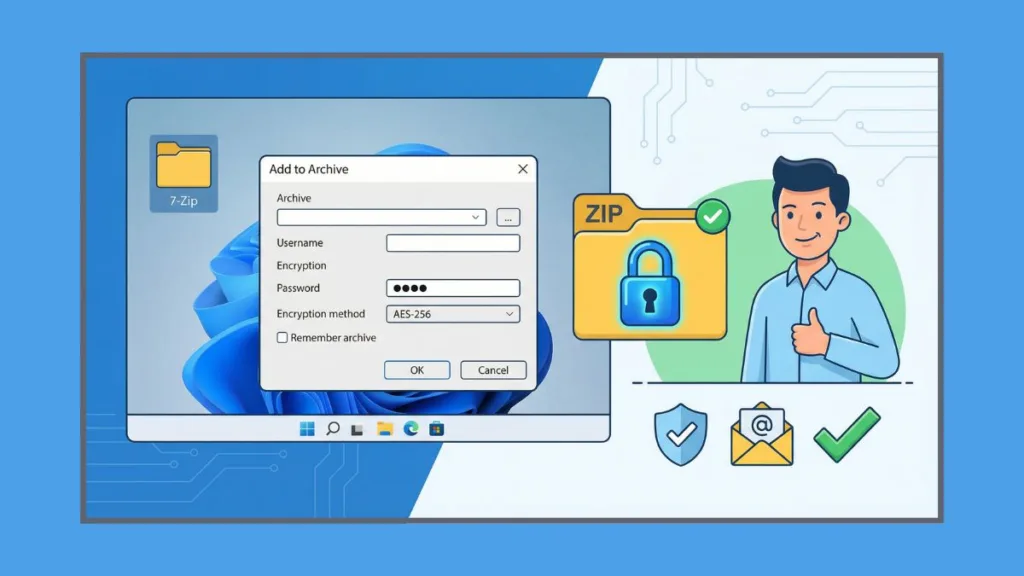
Method 2: How to Password Protect a Zip File Using 7-Zip (Recommended)
This is the correct and reliable way to password protect a ZIP file in Windows 11.
Why 7-Zip AES-256 Encryption Is the Secure Choice
7-Zip is free, open-source, and widely trusted. It allows you to choose AES-256 encryption, which is a modern, military-grade standard. AES-256 scrambles your data so thoroughly that it cannot be accessed without the correct password.
This matters when you send files by email. Older ZIP encryption like ZipCrypto can be broken easily, while AES-256 protects your zip file even if someone intercepts the attachment.
Step-by-Step: Creating a Password Protected Zip with 7-Zip
After installing 7-Zip, right-click the folder or files you want to protect. Because Windows 11 uses a compact context menu, you may need to click Show more options before you see 7-Zip.
Select 7-Zip > Add to archive…. In the archive window, you’ll see options for Archive format, Compression, and Encryption. Choose ZIP if compatibility matters or 7z if you want stronger compression.
In the Encryption section, type your password into Enter password, retype it in Reenter password, and make sure AES-256 is selected.
When you click OK, 7-Zip creates an encrypted archive that prompts for a password on every system.
Warning: If you lose this password, the data is unrecoverable.
.ZIP vs .7Z: Choosing the Best Format for Compatibility
ZIP files open easily on almost all devices, making them ideal for email. 7Z files compress better and offer strong security but require compatible software to open. For most users sending files externally, ZIP is the safer choice.
Method 3: Native BitLocker Virtual Drive Encryption (Windows 11 Pro)
This method does not create a password protected ZIP file, but it provides a native Windows solution that enforces a password before access.
When to Use BitLocker Instead of Zip Passwords
This option is best if you use Windows 11 Pro, want native tools only, and are storing sensitive files locally rather than sharing them.
How to Create a Password-Protected VHDX Virtual Drive
Using Disk Management, you create a VHDX file, initialize it, and format it as a simple volume. Once mounted, you enable BitLocker, set a password, and store ZIP files inside the virtual drive. When you eject it, the data is locked. When you mount it again, Windows demands the password.
BitLocker Drive Encryption vs. Standard Zip Passwords
This method protects an entire virtual drive, not individual ZIP files. It’s more complex and not designed for email sharing, but it offers strong native security.
Summary: Which Encryption Method Should You Choose?
- If you only need to block access from other users on the same PC, EFS may be enough.
- If you need to email or share a password protected zip file, 7-Zip is the correct solution.
- If you want a native option on Windows 11 Pro without third-party software, BitLocker with a virtual drive is viable.
If your goal is simple—how to password protect a ZIP file in Windows 11—the fastest, safest, and most reliable answer remains 7-Zip.
Frequently Asked Questions (FAQs)
Does Windows 11 have built-in ZIP password protection?
No. Windows 11 can open password-protected ZIP files but cannot create them natively.
How do I put a password on a ZIP file for free?
Use 7-Zip and select AES-256 encryption to password protect zip file Windows 11 free.
Can I password protect a ZIP file without software?
No. Windows 11 does not support this feature.
Is 7-Zip safe for Windows 11?
Yes. It is open-source and widely trusted.
Why can’t others open my encrypted ZIP file?
If you used EFS, the file is tied to your Windows account and cannot be opened by other users.
Visit Our Post Page: Blog Page