
Struggling to find the reels option on desktop? Learn how to post a reel on Facebook from your computer, upload videos from PC, and fix missing reels with this simple 2026 guide.
You’re managing your social media, you want to upload a high-quality video, and the worst-case scenario happens: you can’t find the Reels button on your desktop. Now you’re frantically searching, “how do you post a reel on Facebook desktop?”
With Facebook generating over 140 billion daily reel plays across Meta’s ecosystem, missing out on short-form video is no longer an option for serious brands and creators. In recent platform updates, Meta has made a monumental shift: virtually all video uploads under 90 seconds are now automatically classified and distributed as Reels. This means the algorithm is heavily skewed toward vertical video discovery, actively pushing your content to up to 50% of users who do not even follow your page.

Because of this intense algorithmic push, high-volume content creators and social media marketing agencies rely on desktop workflows to scale their production. Using a PC allows you to manage massive file sizes directly from your camera’s SD card, edit with precision using professional desktop software, organize bulk uploads, and seamlessly manage cross-platform campaigns across multiple time zones without draining a smartphone battery.
Here’s the catch: Most people look in the wrong place because the standard Facebook feed hides it.
Quick Answer: Yes, you can post a reel on Facebook desktop using Meta Business Suite. Simply navigate to business.facebook.com, select your business page, click the Create Reel button, and upload your MP4 file. You can then add a caption, edit your video, and publish it immediately or schedule it for later.
Understanding this bypass is the key to unlocking consistent, professional-level social media growth. The native consumer interface was built for browsing, not for enterprise-level publishing.
Can You Post Facebook Reels on Desktop 2026?
Let’s answer that question immediately: yes, you can post a Reel on Facebook from a computer, but the option isn’t always obvious. Meta prioritizes mobile creation, so the feature is often buried. The “upload” method everyone is looking for is actually the process of using Meta Business Suite to publish your video.
Historically, Meta provided several different desktop tools, including the now-defunct Creator Studio. However, as of late 2025 and 2026, Meta has completely phased out Creator Studio, migrating all professional analytics, messaging, and publishing tools into a single, unified Meta Business Suite. This consolidation has left many legacy users confused, as old bookmarks and tutorials no longer work.
If you are trying to navigate Facebook reels on desktop browser, you will quickly realize that the native feed interface is severely limited. This guide will show you exactly how to bypass those limits, explain what happens when you try to use a personal profile versus a business page, and provide strategies to manage scheduling and editing gracefully. It covers both Meta Business Suite and the standard interface, clearly separates page limits from profile limits, and includes tips for managing technical requirements.
Important Insight: Posting from a desktop environment prevents the aggressive file compression that often occurs when uploading via a mobile application on a weak Wi-Fi or cellular network. Desktop uploads ensure that your crisp 1080p rendering maintains its high bitrate when processed by Meta’s servers, which is a critical factor for viewer retention. Facebook Reels generate 22% more engagement than traditional video posts, and maintaining pristine visual quality is your first step toward capturing that attention.
How to Post Reels on Facebook PC: The Ultimate Upload Guide
Trying to upload Facebook reels from desktop can feel frustrating, but the only reliable way to “post” a reel is by utilizing Meta’s professional tools. This method gives you better control over editing, file management, and overall video quality, although mobile users might have more native trending audio options.
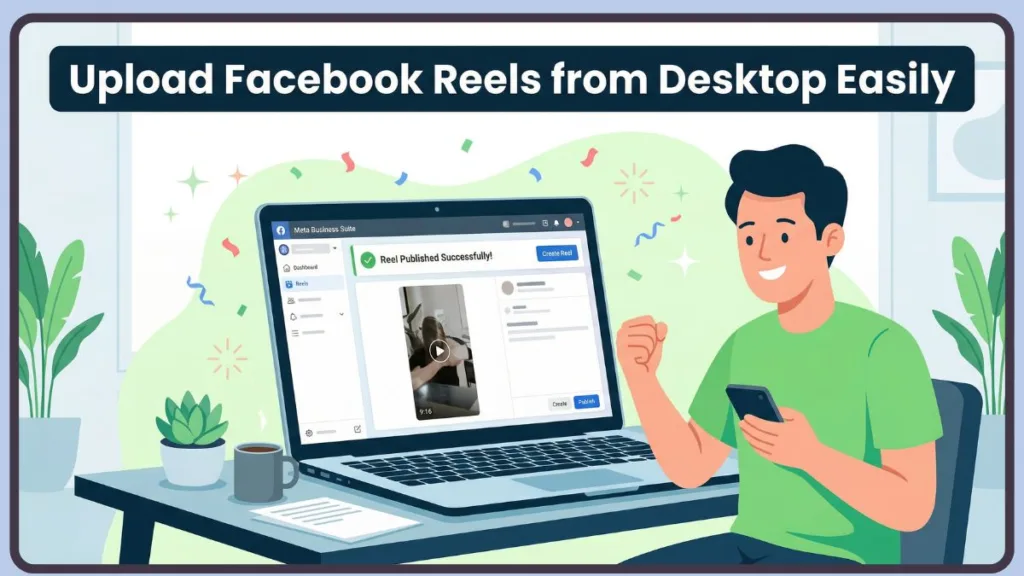
Desktop publishing allows you to establish an uninterrupted content pipeline. You can finalize your video in your editing timeline, export the file, and upload it directly to Meta’s servers without the cumbersome step of AirDropping or emailing files to your phone—a process that frequently corrupts audio syncs or alters frame rates.
Step-by-Step on Meta Business Suite (Best Method)
- Navigate to business.facebook.com and log into your account.
- Select the correct Business Page in the top-left dropdown menu.
- Click the Create Reel button on the home dashboard.
- Click Add Video and select your MP4 file from your computer.
- Add your caption, hashtags, and select a thumbnail, then hit Publish or Schedule.
Tip: Acting quickly and using desktop editing software beforehand increases the chance of producing a high-quality, engaging video before uploading.
But Meta Business Suite offers much more than just a basic upload button. During step four, you gain access to a suite of advanced features designed specifically for maximizing reach. For example, Meta Business Suite now allows you to run organic A/B Testing on your Reels. You can upload up to four different video variations, or test different captions and thumbnail combinations. Facebook will distribute these variations to a small segment of your audience, identify the winner based on engagement, and automatically push the winning variation to the rest of the algorithm.
Additionally, you can use the Invite Collaborators feature directly from your PC. This allows you to co-publish a Reel with another brand or creator, merging your audiences and drastically multiplying your view count. You also have direct access to the Meta Sound Collection, allowing you to lay down copyright-safe background music right inside your desktop browser without risking a copyright strike.
Step-by-Step on Facebook Desktop Interface
- Log into your standard Facebook account on your browser.
- Navigate to the Reels section on your feed or profile.
- Look for a Create or Camera icon (if available to your account).
- Upload your video, add basic text, and publish.
Tip: This desktop method allows for basic profile uploads, but it is highly limited and not universally available, making it less reliable for managing multiple uploads at once on the Facebook reels on desktop version.
Important Setup: If you are determined to upload from a personal profile but cannot find the Create button, you may need to manually switch your account to Professional Mode. Facebook intentionally restricts advanced API publishing features for standard consumer profiles to encourage the creation of Business Pages. By navigating to your profile settings and toggling on Professional Mode (if you haven’t done this yet, check out our easy tutorial on how to turn on Professional Mode and enable your creator tools), you unlock a hybridized dashboard that restores some of the missing Reels upload functionality on the desktop interface, though it still falls short of the full Meta Business Suite experience.
Facebook Reels Desktop Requirements Before Uploading
Even before scheduling a reel, you need to ensure your file meets the technical requirements. Here’s how to handle the upload process with confidence:
- Format as MP4: Always use the MP4 video format (specifically H.264 encoding at 30 FPS). Meta also natively supports H.265 (HEVC), VP9, and AV1 codecs for advanced desktop users, provided they maintain a progressive scan and a closed GOP (Group of Pictures) length of 2-5 seconds.
- Check Aspect Ratio: Ensure your vertical aspect ratio is exactly 9:16 (1080 by 1920 pixels).
- Audio Specs: Ensure your audio codec is set to AAC low complexity, at 48khz stereo, with a minimum audio bitrate of 128 kbps.
- Watch the Limit: Keep the video under 90 seconds (under 60 seconds is best for engagement) and the file size under 4GB for direct browser uploads (though API integrations technically allow up to 10GB). The video bitrate should not exceed 25 mbps.
Crucial UI Warning: One of the most critical and widely misunderstood requirements for publishing video on desktop is adhering to Meta Ads Safe Zones. This is where most advertisers and creators make catastrophic mistakes.
While Instagram Stories and Facebook Reels both share the exact same 1080×1920 (9:16) dimensions, their safe zones are vastly different. Stories require a 20% bottom clearance margin. Reels, however, require a massive 35% bottom safe zone (approximately 670 pixels). Why? Because Reels have a highly interactive UI stacked at the bottom of the screen. Your video’s caption, the creator’s username, the audio track information, the like and comment buttons, and the share arrow all sit as an overlay on top of your video.
If you design your video on your PC using a standard 20% Story margin and run it on Reels, your Call-To-Action (CTA), essential subtitles, or product links will be completely buried underneath Meta’s interface. The most reliable method for bulk creative uploads is to build a master template in your desktop editor that features a 14% top margin and a 35% bottom margin, keeping all vital visual information dead-center.
Tip: Optimization and correct dimensions are usually the best tools when dealing with annoying Meta aspect ratio upload bugs.
How to Upload Reels on Facebook Page From Computer vs. Personal Profile
Uploading to a Business Page is different from a Personal Profile. Facebook gives you different tools depending on your account type, giving you control over your content. If you want to reliably upload reels on Facebook page from computer, you must use the correct dashboard.
The distinction between Pages and Profiles extends deeply into analytics and monetization. When you use Meta Business Suite for a Page, you unlock the ability to track advanced Views Metrics. This includes data points like “View Rate” (the percentage of your followers and non-followers who watched your content for over 3 seconds) and “Views Over Time.” Personal profiles, even with Professional Mode engaged, usually only receive surface-level vanity metrics like total play counts and likes.
Furthermore, Business Pages managed via desktop are eligible for Meta’s Creator Fast Track monetization program. Eligible pages can earn guaranteed monthly payouts (ranging from $1,000 to $3,000) for high-performing Reels, alongside revenue from Ads on Reels and Facebook Stars—and if you’re serious about scaling that income, you’ll definitely want to explore our deep dive into mastering Facebook monetization. Managing these payout hubs (by the way, if you’re just getting started with earnings, here is your complete guide to setting up and managing your Facebook payout account), linking bank accounts, and reviewing tax documents is significantly safer and easier on a secure desktop environment than on a mobile app.
Where to Find Your Publishing Tools
- Pages: Use Meta Business Suite for full scheduling, editing, and analytics.
- Profiles: Rely on the standard Facebook interface or mobile app, as desktop tools are severely restricted.
The platform shows different layouts and allows you to manage them efficiently based on your account type.
Agency Strategy: If you are managing social media for multiple clients or a larger brand, you can bypass Meta entirely by using authorized third-party APIs. Desktop web applications like Sprout Social, Hootsuite, Buffer, Later, and Metricool feature deep Facebook API integrations. These tools allow you to upload your vertical video to their servers, and they will seamlessly push the Reel to Facebook on your behalf. This is highly recommended for agencies managing omnichannel strategies.
Publish Now vs. Schedule Reel
- Publish Now: Sends the reel immediately to your feed and the Reels algorithm.
- Schedule Reel: Allows you to pick a specific date and time for the video to go live.
Tip: Use schedule for reels you want to align with peak engagement hours in Tier 1 countries (US, UK, Canada, Australia). It’s a discreet way to manage content while keeping your workflow organized without needing to be online.
Important Timing Data: Scheduling from your PC is a strategic superpower. Based on large-scale analytical studies analyzing billions of engagements in 2026, the absolute best times to post for B2B and B2C audiences in Tier 1 markets are Tuesdays and Wednesdays between 10 AM and 1 PM local time.
Additionally, the upload and publishing process on Facebook’s backend can take up to 30 minutes, as the platform must internally process, encode, and run copyright checks on your uploaded files. If you “Publish Now,” your video might sit in a processing queue during a crucial traffic window. By scheduling your Reel via desktop at least a few hours in advance, you guarantee that the video is fully processed, cached, and ready to be served to the algorithm the exact second your scheduled time hits.
How to Create Reels on Facebook Desktop: Content & Editing Ideas
Facebook rewards high-quality content. Controlling your editing on a PC prevents the limitations of mobile editing. Most people miss this, but desktop editing is the secret weapon of top creators.
Working on a desktop allows you to utilize an “Open Gate” workflow. This means you shoot with your camera’s full sensor and bring the massive, uncropped file into your PC editor. From there, you can reframe and track your subject dynamically in a 9:16 vertical canvas without losing resolution—a technique that is incredibly heavy on mobile processors but a breeze for a decent desktop editing rig.
Here is how to maximize your workflow:
- Use Desktop Editors: Software like CapCut Desktop, Premiere Pro, or DaVinci Resolve offers better transitions and one-click auto-captions.
- Hook Strategy: Start with a strong visual or verbal hook in the first 3 seconds. Desktop editing allows you to add dynamic text pop-ups right when the video starts, which prevents users from scrolling past.
- Engagement Tactics: Add an animated call-to-action (CTA) pointing to your comments section, or use software screen recordings (speaking of which, if you want to stream those recordings, here is a great walkthrough on how to go live on Facebook using OBS Studio like a pro) and animated infographics to deliver high value fast.
- Repurpose Content: Edit once on PC and publish across both Facebook and Instagram simultaneously.
To elaborate on desktop editors, each brings a unique advantage to your Facebook Reels strategy. CapCut Desktop has become the reigning champion for short-form video due to its massive library of trending transitions, exact 9:16 export presets, and hyper-accurate auto-captioning. Captions are not optional; over 70% of users in Tier 1 countries scroll their feeds on mute while working or commuting.
For advanced creators, Adobe Premiere Pro offers unparalleled integration with After Effects, allowing for custom motion graphics and kinetic typography that stop scrollers in their tracks. Meanwhile, DaVinci Resolve offers Hollywood-grade 10-bit color correction. If you are showcasing high-end products, real estate, or luxury lifestyle content, grading your footage in DaVinci Resolve on a color-calibrated PC monitor will make your Reels visually superior to competitors shooting on standard smartphones.
Tip: Regularly experimenting with different formats and utilizing desktop editing keeps your content strategy clean and stress-free. Learning how to create reels on Facebook desktop with professional software will instantly elevate your brand.
Why You Can’t Post Reels on Facebook Desktop (Fixes)
If you are staring at your screen wondering why the upload button is missing or why your video keeps failing, here are the most common troubleshooting fixes:
- Missing Button: You are likely on a personal profile instead of a business page. Switch to Meta Business Suite.
- Stuck at 95% Processing: This is a common desktop bug. Refresh your page, check your internet connection, or re-export your video from your editor to ensure it is strictly under 4GB.
- Browser Glitches: Ad-blockers or strict privacy extensions can break Meta’s upload scripts. Disable them temporarily for Facebook.
Beyond these common fixes, there are deeper technical reasons why your desktop uploads might fail.
The EXIF Data Conflict: Sometimes, even if you export a perfect 1080×1920 vertical video, your editing software might encode the file’s EXIF metadata incorrectly, tagging it as a landscape 1920×1080 file that has been rotated. Meta’s API reads the metadata first, assumes it’s the wrong format, and rejects the upload, resulting in an endless loading loop. To fix this, run your video through a metadata stripper on your PC or re-encode it quickly using a tool like Handbrake before uploading it to Meta Business Suite.
Frame Rate Sync Issues: If your video successfully uploads but the audio is out of sync, check your export settings. While Meta supports up to 60fps, their aggressive compression servers often struggle to transcode 60fps files smoothly, resulting in audio drift. On your desktop editor, limit your export frame rate to a constant 30fps (or 24fps for a cinematic look) to ensure the video and audio remain perfectly locked during Meta’s ingestion process.
Extension Interference: Privacy-focused browser extensions like uBlock Origin, Privacy Badger, or even strict Brave Browser shields aggressively block third-party tracking scripts. Unfortunately, Meta utilizes these exact same Javascript delivery networks to power their video upload UI. If the upload module refuses to load on your screen, “white-list” the domains
facebook.comandbusiness.facebook.comin your extension settings.
FAQs About Posting Reels on Facebook Desktop
1. How do I post a reel on Facebook desktop in 2026? Use Meta Business Suite to upload a reel directly from your PC to your business page. By navigating to the Content section, you can access the Create Reel button, giving you full control over your media assets.
2. What file format and length does Facebook Reels require? Your video must be in MP4 format, sized at a 9:16 vertical ratio (1080×1920), and no longer than 90 seconds. To avoid audio sync issues, it is highly recommended to encode your video at a constant frame rate of 30 frames per second with a high-quality AAC stereo audio track.
3. Can I schedule a reel after leaving the upload page? No — once the reel is published immediately, it cannot be reverted to a draft. You must select the scheduling option during the initial upload process. If you make a mistake, you must delete the live video and re-upload the entire file.
4. Where is the Create Reel button on Facebook and how do I find it? You can access it directly through the Meta Business Suite dashboard or look for the Reels tab on the standard interface. For the most reliable experience, always use the Business Suite, as the consumer feed frequently hides the button during platform updates.
5. How do I fix the 9:16 aspect ratio error on desktop? Refresh the page or clear your browser cache, as this is a known Business Suite glitch for perfectly sized videos. You can clear your cache by pressing CTRL + F5 on Windows or CMD + SHIFT + R on a Mac to force the browser to retrieve fresh scripts from Meta’s servers.
6. What does scheduling a reel mean on Facebook? It delays the publish time of the video without posting it immediately to your audience, allowing you to hit peak traffic times automatically. This guarantees your content goes live when audiences in the US, UK, Canada, and Australia are most active, even if you are asleep.
7. Did Facebook integrate Instagram Reels on desktop? Yes, Meta Business Suite allows you to toggle a button to publish your reel to both platforms simultaneously to maximize reach. This cross-posting feature ensures that the exact same high-quality MP4 file is pushed to both algorithms without needing to log in twice.
8. How do I upload a reel to my personal profile from a PC? Use the standard Facebook interface if the feature is visible, or use your mobile device if desktop uploading is restricted for your profile. If you desperately need desktop functionality, consider switching your personal profile to “Professional Mode” via your account settings.
Conclusion: Efficiently Managing Facebook Reels Uploads
Facebook reels are a powerful feature, but managing them effectively from a PC is key to a smooth content strategy. Meta Business Suite is the most reliable method for uploading and scheduling sent videos, while the standard interface works (sometimes) for basic profile uploads.
The digital landscape is moving entirely toward short-form video. By treating your desktop PC as a master command center rather than relying on a smartphone, you immediately elevate the production value and consistency of your brand. Desktop uploading allows for better organization, superior video rendering, advanced cross-platform distribution, and access to deep analytical insights that mobile users simply do not receive.
By following this guide, you can stay in control of your content workflow, handle technical requirements gracefully, optimize your editing with desktop tools, and scale your reach. Regularly reviewing your Meta Business Suite dashboard ensures your Facebook publishing remains efficient, organized, and stress-free.
Tip: Check your Meta Business Suite tools and update your desktop editing software frequently to maintain a clean workflow, minimize upload bugs, and manage your content strategy like a pro. Keep your aspect ratios precise, respect the 35% bottom safe zone, and your desktop-published Reels will flawlessly dominate the algorithm.
Visit Our Post Page: Blog Page