
Looking to fix Bluetooth earbuds playing in mono? Learn how to re-pair Bluetooth earbuds for stereo sound Windows 11 & 10 require, switch from hands-free to A2DP profile, update drivers, and restore full left-right audio in minutes.
Wireless earbuds should deliver rich, balanced stereo sound with clear separation between left and right channels. But sometimes, after connecting them to your Windows PC, something feels wrong. Maybe only one earbud works. Maybe both earbuds are active, yet the sound feels narrow, flat, or noticeably mono. In some cases, the audio quality drops suddenly during calls or video meetings.
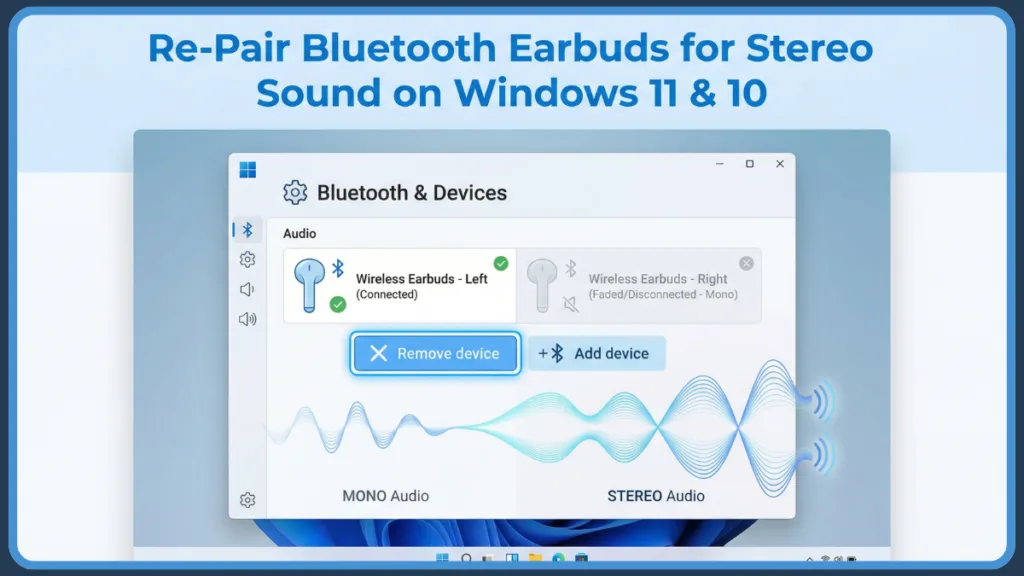
These issues are extremely common on both Windows 11 and Windows 10. Fortunately, they are rarely permanent.
Most stereo problems happen because Windows connects your earbuds using the wrong Bluetooth audio profile or stores incomplete pairing data from a previous connection.
In this complete guide, you’ll learn exactly how to re-pair Bluetooth earbuds for stereo sound on Windows, fix mono audio problems, switch to the correct stereo profile, and prevent the issue from happening again. You will also understand why the issue occurs in the first place, how Windows handles Bluetooth audio internally, what role Bluetooth codecs play, and what additional configuration changes can improve long-term audio stability and sound clarity.
Want a Quick Fix? Here’s How to Restore Stereo Sound in Just 5 Minutes
If you want the fastest working solution, start here. This method resolves most stereo issues without advanced troubleshooting.
Follow These Steps:
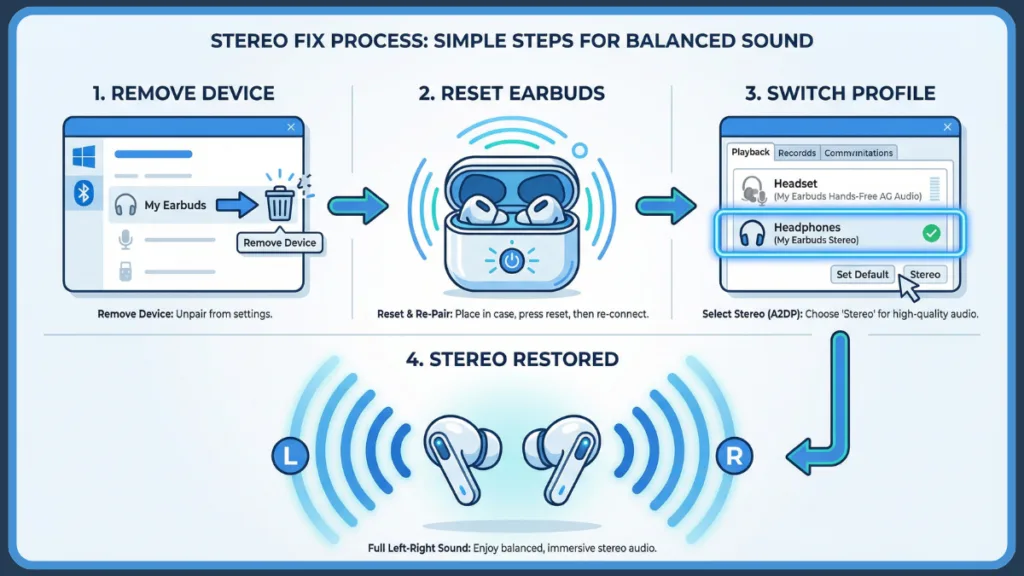
- Remove your earbuds from Windows Bluetooth settings.
- Reset the earbuds using the physical button or touch gesture described in your manual.
- Turn Bluetooth off and back on in Windows.
- Click “Add device” and reconnect your earbuds as a new device.
- Test the connection using a left/right stereo audio test video.
This clean pairing process forces Windows to forget the old profile and load the correct stereo configuration. In many cases, this alone restores full stereo sound immediately.
If stereo still doesn’t work after reconnecting, continue with the detailed fixes below. Even if this quick fix works, understanding the deeper causes ensures you don’t run into the same issue again.
Additionally, before starting the process, make sure:
- Your earbuds are charged to at least 50% battery
- You are within close Bluetooth range (under 10 feet)
- No other Bluetooth audio devices are actively connected
These small precautions significantly increase pairing success.
Why Are Your Bluetooth Earbuds Playing in Mono on Windows?
Before applying fixes, it helps to understand why this problem occurs. Windows manages Bluetooth audio differently than smartphones, and that difference often causes confusion. Unlike phones, Windows exposes multiple Bluetooth audio profiles separately, which can lead to incorrect default selection.
Is Windows Choosing the Wrong Audio Profile?
Bluetooth audio devices support multiple profiles for different purposes:
- A2DP (Advanced Audio Distribution Profile) – Designed for high-quality stereo music playback
- HFP/HSP (Hands-Free Profile) – Designed for calls and microphone use, usually mono and lower quality
When Windows activates the hands-free profile instead of A2DP, your earbuds switch to mono mode with compressed sound. This often happens automatically if a microphone is detected or if a conferencing app is active.
This is the most common reason users need to re-pair Bluetooth earbuds for stereo sound on Windows.
Many users notice that as soon as they open a call app like Zoom or Teams, the sound quality drops. That is because Windows automatically prioritizes microphone-enabled profiles, which reduces audio output to mono for stability.
In technical terms, HFP routes both microphone input and speaker output through a lower-bandwidth channel. This reduces stereo separation and overall clarity.
Is Windows Detecting Two Separate Devices?
Some earbuds appear twice in the Playback list:
- “Earbuds Stereo”
- “Earbuds Hands-Free AG Audio”
If Windows sets the hands-free entry as default, audio becomes mono. Selecting the stereo entry immediately improves sound quality.
This dual-entry behavior is normal. It simply reflects two different Bluetooth profiles being exposed to the operating system. Understanding this prevents confusion. Seeing two entries does not mean your earbuds are broken—it simply means Windows recognizes both audio modes.
Could Corrupted Pairing Data Be Causing the Problem?
Windows stores Bluetooth pairing information. If that data becomes corrupted or outdated, the system may:
- Connect only one earbud
- Load incomplete audio settings
- Trigger incorrect profile activation
- Fail to synchronize both left and right channels
Common causes include:
- Old saved entries
- Duplicate device listings
- Interrupted pairing attempts
- Sudden power loss during connection
Removing the device completely clears these conflicts and allows a fresh configuration to be created.
Think of it as resetting the relationship between Windows and your earbuds.
Are Outdated Bluetooth Drivers to Blame?
Bluetooth drivers handle communication between Windows and your adapter. Older drivers may struggle with:
- Modern Bluetooth 5.0, 5.2, or 5.3 earbuds
- Advanced audio codecs like AAC or aptX
- Dual-earbud synchronization
- LE Audio implementation
Updating drivers often improves stability, stereo performance, and latency. In some cases, however, rolling back to a previous stable version works better if a recent update introduced compatibility issues.
Driver mismatches are particularly common on laptops with older Intel or Realtek wireless cards.
Is Windows 11 LE Audio Affecting Your Stereo Sound?
Windows 11 introduced Bluetooth Low Energy (LE) Audio support. While this improves efficiency and battery life, not all earbuds handle LE Audio smoothly yet.
If your earbuds partially connect or default to mono after pairing, LE Audio compatibility could be the cause.
Disabling certain advanced features may restore traditional A2DP stereo behavior.
LE Audio is still evolving, and firmware differences across earbud brands can impact performance.
Ready to Re-Pair? Here’s How to Do It on Windows 11
Follow these steps carefully for a clean stereo connection.
Step-by-Step Instructions:
- Open Settings and go to Bluetooth & devices.
- Locate your earbuds in the device list.
- Click the three-dot menu and select “Remove device.” Confirm removal.
- Toggle Bluetooth OFF. Wait 3–5 seconds. Turn it back ON.
- Click “Add device” and choose Bluetooth.
- Wait for your earbuds to appear.
Before selecting them, ensure:
- Both earbuds are powered on
- Both earbuds are in pairing mode
- You are within 3 feet of the PC
Click your earbuds once. Do not select individual “L” or “R” entries separately if they appear.
Wait for Windows to show “Connected.”
Test audio playback with stereo content.
If stereo works, the issue was corrupted pairing data. If it still plays in mono, proceed to profile configuration.
Still Using Windows 10? Here’s How to Re-Pair Your Earbuds
On Windows 10, the interface differs slightly.
Follow These Steps:
- Open Settings.
- Go to Devices > Bluetooth & other devices.
- Select your earbuds and choose “Remove device.”
- Click “Add Bluetooth or other device.”
- Select Bluetooth and reconnect.
- Test with music or a stereo test clip.
Ensure the old device entry was fully removed before attempting pairing again.
Is the Hands-Free Profile Overriding Stereo? Here’s How to Fix It
If your earbuds connect but still sound mono, Windows may be using the wrong profile.
Fix It Like This:
- Right-click the speaker icon in the taskbar.
- Choose Sound settings.
- Scroll down and click More sound settings.
- In the Playback tab, locate: Earbuds Stereo, Earbuds Hands-Free
- Right-click the Stereo version and select “Set as Default Device.”
- Right-click the Hands-Free entry and choose “Disable.”
This forces Windows to use A2DP stereo instead of the call-based mono profile. If you need microphone access later, you can temporarily enable the Hands-Free profile when required.
Is Windows Using the Wrong Audio Format? Switch to 2-Channel Stereo
Windows sometimes selects an incorrect channel configuration.
Change the Format:
- Open Sound settings.
- Click your earbuds under Output.
- Select Device properties → Additional device properties.
- Go to the Advanced tab.
- Choose: 2 Channel, 16 bit, 48000 Hz (DVD Quality)
- Click Apply and test again.
If available, you may also try:
- 2 Channel, 24 bit, 48000 Hz
Selecting a 2-channel format guarantees proper left and right separation. Higher bit depth can sometimes improve clarity depending on driver support.
Still Not Fixed? Try These Advanced Solutions
If basic re-pairing doesn’t resolve the issue, apply these deeper troubleshooting steps.
Should You Update or Roll Back Bluetooth Drivers?
- Open Device Manager.
- Expand Bluetooth.
- Right-click your Bluetooth adapter and choose “Update driver.”
- If needed: Open Properties → Driver tab → Roll Back Driver
- Restart your PC before testing again.
Driver refresh often reinitializes the Bluetooth audio stack.
Would Restarting Bluetooth Services Help?
- Press Windows + R.
- Type services.msc.
- Locate Bluetooth Support Service.
- Right-click and select Restart.
- Ensure Startup Type is set to Automatic.
- Also restart Device Association Service if listed.
Restarting services refreshes the Bluetooth stack without rebooting your PC.
Do You Need to Clear the Windows Bluetooth Cache?
- Stop Bluetooth Support Service.
- Navigate to: C:\Windows\System32\config\systemprofile\AppData\Local\Microsoft\Windows\Bluetooth
- Delete all files in that folder.
- Restart the service.
- Reboot your PC.
This forces Windows to rebuild Bluetooth connections from scratch.
Is Intel Smart Sound Technology Interfering?
- Open Device Manager.
- Expand System devices.
- Disable: Intel Smart Sound Technology – Audio Bus, Intel Smart Sound Technology – Bluetooth Audio
- Restart your computer.
This adjustment can resolve profile routing conflicts on some Intel-based systems.
Have You Tried the Windows Bluetooth Troubleshooter?
- Go to Settings → System → Troubleshoot → Other troubleshooters.
- Find Bluetooth.
- Click Run.
- Follow on-screen instructions carefully.
Could Windows 11 LE Audio Be Causing the Issue?
If you suspect LE Audio is causing mono playback:
- Open Device Manager.
- Locate your Bluetooth adapter.
- Open Properties.
- Review supported features.
- Temporarily disable LE Audio support if necessary to restore classic A2DP stereo mode.
Want More Stable Stereo? Optimize Your Bluetooth Performance
Even after fixing stereo, performance can degrade due to interference.
Improve Stability By:
- Keeping earbuds within 30 feet
- Avoiding thick walls or metal surfaces
- Disconnecting unused Bluetooth devices
- Keeping adapter away from USB 3.0 ports
Consider upgrading to a USB Bluetooth 5.0 or 5.3 adapter for better performance.
Could It Be a Hardware Problem Instead?
Not every stereo problem is software-related.
Is Your Bluetooth Adapter Too Weak?
Symptoms include:
- Frequent disconnections
- Short range
- Audio dropouts
- Only one earbud connecting
Upgrade to a modern adapter if needed.
Is USB 3.0 Causing Interference?
Move your Bluetooth adapter to a USB 2.0 port for reduced interference.
Could Battery Imbalance Be the Reason?
Charge both earbuds to at least 50% before pairing.
Have You Tested for Hardware Failure?
Connect earbuds to a smartphone:
- If stereo works there → Windows configuration issue
- If one side fails everywhere → Hardware problem
How Can You Prevent Stereo Problems in the Future?
Follow these best practices:
- Avoid pairing with too many devices
- Remove unused Bluetooth entries
- Check for Windows updates monthly
- Update earbud firmware
- Configure Zoom or Teams to use built-in microphone
Keeping your Bluetooth environment clean reduces conflicts and prevents mono audio issues.
Frequently Asked Questions
Why do my Bluetooth earbuds only work in mono on Windows?
Windows likely activated the Hands-Free profile instead of the Stereo (A2DP) profile. Set the Stereo version as default and disable Hands-Free.
Why do my earbuds show two devices in Windows?
They support separate profiles for stereo audio and calls. Select the Stereo entry.
How do I completely reset Bluetooth settings in Windows?
Stop Bluetooth Support Service, delete Bluetooth cache files, restart service, reboot PC, and re-pair.
Why does Windows switch to Hands-Free during calls?
Call apps activate the microphone automatically, forcing hands-free profile.
Can I use two different earbuds together on Windows?
No. Both earbuds must belong to the same paired set.
Conclusion: Restore True Stereo Sound with the Right Setup
Stereo sound creates depth, immersion, and comfort when listening to music or watching videos. When Windows loads the wrong profile or stores outdated pairing data, that experience disappears.
In most cases, simply removing the device and re-pairing Bluetooth earbuds for stereo sound on Windows restores full functionality.
For persistent issues, adjusting audio profiles, updating drivers, clearing Bluetooth cache, and optimizing your adapter will resolve nearly every scenario.
With a clean connection and the correct profile selected, your earbuds should consistently deliver clear, balanced stereo audio every time you connect.
Official Microsoft Troubleshooting Guides
- Fix Bluetooth problems in Windows – Microsoft’s primary hub for basic Bluetooth connection and audio issues, including pairing problems and general Bluetooth troubleshooting steps.
- Fix Bluetooth connected but no sound issue on Windows – This page matches your mono / no sound troubleshooting section. It covers steps like adjusting audio format to 2 channels, 16 bit, 48000 Hz (DVD Quality) and re-pairing Bluetooth audio devices.
- Update Bluetooth drivers in Windows – Microsoft’s step-by-step guide on updating (and rolling back) Bluetooth drivers using Device Manager — exactly what you describe in your advanced troubleshooting section.
- Bluetooth Classic Audio Architecture (A2DP vs HFP) – Official Microsoft documentation on how Windows handles A2DP (high-quality stereo) versus HFP (hands-free, mono) Bluetooth audio profiles and how playback behavior changes based on input/output streams.
- Check if a Windows 11 device supports Bluetooth Low Energy Audio (LE Audio) – Microsoft’s page detailing how to verify Bluetooth LE Audio support and what it means for improved stereo + voice performance on supported devices.
Visit Our Post Page: Blog Page