
Sent a meeting invite by mistake? Learn how to recall a meeting invite in Outlook, what actually works, and the fastest way to cancel or fix it now.
You’re not alone. You send a meeting invite, your stomach drops, and you immediately realize something’s wrong—the date, the link, the attendees, or all three. At that moment, you’re not looking for theory or Outlook history. You’re looking at your screen, scanning menus, trying to undo the damage right now.
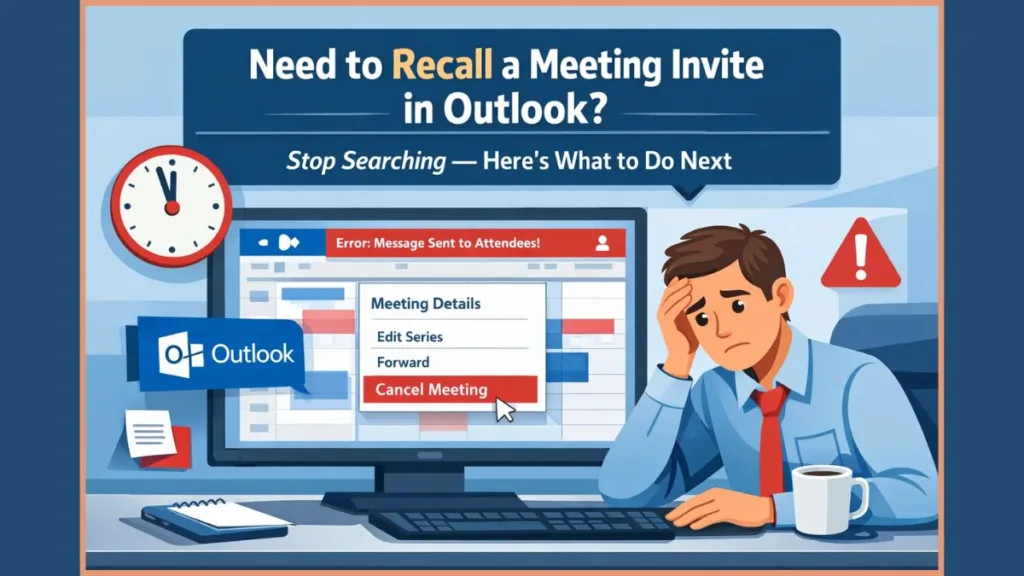
Take a breath. This is common, fixable, and you’re not the first person to panic over it. I’ll walk you through exactly what Outlook can do, what it absolutely cannot do, and the fastest, least messy way to recover—step by step, as if I’m standing next to you while you click.
Can You Recall a Meeting Invite in Outlook?
Short answer, so you stop hunting for the wrong button: no, you cannot recall a meeting invite in Outlook.
If you’re actively searching your screen for something labeled Recall Outlook meeting invite, Unsend meeting invite Outlook, or Retract meeting invitation Outlook, stop. That feature does not exist. Outlook never had it, and it hasn’t quietly moved or been renamed.
This confusion happens because Outlook does have Recall This Message for emails. A meeting invite looks like an email, lands in inboxes like an email, and even sits in Sent Items like an email—but it is not an email. It’s a calendar object. Once it’s sent, Outlook treats it as a live scheduling item tied to everyone’s calendar, not something you can pull back.
2025 Update: Even with the new Cloud-Based Message Recall feature introduced for Exchange Online (which allows recalling read emails), this still does not apply to meeting invites. The “Recall” button remains exclusively for email messages.
“If you’re looking for a silent undo, Outlook does not offer one for meeting invites.”
Once you accept that, everything else becomes much clearer—and much faster to fix.
Why Outlook Doesn’t Allow Recalling Meeting Invites
As you look at the invite you sent, what you’re actually seeing is a scheduling record where you are the Organizer and everyone else is listed as Attendees. The moment you clicked Send, Outlook created calendar entries on other people’s devices and started tracking responses in the background.
At this point, Outlook is managing several things at once: attendee availability via the Scheduling Assistant, response tracking (Accepted, Declined, Tentative), and calendar sync across desktop, web, and mobile. This is why recall isn’t possible. There’s no single “message” to pull back—there are already multiple calendar states in play.
This limitation comes from how Outlook Calendar is designed by Microsoft, not from a missing permission or hidden advanced setting. Even admins can’t override it after the invite is sent.
What You Can Do Instead When You Sent a Meeting Invite by Mistake
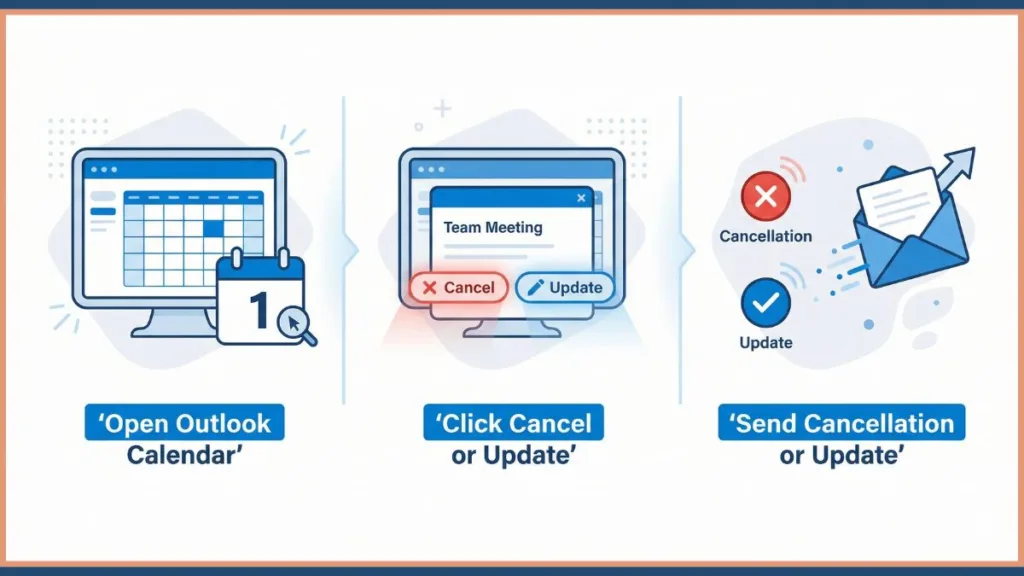
Once recall is off the table, you have two real tools that actually work: canceling or updating the meeting. Which one you choose depends on what you’re trying to fix.
How to Cancel a Meeting in Outlook (The Closest Thing to a Recall)
If the meeting should not exist at all—wrong people, wrong purpose, wrong context—canceling is the cleanest option.
What Happens When You Cancel a Meeting Invite As you open the meeting from your calendar and click Cancel Meeting, Outlook prepares a meeting cancellation notice. When you send it, Outlook removes the meeting from attendees’ calendars and stops tracking responses. This works even if people already accepted.
This is not subtle, and it’s not silent—but it is reliable.
“Canceling a meeting is the only way to remove it from everyone’s calendar.”
How to Cancel a Meeting in Outlook Desktop (Classic Windows)
As you look at your Outlook window, open Calendar, then double-click the meeting you created. At the top ribbon, click Cancel Meeting. Outlook will prompt you to send a cancellation message. You can leave it blank or add a short explanation. When you click Send Cancellation, the meeting is removed from attendees’ calendars.
If you don’t see Cancel Meeting, you are not the organizer. Outlook will not let attendees cancel meetings they didn’t create.
How to Cancel a Meeting in “New Outlook” and Web (Outlook 365)
The New Outlook for Windows interface (toggle switch in top right) has changed the button layout slightly.
- Open your Calendar and single-click the event to see a preview card, or double-click to open the full window.
- Look for the Cancel button (often an icon with a circle and slash
🚫or a trash can🗑️labeled “Cancel”). - Crucial Difference: In New Outlook, if you are cancelling a recurring series, you must specifically select “Cancel Series” from the dropdown; otherwise, it defaults to cancelling only the single occurrence.
- Once confirmed, the meeting is removed from everyone’s calendar.
Can You Cancel a Meeting from the Outlook Mobile App?
Here’s where people get stuck. On mobile, Outlook often hides or limits organizer controls. You may notice there’s no clear Cancel Meeting button, or the options feel incomplete.
iOS/Android Update: Recent updates have added a “Delete” button for organizers, but be careful—this often only deletes the event from your app unless it explicitly asks to “Send Cancellation.”
Recommendation: If you need to cancel properly—especially for a recurring meeting or a meeting with many attendees—switch to desktop or web. Mobile is not reliable for full organizer actions.
How to Edit a Meeting Invite You Already Sent Instead of Canceling
If the meeting itself is valid but the details are wrong, canceling may be overkill. This is where Update meeting comes in.
When you reopen the meeting and change the date, time, location, link, or attendees, Outlook prepares an update. When you click Send Update, Outlook pushes those changes to everyone’s calendar.
The “Send to Changed” Feature (Classic vs. New Outlook):
Classic Outlook: As you send the update, a popup will ask: “Send updates only to added or deleted attendees” OR “Send updates to all attendees.” Choose the first option to fix a small mistake without spamming everyone.
New Outlook/Web: Outlook attempts to handle this smartly in the background. If you only added a person, it often defaults to emailing only that person. However, for time/location changes, everyone always gets an update notification.
This approach is ideal when you:
- Sent the wrong date or time
- Forgot to add the meeting link
- Need to remove or add a single attendee
- Need to fix a typo or agenda detail
Cancel Outlook Meeting for One Person Without Breaking Everything
If one attendee should not be there, open the meeting, remove that person from the attendee list (click the ‘X’ next to their name in the Scheduling Assistant), and send an update. Outlook will notify that person that they’ve been removed, and everyone else keeps the meeting unchanged.
This is safer than canceling and recreating the meeting, especially if others already accepted.
Why Deleting a Meeting from Your Calendar Does Not Work
This is one of the most stressful mistakes people make.
If you delete the meeting from your own calendar without canceling it, Outlook only removes your copy. Attendees keep the meeting, tracking remains active, and confusion follows.
“Delete removes it for you. Cancel removes it for everyone.”
Advanced Workaround: Deleting Without Notifying (Admin Only) If you were searching for Delete meeting from calendar without notifying attendees Outlook, know that Outlook does not support a clean, silent version of this for standard users.
The “Work Offline” Trick: Old advice suggested going Work Offline, deleting the meeting, and then deleting the cancellation email from your Outbox. Warning: This does not work in New Outlook or Outlook for Mac, as they sync directly with the server.
PowerShell Method (Admins): For IT admins in 2025, there is a “nuclear option” using PowerShell (Remove-MgUserEvent). This deletes the event silently but requires admin permissions and is not for the average user.
Why “Recall This Message” Will Never Fix a Meeting Invite
You may be tempted to open Sent Items, double-click the invite, and look for Recall This Message. Even if you see it for emails, it does not apply here.
Email recall only works under strict conditions: same Exchange environment, unopened message, and email format. Meeting invites bypass inbox rules and are handled by the calendar system instead.
That’s why recalling an updated meeting invite or recalling a meeting sent on behalf of someone else doesn’t work either. The moment it becomes a calendar object, recall is off the table.
Common Outlook Meeting Problems and the Fastest Fix
Why Is the Cancel Button Missing in Outlook?
If you’re staring at the meeting and don’t see Cancel, you’re either not the organizer, viewing a Shared Calendar, or using mobile. Outlook only grants cancellation rights to the organizer.
What Happens When You Delete a Meeting Invite from Sent Items?
Nothing. Sent Items is just a record. Deleting it does not affect calendars, attendees, or tracking status.
Can You Recall a Meeting Invite Without Them Knowing?
No. Any real fix involves a cancellation or update notification. Outlook does not offer a hidden or silent undo for meeting invites.
What You Should Do Right Now
If the meeting should never have existed, cancel it immediately. If the meeting is valid but wrong, update it cleanly. Do not delete it and hope it disappears. Do not keep searching for recall—it will only waste time you don’t have.
This situation feels urgent and uncomfortable, but Outlook gives you the tools you need—as long as you use the right ones.
Visit Ou Post Page: Blog Page