
Received an Apple Gift Card? Learn how to redeem your Apple Gift Card on iPhone, iPad, Mac, Windows, Android, or online in 2026—plus fixes if your code isn’t working.
Received an Apple Gift Card? Here’s How to Use It
Just got an Apple Gift Card and wondering what to do next? You’re in the right place. Whether it came as a birthday surprise, a holiday gift, or a quick digital voucher, knowing how to redeem an Apple Gift Card is the key to unlocking its value.
Once redeemed, your gift card amount is added to your Apple Account balance, which you can use for apps, games, subscriptions, music, movies, and more—across all devices signed in with your Apple ID. The process is simple, secure, and works on iPhone, iPad, Mac, Windows, Android, and even through a web browser.
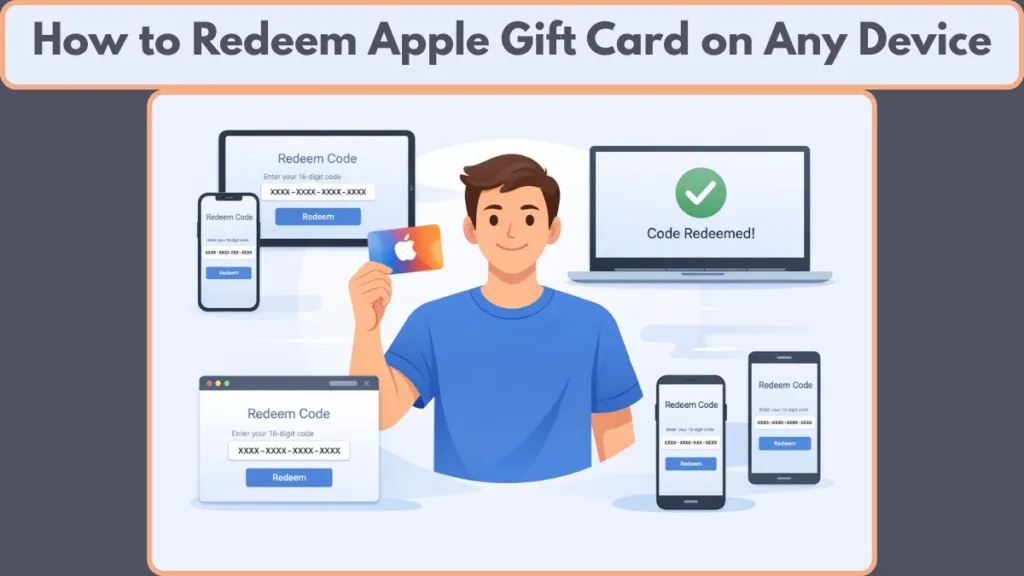
The best part? You don’t need to be tech-savvy. With a 16-digit code and a few taps, you can redeem your card using the App Store, Apple Wallet, or official tools provided by Apple. This guide walks you through everything—clearly, calmly, and without confusion—so you can start spending your balance the right way.
Let’s get you set up and using your gift card with confidence.
What Is an Apple Gift Card & How Does It Work?
An Apple Gift Card is a prepaid digital or physical voucher that adds money directly to your Apple Account balance. Instead of acting like a coupon at checkout, it works more like stored credit—once redeemed, the value sits safely in your account and is ready to use whenever you need it.
Here’s how it works in simple terms: every Apple Gift Card includes a 16-digit redemption code. When you redeem that code using an Apple-approved method, the amount is instantly credited to your Apple ID. From that point on, you’re no longer dealing with a card—you’re spending from your account balance across Apple services.
What makes this especially convenient is how seamless it is. Your balance follows your Apple ID, not a single device. That means purchases made with your Apple Gift Card are available on all devices where you’re signed in—whether that’s an iPhone, iPad, Mac, or even a different operating system using a browser. No transfers, no syncing steps, no extra setup.
Another important detail: an Apple Gift Card is not refundable and not convertible to cash. Once redeemed, the value stays in your Apple Account and can only be used for eligible Apple purchases. This design keeps payments secure and prevents misuse, which is why redemption must be done through official Apple channels provided by Apple.
Types of Apple Gift Cards (Know Before You Redeem)
Before redeeming, it’s essential to understand that not all Apple gift cards work the same way. Apple offers different card types, and using the wrong one for a specific purchase can lead to confusion—or failed checkouts.
Apple Gift Card
This is the most flexible option and the one most people receive today. It can be used for both digital content and, in supported regions, physical Apple products. If you want one card that covers apps, subscriptions, and even accessories, this is it.
App Store & iTunes Gift Card
This card is strictly for digital purchases. It works inside the App Store and related services for things like apps, games, movies, music, and subscriptions. It cannot be used to buy hardware or accessories.
Apple Store Gift Card
This version is designed only for physical purchases. You can use it at Apple Stores or on Apple’s website to buy devices and accessories—but not apps, subscriptions, or digital content.
Understanding these differences upfront saves time and helps you redeem your card with clear expectations about where and how the balance can be used.
What Can You Buy with an Apple Gift Card?
Once your Apple Gift Card is redeemed, the balance unlocks a wide range of purchases within Apple’s ecosystem. The exact options depend on the card type and your region, but the most common uses include:
- Apps and games from the App Store
- In-app purchases for premium features and upgrades
- Subscriptions such as music storage, cloud services, and media platforms
- Movies, TV shows, and music available through Apple services
- Apple products and accessories (where supported by your card and country)
One key thing to know: for certain purchases, Apple may still ask you to keep a payment method on file, even if your account balance covers the cost. This is normal and doesn’t mean your gift card didn’t work—it’s simply an account requirement for specific transactions.
In short, an Apple Gift Card gives you flexible spending power inside Apple’s ecosystem, making it a simple and reliable way to pay—without repeatedly entering card details or worrying about individual device limits.
Before You Redeem: What You’ll Need
Getting ready before you redeem your Apple Gift Card makes the entire process faster, cleaner, and error-free. A few simple checks now can save you from common issues later.
A signed-in Apple ID
Make sure you’re already logged in with your Apple ID on the device you plan to use. This is critical because the gift card value is added directly to your Apple Account balance. If you’re not signed in, the Redeem Gift Card or Code option may not appear at all.
The 16-digit Apple Gift Card code
Every Apple Gift Card comes with a 16-digit code. On physical cards, you may need to scratch or peel the label to reveal it. For digital or emailed cards, the code is visible instantly or applied through a Redeem Now button. Keep the code clear and readable to avoid entry errors.
A stable internet connection
Redeeming an Apple Gift Card requires an active internet connection. Since the process verifies the code with Apple’s system in real time, a weak or interrupted connection can prevent the balance from being added successfully.
Camera access (optional but recommended)
If your device supports it, enabling camera access allows you to scan the gift card instead of typing the code. This is the fastest and most accurate method. If scanning doesn’t work, you can always switch to manual code entry without any issues.
An official Apple redemption method
Always redeem your card using trusted options like the App Store, Apple Wallet, or Apple’s official redemption page. This ensures your balance is applied securely, instantly, and without risk to your account.
With these essentials in place, you’re fully prepared to redeem your Apple Gift Card smoothly and move on to spending your balance with confidence.
How to Redeem Apple Gift Card on iPhone or iPad
If you use an iPhone or iPad, redeeming an Apple Gift Card is one of the quickest and most user-friendly ways to add credit to your Apple Account balance.
Redeem Apple Gift Card Using the App Store
Apple integrates this functionality straight into the App Store app, so you don’t need separate tools or extra downloads.
1. Locate the 16-digit gift card code: Every gift card comes with a unique 16-digit redemption code. On physical cards, you may need to gently scratch or peel the back label to reveal it. Digital cards often show this code right in your email.
2. Open the App Store on your device: Tap the App Store app on your iPhone or iPad. This is the central hub for redeeming cards and making purchases.
3. Access your Apple ID profile: At the top of the screen, tap your profile picture, initials, or the sign-in icon to open your account menu.
If you’re not signed in, Apple won’t show the redeem option.
4. Select “Redeem Gift Card or Code”: In your account menu, tap Redeem Gift Card or Code. This unveils a secure Apple redemption interface.
5. Choose how you want to redeem: You’ll see two main methods:
Use Camera — Position your gift card in view and let your device read the code (often faster and more accurate).
Enter Code Manually — Tap the manual entry option and type the code yourself if the camera scan doesn’t work.
6. Confirm and finish redemption: Once your code is accepted, tap Redeem (or Done, depending on your version). Your Apple Account balance updates instantly, and you can start spending right away.
After redemption, you no longer need the physical or digital card—your balance lives within your Apple ID and is ready for purchases across your Apple devices.
How to Redeem Apple Gift Card Using Apple Wallet (iPhone)
Redeem Directly from Apple Wallet
Another convenient way to use your gift card on an iPhone is through Apple Wallet. This is especially helpful if you like a centralized spot to manage balances and payments. Wallet acts as a digital holding place for your Apple Account and other passes, thanks to Apple’s built-in digital wallet system.
1. Open the Wallet app on your iPhone: Launch Apple Wallet from your Home Screen. This app lets you store payment cards, passes, and your Apple Account card.
2. Add your Apple Account (if needed): If you don’t see your Apple Account card yet:
- Tap the “+” icon
- Choose Add Apple Account to Wallet
- Follow the prompts to link it to your Apple ID
Once added, your Apple Account card becomes visible in Wallet for easy access and balance checking.
3. Open your Apple Account card: Tap the Apple Account card to expand it and reveal options like viewing your balance, transactions, or redemption tools.
4. Start the redemption process: Tap the More (•••) button, then select Redeem. This opens the same secure redemption flow used by the App Store.
5. Scan or enter the gift card code: Just like in the App Store method, you can:
- Use the iPhone camera to scan your card’s code
- Or tap Enter Code Manually if scanning isn’t possible or practical
6. Complete redemption and check your balance: After confirming, your gift card’s value is added to your Apple Account balance, and you’ll see it listed right in Apple Wallet. This makes it easy to check and spend when buying apps, subscriptions, or other Apple services.
This route is ideal if you prefer having your credit and spending tools all in one place, straight inside Apple Wallet.
Both methods are official, secure, and supported by Apple, so choose whatever feels easiest for you.
How to Redeem Apple Gift Card on Mac
If you’re on a Mac, redeeming an Apple Gift Card is just as smooth and official as on iPhone or iPad—Apple built the redemption process directly into the App Store for desktop users.
Redeem Using the App Store on macOS
The following steps walk you through everything, so your Apple Account balance updates quickly and securely.
1. Find the 16-digit gift card code: Start by locating the 16-digit code printed on the back of your gift card. If it’s a physical card, you may need to gently peel or scratch the protective label to reveal the full code. This code is essential for adding the balance to your Apple ID account.
2. Open the App Store: On your Mac, launch the App Store app from your Dock or Applications folder. This is where all Apple digital purchases and redemptions are handled.
3. Go to your account page: Look in the sidebar and click your name or the sign-in button at the bottom left. If you’re not already signed in with your Apple ID, you’ll be prompted to do so before you can continue.
4. Select “Redeem Gift Card”: Once your account page is open, find and click Redeem Gift Card toward the top right of the window. This brings up Apple’s secure redemption interface.
5. Scan or enter the code: You have two options here:
- Use Camera: If your card’s code has a clear box around it, you may be able to scan it using your Mac’s built-in camera.
- Enter Code Manually: If scanning isn’t an option or doesn’t work, you can always type the code in yourself.
6. Confirm and finalize: After entering or scanning the code, follow the on-screen prompts to complete redemption. The balance should reflect in your Apple Account balance right away, ready for purchases like apps, games, subscriptions, and compatible services.
Tip: Once redeemed, this balance is tied to your Apple ID and can be used across your linked Apple devices—so you don’t need to keep the physical card after redemption.

How to Redeem Apple Gift Card on Windows PC
For users on a Windows PC, Apple still supports gift card redemption through official applications like iTunes, Apple Music, or Apple TV.
Redeem Using iTunes or Apple Apps on Windows
Even though Mac and iPhone have dedicated App Store methods, Windows users can follow a reliable redemption pathway too.
1. Locate the 16-digit code: As with other devices, begin by finding the 16-digit gift card code on your card. If it’s hidden, gently peel or scratch off the backing to make it visible.
2. Open iTunes (or Apple Music / Apple TV app): Launch iTunes on your Windows PC. If you don’t have it installed, you can download it from the Microsoft Store or from Apple’s official Windows support site. Some users also redeem through the Apple Music or Apple TV apps, depending on what’s installed on their system.
3. Sign in with your Apple ID: Make sure you’re signed in with the Apple ID you want to apply the gift card balance to. If not, choose Account > Sign In at the top of the iTunes window.
4. Select “Redeem”: Once signed in, go to the Account menu at the top of the window and choose Redeem. This will open Apple’s official code entry screen.
5. Enter your gift card code: Type in your 16-digit code and double-check the characters before proceeding—codes are case-sensitive and must be entered exactly as printed.
6. Finish and confirm: After submitting the code, follow any prompts to finish the redemption process. Your Apple Account balance should update promptly and can be used for digital purchases linked to your Apple ID.
Insider tip: If you can’t redeem via iTunes, you can sometimes redeem through the Music app or TV app on Windows, or even through a browser by visiting Apple’s dedicated redemption page and signing in with your Apple ID.
Both of these methods ensure your Apple Gift Card value is applied securely and correctly, just as Apple intends, and gives you the flexibility to redeem on whichever device you’re using.
How to Redeem Apple Gift Card on Android
Redeeming an Apple Gift Card when you’re on Android works a bit differently than on Apple devices. While older versions of the Apple Music app let you enter your code directly, recent changes mean this option isn’t always available inside the app itself on Android.
Redeem Using the Apple Music App or Web Browser
In many cases, the best way to redeem is through a web browser, which still lets you apply the gift card to your Apple account without needing an iPhone or Mac.
1. Open your web browser: Launch a modern browser like Chrome, Firefox, or Edge on your Android device.
2. Go to Apple’s official redemption page: Visit the secure URL where Apple accepts gift card codes directly: apple.com/redeem. This is the official web redemption option provided by Apple and tied to your Apple ID.
3. Sign in with your Apple ID: Use the Apple ID you want the balance added to. Make sure this is the same account you use for the App Store, Apple Music, and other Apple services.
4. Enter your 16-digit gift card code: Carefully type in the full code exactly as it appears. A small typo can lead to an error, so double-check before submitting.
5. Confirm and complete redemption: After submitting the code, the amount will be added to your Apple Account balance. You’ll see the updated balance whenever you sign in to Apple services using that account.
Tip: If your version of the Apple Music app on Android still shows a Redeem Gift Card or Code option under the Account section, you can try entering your code there first—but this isn’t available on all versions and may vary by region or app update.
This web-based method is the most reliable and supported path for Android users since Apple doesn’t currently provide a store app on Android specifically for gift card redemption.
How to Redeem Apple Gift Card in a Web Browser (Any OS)
If you’re on a Windows PC, Android device, Linux machine, or any platform where Apple apps aren’t installed, using a web browser to redeem your Apple Gift Card is a powerful and flexible option.
Redeem Directly from Apple’s Official Website
1. Open a web browser: Use any current browser such as Chrome, Firefox, Safari, or Edge.
2. Visit Apple’s official redemption site: Go to the secure page at apple.com/redeem. This page is supported by Apple for gift card redemption through a browser and ensures your code is processed securely and correctly.
3. Sign in with your Apple ID: Enter the Apple ID where you want the gift card balance to be applied. Signing into the correct account matters because the balance is tied directly to that Apple ID.
4. Type in the 16-digit gift card code: Carefully enter the full 16-digit code. Make sure there are no typos, and avoid inserting spaces before or after the code.
5. Submit and confirm: Once accepted, the balance is added instantly to your Apple Account balance and will show across all devices linked to that Apple ID.
Redeeming via a web browser is especially useful when:
- You don’t have access to Apple apps on your device
- You’re using a shared or public system
- Your device doesn’t support native Apple Store or Apple Music apps
Even though the experience doesn’t involve scanning with a camera, it’s equally official, secure, and reliable, and it works regardless of your device’s operating system.
How to Redeem an Apple Gift Card Sent by Email
If your Apple Gift Card was delivered straight to your inbox, you’re in for one of the most user-friendly redemption experiences Apple offers. Because digital delivery skips the physical card entirely, Apple simplifies the path to adding your gift value to your Apple Account balance—often with just a few clicks.
1. Open the email that contains your gift card: Start by locating the exact message Apple (or the sender) sent. If it landed in a secondary tab like Promotions or Updates, check there too. Make sure you use the email that’s tied to your Apple ID or one you can easily log into.
2. Tap or click the “Redeem Now” button: Inside that email, you should see a Redeem Now button. This is Apple’s official link that takes you directly to the secure redemption page on apple.com.
This button is designed to eliminate manual steps—so you don’t have to hunt for any codes yourself.
3. Sign in with your Apple ID if prompted: If you haven’t already signed in on your device or browser, Apple will ask for your Apple ID and password. Be sure it’s the same Apple ID account where you want the funds applied.
Your gift card value is linked to your Apple Account, not the email, so this step ensures it lands in the right place.
4. Confirm the redemption on the Apple site: Once you’re signed in, follow the on-screen prompts to confirm you want to redeem the card. Depending on how the email was sent, you may see a preview of the amount before confirming.
5. Check your updated Apple Account balance: After redemption is complete, the value should show up immediately in your Apple Account balance. You can check this in:
- The App Store under your profile
- Apple Wallet (if added)
- Your Apple ID account page online
This balance is now ready for use on apps, games, subscriptions, music, and more.
What if you don’t see the email or “Redeem Now” button?
If you can’t locate the gift card email:
- Search your inbox for terms like Apple Gift Card or Redeem
- Check your spam or promotions folders
- Ask the sender to resend the gift email if it was sent to the wrong address
By following these steps, email-based gift cards become one of the easiest ways to add credit to your Apple account—no codes to type, no camera scans, just a reliable, Apple-managed flow that gets you ready to spend in seconds.
Apple Gift Card Not Redeeming? Common Issues & Fixes
Even when you follow all the steps correctly, your Apple Gift Card might still refuse to redeem. The good news is that most of these roadblocks are common—meaning they have simple, reliable fixes.
You’re not signed in to your Apple ID: If the Redeem Gift Card or Code option doesn’t show up in the App Store or Wallet, it often means you’re not signed in with your Apple ID. Signing in correctly usually resolves this right away.
Typos in the gift card code: Because the 16-digit code is a mix of letters and numbers, it’s easy to misread or mistype characters (for example, confusing B vs 8 or O vs 0). When this happens, Apple will show an “invalid code” or similar message.
Fix: Try entering the code manually again — carefully — or scan it if your device allows.
Region mismatch between your Apple ID and the gift card: Apple Gift Cards are region-locked, meaning a card bought in one country won’t work with an Apple ID registered in a different region. For example, a card purchased in the US won’t redeem under an ID set to another country.
Fix: Use an Apple ID registered in the same country where the card was issued, or contact Apple Support for specific options.
Network or connection problems: Sometimes the problem happens before the code is even checked, especially if your internet is unstable or Apple’s servers can’t connect properly.
Fix: Ensure you have strong Wi-Fi or cellular data, turn off VPN or hotspot settings, and try again.
Card already redeemed or balance already applied: If you try redeeming a card that’s already been used—or if the balance is already in your account—you might see errors that seem like a failure.
Fix: Check your Apple Account balance first; the funds may already be added even if it feels like redemption didn’t work.
Gift card not activated at purchase: In some cases, a card may not have been properly activated when it was bought, especially from third-party sellers.
Fix: Contact the seller or the store where you bought the card with your receipt; they can confirm activation or provide a replacement.
Damaged or unreadable code: If the back of your physical Apple Gift Card is scratched, faded, or damaged, scanning and even manual entry become unreliable.
Fix: Reach out to Apple Support with card details or proof of purchase; they may help recover or replace the card.
Apple requires a payment method on file: Sometimes Apple will prompt for a payment method even when you have enough Apple Account balance to cover a purchase—this is an account requirement, not a gift card error.
Fix: Add a valid payment method to your Apple ID and retry the purchase, not the redemption.
Contact Apple Support for persistent issues: If nothing else works or the system keeps showing “cannot redeem” with no clear error, it’s best to seek help directly from official Apple Support. They can check if the card was activated, whether it has already been redeemed, or if there’s a region restriction.
By checking these details one by one, you’ll often find the exact cause of the problem—and fix it—without unnecessary stress or repeated attempts.
FAQs About Apple Gift Card Redemption
Below are the most common questions people ask when redeeming an Apple Gift Card, answered clearly so you can use your balance with confidence and zero confusion.
Where does my Apple Gift Card balance go after redemption?
Your balance is added straight to your Apple Account balance, linked to your Apple ID. You can use it across Apple devices and services after redeeming.
Can I redeem an Apple Gift Card without an iPhone?
Yes — you can redeem it on a Mac, Windows PC, Android (via Apple Music), or any web browser, as long as you sign in with your Apple ID.
What if I received my Apple Gift Card by email?
Just tap the “Redeem Now” link in the email. After signing in with your Apple ID, the value is added immediately — no code typing needed.
Can I use my Apple Gift Card to buy physical Apple products?
Yes, in regions where Apple supports it, your Apple Account balance can be used for devices and accessories at apple.com or in Apple Store apps & physical stores.
Do Apple Gift Cards expire?
Standard Apple Gift Cards do not have an expiration date — you can redeem them anytime.
Can I redeem an Apple Gift Card for cash or transfer the balance?
No. Apple Gift Cards cannot be converted to cash or transferred to another Apple ID once redeemed. They stay as credit in the Apple Account.
Why does Apple ask for a payment method even with balance?
Some purchases (like certain subscriptions or services) require a payment method on file even when your Apple Account balance is sufficient.
Can I use my Apple Gift Card internationally?
Typically not. Apple Gift Cards are region-locked, meaning they must be redeemed with an Apple ID set to the same country/region where the card was issued.
How can I check my Apple Gift Card balance?
After redemption, you can check your Apple Account balance in the App Store, Apple Wallet (on iPhone), or in your Apple ID account settings.
Final Thoughts: Redeem Apple Gift Cards the Right Way
Redeeming an Apple Gift Card doesn’t have to feel confusing or risky. Once you understand where to redeem, which method fits your device, and what your balance can be used for, the process becomes smooth and predictable.
Always redeem your Apple Gift Card using official Apple methods and the correct Apple ID.
That single step prevents most errors and ensures your value is added safely to your Apple Account balance, exactly as outlined in Apple’s official redemption guidance.
Choose the Right Redemption Method for Your Device
Whether you’re redeeming on an iPhone, Mac, Windows PC, Android device, or through a web browser, the goal is always the same:
Get the balance securely into your Apple Account so it’s ready to use.
Once redeemed, your balance can be spent on apps, subscriptions, media, or eligible Apple products, depending on your card type and region. Apple Gift Cards are built to work smoothly across Apple’s ecosystem.
Small Checks That Prevent Big Problems
One practical tip backed by Apple support and user experience is to double-check the 16-digit code before submitting it.
Characters like “0” and “O” or “8” and “B” can look similar and cause failed redemptions.
If a redemption doesn’t work the first time, slow down and recheck the code carefully.
Fix Issues by Verifying the Basics
If something doesn’t work right away, most issues are resolved by checking just three things:
Apple ID sign-in
Gift card type
Region compatibility
Many errors happen when the Apple ID region doesn’t match the gift card’s region or when the wrong card type is used for a purchase.
Simple, Secure, and Stress-Free
Apple Gift Cards are designed for convenience. When redeemed correctly, they work exactly as intended—no extra steps, no confusion.
Use your balance wisely, keep your account details up to date, and enjoy the flexibility of Apple Gift Cards the right way—secure, reliable, and easy to manage within the ecosystem of Apple.
useful Reosouces: Official Apple Support Guides
These are the most authoritative sources for step-by-step redemption instructions.
Official Apple Gift Card Redemption Instructions: Shows how to redeem on iPhone, iPad, Mac, and more.
Official Apple Balance Checker – Lets users check their Apple Account balance after redeeming a gift card.
Troubleshooting Redemption Errors: Offers official fixes if the gift card won’t redeem in the App Store or iTunes.
Visit Our Post Page: Blog Page